Set up SMS Notification for Voicemail
Yeastar P-Series Software Edition supports sending new voicemail notifications with the audio file attached to employees' own mobile numbers or specified recipient numbers via the SMS channel, improving work efficiency. This topic describes how to set up new voicemail SMS notification for an extension.
Requirements
The firmware version of Yeastar P-Series Software Edition is 83.25.0.23 or later.
Prerequisites
- You have enabled global SMS notification settings for voicemail.
- You have configured mobile number for the desired extension (Path: Extension and Trunk > Extension >
 > User > User Information > Mobile Number).
 - You have enabled Voicemail feature for the desired extension.
Procedure
- Log in to PBX web portal, go to Extension and trunk > Extension > > Voicemail > New Voicemail Notification.
- Select the checkbox of New Voicemail SMS Notification
and complete the following settings.
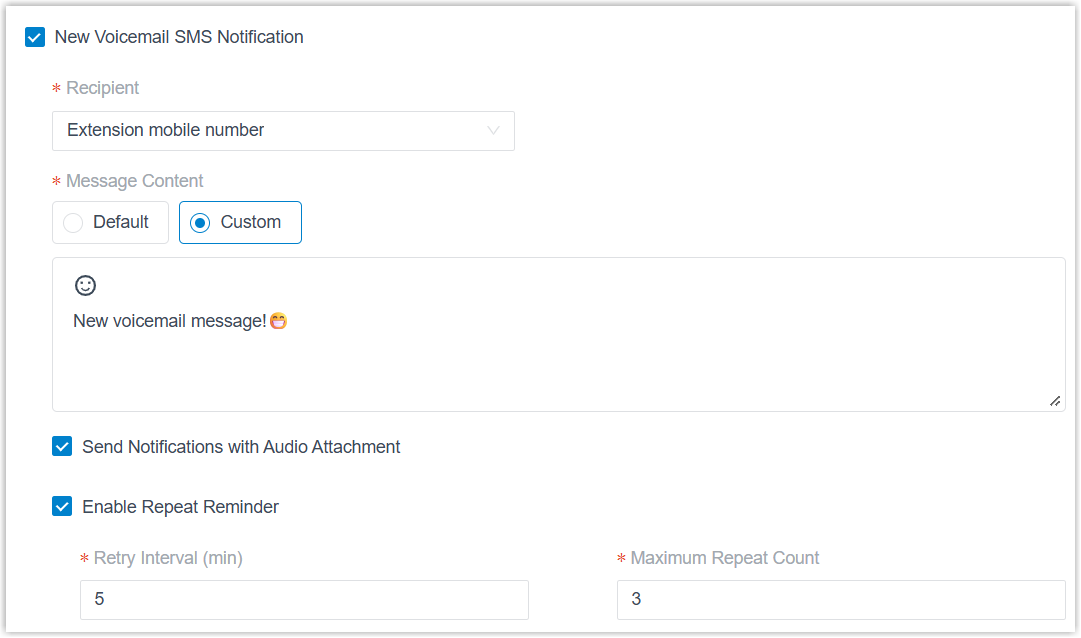
Setting Instruction Recipient Specify the recipient number. - Extension mobile number: The new voicemail notifications will be sent to the mobile number of the extension.
- Custom Number: The new voicemail
notifications will be sent to a custom
number.
After selected, you need to select the country/region code and enter the custom number.
Message Content Configure the message content. - To send the default message content, select
Default.The uneditable default content auto-filled in the text box will be sent.Note: You can modify the global default content at .
- To send the custom message content, select
Custom and fill in the content.Note: The maximum character length is 1600.
Send Notifications with Audio Attachment Optional. Select the checkbox to convert the voicemail message into a .wavaudio file and attach it to the SMS message.Enable Repeat Reminder Optional. Select the checkbox to send notifications repeatedly until either the maximum retry count is reached or the voicemail message is marked as read. After selected, enter numbers in both the Retry Interval (min) and Maximum Repeat Count fields to specify the retry interval in minutes and maximum repeat count.
For example, if Retry Interval (min) is set to "5" and Maximum Repeat Count is set to "3", after the initial reminder for a new voicemail, the system will send SMS messages every 5 minutes for three times until the voicemail message is marked as read.
- In the After Notification drop-down list, set how to handle the voicemail message after the system has successfully notified the recipient by SMS message.
- Click Save and Apply.
Result
- The system sends messages directly without creating a new session; if an active session already exists for the recipient number, the system sends messages within the existing session.
- The message sent logs are recorded in the list of SMS/WhatsApp Sent Logs (Path: ).