Pick up a Call for a Group Member
This topic describes how to set up a function key to monitor and pick up a call for an extension group member.
Background information
For the users who want to monitor call status changes of an extension group they belongs to, and pick up the call on their linkus clients or IP phones, you can set a function key for them, which can be applied on their Linkus UC Client and IP phones.
Prerequisites
- Auto Provision IP Phones in Local Network (PnP Method)
- Auto Provision IP Phones Remotely (PnP Method)
- Auto Provision IP Phones in Local Network (DHCP Method)
- Auto Provision IP Phones Remotely (DHCP Method)
- Auto Provision IP Phones Remotely (RPS FQDN Method)
- Auto Provision IP Phones Remotely (RPS Method)
- Auto Provision IP Phones Remotely (Provision Link - FQDN Method)
- Auto Provision IP Phones Remotely (Provision Link Method)
Pick up a call from any group
To allow users to quickly answer incoming calls from any extension group without needing to know which group has ringing calls, configure a Speed Dial key for the user's extension. This key dials the feature code and picks up the first ringing call among all extension groups to which the extension belongs.
- Procedure
-
- Log in to PBX web portal, go to , edit the desired extension.
- Click the Function Keys tab.
- Set a function key.Note: For function keys to be applied on IP phones, the number of programmable keys varies by phone models. If the number of function keys you assign to an extension exceeds the number of programmable keys, the redundant function keys cannot take effect.
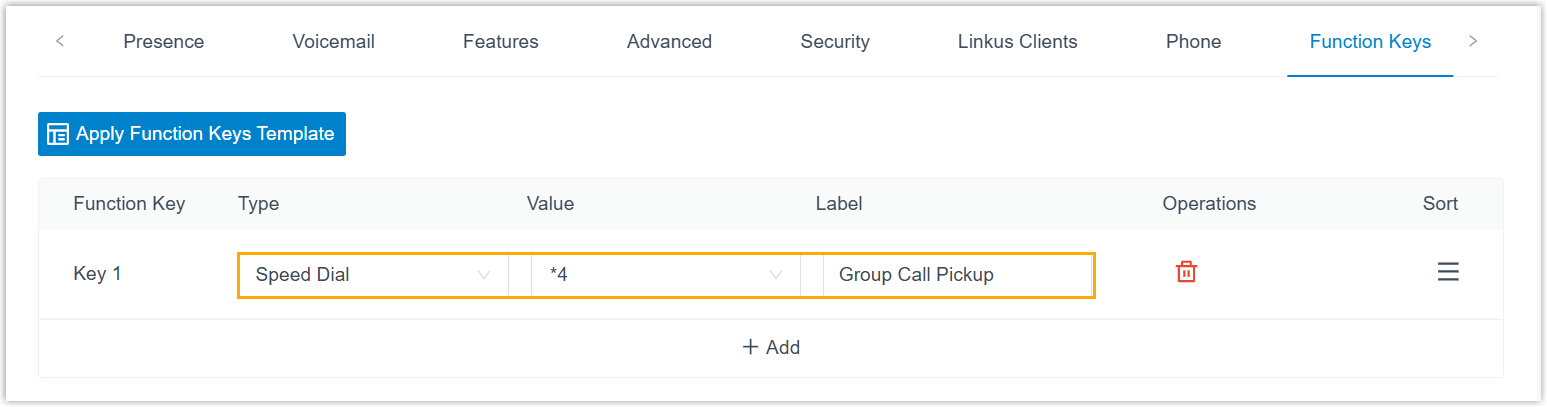
- Type: Select Speed Dial.
- Value: Enter the feature code (The default code is *4).
- Label: Optional. Enter a value, which will be displayed as the function key label.
- Click Save.
- Result
-
- When a member of an extension group to which the extension belongs receives a call, the user can press the feature key directly to answer the call.
- After the call is picked up, the user of the extension whose call was picked up will see a missed call record on the Linkus client or associated IP phone.
Pick up a call from a specific group
To allow users to monitor whether there is a call ringing on a member of a specific extension group and pick up incoming calls ringing on its members, configure a BLF key for the user's extension.
- Requirements
-
- The firmware version of Yeastar P-Series Software Edition is 83.23.0.83 or later.
- For Linkus Mobile Client, users should update the app to the
following versions:
- Linkus iOS Client: Version 5.26.15 or later
- Linkus Android Client: Version 5.26.10 or later
- Procedure
-
- Log in to PBX web portal, go to , edit the desired extension.
- Click the Function Keys tab.
- Set a function key.Note: For function keys to be applied on IP phones, the number of programmable keys varies by phone models. If the number of function keys you assign to an extension exceeds the number of programmable keys, the redundant function keys cannot take effect.
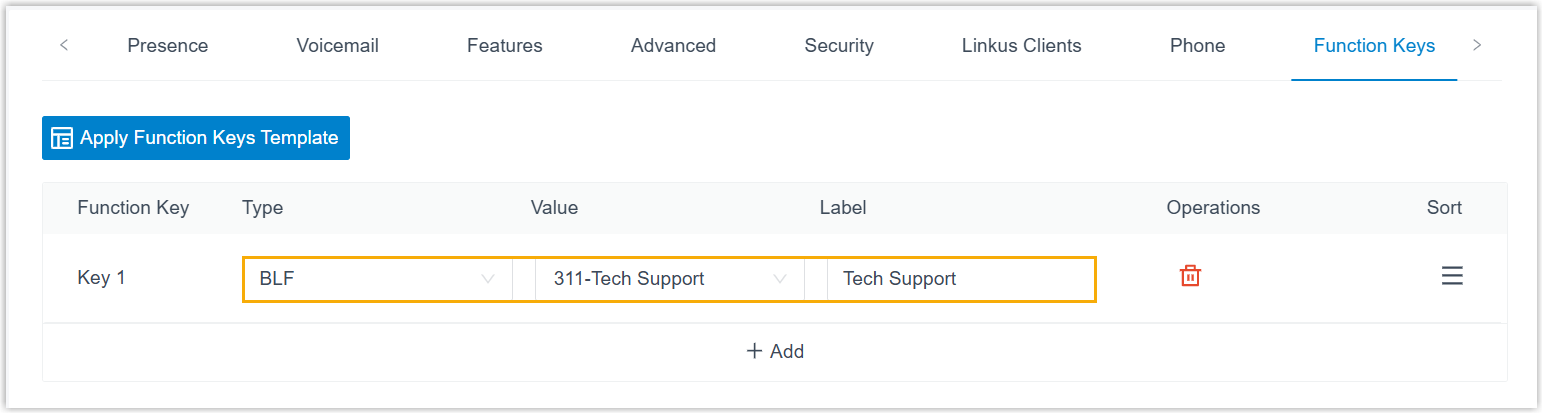
- Type: Select BLF.
- Value: Select the desired extension group to which the extension belongs.
- Label: Optional. Enter a value, which will be displayed as the function key label.
- Click Save.
- Result
-
- The function key shows the incoming call status of the monitored
extension group in real-time.
Endpoint Description Linkus UC Client  : There are no
incoming calls within the monitored extension
group.
: There are no
incoming calls within the monitored extension
group. : There is a
ringing call within the monitored extension
group.
: There is a
ringing call within the monitored extension
group. : There are 2
ringing calls within the monitored extension
group.
: There are 2
ringing calls within the monitored extension
group. : There are 3
or more ringing calls within the monitored
extension group.
: There are 3
or more ringing calls within the monitored
extension group. : The monitored
extension group does not exist.
: The monitored
extension group does not exist.
IP Phone - Solid Green: There are no incoming calls within the monitored extension group.
- Flashing Red: There is at least one incoming call ringing on a member's extension within the monitored extension group.
- The function key can display multiple incoming calls within the
monitored extension groups, allowing users to select a call to answer.
-
Linkus UC Client (up to 10 calls can be displayed simultaneously)
- To pick up the first incoming call, click the function key directly on Linkus Web/Desktop Client.
- To select a call to pick up, hover over (on
Web/Desktop Client) or tap (on Mobile Client) the
function key, then click or tap the desired call
from the list.
Linkus Web/Desktop Client Linkus Mobile Client 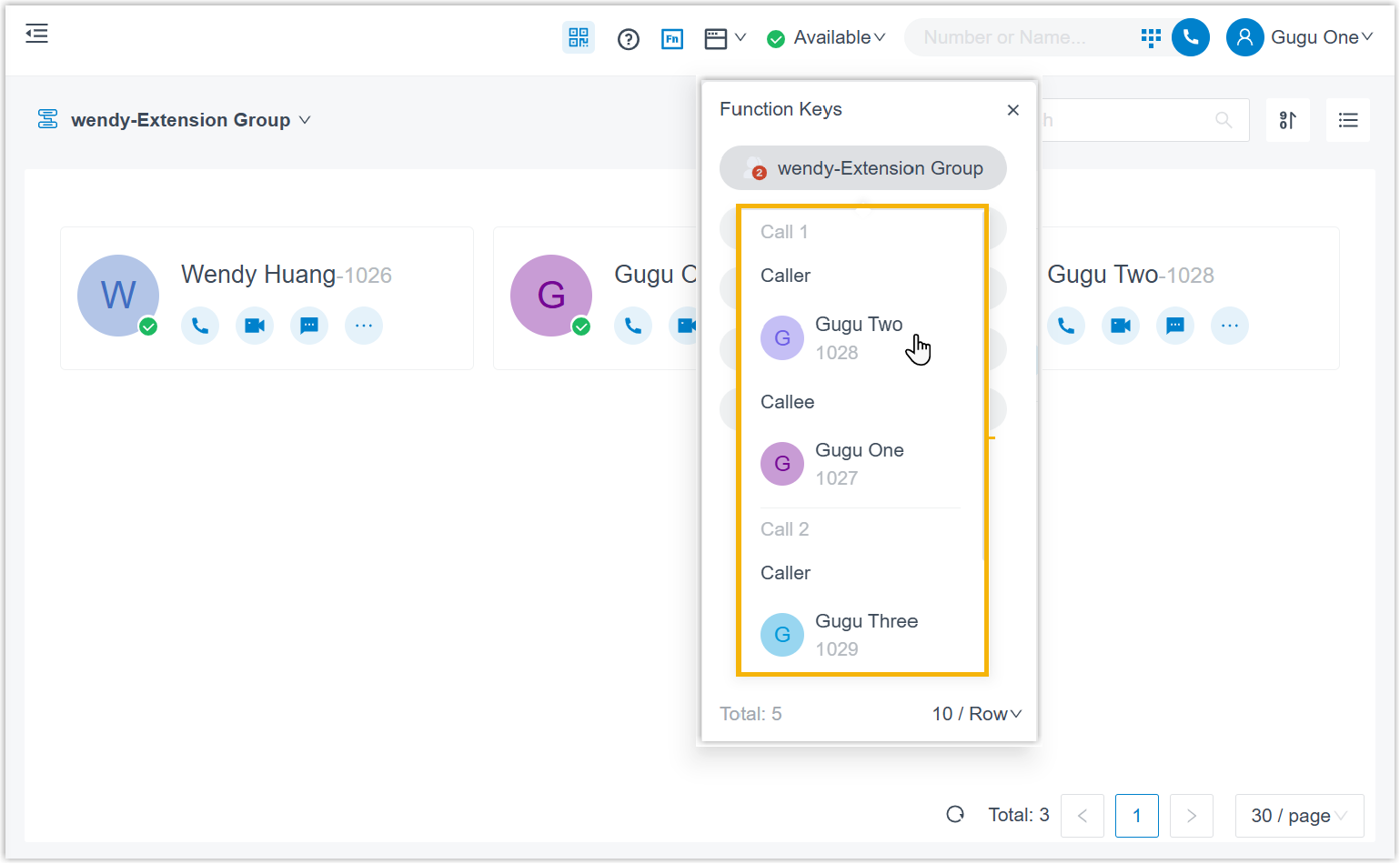
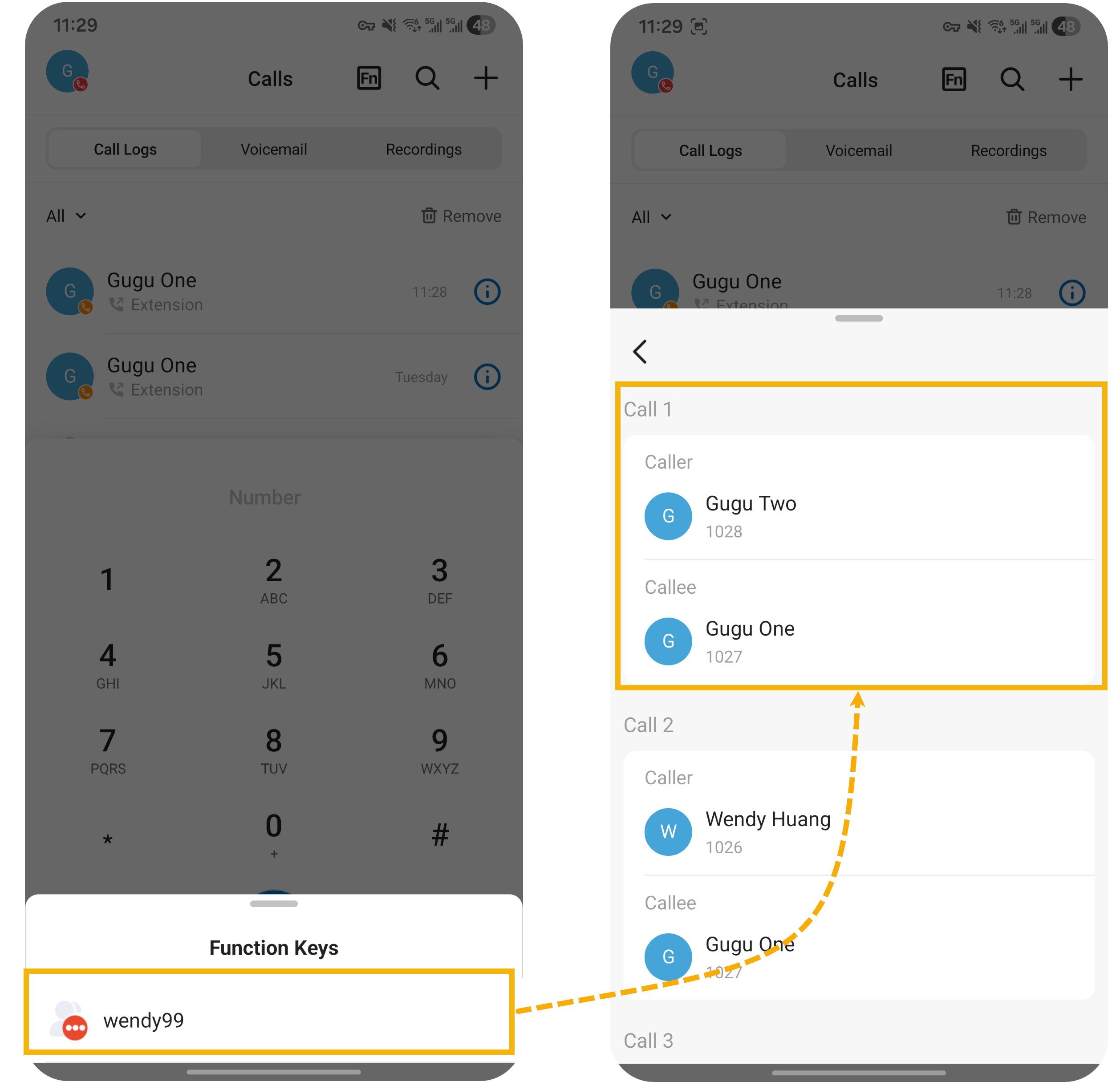
-
IP Phone (up to 2 calls can be displayed simultaneously)
- To pick up the first incoming call, press the BLF key directly.
- To select a desired call to pick up, tap the desired call from the list on the phone screen.
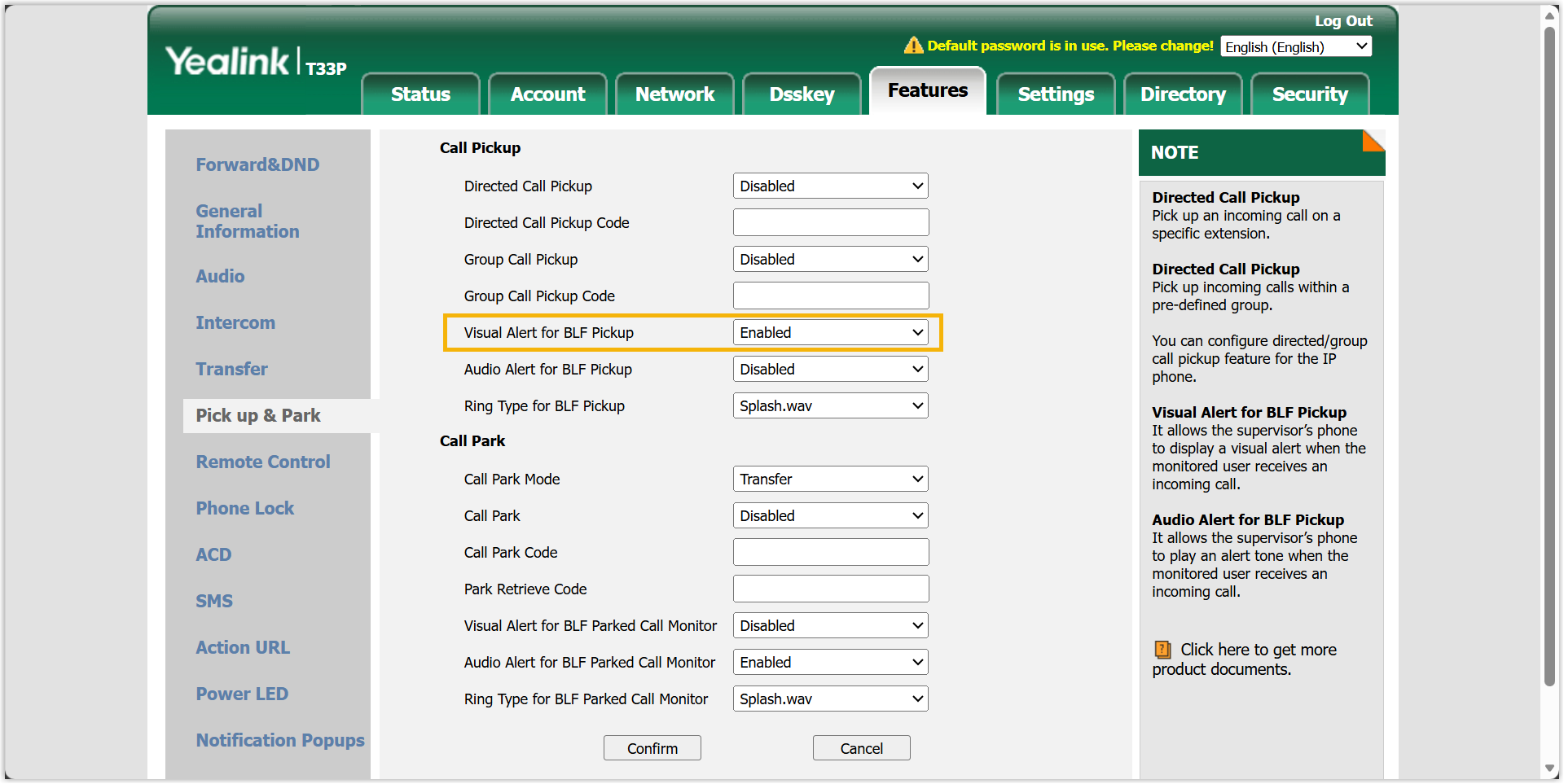
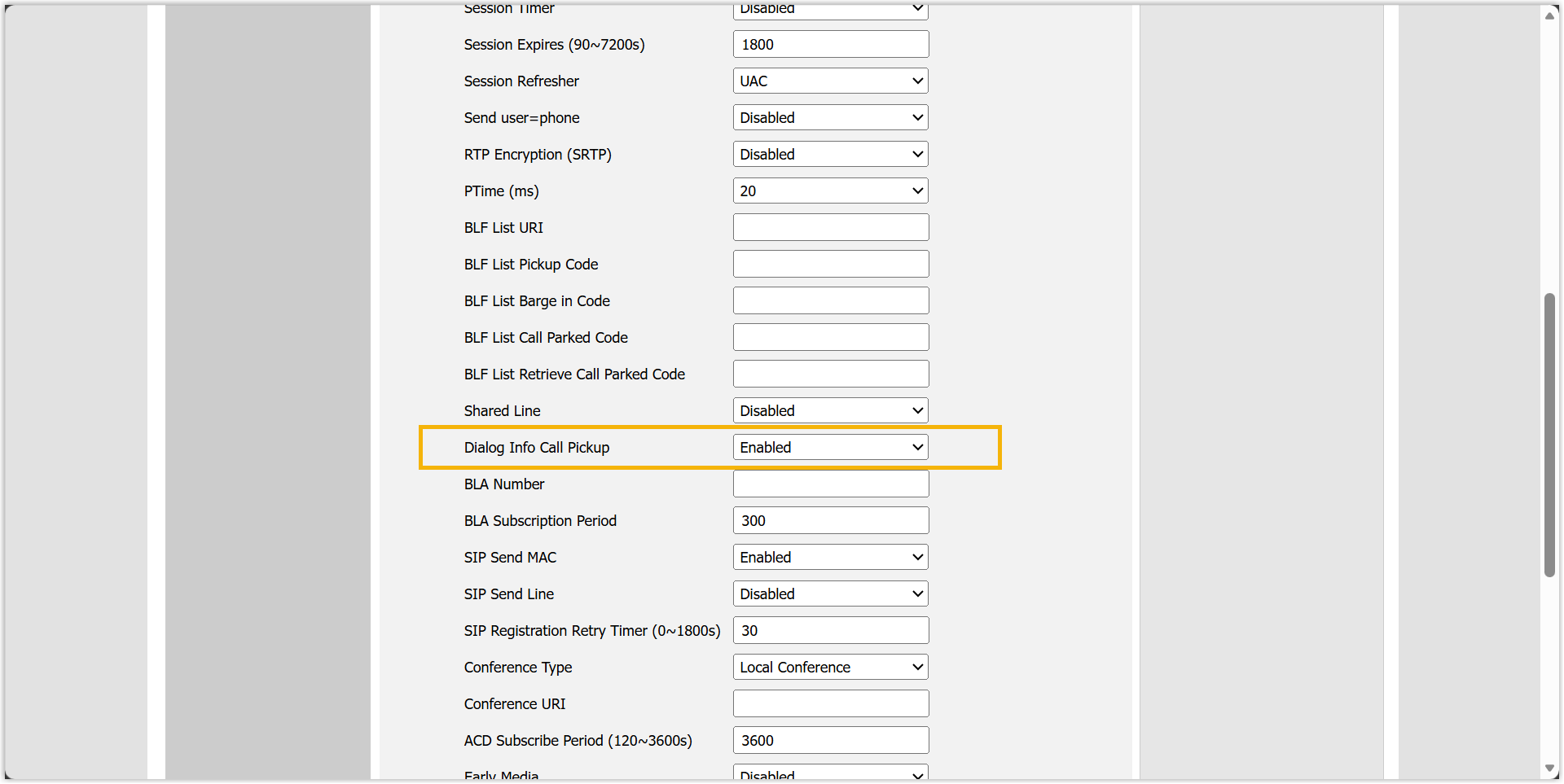
Note: To achieve this, specific settings must be configured on the IP phone (taking the Yealink SIP-T33P IP phone as an example):- Enable the Virtual Alert for BLF
Pickup setting (Path: ) for multiple incoming call
display.
- Enable the Dialog Info Call
Pickup setting (Path: ) for selective call
pickup.
-
- After the call is picked up, the user of the extension whose call was picked up will see a missed call record on the Linkus client or associated IP phone.
- The function key shows the incoming call status of the monitored
extension group in real-time.