Configure Auto-Reply Message for Missed Calls
This topic describes how to configure auto-reply message for missed inbound extension calls, ensuring the caller gets timely feedback.
Requirements
The firmware of Yeastar P-Series Software Edition is 83.24.0.122 or later.
Prerequisites
- To automatically reply a message to the caller via SMS messaging channel for missed inbound calls, ensure that you have set up at least one SMS messaging channel and allowed the extension to create messaging sessions via the channel.
- To automatically reply a message to the caller via WhatsApp messaging channel for missed inbound calls, ensure that you have completed the following settings.
Procedure
- Log in to PBX web portal, go to .
- Click
 beside the desired extension.
 - In the Features tab, scroll down to the Auto-Reply Message for Missed Calls section.
- Turn on the switch of Auto-Reply Message for Missed
Calls and complete the following settings.
Setting Instruction Call Status Equal To Select the missed call status that triggers the automatic message reply. - Caller Abandon: The caller hangs up actively while the inbound call is ringing.
- Voicemail: The call is forwarded to the extension voicemail.
- Group Voicemail: The call is forwarded to a group voicemail.
- Play Greeting then Hang up: The system plays greeting for the caller and hangs up the call.
- Busy: The extension is busy.
- Hang Up: The extension user hangs up the call.
Send SMS To automatically send messages via a SMS channel, select the checkbox of Send SMS, then do as follows. 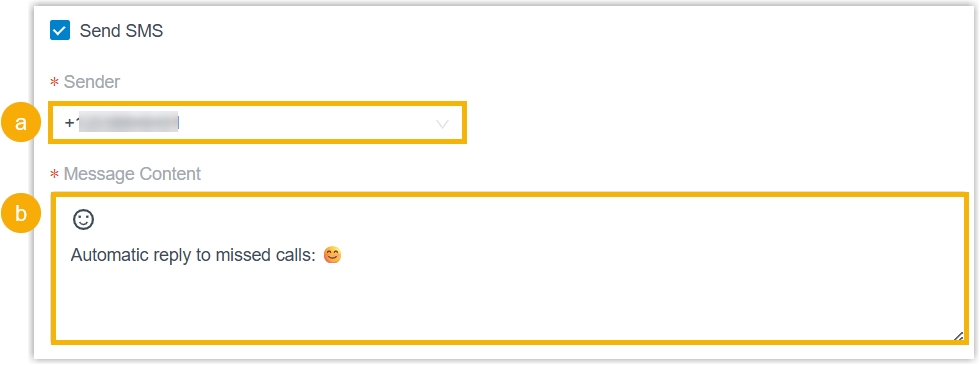
- In the Sender drop-down list, select a sender number.
- In the Message Content text box, fill in the content to be sent.
Send WhatsApp To automatically send messages via a WhatsApp channel, select the checkbox of Send WhatsApp, then do as follows. - In the Sender drop-down list, select a sender number.
- Configure WhatsApp message template.
- Click WhatsApp Message
Template, filter and select the
desired template from the list.
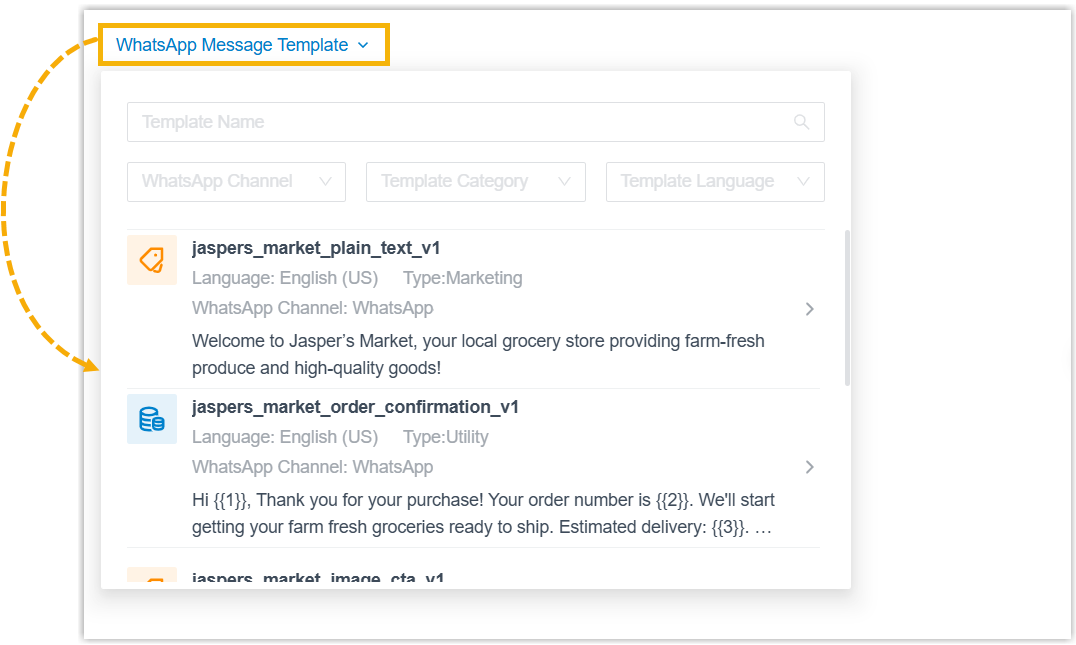
The configuration and preview for the message in select template are displayed on the webpage.
- If the template includes media or variable
placeholders, upload the required media files and
fill in specific values for all variables.
- Upload media files.
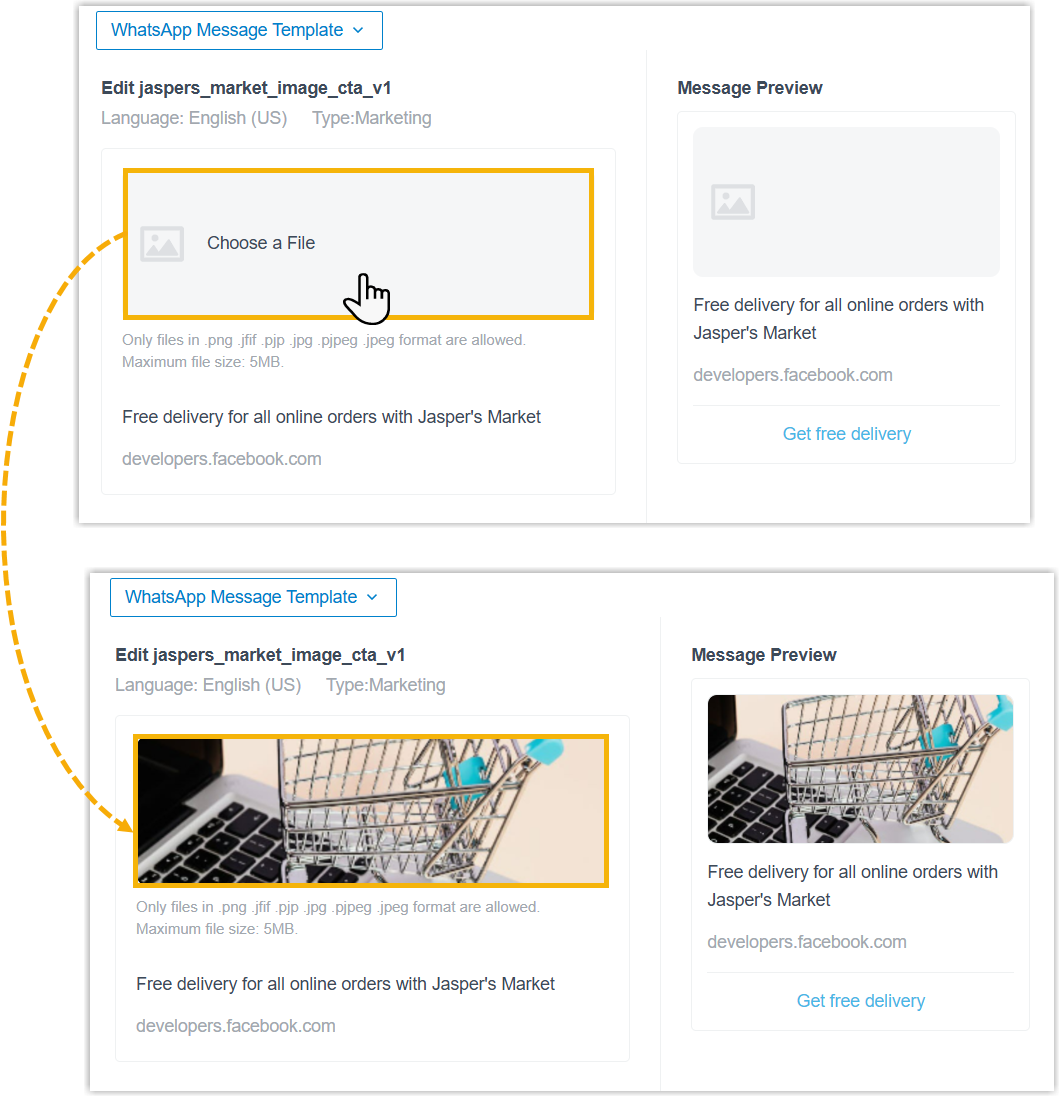
- Fill in specific values for all
variables.
Click {{variable}} and enter plain text.
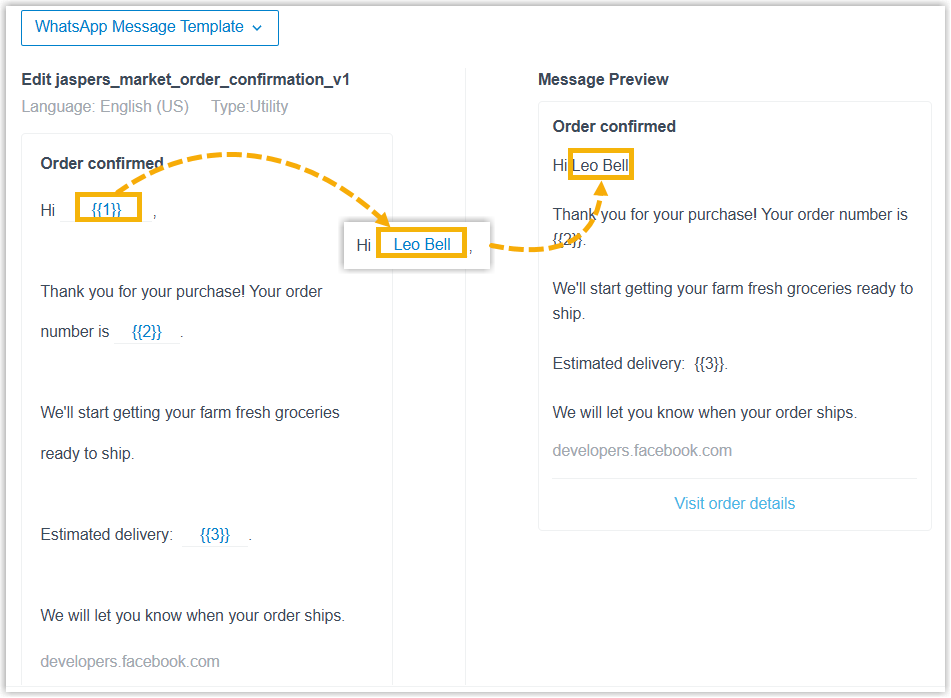 Note: For variables about location information, you can simply paste the Google Maps URL, the system will auto-fill the name and coordinates based on the URL. However, you need to manually enter the detailed address for the
{{Address}}variable.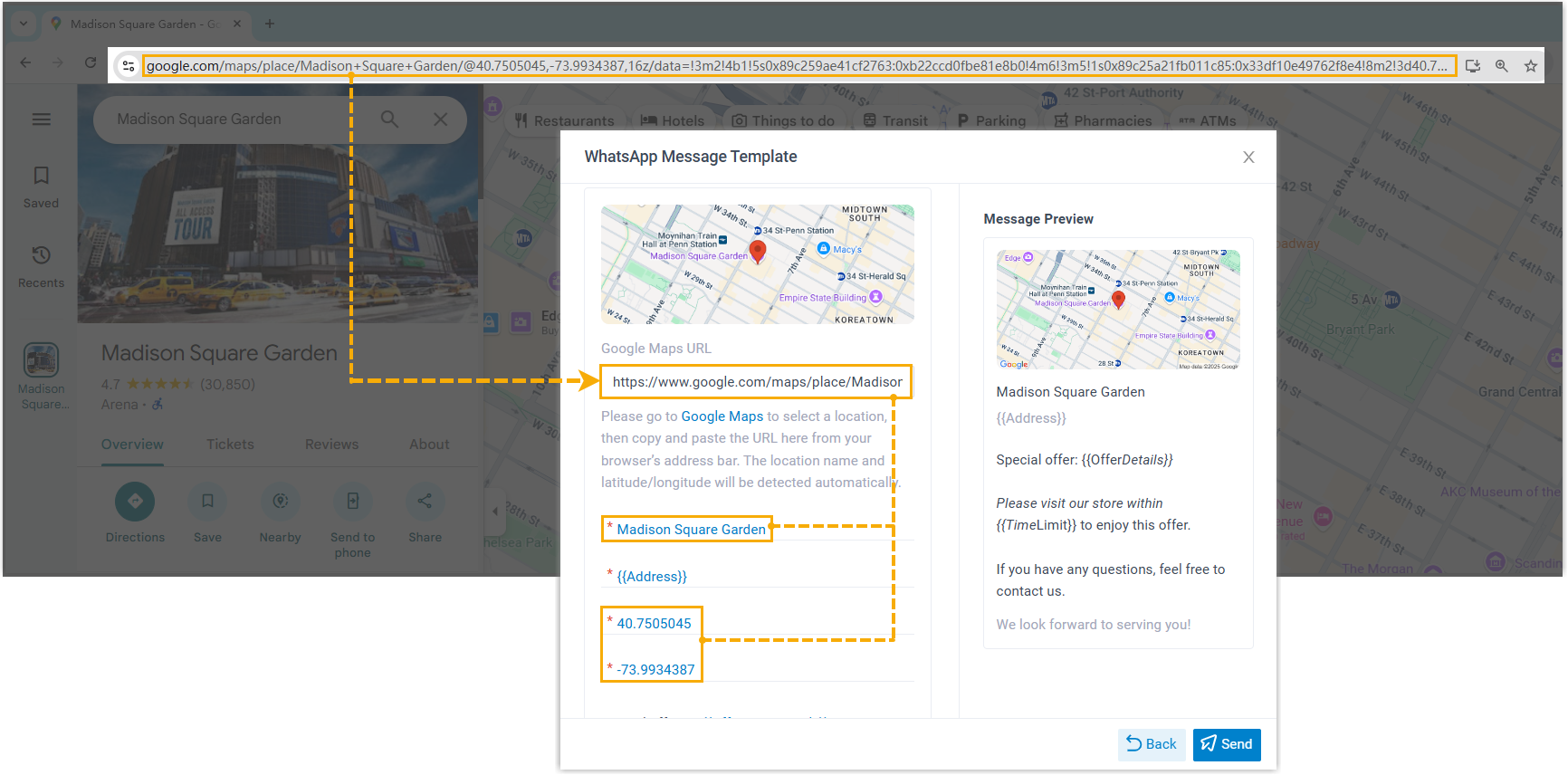
- Upload media files.
- Click WhatsApp Message
Template, filter and select the
desired template from the list.
- Click Save and Apply.
Results
If the status of a missed inbound extension call matches the value selected in the
Call Status Equal To:, the system automatically populates
absent
+ and the country/region code configured for the selected
message channel to the caller number, and sends the configured message to this
number.Note:
- If an active session already exists for the caller number, the message will be sent to the existing session; Otherwise, the system creates a new session and sends the message.
- The message sent logs are recorded in the lists of both External Chat Logs and SMS/WhatsApp Sent Logs (Path: ).