Set up an IVR
Yeastar P-Series Software Edition provides easy-to-create menus that allow you to set up an IVR and keep up with changing requirements. This topic describes how to set up an IVR.
Limitations
Yeastar P-Series Software Edition supports up to 256 IVRs.
Prerequisites
Before you set up an IVR, record a custom prompt or upload a custom prompt to provide callers with the IVR menu.
Procedure
- Log in to PBX web portal, go to , click Add.
- In the Basic tab, set the basic settings of IVR.
- Number: Specify a virtual number for callers to
access the IVR.Note:
- If the total of PBX extensions is less than or equal to 6000, the default IVR number range is from 6200 to 6299.
- If the total of PBX extensions is greater than 6000, the default IVR number range is from 50200 to 50299.
- Name: Enter an IVR name to help you identify it.
- Prompt: Set the IVR prompt that plays greeting
and explains the IVR menu options to callers.Note:
- The default prompt is "Dial the extension number or press 0 for operator".
- You can select up to 5 audio files, and the system plays the audio files in order.
- The available prompts are synchronized from .
- If the desired prompt is not
available in the list, click Add beside the
drop-down list to create a new prompt using one of
the following methods.
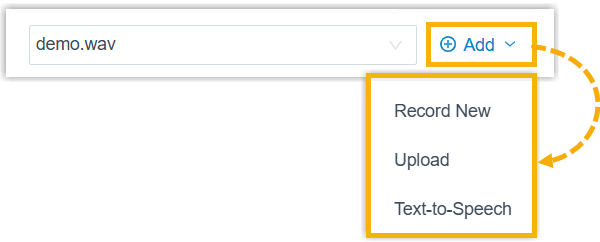
- Record a prompt by an extension.
- Upload a prompt. The upload prompt file should meet the audio file requirements.
- Generate a prompt using text-to-speech (TTS).
The newly added prompt will be displayed in the drop-down list and be synchronized to .
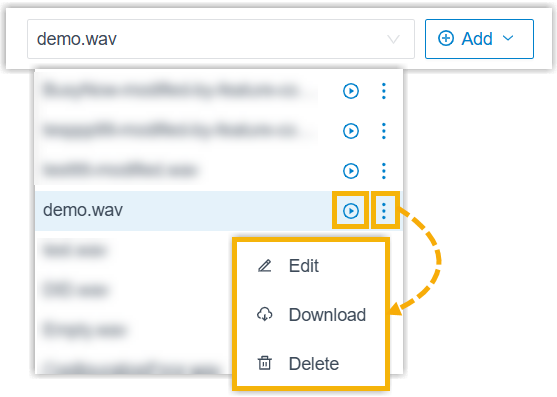
- In the drop-down list, you
can play, edit, download or delete the desired
custom prompt.
All changes will be synchronized to .
- Prompt Repeat Count: Set how many times to play the prompt when the caller remains inactive during the Response Timeout(s).
- Response Timeout(s): Set how long (in seconds) to wait for the caller to operate.
- Digit Timeout(s): Set how long (in seconds) to wait for the caller to enter the next digit.
- IVR Alert Info: Optional. Set an "alert info
text" to add to Alert-info header in INVITE request for IVR
calls.
When receiving an IVR call, the phone will inspect "Alert-Info" header to determine which ring tone it should use for ringing.
- Linkus Client Distinctive Ringtone: Select or
upload a custom ringtone for extension user's Linkus clients.
When an extension user receives a call from this IVR, the designated ringtone will be played on the user's Linkus client.
Note:- The available ringtones are synchronized from .
- If the desired ringtone is not available in
the list, click Upload beside the drop-down list to
create a new ringtone.
The uploaded ringtone will be displayed in the drop-down list and be synchronized to .

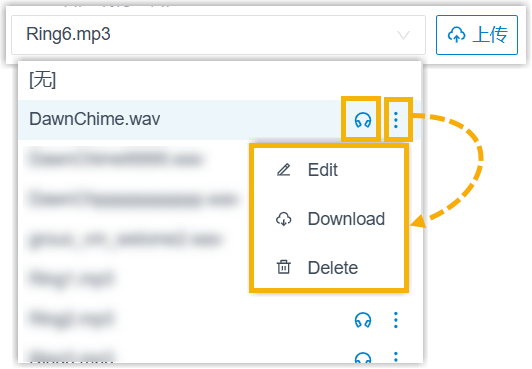
- In the drop-down list, you can play and
manage the desired ringtone as needed.
All changes will be synchronized to .
- If you select an uploaded custom ringtone (rather than a built-in ringtone), it will only apply to user's Linkus Web Client and Desktop Client for IVR calls. Instead, the Linkus Mobile Client will play the ringtone configured in the app.
- If the call is from a contact with a distinctive ringtone set in the user's Linkus client, the contact’s distinctive ringtone will take priority over the IVR ringtone.
- Dial Extensions: Whether to allow callers to dial
specific extension numbers via IVR.
- Disable: Disable to dial extensions via IVR.
- All Extensions: Allow the callers to dial all the extension numbers.
- Allowed Extensions: Select the extensions that the callers can dial.
- Restricted Extensions: Select the extensions that the callers can NOT dial.
- Allow Calling Numbers: Whether to allow callers to dial ring group, queue, or conference numbers via IVR.
- Dial Outbound Routes: Whether to allow callers to make outbound calls via IVR.
- Dial to Check Voicemail: Whether to allow users to check voicemail via IVR.
- Dial #9 to Modify IVR Prompt: Whether to allow
users to dial the feature code #9 to record and apply a new IVR
prompt.Note: If the IVR prompt is replaced successfully, the previous voice prompt will be removed from the IVR prompt setting, and the new voice prompt will be retained.
- Number: Specify a virtual number for callers to
access the IVR.
- Click the Key Press Event tab, set up an IVR menu.
- To set key events to route calls to different destinations based on time, see Set Key Events Based on Time Conditions.
- To set key events to route calls to different destinations based on PIN code, see Set up IVR Custom Key.
- To configure additional caller ID names for key events that route calls
to a ring group or queue, see Configure Additional Caller ID Name for Key Events.
After configured, when such a key event is triggered, the specified name is prepended to the original caller ID name and displayed for members or agents, helping them quickly identify the caller's intent.
- To set key events to always route calls to the designated destination,
do as follows:
- In the Key Press drop-down list, select a key event for each key: 0-9, *, and #.
- In the Response Timeout drop-down list, select a call routing destination if the caller remains inactive within the Prompt Repeat Count.
- In the Invalid Input Destination drop-down list, select a call routing destination if the caller enters a digit that is not defined in the IVR.
- Optional: Select the checkbox of Allow Opt-out
of Call Recording.
When the call is routed to the key press destination, the call would not be recorded even Call Recording is enabled.
- Click Save and Apply.
What to do next
Set up an inbound route, and specify the destination to the IVR.