Connect Yeastar P-Series Software Edition to a Self-hosted Central Management Platform
This topic describes how to connect your PBX system to a self-hosted central management platform, enabling secure remote access and management.
Supported methods
Connect PBX system to a self-hosted central management platform using authentication code
- Prerequisites
-
- You have obtained the following information from your device
provider.
- Authentication code for remote connection
- The server address of the central management platform
- Make sure the firmware of your PBX system is 83.19.0.110 or later.
- You have obtained the following information from your device
provider.
- Procedure
-
- Log in to PBX web portal, go to .
- In the Remote Connection Server Type drop-down list, select Custom.
- In the Server Address field, enter the server address of the central management platform.
- Enter the authentication information for remote
connection.
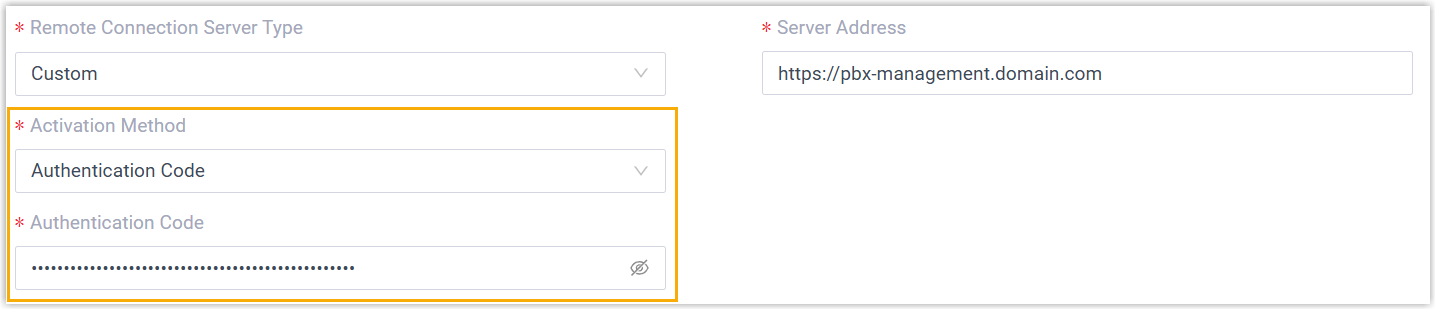
- Activation Method: Select Authentication Code.
- Authentication Code: Enter the authentication code that is provided by device provider.
- Optional:
Configure remote access to your PBX system.
After connected, device provider can log in to the PBX system using an existing PBX account. If you don't want to expose your super administrator credential or extension credential, you can set up remote access for your device provider in one of the following ways.
Method Instruction Account Login In the Account section, set an account for remote access. Note:- The Username can NOT duplicate with the name of super administrator or the email address of an extension.
- Permissions of the account are the same as that of extensions with Administrator role assigned.
Your device provider can remotely log in to your PBX web portal with the account credentials when needed.
Passwordless Login In the Passwordless Login section, enable the option to allow your device provider to directly log in to your PBX from Yeastar Central Management without entering credentials.
If enabled, your device provider can log in to PBX management portal with a dedicated Passwordless account by clicking on the encrypted web access link from Yeastar Central Management. Note:
Note:- Permissions of the Passwordless account are the same as that of PBX super administrator.
- The PBX system automatically logs out the account according to Auto Logout Time if no operation is performed on the web page.
- Click Save.
- Result
-
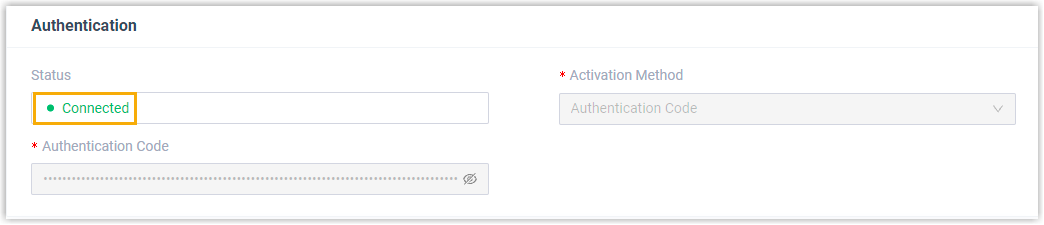
The status is displayed as Connected, which indicates that your PBX system is connected to the central management platform.
Connect PBX system to a self-hosted central management platform using email
- Prerequisites
- Make sure the firmware of your PBX system is 83.19.0.110 or later.
- Procedure
- Contact device provider to connect your PBX system to the central management
platform as follows:
- Log in to PBX web portal, go to .
- In the Remote Connection Server Type drop-down list, select Custom.
- In the Server Address field, enter the server address of the central management platform.
- Enter the authentication information for remote management.
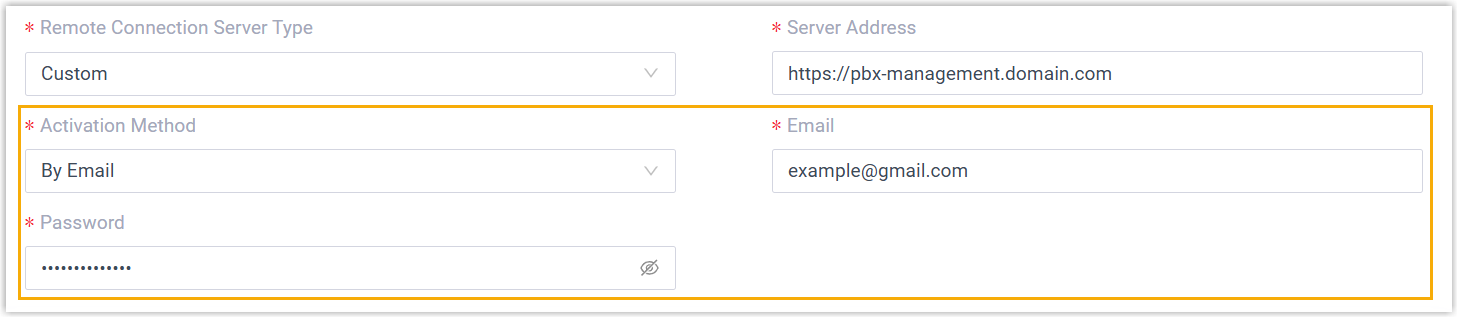
- Activation Method: Select By Email.
- Email: Enter the email address of the device provider's central management platform account.
- Password: Enter the password associated with the email address.
- Optional:
Configure remote access to your PBX system.
After connected, device provider can log in to the PBX system using an existing PBX account. If you don't want to expose your super administrator credential or extension credential, you can set up remote access for your device provider in one of the following ways.
Method Instruction Account Login In the Account section, set an account for remote access. Note:- The Username can NOT duplicate with the name of super administrator or the email address of an extension.
- Permissions of the account are the same as that of extensions with Administrator role assigned.
Your device provider can remotely log in to your PBX web portal with the account credentials when needed.Passwordless Login In the Passwordless Login section, enable the option to allow your device provider to directly log in to your PBX from Yeastar Central Management without entering credentials.
If enabled, your device provider can log in to PBX management portal with a dedicated Passwordless account by clicking on the encrypted web access link from Yeastar Central Management.Note:- Permissions of the Passwordless account are the same as that of PBX super administrator.
- The PBX system automatically logs out the account according to Auto Logout Time if no operation is performed on the web page.
- Click Save.
- Result
-
The status is displayed as Connected, which indicates that your PBX system is connected to the central management platform.