Archive Files to S3-Compatible Object Storage
Yeastar P-Series Software Edition supports archiving the system's call recordings and backup files to any S3-compatible object storage, either on a regular interval or at any time you want. This topic describes how to add S3-compatible object storage as an archive server and schedule tasks to archive the desired files.
Requirements
| Service Provider | Requirement |
|---|---|
| Yeastar PBX |
|
| S3-compatible Storage Provider |
|
Limitations
- Archive server: 10
- Archive task: 200
Step 1. Create an access key pair
Create an access key pair (including an access key ID and a secret access key) to authenticate file archiving requests from PBX.
For detailed instructions, refer to the storage provider's documentation.
Step 2. Create an S3 bucket
Create an S3 bucket to store archived PBX files.
For detailed instructions, refer to the storage provider's documentation.
Step 3. Add S3 bucket as archive server on PBX
- Log in to PBX web portal, go to .
- Under the Archive Task tab, click
Archive Server.
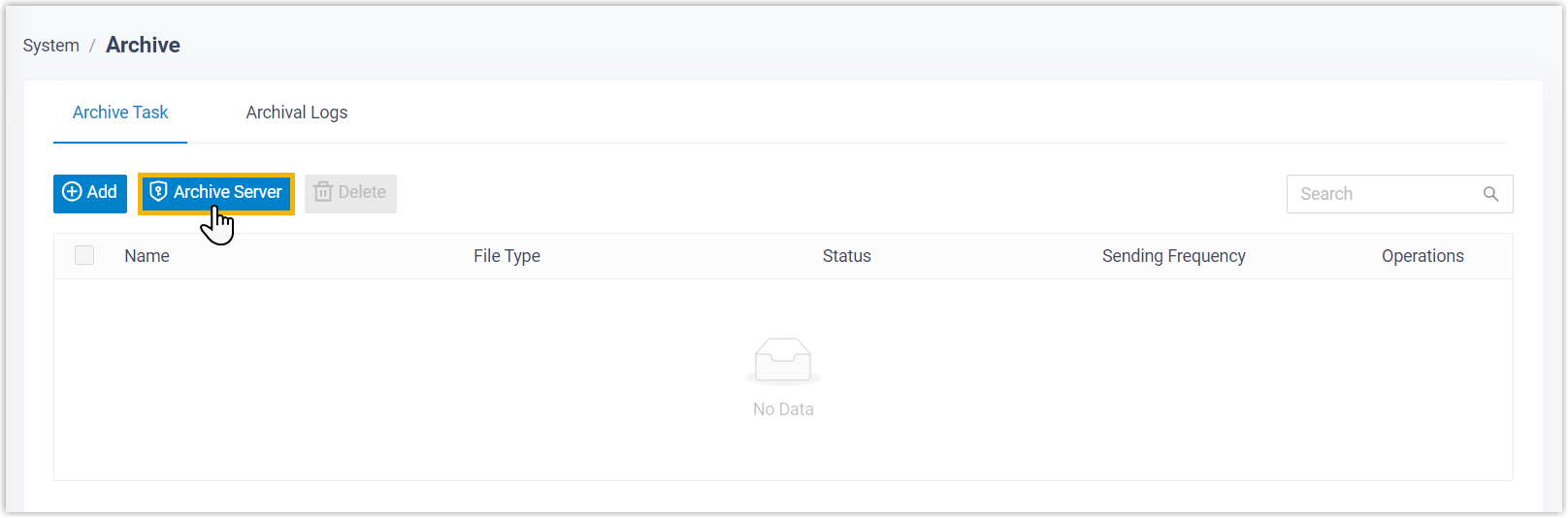
- Set up S3 bucket as an archive server.
- Click Add.
- In the pop-up window, complete the following settings.
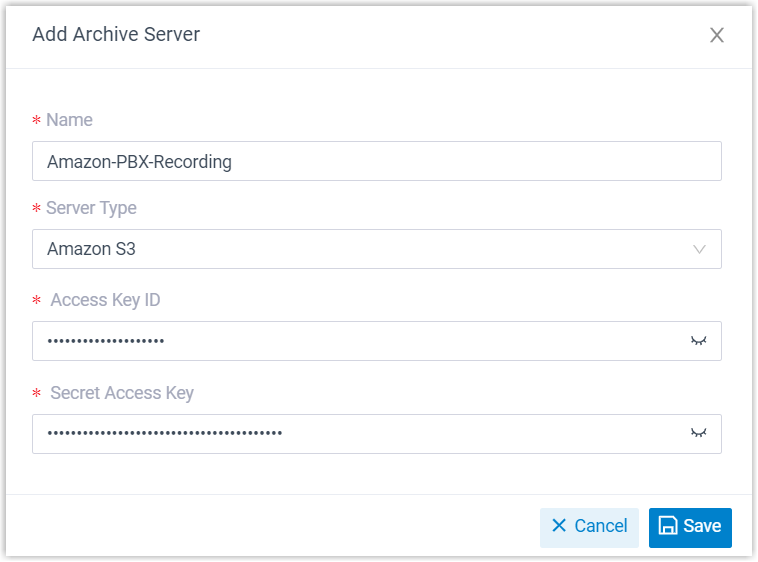
Setting Description Name Enter a name to help you identify the server. Server Type Select S3. Region & Endpoint Enter the region of your S3 bucket, and the corresponding S3 endpoint with the required protocol (e.g.,
https://).Tip: For supported regions and their standard S3 endpoints, refer to the storage provider's documentation.Access Key ID Enter the access key that you have obtained from the storage provider. Secret Access Key Enter the secret access key that you have obtained from the storage provider. - Click Save.
The S3 bucket is added as an archive server and displayed on the archive server list.
- Click
 to close the window.
Step 4. Create a task to archive files to S3 bucket on PBX
- Under Archive Task tab, click Add.
- In the Task Configuration section, complete the basic
settings for the archive task.
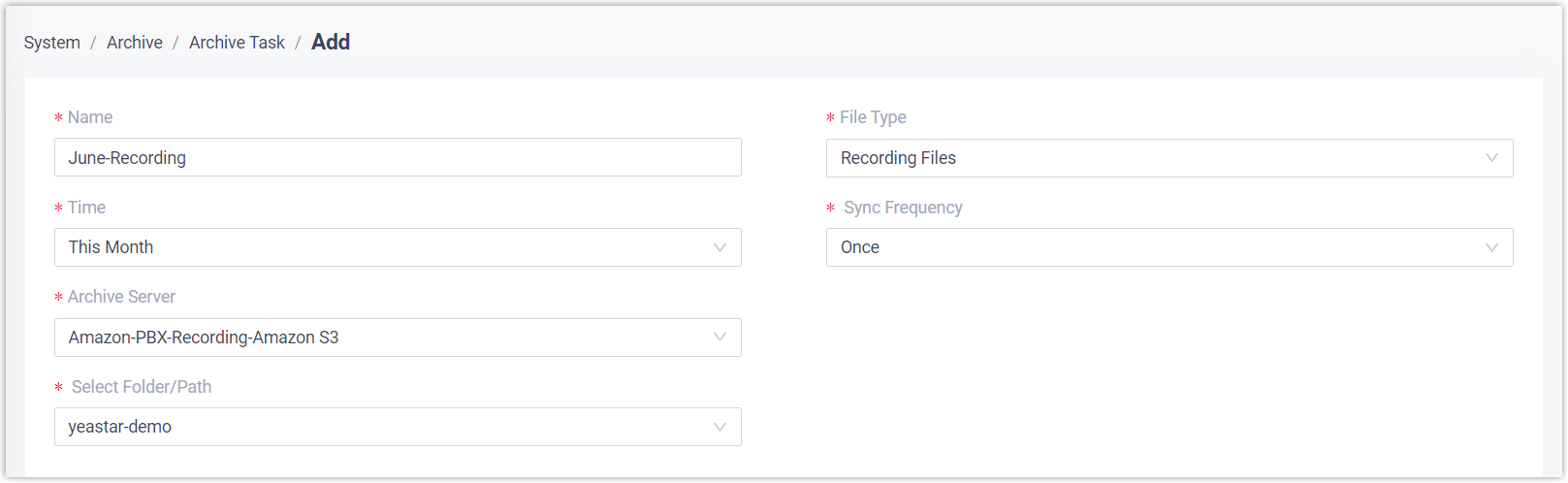
Setting Description Name Enter a name to help you identify the task. File Type Select Recording Files or Backup Files as needed. Data Range Specify a time range of the files to be archived. Note: You can archive files for up to 31 days at a time.Sync Frequency Set how often to archive files to S3 bucket. Note: As large amounts of data will consume PBX's CPU resources, we recommend that you schedule archive tasks during off-peak hours.- Once: If you choose the option, the system will archive files immediately after you save the task.
- Daily: If you choose the option, select a time from the drop-down list. The system will archive files at this time of the day.
- Weekly: If you choose the option, choose a day of week and select a time from the drop-down list. The system will archive files at this time of the week.
-
Monthly: If you choose the option, choose a day and select a time from the drop-down list. The system will archive files on this day and time of the month.
Recording File Format Select the download format for recording files. Note:- This option is available only when you schedule to archive recording files.
- All recording files in the system will be downloaded and archived in the selected format.
- In the Storage Configuration section, select the archive
server and complete the related settings.
Setting Description Archive Server Select the S3 bucket that you have added. Select Folder/Path Select the bucket or the folder in which you want to store archived files. Storage Method Specify the storage method for archived files based on the archive task's execution frequency.
- One-time task
-
- Create Task Folder: Create a folder named "FileType-TaskName" under the selected path and store files within it.
- Save Directly to Selected Path: Save the archived files directly to the selected path without creating a folder.
- Recurring task
-
- Create Folder per Execution: Create a folder named "FileType-TaskName-ExecutionDate" under the selected path each time the task executes, and store files within it.
- Create Task Folder Once and Reuse It: Create a folder named "FileType-TaskName" under the selected path during the first execution, and store files from subsequent executions in the same folder.
- Save Directly to Selected Path: Store files directly to the selected path each time the task executes, without creating a folder.
Skip archived files Optional. Specify whether to skip files that have already been archived. Note: This option is available only when you schedule to archive recording files.- If enabled, the system will NOT archive files that have already been archived.
- If disabled, the system will archive files even if they have been previously archived. The file's storage location will be updated, but the previous copy will NOT be deleted from the third-party server.
Delete local files after archiving Optional. Specify whether to delete local files after archiving. Note: This option is available only when you schedule to archive recording files.- If enabled, the local files will be deleted after archiving. They can still be played and downloaded from PBX admin portal and Linkus UC clients, but are NO longer available for playback and download on third-party server or Dynamics 365.
- If disabled, the local files are retained after archiving.
Organize Files by Date Optional. Specify whether to organize archived files by date. - If enabled, the system will create date-based
subfolders under the storage path, with folder
names formatted as YYYYMMDD (e.g. 20260301).Note: If the selected time range contains only one data record, no date-based subfolder will be created, and files will be stored directly in the specified path.
- If disabled, the system will save files directly in the specified path, without organizing them by date.
- Optional: Set retention policy for archived files.Note:
- This option is available only when you schedule to archive on a recurring basis.
- Ensure that the authorization account has permission to DELETE resources on the archive server.

Setting Description Retention Type Specify how archived files are retained.
- Retention by Quantity:
Retain files/folders in the archive server storage
path based on the maximum number allowed.
If you choose this option, enter the desired number in the Retention Limit (files/folders) field.
When the number of files/folders exceed the configured value, the system automatically deletes the oldest ones.
- Retention by Days: Retain
files/folders in the archive server storage path
based on the maximum retention period.
If you choose this option, enter the desired days in the Retention Limit (in days) field.
Files/folders that exceed the maximum retention period will be automatically deleted.
Note:- The retention period is calculated from the archive time on the archive server, not from the file creation time on PBX.
- Retention period is measured in exact 24-hour intervals, not calendar days.
Retention Limit Specify the maximum number of files/folders or the maximum retention days, depending on the selected retention type. Retention Unit Select the retention unit. - Folder: This indicates
the task folders created on the archive server
upon archive.Note:
- This option is available only when the Storage Method is set to Create Folder per Execution.
- The folder does NOT include date-based subfolders generated by the Organize Files by Date feature.
- File: This indicates the individual files archived on the archive server.
- Click Save.
Result
- Check the archive result on PBX
- On PBX web portal, go to . If the Result column of the task shows Succeeded, it indicates that the specified files have been successfully archived to S3 bucket.
-
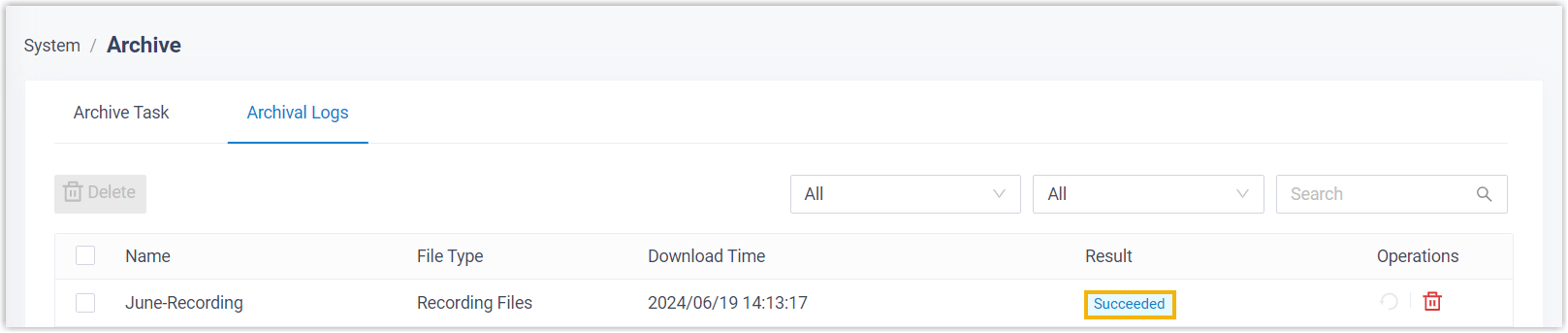 Note: If the task is failed, the Failed to Archive File(s) event will be triggered; You can click
 to retry the
task.
to retry the
task.
- Check the archive result on storage provider
- On storage provider's portal, go to the created S3 bucket. If the specified files appear in the list, it indicates that the archive is successful.