Switch the OEM ID of P-Series Cloud PBXs
This topic describes how to switch the OEM ID of P-Series Cloud PBXs, allowing you to seamlessly rebrand the PBX systems to display your customized brand information, without affecting current system configurations or data.
Introduction
The OEM ID is a unique identifier assigned to the P-Series Cloud Edition by Yeastar, which determines the information displayed in the product, such as logos and company names. Yeastar Central Management allows you to switch the OEM ID of a standard P-Series Cloud PBX to your own brand's OEM ID, so you can unify all devices under your custom brand.
For example, after subscribing to PCE White Label service and configure white label settings, only newly created Cloud PBXs will automatically apply your brand settings. For previously created Cloud PBXs, you can directly switch their OEM ID in Yeastar Central Management so that they can also display your custom brand information.
Requirements
| Item | Requirement |
|---|---|
| Firmware |
|
| OEM ID |
|
Procedure
- Log in to Yeastar Central Management, go to .
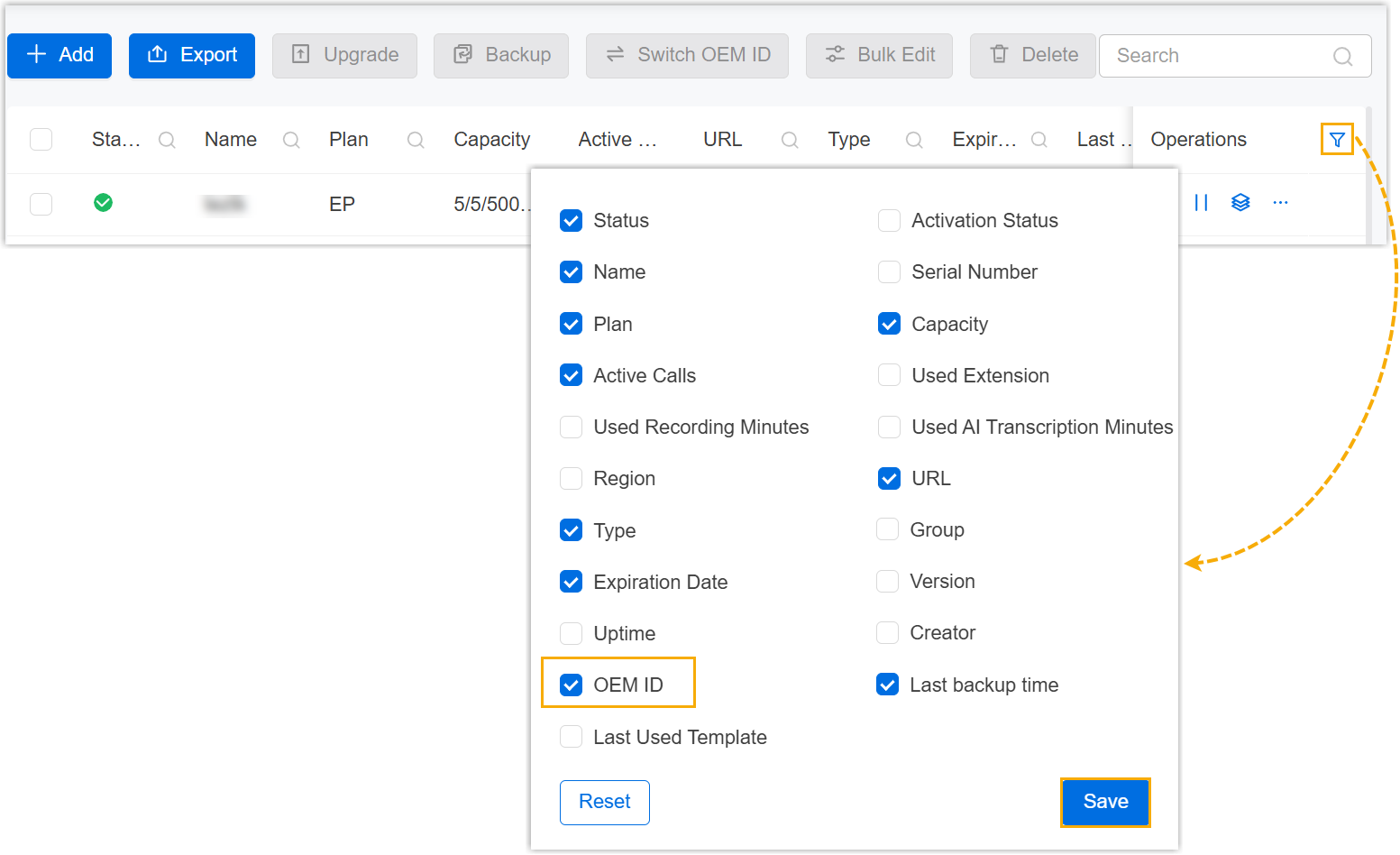
- In the Cloud PBX list, set the column to display PBX's OEM ID.
- At the right side of the Operations column,
click
 .
. - In the pop-up window, select the checkbox of OEM
ID, then click Save.
The OEM ID column appears, displaying the OEM ID of each Cloud PBX.
- At the right side of the Operations column,
click
- Filter Cloud PBXs with the OEM ID to be switched.

- Click
 beside the OEM
ID column.
beside the OEM
ID column. - In the pop-up window, enter the desired OEM ID, then click
Search.
The Cloud PBXs with the specified OEM ID are displayed.
- Click
- Select one or more Cloud PBXs, then click Switch OEM
ID.

You are redirected to the Add Task page.
- Set up an OEM ID switching task.
Setting Description Name Enter a name to help you identify the task. Object Type Retain P-Series Cloud Edition. Task Select Switch OEM ID. Target OEM ID Select your OEM ID. Repeat Select One-time. Execution Time Select the checkbox of Immediately. Timezone The field can not be edited. Creator Your name is automatically filled in, and the field can not be edited. Remark Optional. Add a note to the task. Object The Selected box lists the P-Series Cloud PBXs that you have selected. - Click Save.
Result
- The task status is displayed as
 (Executing).
- After the task execution is completed, the followings are achieved:
- The task status is displayed as
 (Finished).
- A task execution log is generated and displayed on .

- The task status is displayed as
- The PBX reboots automatically. After restarting, your customized brand information will be displayed, while the existing system configuration will remain unchanged.