Enable or Disable Trunk Configuration Access for a P-Series Cloud PBX
To centralize trunk management, you can control whether the PBX users can add or import trunks on their assigned P-Series Cloud PBX. This topic describes how to set this configuration permission for a P-Series Cloud PBX.
Requirements
| Platform | Requirement |
|---|---|
| Yeastar Central Management |
You have the permission to configure Trunk
Configuration Access for Cloud PBXs.
Note:
|
| P-Series Cloud PBX | 84.21.0.66 or later |

Enable trunk configuration access for a P-Series Cloud PBX
- Procedure
-
- Log in to Yeastar Central Management, go to .
- Click
 beside a desired PBX.
- Under the PBX Information tab,
scroll down to the System section, and select
the checkbox of Trunk Configuration
Access.
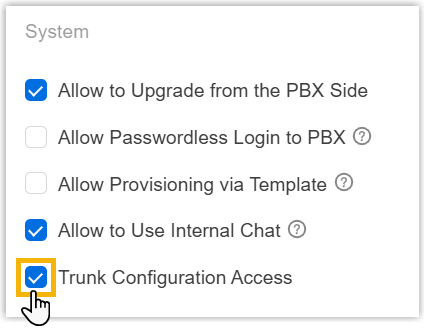
- Click Save.
- Result
- The PBX users can add and import trunks on the PBX.
Disable trunk configuration access for a P-Series Cloud PBX
- Procedure
-
- Log in to Yeastar Central Management, go to .
- Click beside a desired PBX.
- Under the PBX Information tab, scroll down to
the System section, and unselect the checkbox
of Trunk Configuration Access.
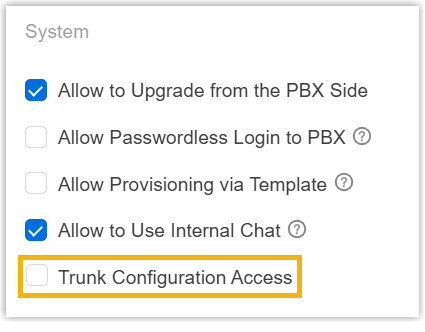
- Click Save.
- Result
-
- The PBX users can NOT add or import trunks. The Add and
Import buttons for trunks on the PBX will be greyed out
(Path: ).Note: The PBX users can still edit, delete, and export existing trunks on the PBX.
- If the PBX is provisioned via a template, the trunk configurations defined in the template will not be applied to the PBX.
- The PBX users can NOT add or import trunks. The Add and
Import buttons for trunks on the PBX will be greyed out
(Path: ).