Set Distinctive Ringtones for IVR Calls
You can set a unique ringtone per IVR so that the extension users can easily identify who is calling.
Supported methods
Set distinctive ringtone for IP phone
- Prerequisites
- The user's extension has been associated with an IP phone via auto
provisioning.For more information, see the following topics:
- Auto Provision IP Phones in Local Network (PnP Method)
- Auto Provision IP Phones Remotely (PnP Method)
- Auto Provision IP Phones in Local Network (DHCP Method)
- Auto Provision IP Phones Remotely (DHCP Method)
- Auto Provision IP Phones Remotely (RPS FQDN Method)
- Auto Provision IP Phones Remotely (RPS Method)
- Auto Provision IP Phones Remotely (Provision Link - FQDN Method)
- Auto Provision IP Phones Remotely (Provision Link Method)
- Procedure
- Set an alert info for IVR calls on the PBX
-
- Log in to PBX web portal, go to .
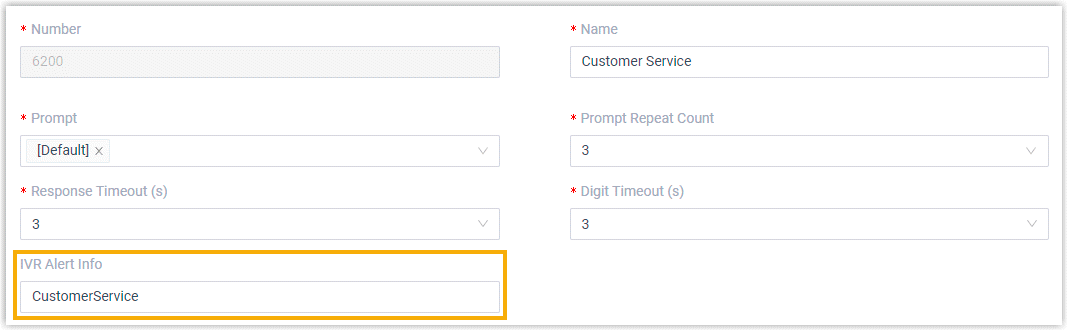
- In the IVR Alert Info field, enter an alert
info.
The alert info is used to trigger IP phones to play a specific ringtone when receiving a call through this IVR.
In this example, set alert info to CustomerService.
- Set a specific ringtone for a phone
-
- Set a specific ringtone for a user.
- Log in to PBX web portal, go to , edit the user's extension.
- Click the Phone tab.
- In the Distinctive Ringtone section, click Add.
- In the Alert Info field, select
the alert info that is pre-defined for IVR calls.
In this example, select CustomerService.
- In the Ringtone field, select a
specific ringtone for the IVR calls.
In this example, select Ring5.wav.
Note: The available ringtones vary by phone models.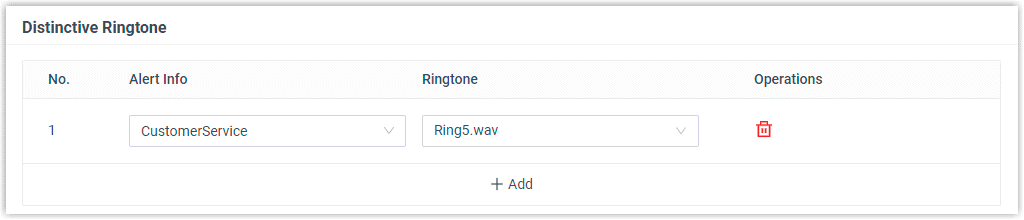
- Click Save.
- Reprovision the phone to take effect.
- Go to .
- Click
 beside the phone assigned to
user's extension.
beside the phone assigned to
user's extension.
- Set a specific ringtone for a user.
- Result
- The user's phone plays ringtone Ring5.wav when receiving calls from CustomerService IVR.
Set distinctive ringtone for Linkus clients
- Log in to PBX web portal, go to .
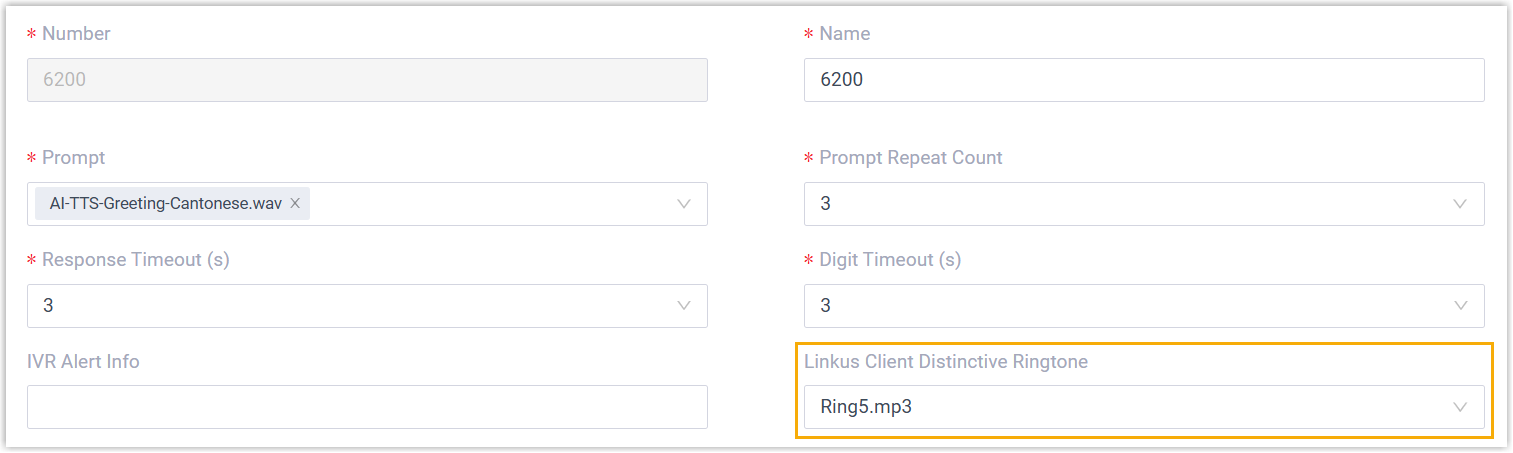
- In the Linkus Client Distinctive Ringtone drop-down
list, select a desired ringtone.
 Note:
Note:- The available ringtones are synchronized from .
- If the desired ringtone is not available in
the list, click Upload beside the drop-down list to
create a new ringtone.
The uploaded ringtone will be displayed in the drop-down list and be synchronized to .

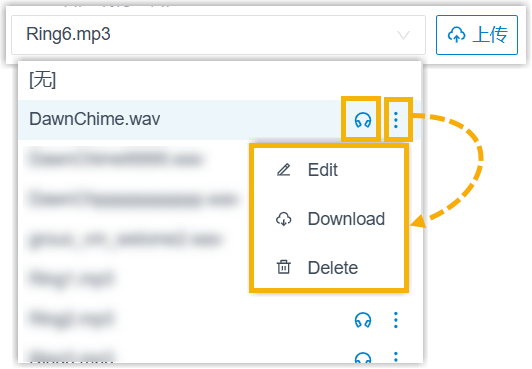
- In the drop-down list, you can play and
manage the desired ringtone as needed.
All changes will be synchronized to .
- Click Save.Note:
- If you select an uploaded custom ringtone (rather than a built-in ringtone), it will only apply to user's Linkus Web Client and Desktop Client for IVR calls. Instead, the Linkus Mobile Client will play the ringtone configured in the app.
- If the call is from a contact with a distinctive ringtone set in the user's Linkus client, the contact’s distinctive ringtone will take priority over the IVR ringtone.