Switch Function Key Line for an IP Phone Provisioned with Multiple Extensions
If an IP phone is provisioned with multiple extensions, you can switch function key lines for the phone to flexibly control which function keys are available when the phone switches between different SIP lines. This topic describes how to switch function key line for a provisioned IP phone.
Procedure
- Log in to PBX web portal, go to , edit the desired phone.
- In the Assign Extension section, select the desired SIP
line from the Function Key Line drop-down list.
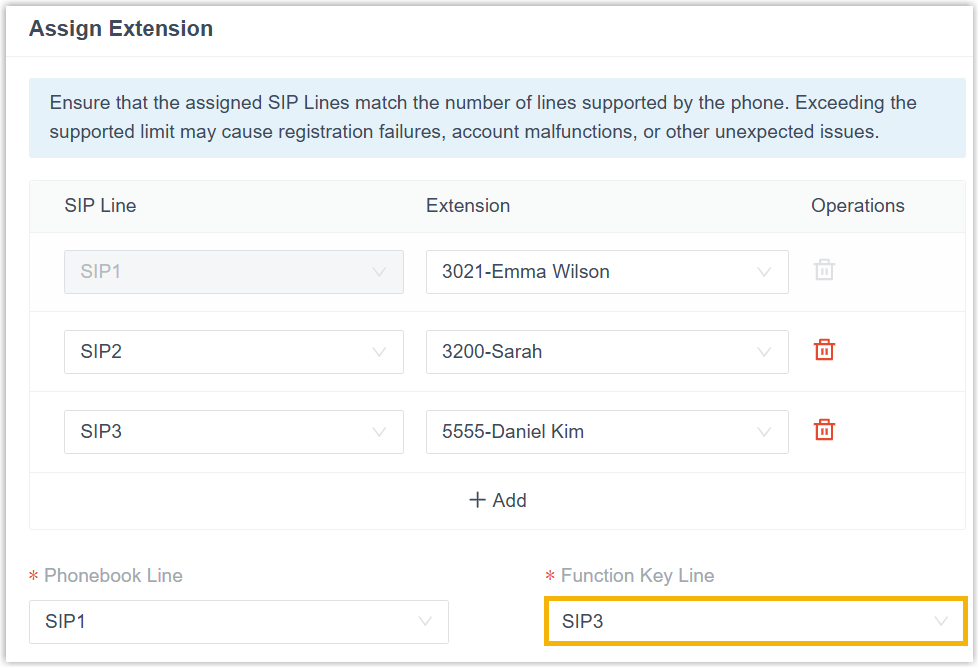
- Click Save.
Result
The phone automatically applies the function keys of the extension corresponding to
the specified SIP line.
Note: The function keys take effect
only when the specified SIP line is active on the phone.
You can check on the phone whether the LED for the target SIP line is steady‑on (a steady‑on LED means the line is active). If not, press the corresponding line key to switch to the target line.
What to do next
To configure function keys for the phone, see Auto Provision Function Keys for Phones.