DID/Outbound Caller ID Activity Report
DID/Outbound Caller ID Activity report provides granular insights into the hourly, daily, and monthly breakdown of the DID/Outbound Caller ID activity. This topic describes how to access the report and explains the key metrics in detail.
Access DID/Outbound Caller ID Activity report
- Log in to PBX web portal, go to .
- Access DID/Outbound Caller ID Activity report.
- Click Default Reports tab.
 Note: To enhance system performance, Yeastar has upgraded the CDR module in version 83.21.0.117 with a new data structure for clearer display and more comprehensive call details. The system gradually deletes old CDRs and related call report data according to the CDR Auto Cleanup setting. Before old call report data are cleaned up, new and historical data are managed separately - the Default Reports tab for new data and the Call Reports(Legacy) tab for historical data.
This topic describes how to access new call report data generated after upgrading to version 83.21.0.117 or later. To access historical data, click Call Reports(Legacy) tab to proceed.
- In the Call Activity Reports pane, click DID/Outbound Caller ID Activity.
- Click Default Reports tab.
- Set filter criteria for the call report.

- In the Time Range and Select Date fields, specify the time range that the report will cover.
- Filter data by trunk, DID, DOD, or communication type.
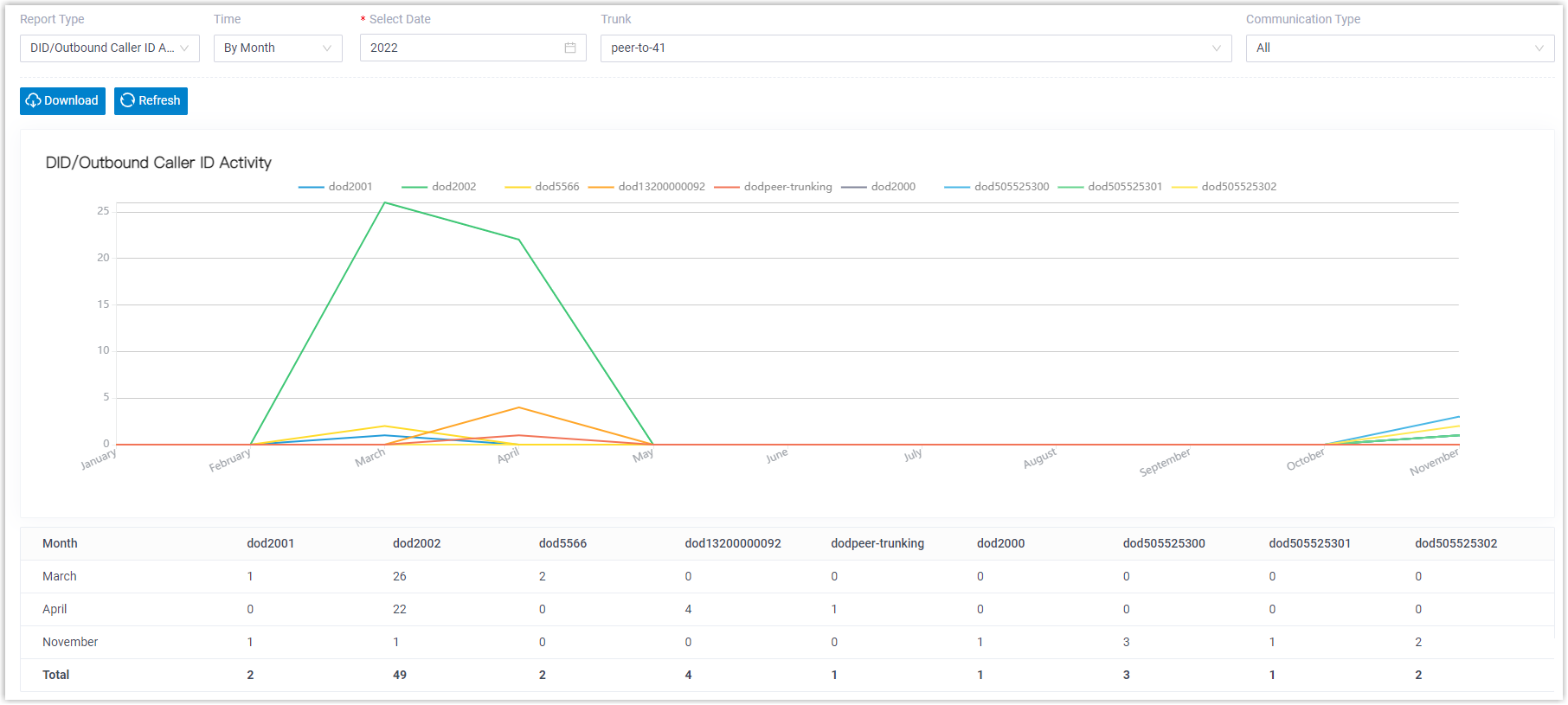
The report that matches the filter criteria is displayed on the page, as shown below.
- Optional: Save the report for quick access, or
schedule it for automatic delivery via email.
Operation Description Add to Scheduled Reports Schedule a task to automatically send the report via email. - At the bottom of the page, click Add to Scheduled Reports.
- Complete the follow-up settings according to scheduled task.
Download the report Download the report to local PC for offline review and further analysis. 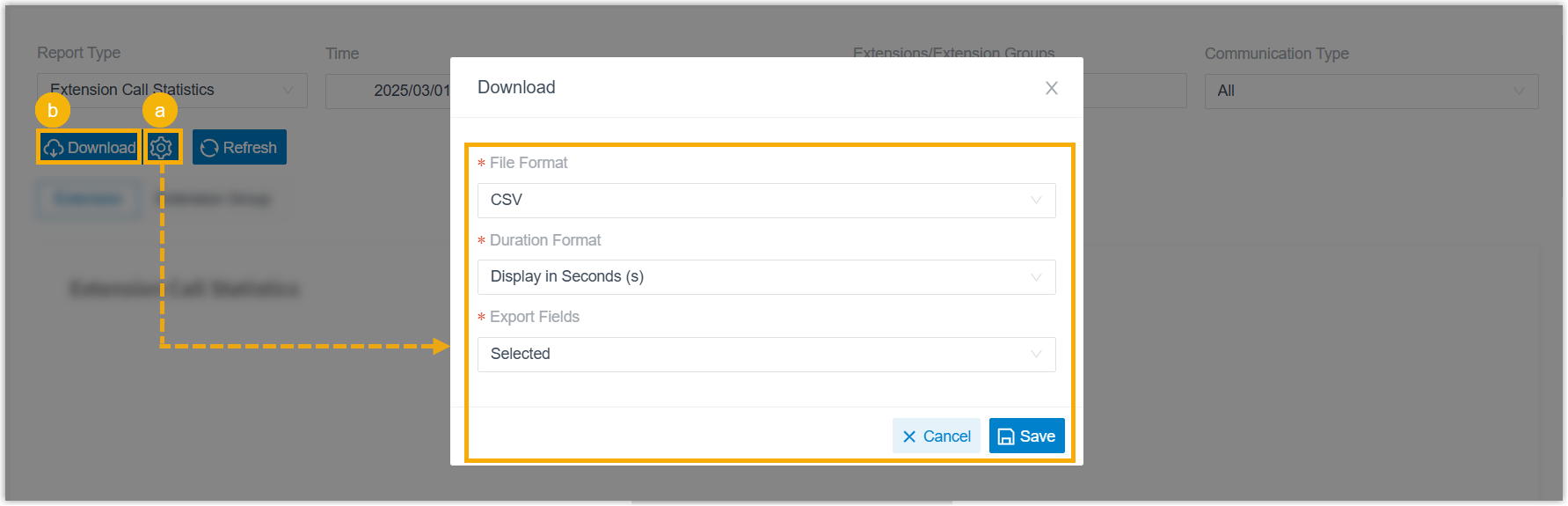
- Optional: Click
 to customize the report
download setting, then save the changes.
to customize the report
download setting, then save the changes.- File
Format: Specify the download format
for the report.
- CSV
- XLS
- HTML
- Duration
Format: Specify the display format for
all duration-related fields.
- Display in Second (s)
- Display as HH:MM:SS
- Export
Fields: Specify the fields to
export.
- All
- Selected
- File
Format: Specify the download format
for the report.
- Click Download.
Report details
Refer to the table below for a detailed description of the report metrics.
| Metric | Description |
|---|---|
| did{did_number} | The DID number that caller dialed. |
| dod{dod_number} | The DOD number that caller dialed. |