Configure Display Settings for a Provisioned Phone
Yeastar P-Series Cloud Edition allows you to configure display settings for IP phones via provisioning, including setting the wallpaper, screensaver, and boot logo, as well as adjusting display options such as backlight timeout and screensaver exit behavior. This topic uses Yealink T54W as an example to describe how to configure display settings for a provisioned phone.
Requirements
The firmware of Yeastar P-Series Cloud Edition is 84.20.0.21 or later.
Prerequisites
- You have uploaded the desired image file for the phone.
- You have connected the IP phone to the PBX and associate it with an extension via auto provisioning. For more information about the configuration, see the following topics:
Procedure
- Log in to PBX web portal, go to .
- Click
 beside the IP phone.
- In the Preference section, configure the display
settings according to your needs.
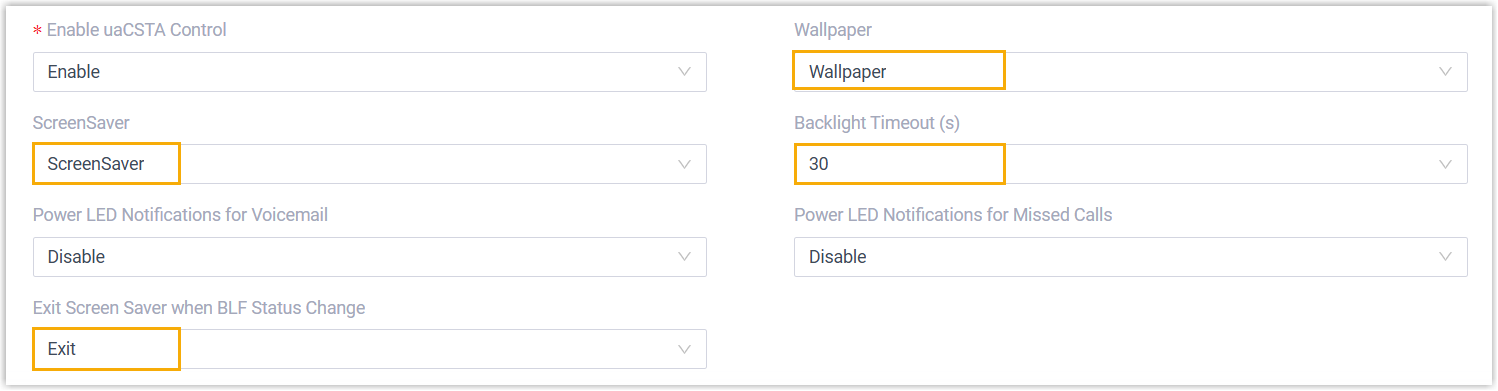
- Wallpaper: Select the wallpaper image you uploaded to the system.
- ScreenSaver: Select the screensaver image you uploaded to the system.
- Backlight Timeout (s): Set the amount of idle time (in seconds) before the phone launches the screen saver.
- Exit Screen Saver when BLF Status Change: Configure whether the phone will exit the screensaver when there is an update to the BLF status.
- Click Save.
- Reprovision the IP phone.

- Click
 beside the IP phone.
 - In the pop-up window, click OK.
- Click