Download Call Report from PBX Web Portal
Yeastar P-Series Software Edition supports downloading call report locally for call analysis or billing. This topic describes how to download call report from PBX web portal.
Procedure
- Log in to PBX web portal, go to .
- Access a call report.
Scenario Instruction Access a custom report 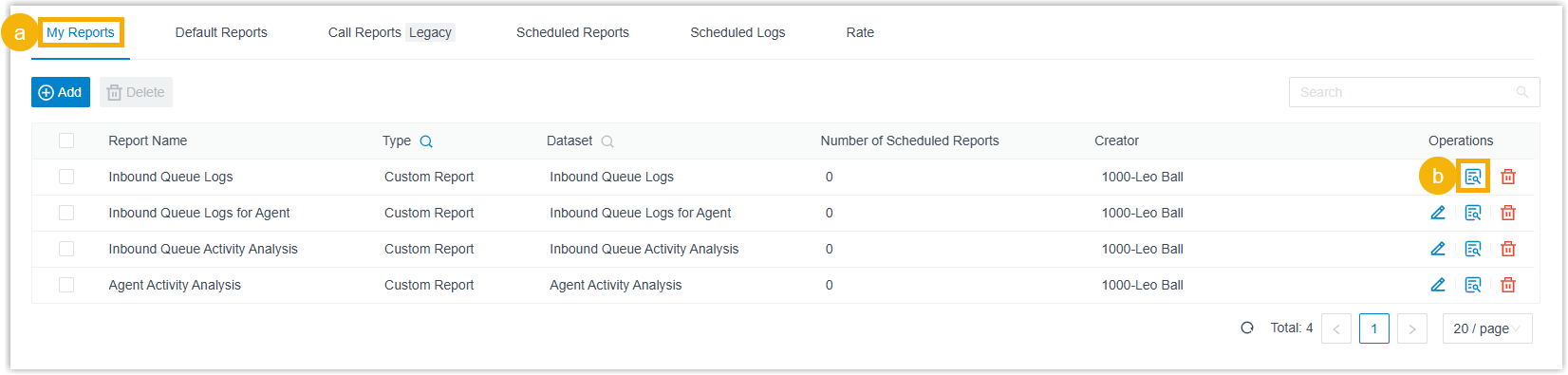
- Click My Reports tab.
- Click
 or double
click the desired report.
or double
click the desired report.
Access a default report 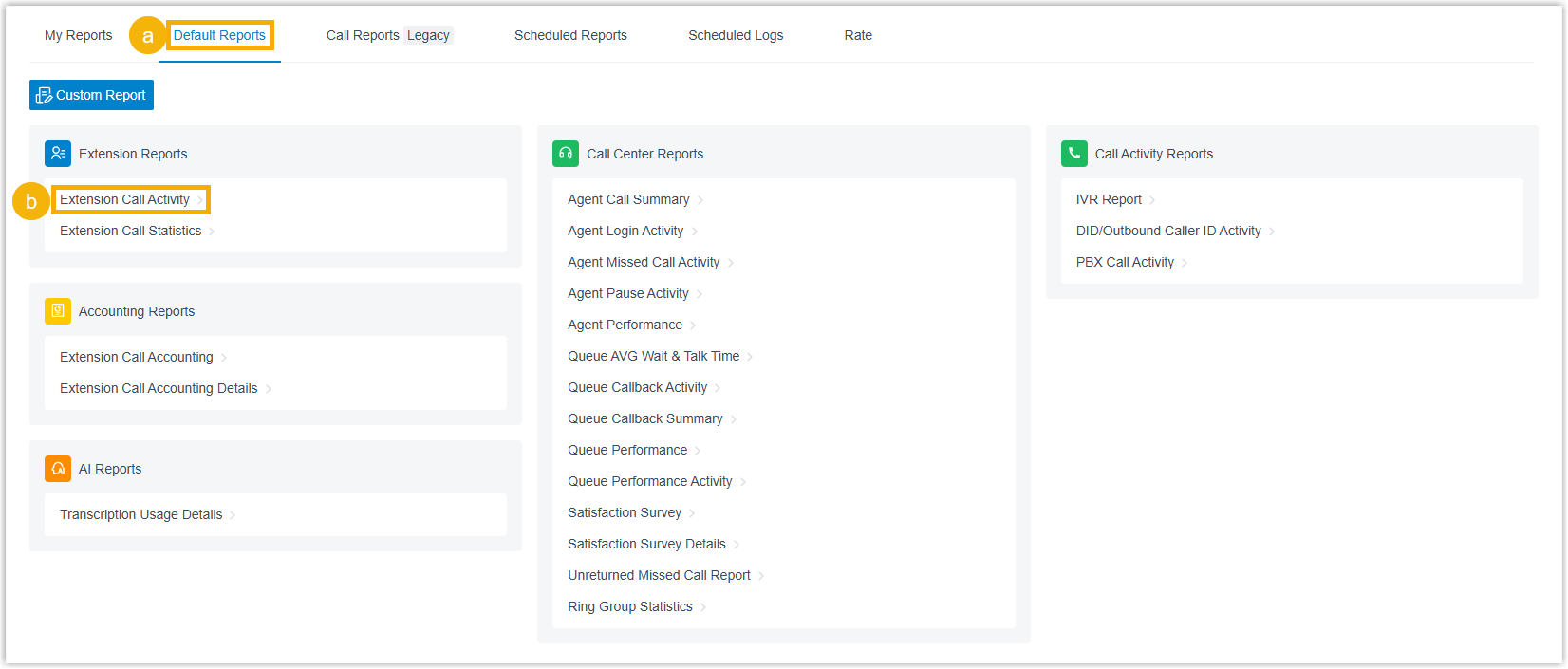
- Click Default Reports tab.
- Click the desired report.
- Set filter criteria for the call report.
- Specify the time range that the report will cover.
- Configure filters based on the selected
report.
The report that matches the filter criteria is displayed on the page.Report Filter Extension Extension Call Activity - Extensions/Extension Groups
- Organization
- Communication Type
Extension Call Statistics Accounting Extension Call Accounting - Extensions/Extension Groups
- Trunk
- Organization
Extension Call Accounting Details - Extensions/Extension Groups
- PIN Code
- Organization
- Trunk
Call Activity IVR Report - Type
- IVR
DID/Outbound Caller ID Activity - Trunk
- DID
- DOD
- Communication Type
PBX Call Activity - Trunk
- Include internal calls: Set whether to include internal call activities.
- Communication Type
Call Center Agent Call Summary - Queue
- Agent
Agent Login Activity Agent Missed Call Activity Satisfaction Survey Detail Agent Pause Activity - Queue
- Agent
- Pause Reason
Agent Performance - Queue
- Agent
- Exclude Calls
Abandoned within Xs: Specify the ring
duration to exclude short abandoned calls.
Calls abandoned within this time frame will NOT be included in the report.
Queue AVG Wait & Talk Time - Queue
Satisfaction Survey Queue Callback Summary Queue Callback Activity - Queue
- Callback Result
Queue Performance Activity - Queue
- Exclude Calls
Abandoned within Xs: Specify the ring
duration to exclude short abandoned calls.
Calls abandoned within this time frame will NOT be included in the report.
Queue Performance - Queue
- Exclude Calls
Abandoned within Xs: Specify the ring
duration to exclude short abandoned calls.
Calls abandoned within this time frame will NOT be included in the report.
- Exclude Calls
within Xs: Specify the talk duration
to exclude short answered calls.
Calls ended within this time frame will NOT be included in the report.
Inbound Queue Activity Analysis - Queue
- Wait Time Range: Specify the time interval used to group the amount of time that callers waited in the queue before connecting to an agent.
- Time Range
& Select Date: Specify the time
range that the report will cover.Note: If multiple time-based filters are applied, the report data includes data only for the overlapping time period.
- Exclude Calls
Abandoned within Xs: Specify the ring
duration to exclude short abandoned calls.
Calls abandoned within this time frame will NOT be included in the report.
- Exclude Calls
within Xs: Specify the talk duration
to exclude short answered calls.
Calls ended within this time frame will NOT be included in the report.
Unreturned Missed Call Report - Call From: Enter the caller's number or name.
- Call To: Enter the callee's number or name.
- Call Destination: Select the type of the destination to which the inbound call was routed.
- Missed Call Type: Select the type of missed call.
- Callback Status: Select whether the missed call was returned or not.
- Exclude Calls
Abandoned within Xs: Specify the ring
duration to exclude short abandoned calls.
Calls abandoned within this time frame will NOT be included in the report.
Ring Group Statistics - Ring Group
Inbound Queue Logs - Queue
- Communication Type
- Call From: Enter the caller's number or name.
- Queue Status
- Answered Agent
- Wait Time: Specify the
amount of time callers waited in the queue before
connecting to an agent or leaving the queue.
You can enter numbers,
-,=,<,<=,>,>=, and number ranges to specify the time. - Agent Answer Time:
Specify the amount of time agents took to answer
queue calls.
You can enter numbers,
-,=,<,<=,>,>=, and number ranges to specify the time. - Talk Time: Specify the
amount of time that agents spent talking to
callers, including hold time.
You can enter numbers,
-,=,<,<=,>,>=, and number ranges to specify the time. - Pure Talk Time: Specify
the amount of time that agents spent talking to
callers, excluding hold time.
You can enter numbers,
-,=,<,<=,>,>=, and number ranges to specify the time. - Hold Time: Specify the
amount of time that agents held queue calls.
You can enter numbers,
-,=,<,<=,>,>=, and number ranges to specify the time. - Source Trunk
- DID/DDI
- Exclude Calls
Abandoned within Xs: Specify the ring
duration to exclude short abandoned calls.
Calls abandoned within this time frame will NOT be included in the report.
- Exclude Calls
within Xs: Specify the talk duration
to exclude short answered calls.
Calls ended within this time frame will NOT be included in the report.
Agent Activity Analysis - Queue
- Agent
- Time Range
& Select Date: Specify the time
range that the report will cover.Note: If multiple time-based filters are applied, the report data includes data only for the overlapping time period.
- Exclude Calls
Abandoned within Xs: Specify the ring
duration to exclude short abandoned calls.
Calls abandoned within this time frame will NOT be included in the report.
- Exclude Calls
within Xs: Specify the talk duration
to exclude short answered calls.
Calls ended within this time frame will NOT be included in the report.
Inbound Queue Logs for Agent - Queue
- Agent
- Communication Type
- Call From: Enter the caller's number or name.
- Agent Last Call Status
- Queue Status
- Process Result: Select the process result for an abandoned or missed queue call.
- Wait Time in Queue:
Specify the amount of time callers waited in the
queue before connecting to an agent or leaving the
queue.
You can enter numbers,
-,=,<,<=,>,>=, and number ranges to specify the time. - Agent Wait Time:
Specify the amount of time it took for agents to
answer queue calls.
You can enter numbers,
-,=,<,<=,>,>=, and number ranges to specify the time. - Talk Time: Specify the
amount of time that agents spent talking to
callers, including hold time.
You can enter numbers,
-,=,<,<=,>,>=, and number ranges to specify the time. - Pure Talk Time: Specify
the amount of time that agents spent talking to
callers, excluding hold time.
You can enter numbers,
-,=,<,<=,>,>=, and number ranges to specify the time. - Hold Time: Specify the amount of time that agents held queue calls.
- Source Trunk
- DID/DDI
- Exclude Calls
Abandoned within Xs: Specify the ring
duration to exclude short abandoned calls.
Calls abandoned within this time frame will NOT be included in the report.
- Exclude Calls
within Xs: Specify the talk duration
to exclude short answered calls.
Calls ended within this time frame will NOT be included in the report.
AI AI Receptionist Call Activity Receptionist Transcription Usage Details -
- Optional: Adjust columns in the list to focus on
the key performance indicators that you want to track.
Operation Description Select columns to display Click  to select the
columns to display.
to select the
columns to display.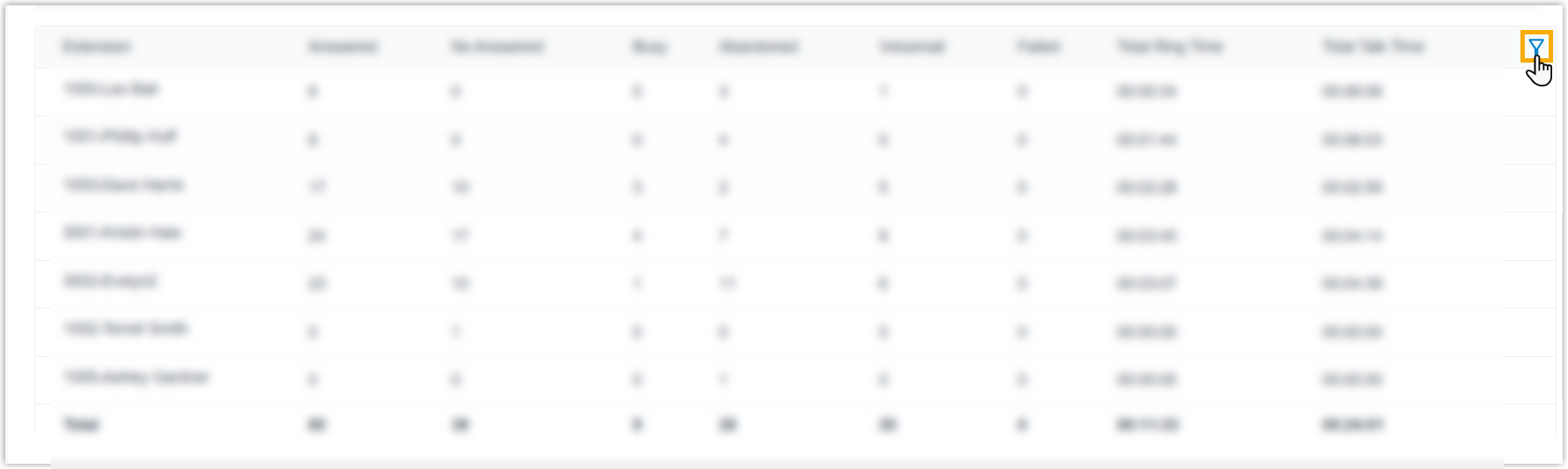
Pin a column Click  beside the
desired field, then drag it to the Left
(Freeze Column) or Right
(Freeze Column).
beside the
desired field, then drag it to the Left
(Freeze Column) or Right
(Freeze Column).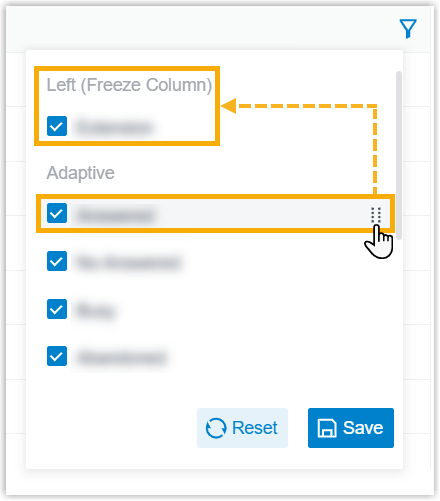
Change column order Click beside the desired field,
then drag it to the desired position.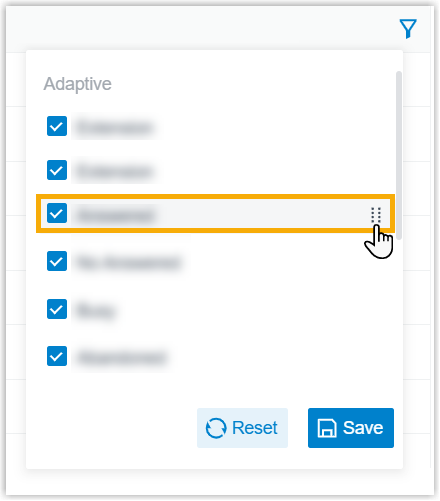
- Optional: Customize the report download settings.
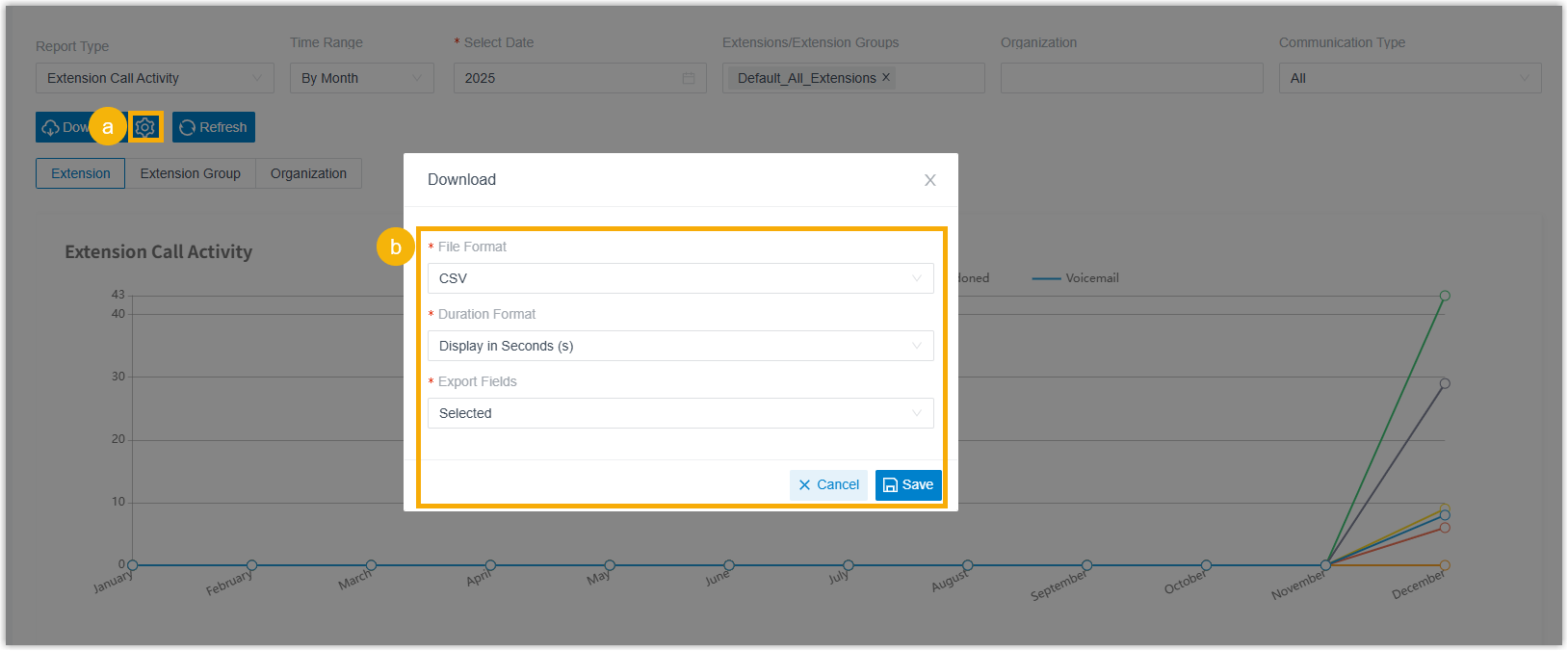
- At the top of the page, click
 .
. - In the pop-up window, customize the download settings, then click
Save.
- File
Format: Specify the download format
for the report.
- CSV
- XLS
- HTML
- Duration
Format: Specify the display format for
all duration-related fields.
- Display in Second (s)
- Display as HH:MM:SS
- Export
Fields: Specify the fields to
export.
- All
- Selected
- File
Format: Specify the download format
for the report.
- At the top of the page, click
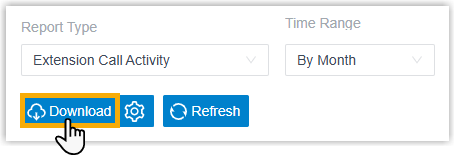
- Click Download.
Result
Call report matching the filter criteria is downloaded in the specified format to your local computer.