Check System Activity Logs
Yeastar P-Series Software Edition allows you to check system logs in real time directly within the system, without logging into the PBX server or downloading log files. The activity logs cover SIP signal processing, extension registration, network connection, and system running information, helping locate issues with calls, registration, and other events.
Requirements
The firmware version of Yeastar P-Series Software Edition is 83.25.0.23 or later.
Procedure
- Log in to PBX web portal, go to .
- At the top of the list, click Activity Logs.
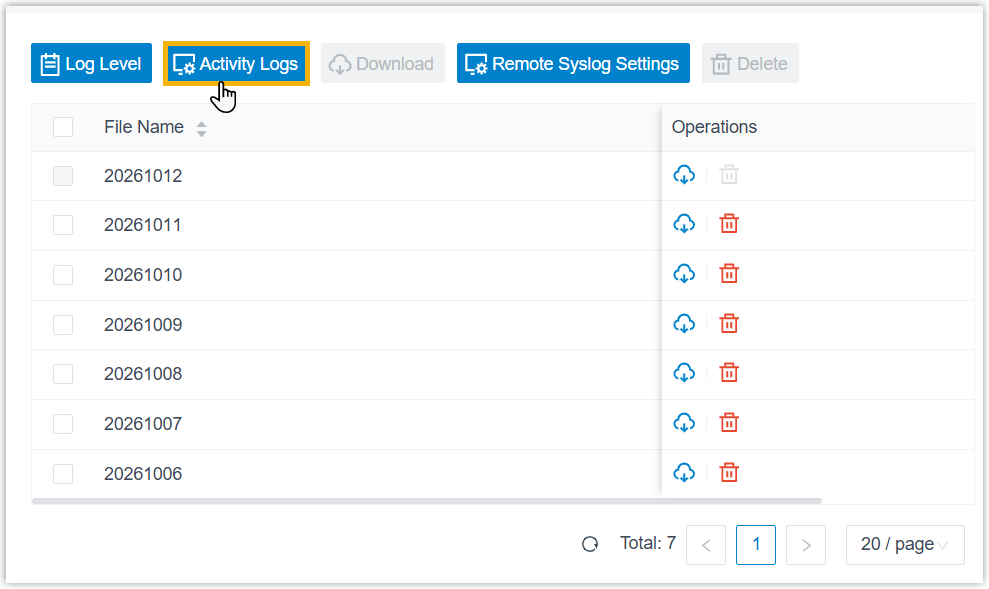
- Filter the logs as needed.
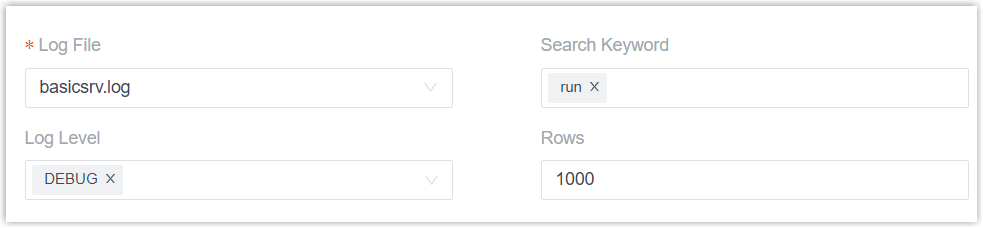
- Log File
Item Description pbxlog.log Logs for core PBX call engine (call setup and teardown, signaling exchange, call routing execution, etc.). basicsrv.log Logs for core system business services (configuration changes, interface request handling, call event processing, etc.). pbxtunnel.log Logs for the remote connection service (remote connection establishment, heartbeat keepalive, data forwarding, etc.). openapi.log Logs for Open API calls. trace-new.log Logs for call signaling traces. thirdapp.log Logs for third‑party application integration. cdrlog.lo Logs for Call Detail Records (CDR), including timestamps, caller/callee numbers, call duration, connection status, etc. analytics.log Logs for call statistics and reporting service. - Search Keyword: Enter desired key word(s).
- Log Level: Select desired log level(s).
- DEBUG
- INFO
- NOTICE
- WARNING
- ERROR
- Rows: Enter the log row to display.Note: Only an integer from 100 to 9999 is allowed.
The filtered logs up to now are displayed in the Log Content box below.Note:- To check the latest logs, click Refresh.
- To check real‑time logs, select the checkbox of
Auto Update.
Log content in the box refreshes automatically, and the view stays at the latest entry.
- To expand the display box, click Expand.
- To copy the content in the displayed box, click Copy.
- Log File