Switch Extension Presence by Function Key
This topic describes how to configure function keys for extensions on PBX web portal, allowing extension users to quickly switch to a specified extension presence on their Linkus clients or IP phone via the function keys.
Prerequisites
-
The firmware of Yeastar P-Series Cloud Edition is 84.24.0.30 or later.
- To apply function keys to an IP phone, ensure that the phone is connected to Yeastar P-Series Cloud Edition via Auto Provisioning, and has been assigned an
extension.For more information, see the following topics:
Procedure
- Log in to PBX web portal, go to , edit the desired extension.
- Click the Function Keys tab.
- Configure function keys to switch the extension presence.
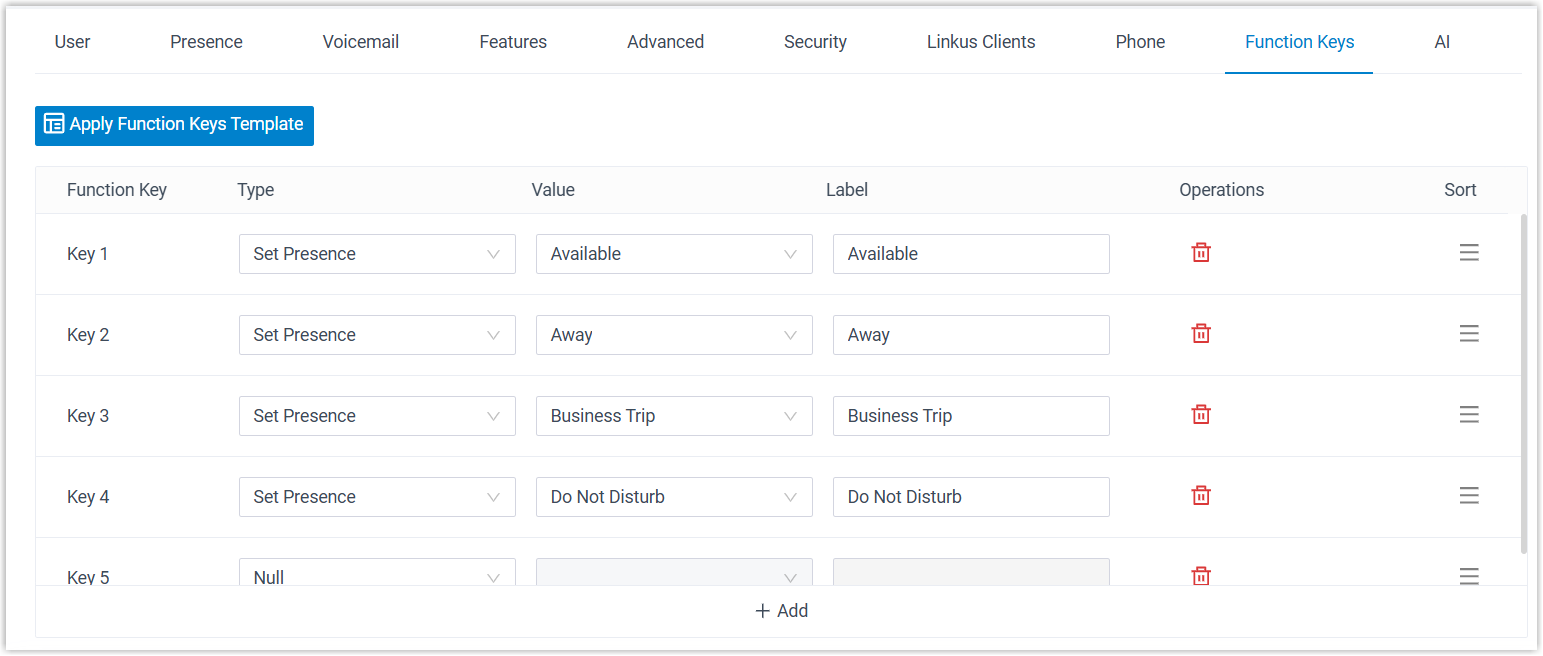
- Type: Select Set Presence.
- Value: In the drop-down list, select the extension presence to switch to.
- Label: Optional. Enter a value, which will be displayed on the phone screen.
- Click Save.
Result
- Linkus UC client
- The function keys have been displayed in the function key list on the extension user's Linkus client, allowing the user to quickly switch to the specified extension presence by clicking the relevant key.
- IP phone
-
- The function keys have been applied to the IP phone. Extension user can manually press the BLF key to quickly switch to the specified extension presence.
- The BLF LED indicates whether the extension is currently in the
status associated with the BLF key:
- Solid Green: The extension is in the presence status corresponding to the BLF key.
- Solid Red: The extension is not in the presence status corresponding to the BLF key.