Enable Call Quality Monitoring for Extensions
Yeastar P-Series Cloud Edition supports call quality monitoring for extensions, helping diagnose and troubleshoot call issues more efficiently. This topic describes how to enable call quality monitoring for extensions.
- This feature does not affect the real-time monitoring function of the extension's call interface.
- You can also grant extension users permission to set up call quality monitoring
in their own Linkus UC Clients.
For more information, see Grant Call Quality Monitoring Permission to Extensions.
Requirements
- PBX Server
-
- Linkus App
-
- Linkus iOS Client: Version 5.27.18 or later
- Linkus Android Client: Version 5.27.12 or later
Procedure
- Log in to PBX web portal, go to .
- Click
 beside the desired extension.
 - Under the Features tab, configure the following
settings.
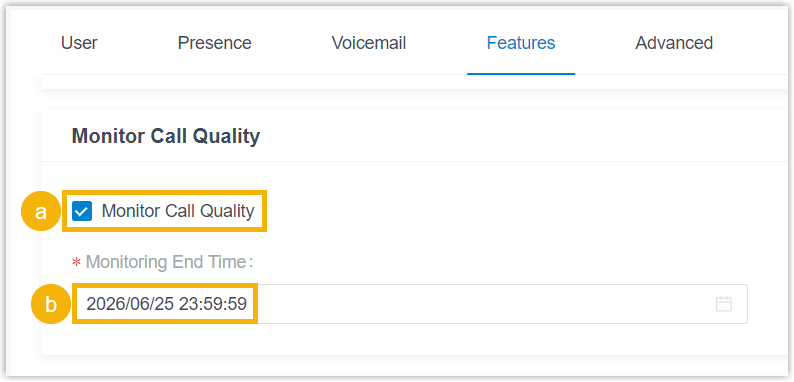
- Select the checkbox of Monitor Call Quality.
- In the Monitoring End Time drop-down list,
specify when call quality monitoring should end.Note: You can set the monitoring duration to up to 7 days.
- Click Save and Apply.
Result
When the extension is on a call, call quality data is automatically collected to generate a per-call call quality report and aggregated into the extension-wide Quality of Service (QoS) report. You can access these reports from PBX web portal, while extension users can access per-call reports from their own Linkus UC Clients.
- Access report from PBX web portal
-
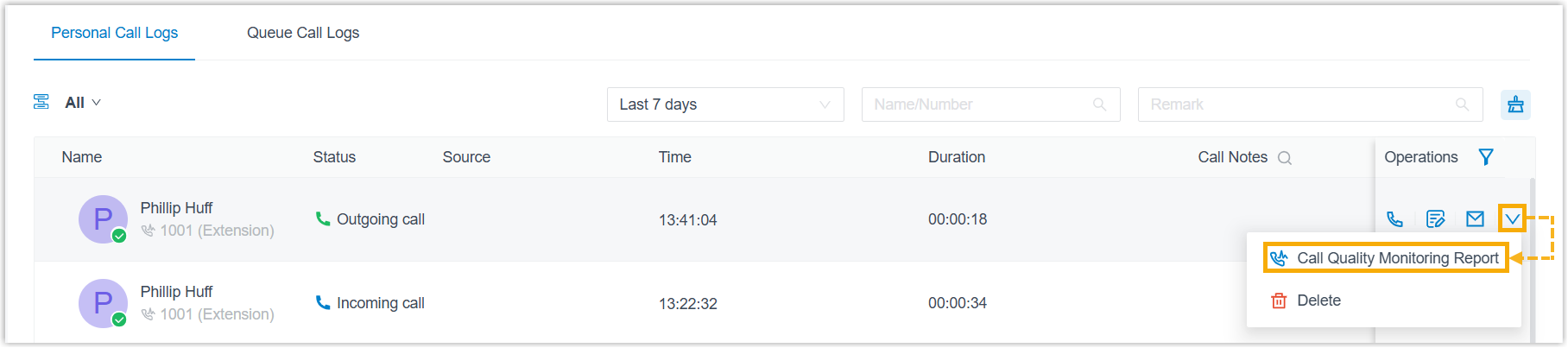
- Access Call Quality Monitoring Report: Go to , click
 /
/ /
/ to view the
report.
to view the
report.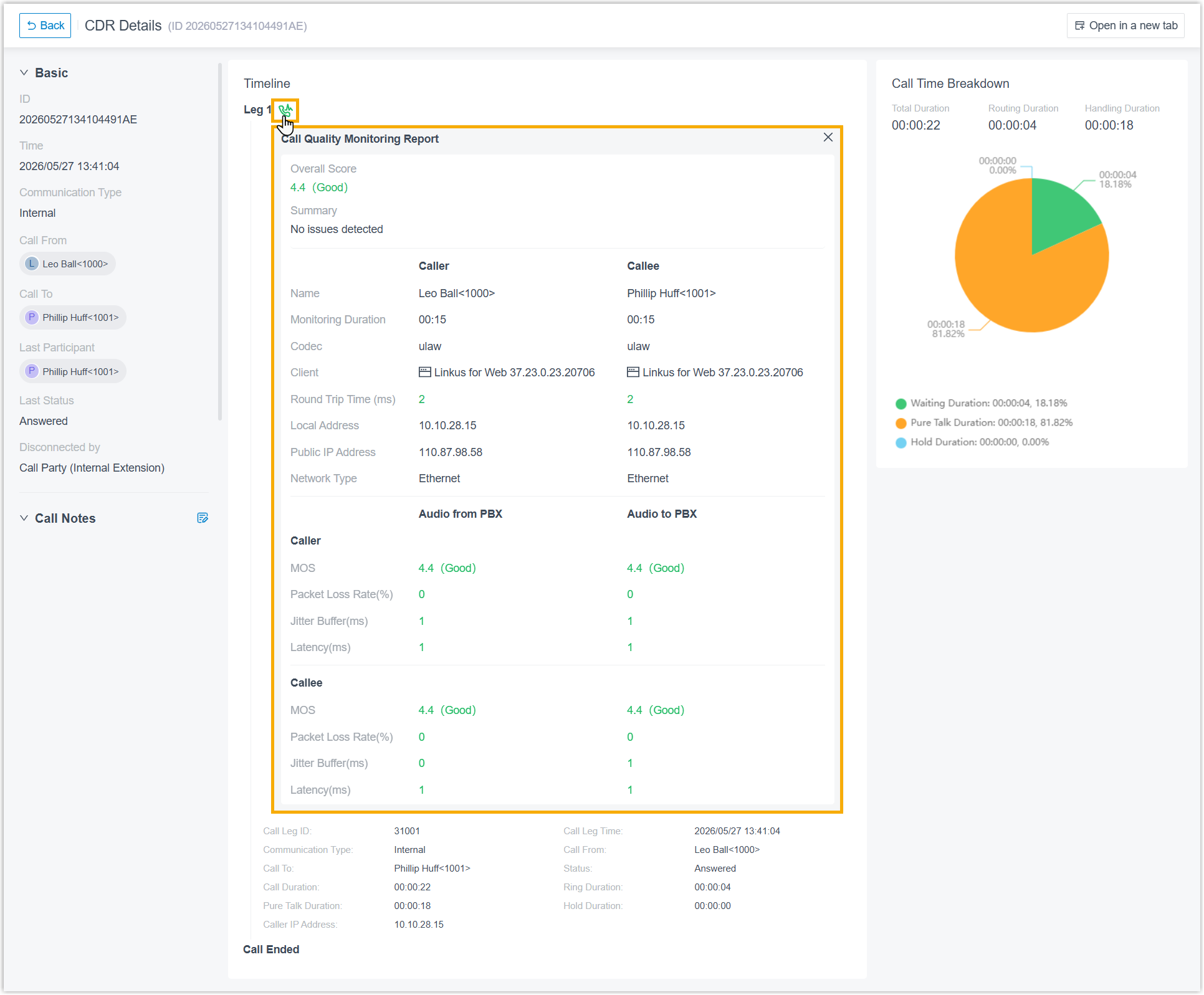
For more information, see Call Quality Monitoring Report.
- Access Quality of Service Report: Go to to view the report.
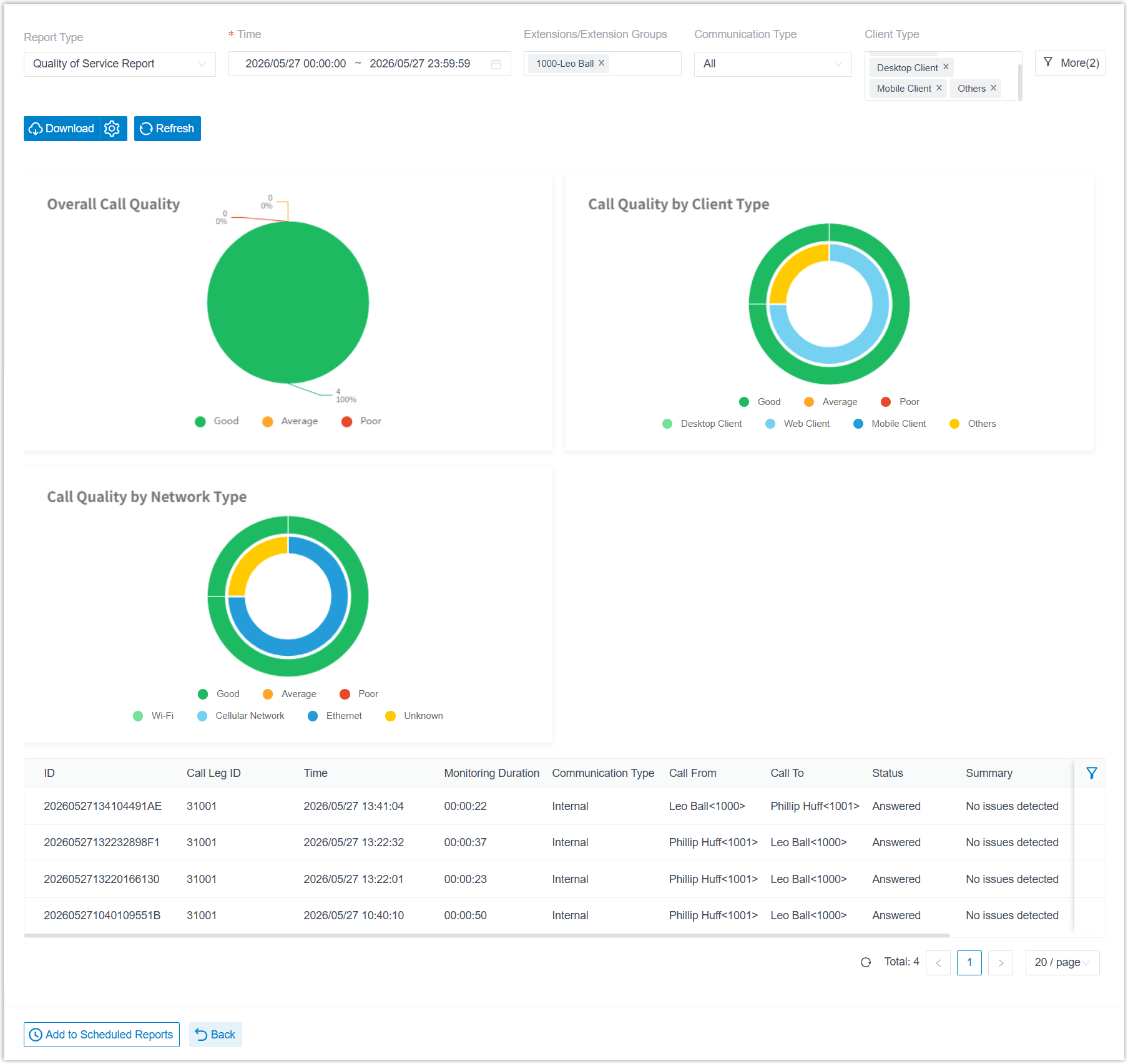
For more information, see Quality of Service Report.
- Access Call Quality Monitoring Report: Go to , click
- Access report from Linkus UC Clients
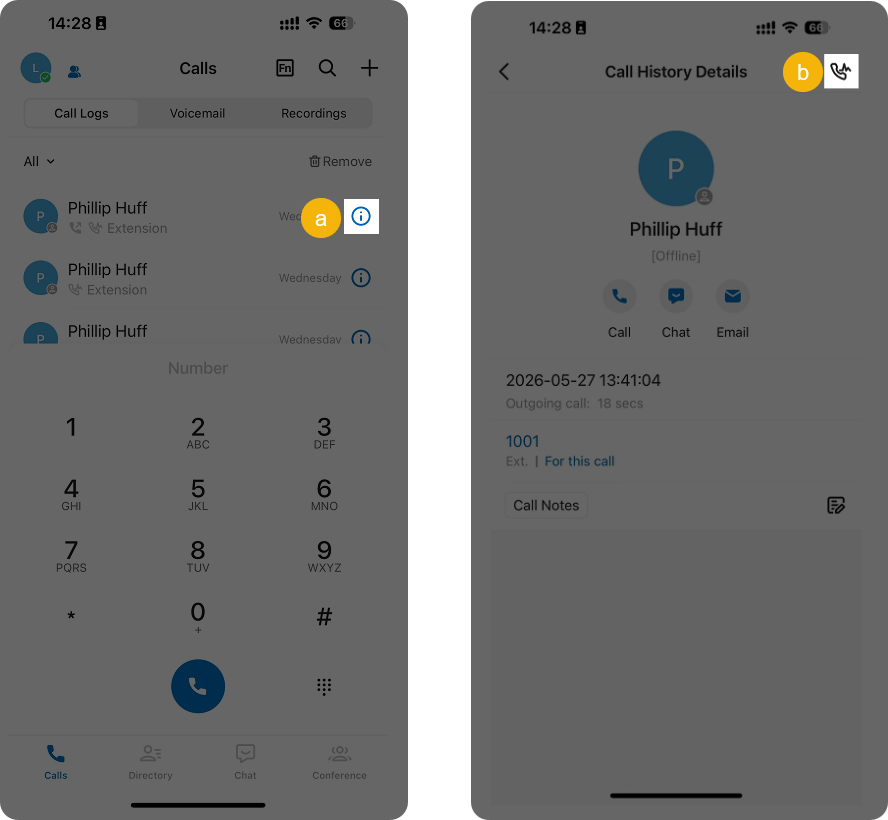
- Extension users can view call quality report from Linkus UC Clients.
-
Linkus Mobile Client Linkus Desktop Client Linkus Web Client Path: Calls > Call Logs >  >
>  .
.
Path: Call Logs > Personal Call Logs >  .
.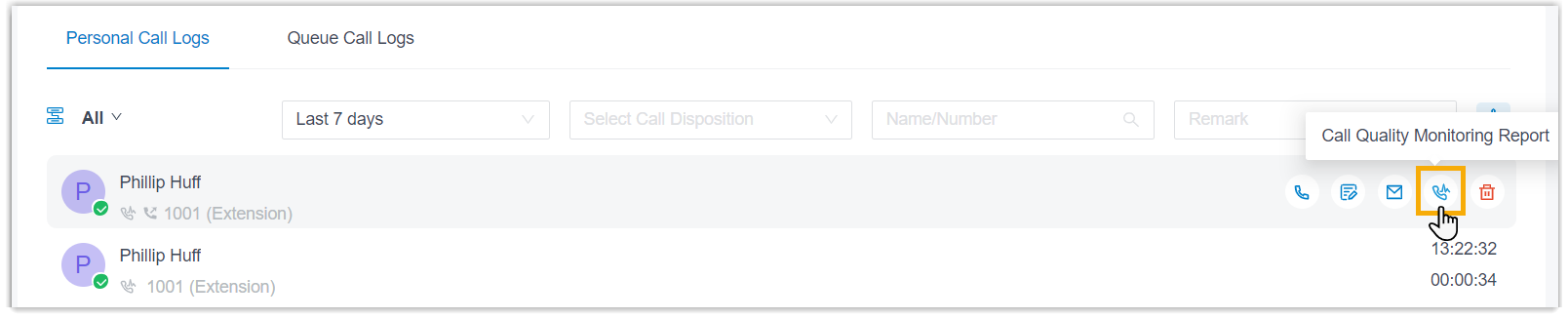
Path: Call Logs > Personal Call Logs >  > Call Quality Monitoring
Report.
> Call Quality Monitoring
Report.