Manage Logged-in Linkus Clients for an Extension
As a super administrator, you can view all Linkus clients (including Yeastar for Teams Desktop Plugins) logged into an extension and check information of their associated devices (device name, client type, and last login time). In addition, you can add remarks for devices and remotely log the extension out of specific devices.
Note: Extension users can also manage logged-in devices on their own
Linkus clients, and all changes will be synced to the PBX. For more information, see the
following topics:
Requirements
- The firmware version of Yeastar P-Series Cloud Edition is 84.22.0.138 or later.
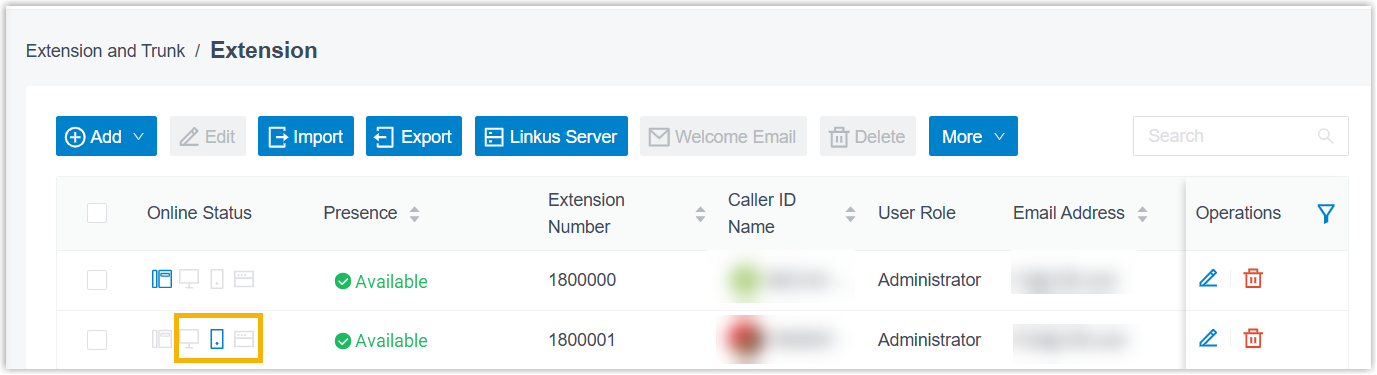
- At least one Linkus client is currently logged in to the extension.Tip: You can confirm this by viewing the Online Status column in the extension list (Path: ).
Add a remark for a device
- Procedure
-
- Log in to PBX web portal, go to , edit the desired extension.
- Click Linkus Clients tab.
- Scroll down to the Currently Logged-in
Devices section.
The Currently Logged-in Devices list shows the devices currently logged into the extension, along with their device name, client type, and last login time.
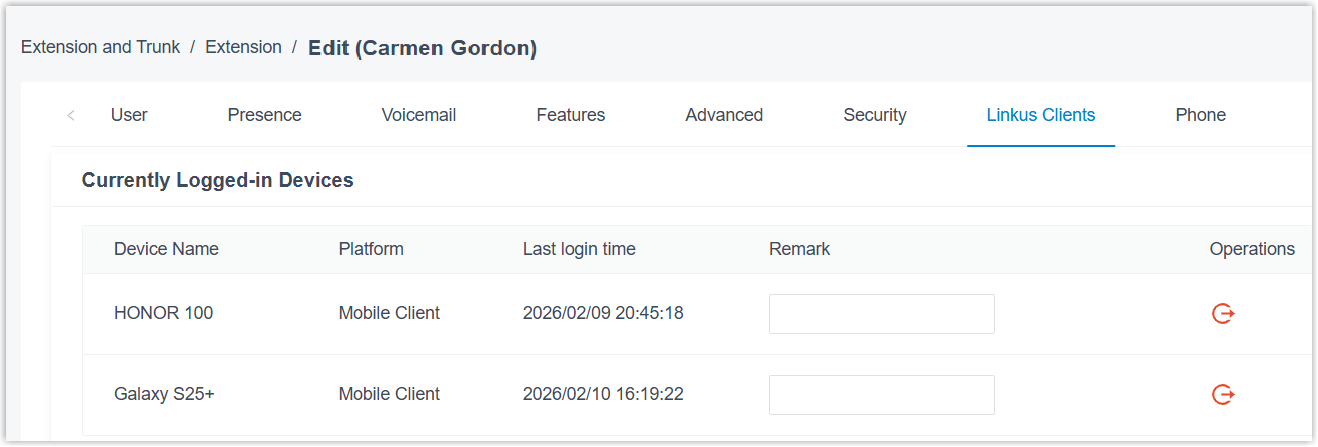
- In the Remark column of the desired
device, enter a remark.
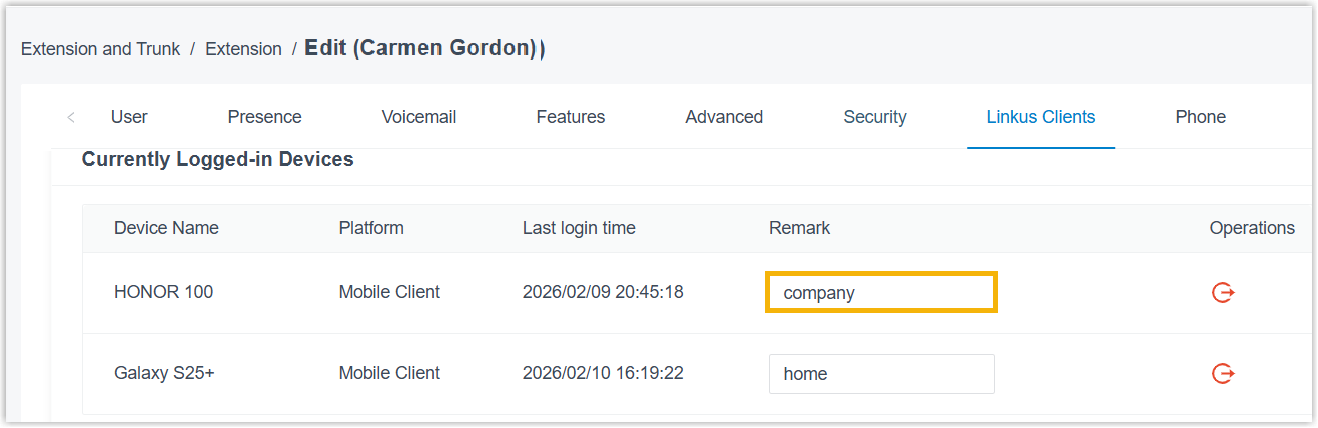
- Click Save.
- Result
- The configured remark is synchronized to all Linkus UC Clients of the extension.
Log the extension out of a device
- Procedure
-
- Log in to PBX web portal, go to , edit the desired extension.
- Click Linkus Clients tab.
- Scroll down to the Currently Logged-in Devices section.
- Click
 beside the desired device.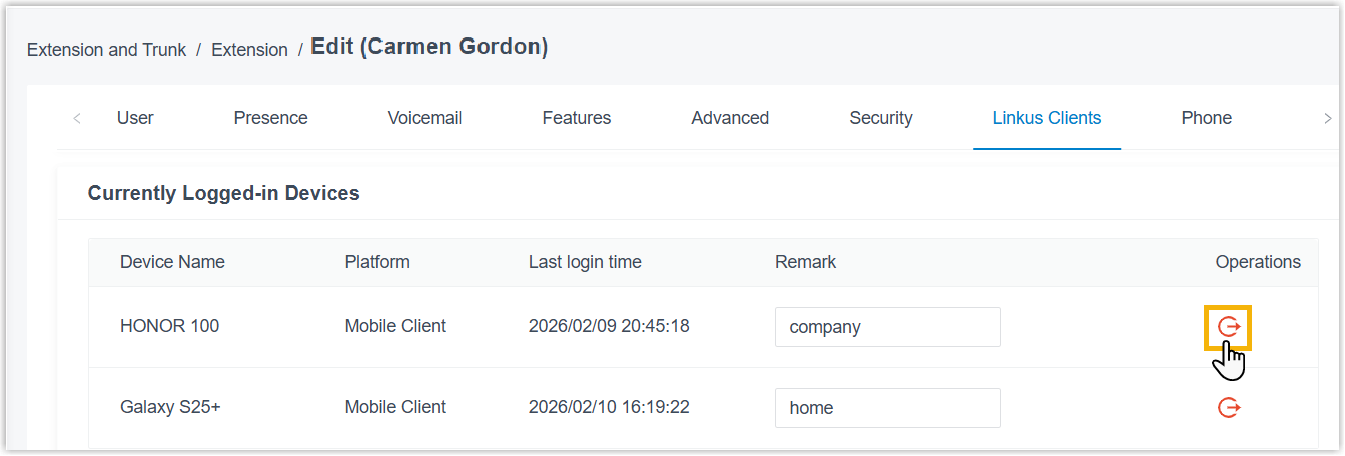
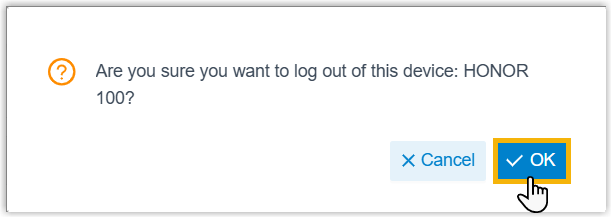
- In the pop-up window, click OK.
- Result
- The extension is successfully logged out of the desired device; A message "This device has been logged out by you or the administrator" appears on that device screen.