Key Metrics for CDR Details
Call Detail Record (CDR) provides information on incoming and outgoing calls made and received on Yeastar P-Series Cloud Edition. This topic describes the key metrics in CDR details.
- You can click any area in the image below to jump to its corresponding description.
- You can click Open in a new tab to view the details in a separate browser tab.
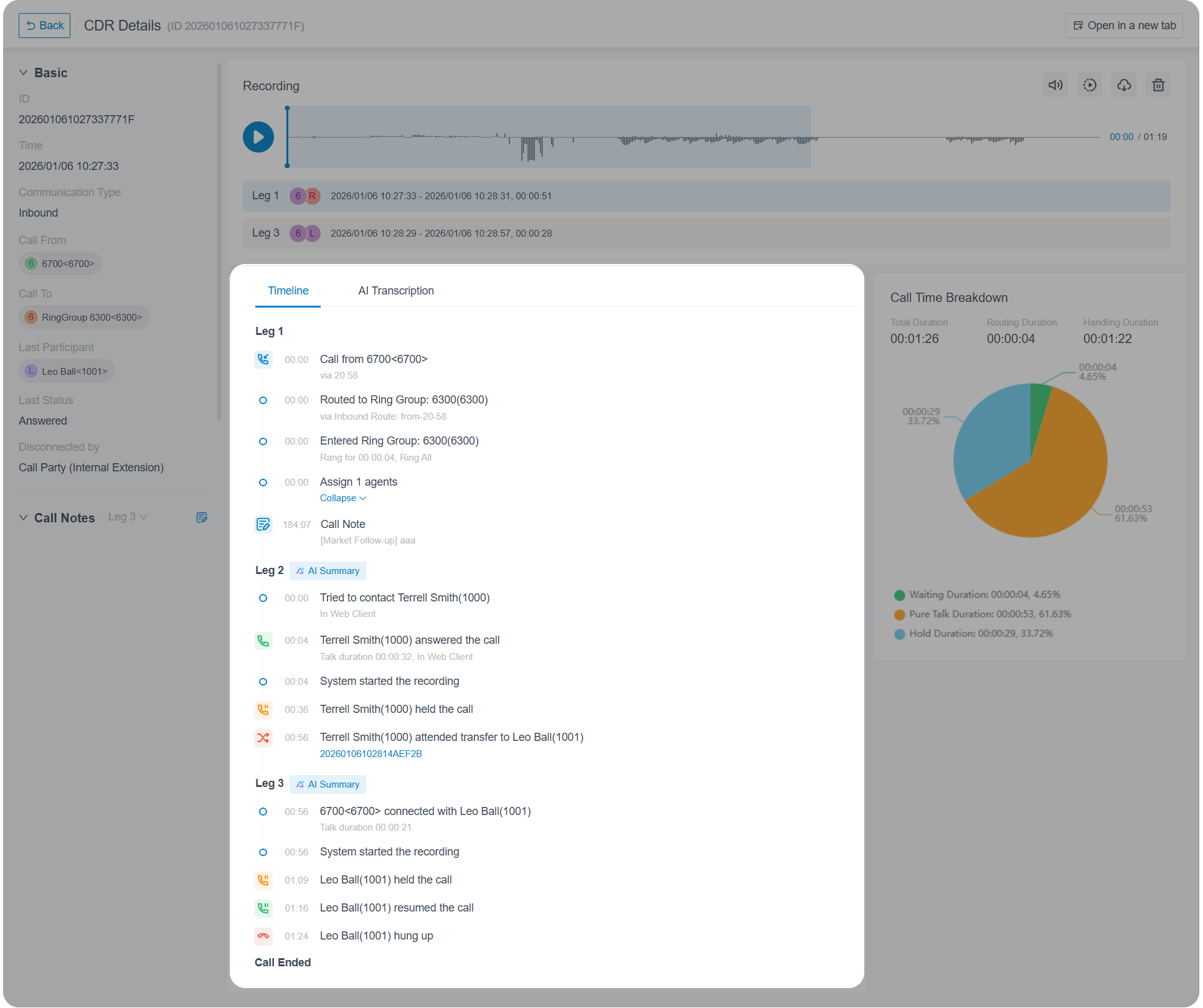
Basic call information
This panel provides a quick overview of a call, giving you clear insights into its details and status.
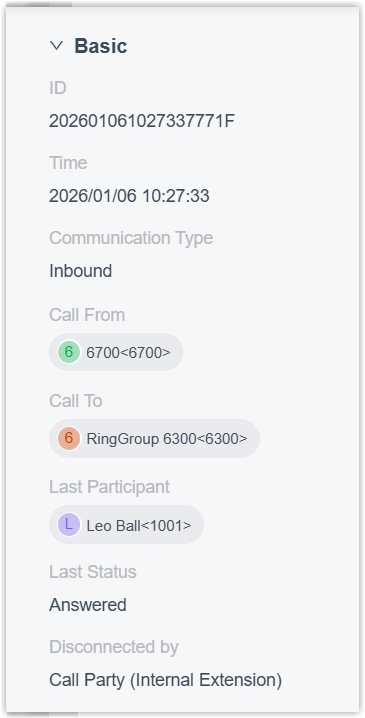
| Item | Description |
|---|---|
| ID | A unique identifier for each call. |
| Time | The time when the call was initiated or received. |
| Communication Type | The communication type of the call.
Note: For calls with multiple call
legs, this field displays the communication type of the
first call leg.
|
| Call From | The caller who initiated the call. Note:
|
| Call To | The callee who received the call. Note:
|
| Last Participant | The callee who received the call. Note:
|
| Last Status | The final status of the call.
Note: For calls with multiple call
legs, this field displays the call status of the last
call leg.
|
| Disconnected by | The party that terminated the call.
Note:
|
Call Notes
This panel offers a centralized view of all notes added to a call and the operators involved, helping you capture key notes for the call. Beyond this, it enables more granular insights and management of call notes across all call legs - you can view and edit the notes for each specific call leg as needed.
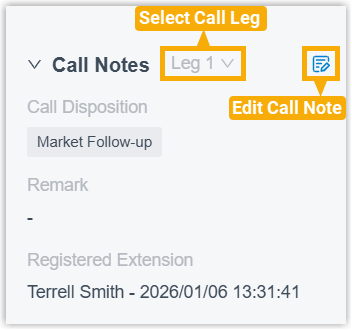
| Item | Description |
|---|---|
| Call Disposition | The disposition code assigned to the call. |
| Remark | The notes added to the call. |
| Registered Extension | The extension that most recently edited the call note. |
Recording
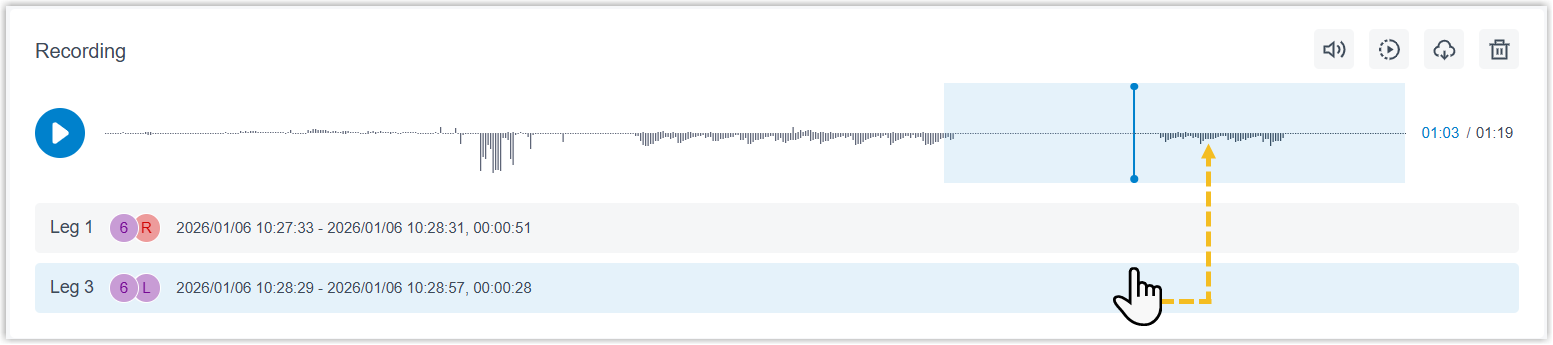
This panel aggregates and organizes all recordings for a call into a single waveform view presenting the call duration and recording duration across all call legs, which enables you to intuitively identify when call participants are speaking and quickly locate and play the desired recording segment within clicks.
- Play recordings with adjustable volume and playback speed
- Download recordings by segment or as a single file
- Delete recordings directly within the panel
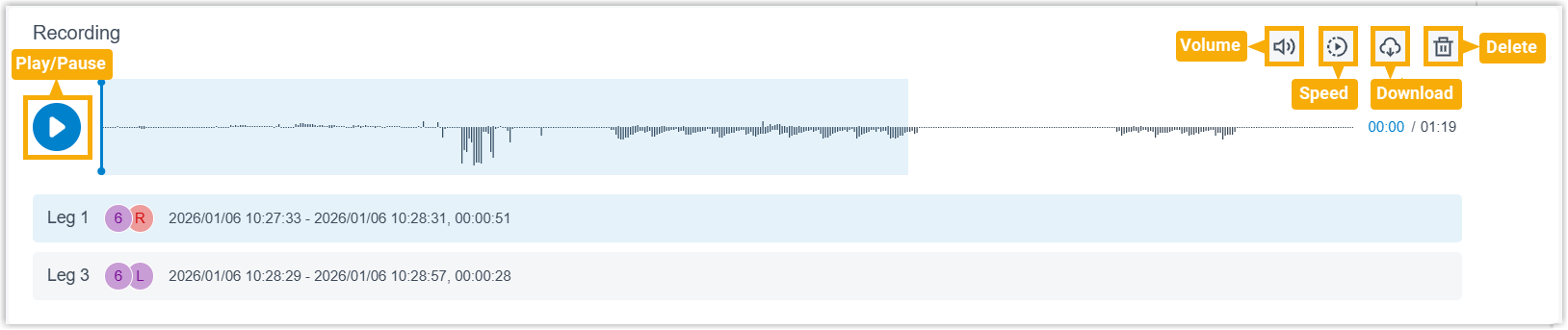
| Item | Description |
|---|---|
| Leg {number} | Display the participants involved in the recording, the call
start time and end time, and the recording duration. Tip: You can click the
call leg bar to quickly locate the corresponding
recording segment in the waveform view.
|
Timeline
This panel presents thorough call leg data, providing a different level of detail depending on your configuration.
By default, call leg data is displayed in a flat, centralized layout. When the call timeline feature for CDR is enabled, the system records all events throughout a call's lifecycle and display them in chronological order. You can check out the panel details as needed.
- Supported views
-
View Description Standard View (with call timeline disabled) 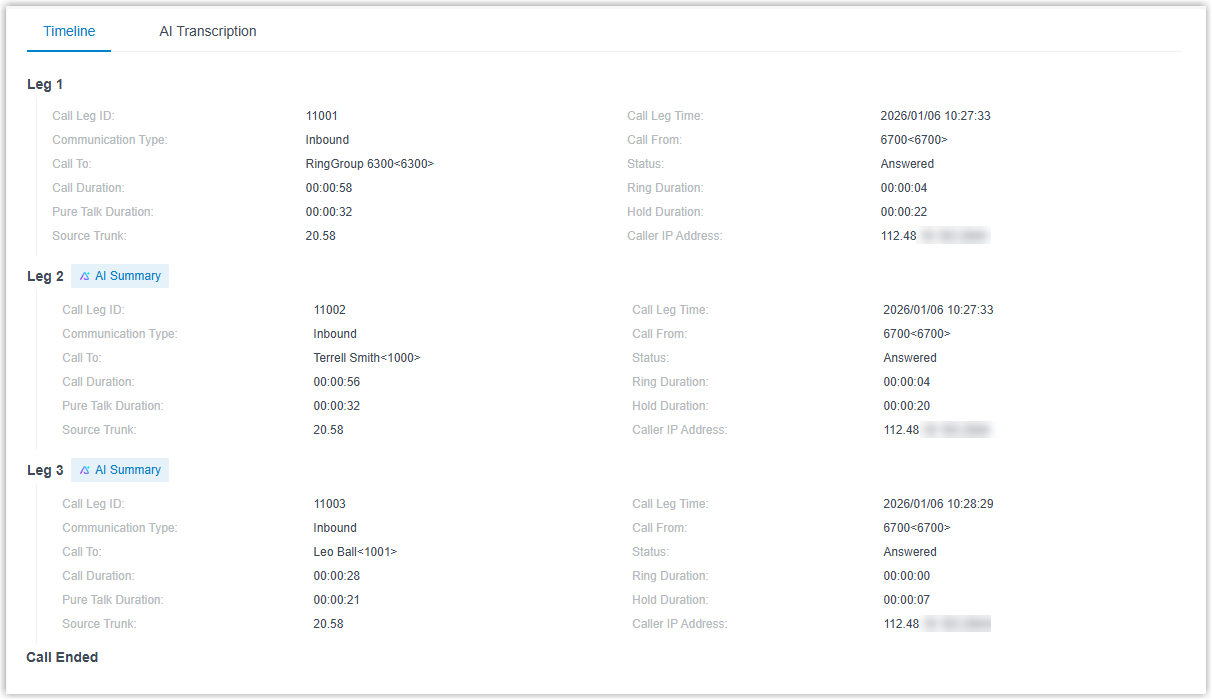
Bring together essential metrics for each call leg within a call in a flat, centralized layout, providing an at-a-glance overview of call activity. Timeline View (with call timeline enabled) 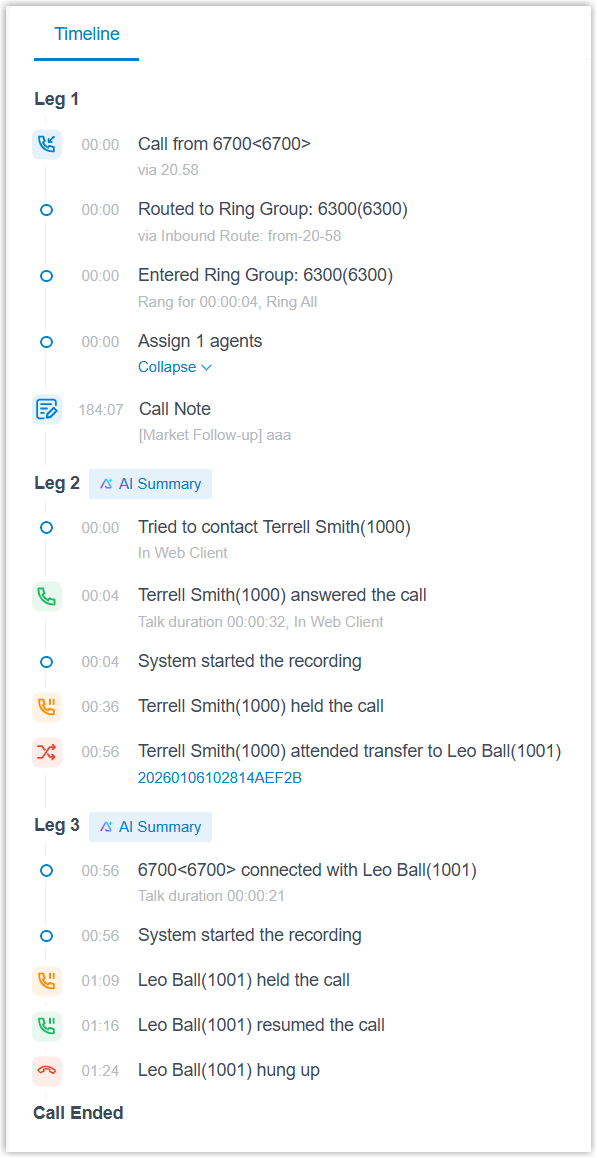
List all events from the start to the end of a call in chronological order, providing detailed and granular insights into call activity. - Supported metrics
-
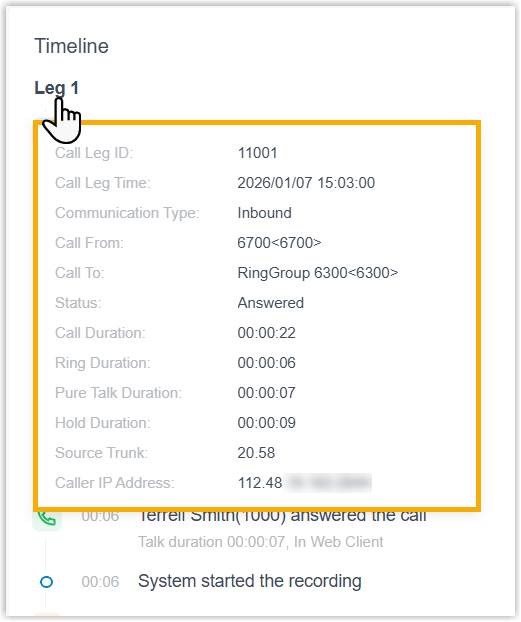
Note: When the call timeline feature is enabled for CDR, the system records timeline data for each call. You can view overall metrics by hovering mouse over each call leg.
Item Description  /
/ /
/
Quick access to call quality monitoring report of the call leg. - : The call
quality is good.
- : The call
quality is moderate.
- : The call
quality is poor.
For more information, see Supported metrics for Call Quality Monitoring Report.
Note: Call legs where calls are routed to IVR, ring group, queue, conference, or extension monitoring don't support call quality monitoring.Call Leg ID The unique identifier for the call leg. Call Leg Time The start time for the call leg. Communication Type The communication type of the call. - Internal
- Inbound
- Outbound
Call From The caller who initiated the call. Call To The callee who received the call. Status The status of the call. - ANSWERED
- NO ANSWER
- BUSY
- FAILED
- VOICEMAIL
- ABANDONED
Call Duration The time between the call started and the call ended. Formula: Call Duration = Ring Duration + Talk Duration + Hold Duration
Ring Duration The time between the call started and the call answered. Pure Talk Duration The time between the call answered and the call ended, excluding any hold time. Hold Duration The time during which the call is placed on hold. Source Trunk The call was received via which trunk. Destination Trunk The call was sent out via which trunk. DID/DDI The phone number that the caller dialed. Outbound Caller ID The phone number that was displayed on the callee's phone. Caller IP Address The IP address of the caller's device. PIN Code The PIN code used when making a call via a restricted outbound route. AI Summary The AI-generated summary of the call. Note: This metric is displayed only for calls meeting either of the following conditions:- Calls transcribed via the PBX's built-in AI engine.
- Calls transcribed via an integrated third-party speech-to-text service with an LLM enabled for call summary.
For more information about configuring AI call transcription with different services, see AI Transcription Overview.
You can click the indicator to view, copy, edit, or download the AI summary as needed.
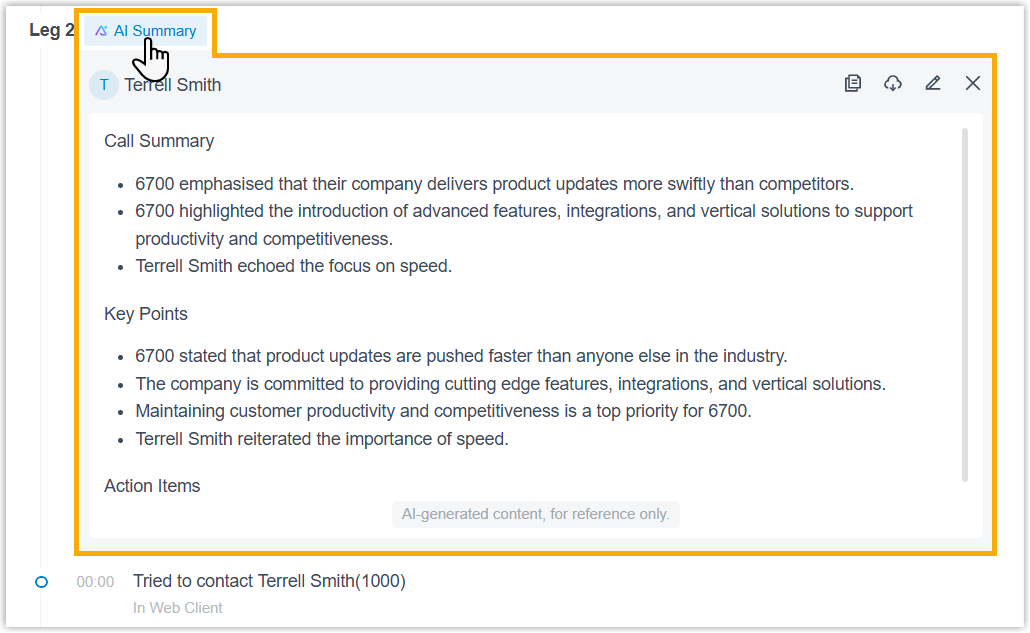
AI Receptionist The processing result of AI receptionist calls. Note: This metric is displayed only for AI receptionist calls. : Resolved. The
AI receptionist successfully resolved the caller's
issue without transferring the call.
: Resolved. The
AI receptionist successfully resolved the caller's
issue without transferring the call. : Transferred.
The AI receptionist transferred the call to
another destination.
: Transferred.
The AI receptionist transferred the call to
another destination. : Unresolved.
The AI receptionist neither resolved the caller's
issue nor transferred the call.
: Unresolved.
The AI receptionist neither resolved the caller's
issue nor transferred the call.
- Supported metrics for Call Quality Monitoring Report
-
Metric Description Overall Score The overall call quality score and rating. Summary A summary of the call quality report. Caller & Callee Name Name and number. Monitoring Duration The duration during which call quality is monitored. Codec The codec used for the call. Client The client or device used for the call. - Linkus Mobile Client: Linkus for iOS/Android {app_version}
- Linkus Desktop Client: Linkus for Windows/Mac {app_version}
- Linkus Web Client: Linkus for Web {server_version}
- IP Phone: {phone_vendor} {phone_model} {phone_version}
Round Trip Time (ms) The round-trip transmission time for audio packets. Local Address The local IP address used by the client for the call. Public IP Address The public IP address used by the client for the call. Network Type The network connection type used by the client during the call. Audio from PBX & Audio to PBX MOS The Mean Opinion Score (MOS) for audio quality. - MOS < 3.5: Poor
- 3.5 ≤ MOS < 4.0: Moderate
- 4.0 ≤ MOS ≤ 5.0: Good
Packet Loss Rate(%) The percentage of lost audio packets. Jitter Buffer(ms) The delay variation compensation buffer. Latency(ms) The network transmission delay.
AI Transcription
-
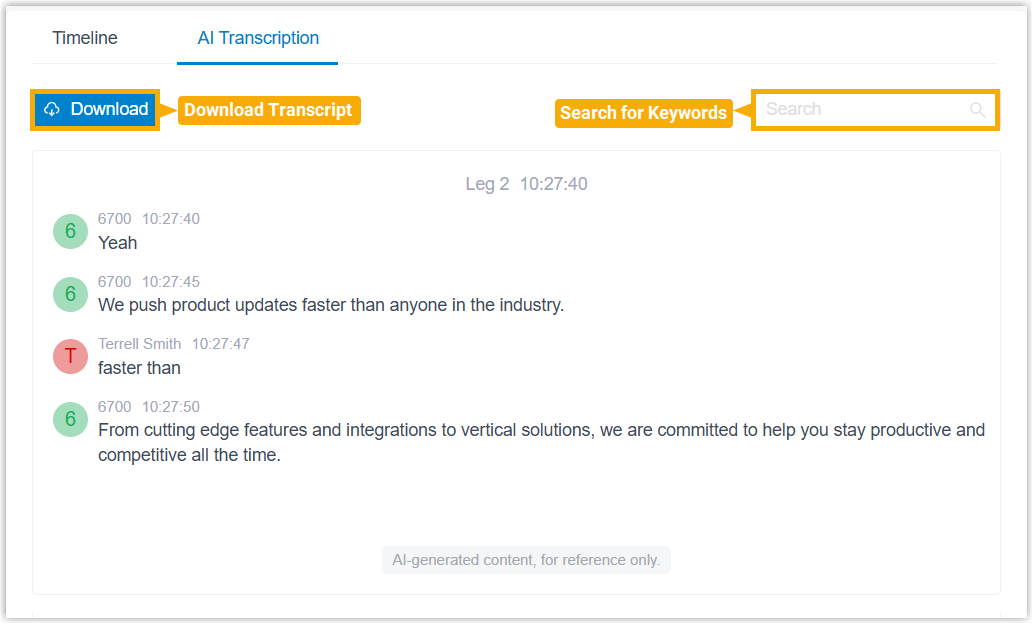
Transcripts generated by the AI Call Transcription feature.
- Transcripts and tool invocation records generated by the AI
Receptionist feature.Note: The call transcript generated by the AI Receptionist do NOT consume minutes from the AI Call Transcription feature.
You can search for keywords to locate specific content or download the transcript in
.txt or .docx format as needed.
Call Time Breakdown
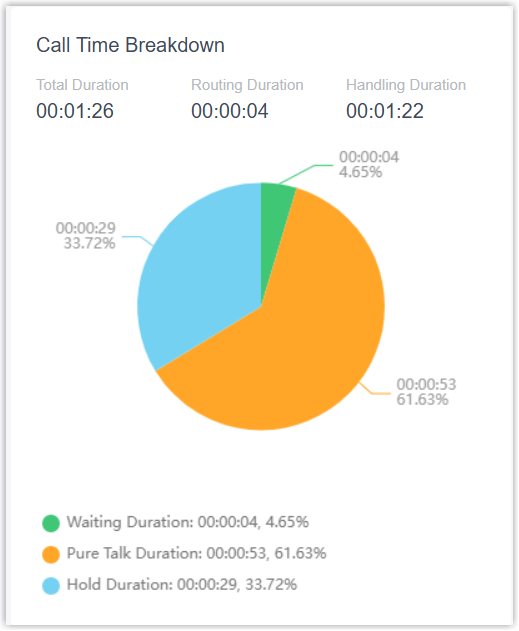
This panel provides instant visibility into the total duration of a call, and visualizes how time is spent across its entire lifecycle, making it easy to see the breakdown of the call time and identify areas for improvement.
| Item | Description |
|---|---|
| Total Duration | The total time between the call started and the call
ended. Formula: Total Duration = Routing Duration + Handling Duration |
| Routing Duration | The time between the call started and the call answered. Note: If a call
was routed through an IVR or a call flow, the time
between entering and leaving the IVR/call flow is
included.
Formula: Routing Duration = Waiting Duration + Time Spent in IVR/Call Flow |
| Handling Duration | The time between the call answered and the call ended,
including any hold time.
Formula: Handling Duration = Pure Talk Duration + Hold Duration |
| Waiting Duration | The time between the call started and the call answered. Note: If a call was routed through an
IVR or a call flow, the time between entering and
leaving the IVR/call flow is excluded.
|
| Pure Talk Duration | The time between the call answered and the call ended,
excluding any hold time. Note: If a call was routed through an
IVR or a call flow, the time spent in the IVR/call flow
is excluded.
|
| Hold Duration | The total time during which the call is placed on hold. |