Customize CDR Download Settings
When manually downloading CDR from PBX web portal, the list data is downloaded in CSV format by default. You can adjust the CDR download settings to specify the data range and the file format.
Procedure
- Log in to PBX web portal, go to .
- In the CDR (Advanced) tab, select Download
Settings from the drop-down list of Download
CDR.
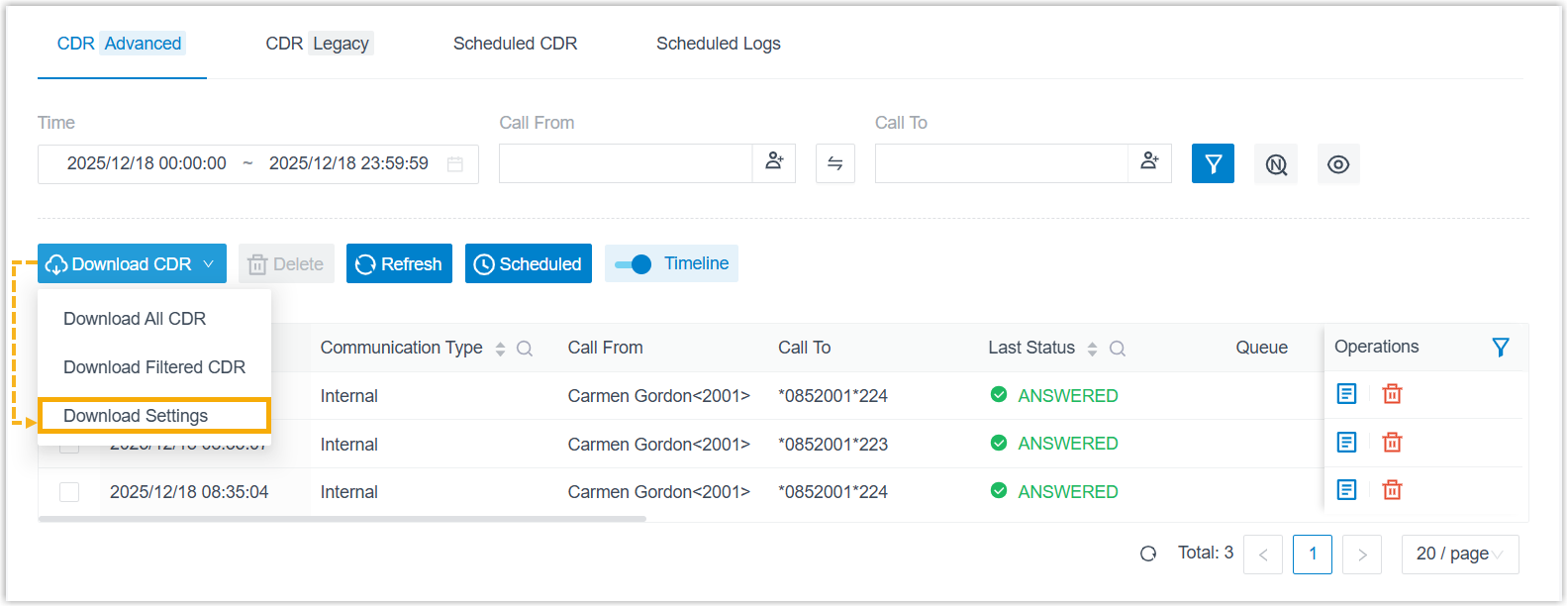
- In the pop-up window, configure the following settings.
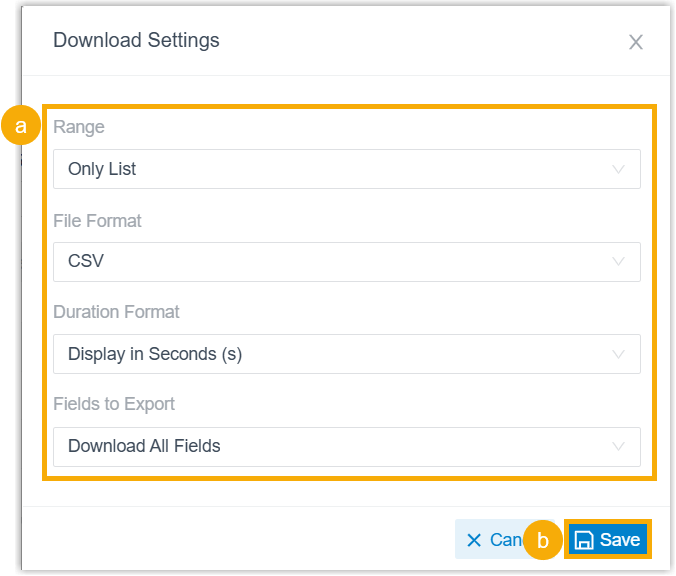
- Customize the CDR download settings.
Setting Description Range Specify the download range for CDR. - Only List
- Only Call Leg Data
- List & Call Legs Data
- List, Call Legs, and Timeline
Data
File Format Specify the download format for CDR. - CSV
- XLS
- HTML
Duration Format Specify the display format for all duration-related fields. - Display in Second (s)
- Display as HH:MM:SS
Fields to Export Specify the fields to export. - Download All Fields
- Download Selected Fields
- Click Save.
- Customize the CDR download settings.
Result
The download settings are saved and will be retained for future downloads until changed.