Switch OEM ID for P-Series Software Edition
By default, all Yeastar-provided software PBXs are associated with a common ID that applies Yeastar-branded settings. After you rebrand software PBX, a unique OEM ID is generated for your custom branding. You can switch OEM ID for the desired software PBXs to apply your custom branding.
Introduction
Switching OEM ID allows you to apply custom branding information and settings to specific software PBXs, without affecting existing configurations and data.
You can switch OEM ID for software PBXs directly from Yeastar Partner Portal. If the PBXs are remotely connected to Yeastar Central Management, you can also proceed from the portal.
This topic describes how to switch OEM ID for software PBXs from Yeastar Partner Portal. For more information about how to proceed from Yeastar Central Management, see Switch OEM ID For P-Series Software Edition (Self-hosted) and Switch OEM ID For P-Series Software Edition (Yeastar-hosted).
Restrictions
Switching OEM ID is NOT supported on P-Series Software Edition with the Hot Standby or Disaster Recovery feature enabled.
Prerequisites
- Your account manager has granted you the permission to switch OEM ID for P-Series Software Edition.
- You are the product owner of the software PBX for which you want to switch OEM ID.
Procedure
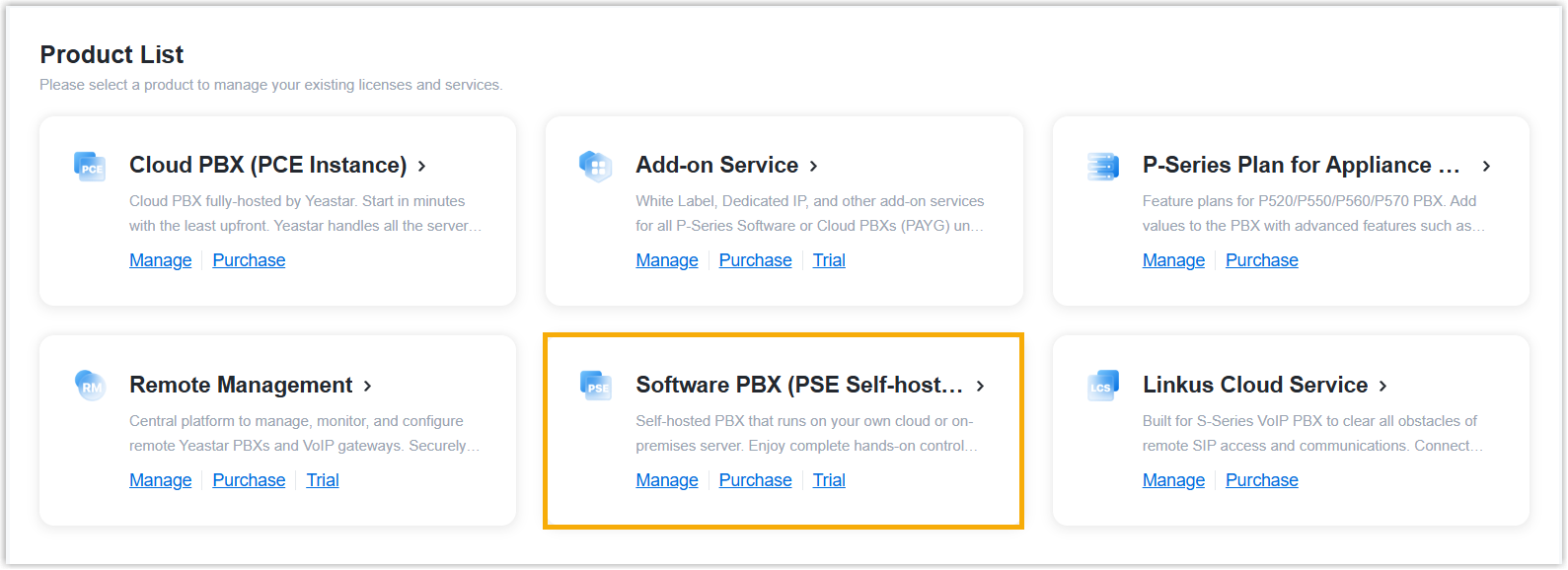
- Log in to Yeastar Partner Portal, go to Products & Purchase.
- On the product list, click Software PBX (PSE
Self-hosted).
- Switch OEM ID for the desired software PBX.
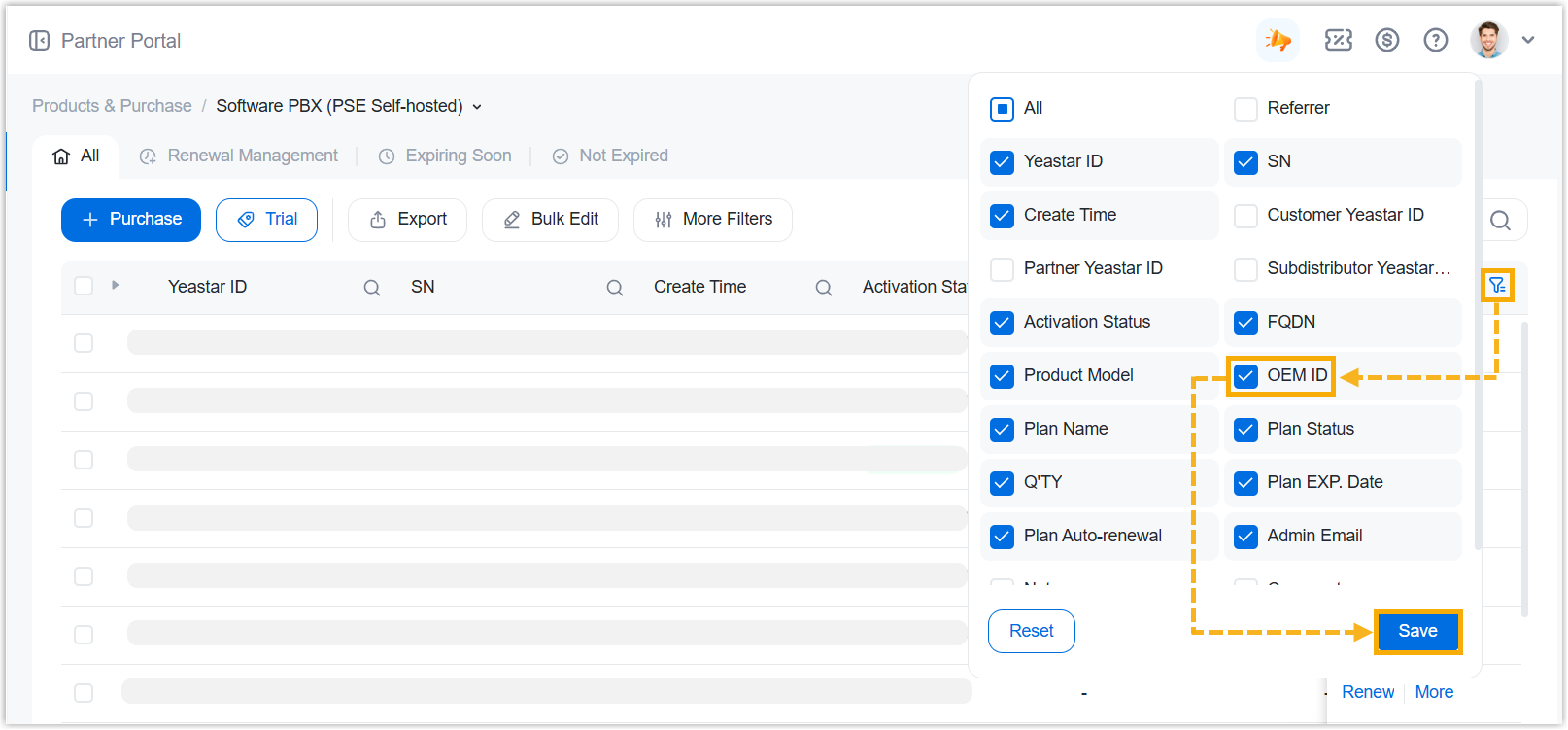
- Enable the OEM ID filter in the list view to
display OEM ID values for each software PBX.
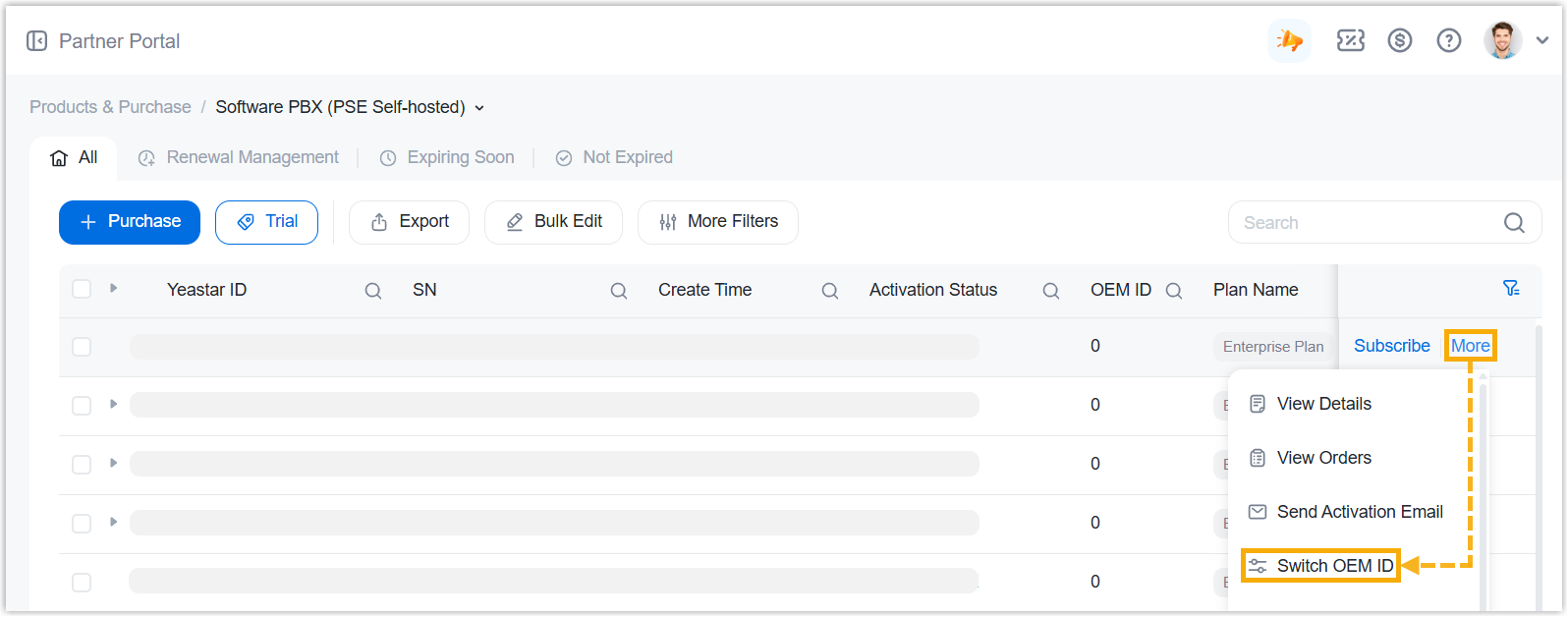
- Click More beside the desired software PBX,
then select Switch OEM ID.
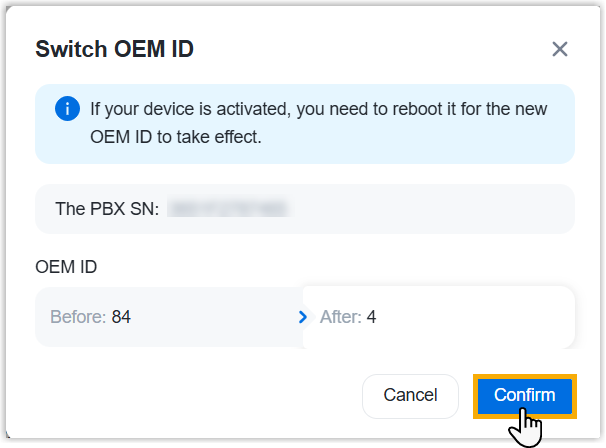
- In the pop-up window, click Confirm.
- Enable the OEM ID filter in the list view to
display OEM ID values for each software PBX.
Result
The OEM ID of the software PBX is switched.
What to do next
To make the new OEM ID takes effect on the software PBX, you need to upgrade the PBXs to version 83.20.0.74 or later.