Obtain Free Trial for Remote Management Premium Service
Remote Management Premium service allows you to remotely connect to on-premises Yeastar PBXs and gateways through Yeastar Central Management, and implement monitoring, provisioning, and management for the devices. Yeastar offers a 30-day free trial for the service, enabling you to connect 1 device and explore the features before subscribing.
Introduction
Yeastar provides two offerings of the Remote Management Premium service - Trial and Commercial. Refer to the following table for the differences.
| Item | Trial Remote Management | Commercial Remote Management |
|---|---|---|
| Connections | 1 | On-demand purchase |
| Validity Period | 30 days | Annual Subscription |
| Price | Free | Paid |
This topic describes how to purchase a commercial Remote Management Premium service. To obtain a free trial, see Obtain Free Trial for Remote Management Premium Service.
Supported devices
Refer to the following table to see the supported devices and the required firmware versions.
| Device | Version Requirement | |
|---|---|---|
| PBX | P-Series Appliance Edition | 37.5.0.86 or later |
| P-Series Software Edition | 83.5.0.86 or later | |
| S-Series VoIP PBX | 30.6.0.20 or later | |
| K2 IPPBX | 80.5.0.29 or later | |
| Cloud PBX | 81.4.0.X or later | |
| Gateway | TA1600/TA2400/TA3200 | V3 |
| TA1610 | V3 | |
Step 1. Go to product purchase page
- Log in to Yeastar Partner Portal, go to Products & Purchase.
- On the product list, click Trial on
Remote Management Premium.
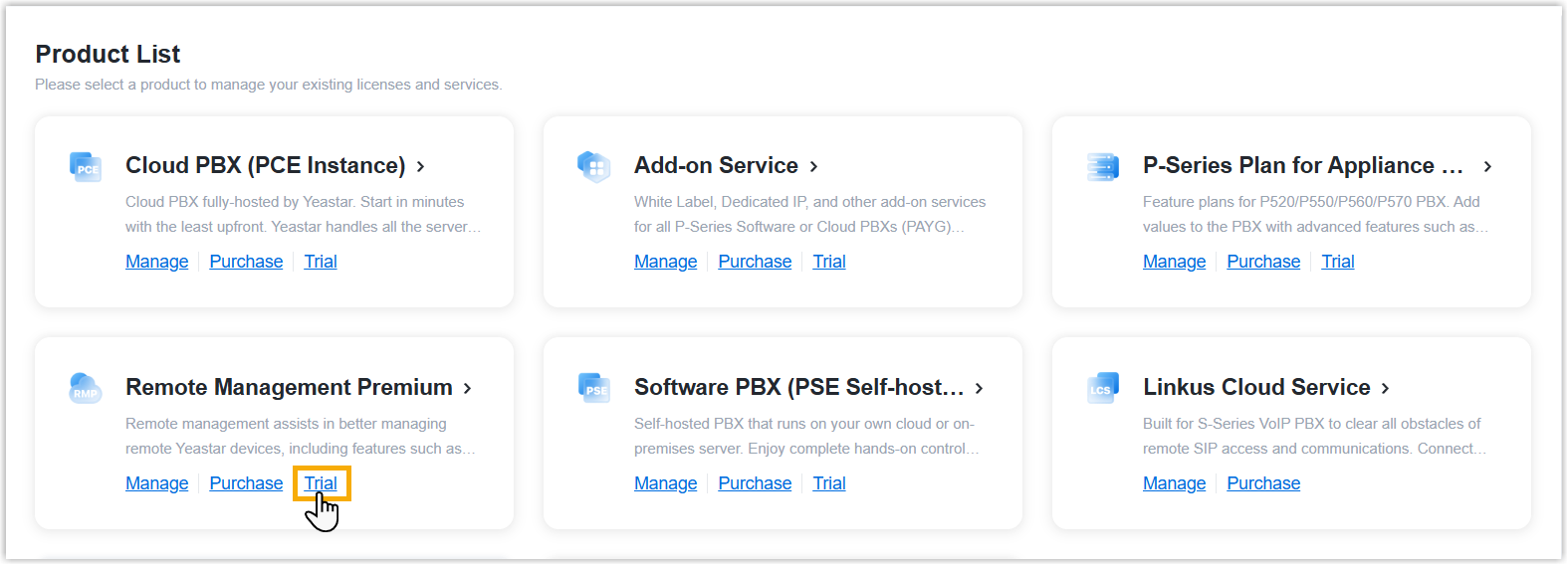
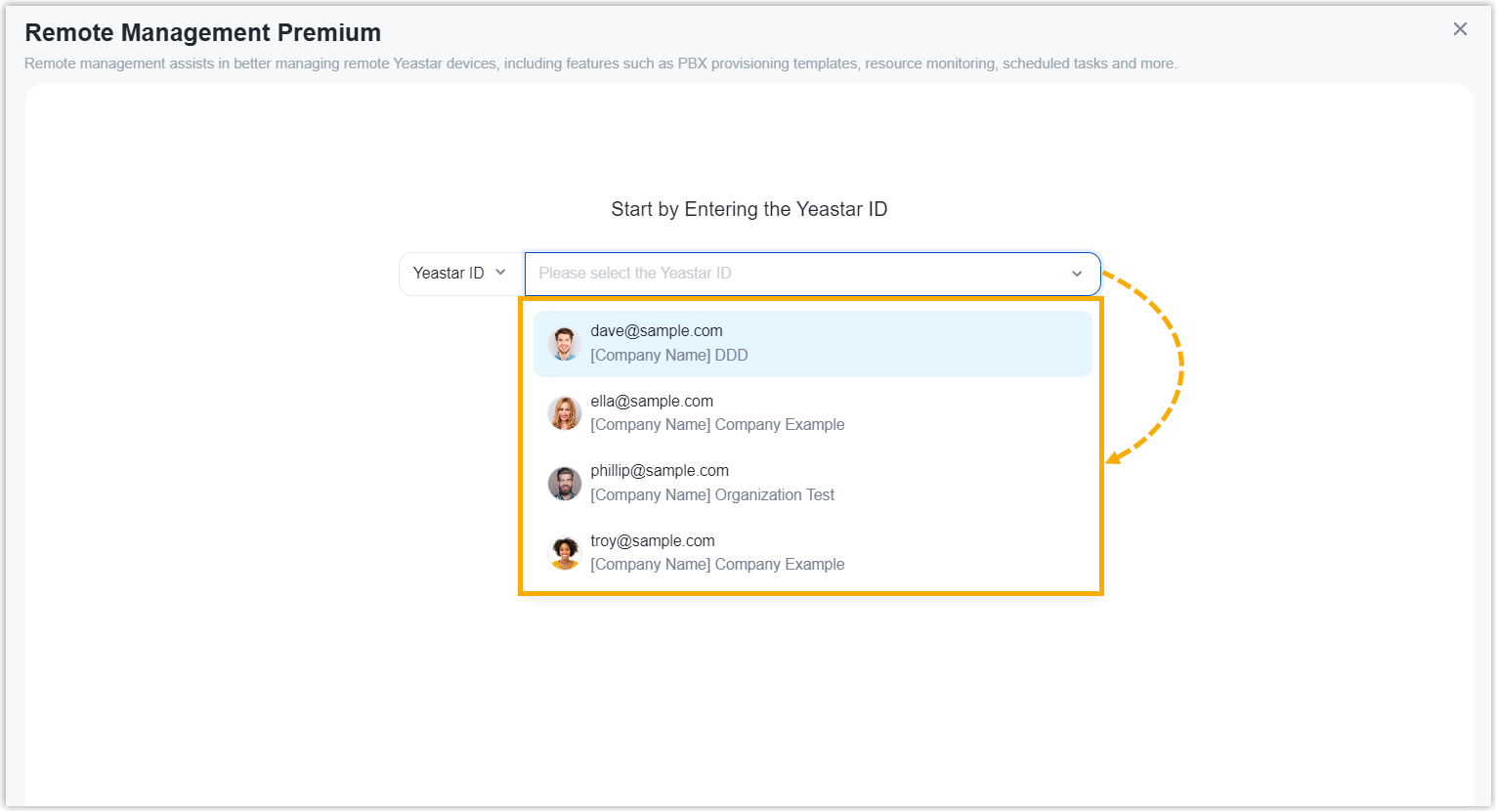
A side panel slides in from the right of the page.
- Search and select the user for whom you want to request the free trial from
the drop-down list by filter (Yeastar ID or
Company Name).
Step 2. Select service
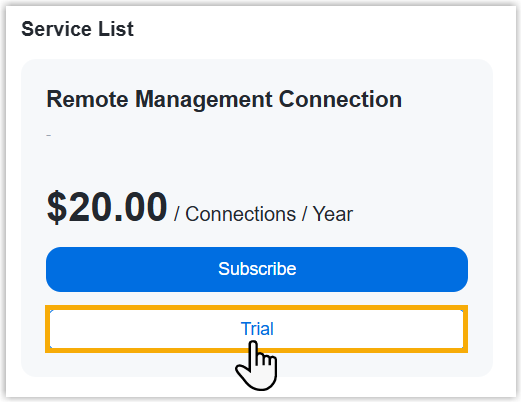
In the Service List section, click Trial of the Remote Management Connection.
(Optional) Step 3. Assign the product to another Yeastar ID
Product assignment allows you to grant another user access to view the subscription details within the Partner Portal (Path: ).
- Select an existing user from the drop-down list.

-
If desired user doesn't exist, you can click Add Partner to create a new Partner Portal account for the user.Important: Clicking Add Partner will create a new Partner Portal account, and an activation email will be sent to the assigned email address. If you DO NOT want your customer to receive this email, do NOT click Add Partner here.
- On the right Order Summary section, click Checkout.
Result
- The service requested for the specified user takes effect immediately.
- The billing contact will receive an email, containing the order summary and
an invoice. He or she can click on the attached link to view or download the invoice.Note:
- The attached link is valid in 24 hours and can be used ONCE only.
- You can also view the invoice on Yeastar Partner Portal: Orders and Billing > Orders >
 .
.
What to do next
Connect devices to Yeastar Central Management to implement remote monitoring, provisioning, and management.
For more information, see Device Overview.