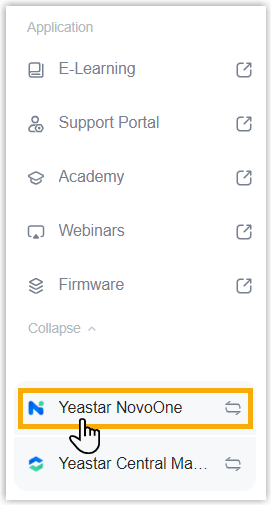
Obtain a Free Trial for NovoOne
NovoOne service provides access to a multi-tenant communications platform hosted on Yeastar's secure AWS infrastructure, freeing your team from infrastructure management while providing enterprise-grade security and scalability. Yeastar offers a 30-day free trial of the service, allowing you to try out the features before subscribing.
Offering types
Yeastar provides two offerings for NovoOne service - Trial and Commercial. Refer to the following table for the differences.
| Item | Trial NovoOne | Commercial NovoOne |
|---|---|---|
| User | 20 users | Starting from 500 users |
| Call Recording | 20 users, 1 month | Starting from 1 user, 3 months |
| White Label | 1 template | Starting from 1 template |
| Transcription | 1 user | Starting from 1 user |
| AI Receptionist | 60 minutes for each tenant (one-time) |
|
| Validity Period | 30 days | Annual Subscription |
| Price | Free | Paid |
Step 1. Go to product purchase page
- Log in to Yeastar Partner Portal, go to Products & Purchase.
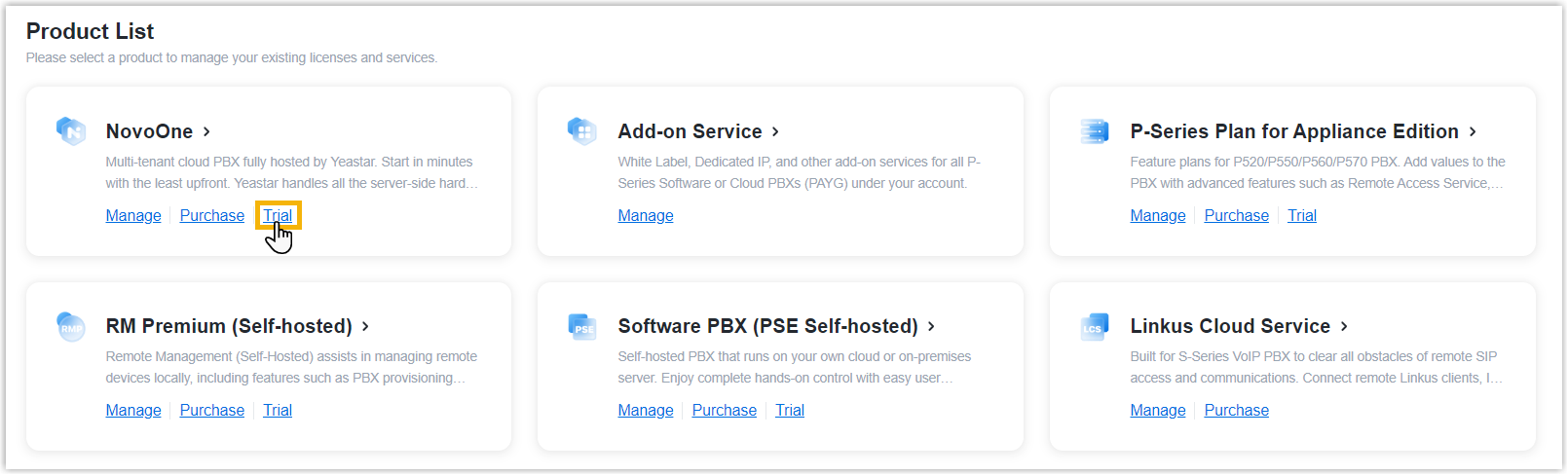
- On the product list, click Trial on
NovoOne.
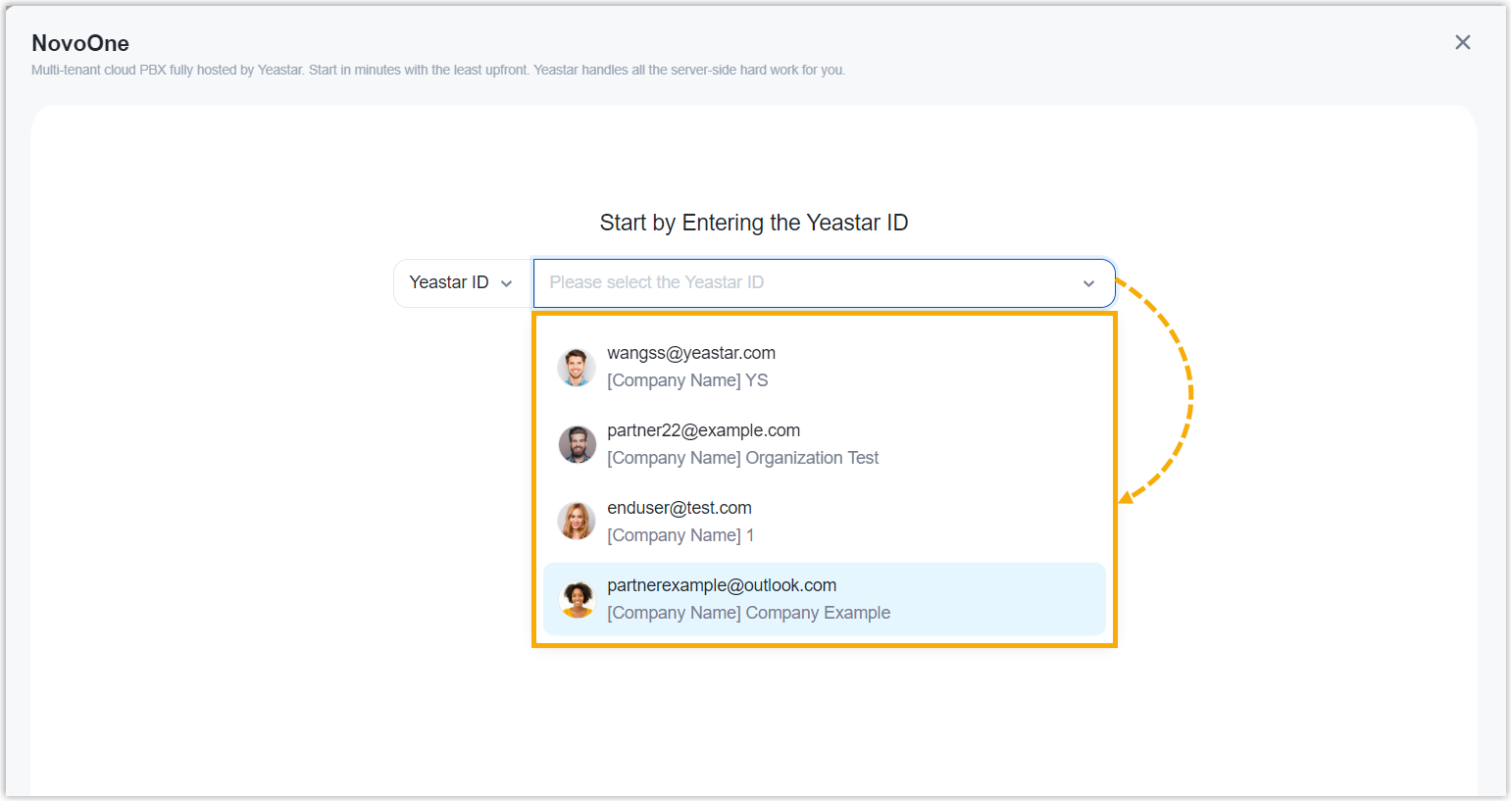
- Search and select the user for whom you want to apply for a
free trial from the drop-down list by filter (Yeastar ID
or Company Name).The selected user will have full access to view and manage resources included in the service through his or her NovoOne account, while other users will not have access.Note: If you want to manage the service yourself, make sure to select your own Yeastar ID.
Step 2. Select plan
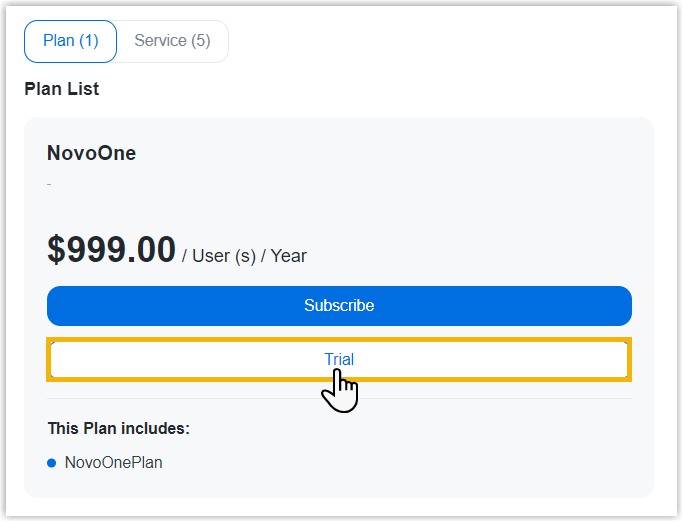
- Under Plan tab, click Trial of
NovoOne.
- In the Service list, click
 beside the desired service.
(Optional) Step 3. Assign the product to another Yeastar ID
Product assignment allows you to grant another user access to view the trial details within Yeastar Partner Portal (Path: ).
- This does NOT grant administration permission for the service and resources within the corresponding NovoOne Platform.
- If you prefer to retain access only for yourself, please skip this step.
- Select an existing user from the drop-down list.

-
If desired user doesn't exist, you can click Add Partner to create a new Partner Portal account for the user.Important: Clicking Add Partner will create a new Partner Portal account, and an activation email will be sent to the assigned email address. If you DO NOT want your customer to receive this email, do NOT click Add Partner here.
- On the right Order Summary section, click Checkout.
Result
-
You and the user to whom you assign the product will receive an email, which contains the trial summary and the necessary information to onboard.
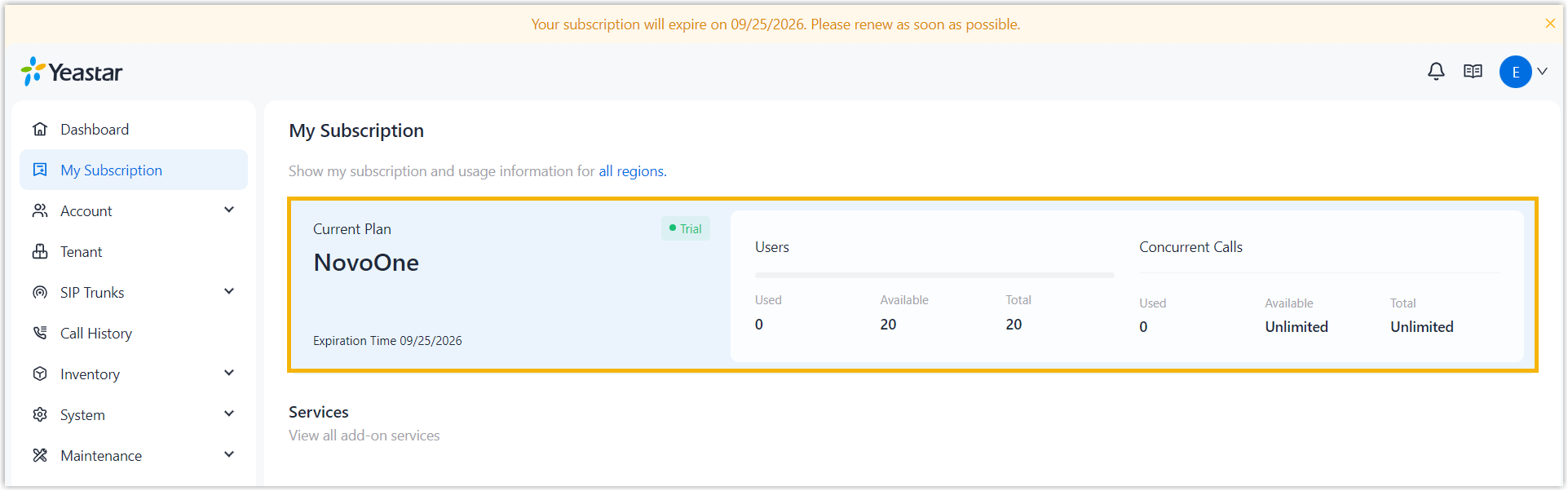
- The resources included in the service are synchronized to NovoOne Platform
(Path: My Subscription).
What to do next
Access NovoOne Platform portal and create resources by following the instructions in the NovoOne Document Center.