Add Allowed Client Public IP Addresses
If your company's network has multiple public IP addresses, you can specify the exact ones that employees' Linkus Web Clients / Desktop Clients may use when connecting to the PBX. This ensures the PBX can recognize all authorized client IPs and accept the connections from them, preventing call failures or one‑way audio issues caused by unexpected IP changes during connection.
Requirements
The firmware version of Yeastar P-Series Cloud Edition is 84.22.0.17 or later.
Procedure
- Log in to PBX web portal, go to .
- Scroll down to the Allowed Client Public IP Address section.
- Add the allowed public IP addresses.Note: You can add up to 10 allowed public IP addresses.
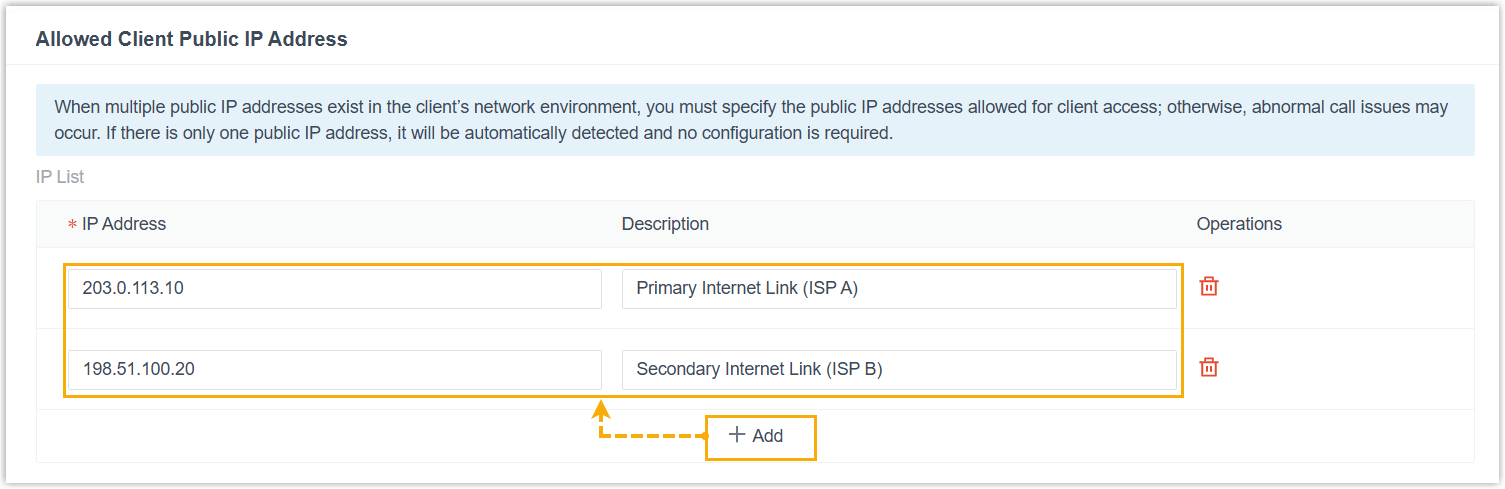
- Click Save.
Result
When Linkus Web Clients and Desktop Clients within the company network connect to the PBX, their signaling will include all public IP addresses added here, and the PBX accepts media streams originating from these IPs.