Install Yeastar P-Series Software Edition on Proxmox VE using Debian ISO
You can install Yeastar P-Series Software Edition on Debian 12 in Proxmox VE, during which you can choose to let the installation program automatically perform disk partitioning or manually partition disk according to your needs.
Prerequisites
- Check if the version of Proxmox VE is 8.2.2 or later.
- Download the Debian ISO of Yeastar P-Series Software Edition.
Procedure
Step 1. Upload ISO image of Yeastar P-Series Software Edition to Proxmox VE
- Log in to Proxmox VE web-based management interface.
- On the left pane, click
 beside the node where you want to
deploy Yeastar P-Series Software Edition.
beside the node where you want to
deploy Yeastar P-Series Software Edition.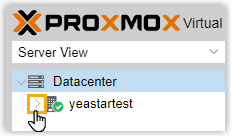 The expanded menu displays the two storages that are formed automatically when you install Proxmox VE, namely local and local-lvm.Note: By default, local is used to store backups, ISOs, and templates, while local-lvm is used to store Virtual Machine (VM) disk images and volume containers.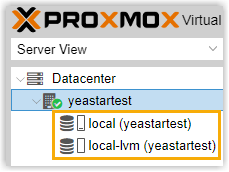
- Upload the ISO image of Yeastar P-Series Software
Edition.
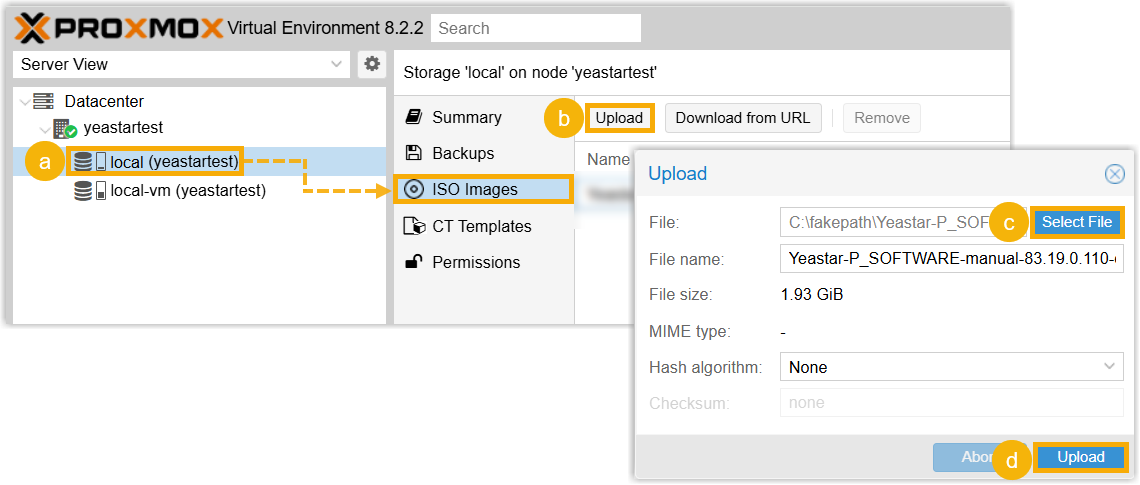
- On the left pane, go to .
- Click Upload.
- On the pop-up window, click Select File to select the ISO image of Yeastar P-Series Software Edition.
- Click Upload.
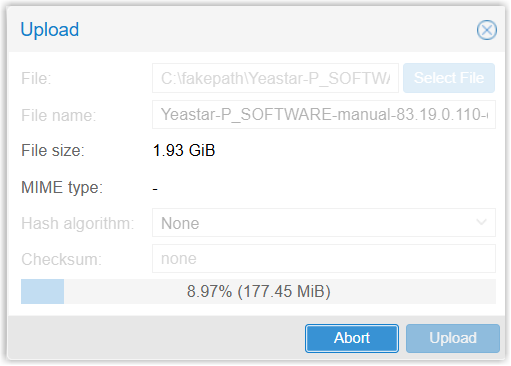
Wait a few minutes for the upload to complete.
-
When done, close the pop-up window.
The ISO image of Yeastar P-Series Software Edition is displayed.

Step 2. Create a virtual machine
Follow the instructions below to create a virtual machine.
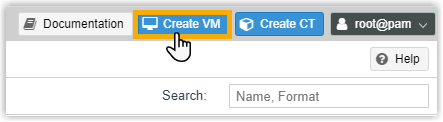
- At the top-right corner of Proxmox VE web-based management interface, click
Create VM.
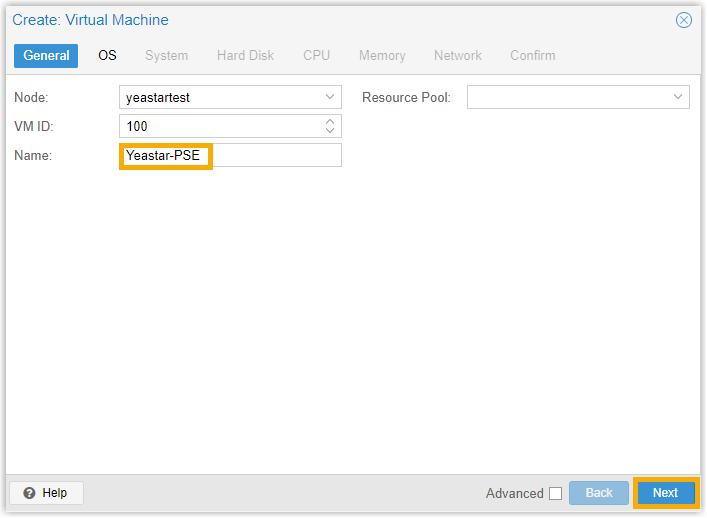
- On General tab, specify a name in the
Name field to help you identify the virtual
machine, then click Next.
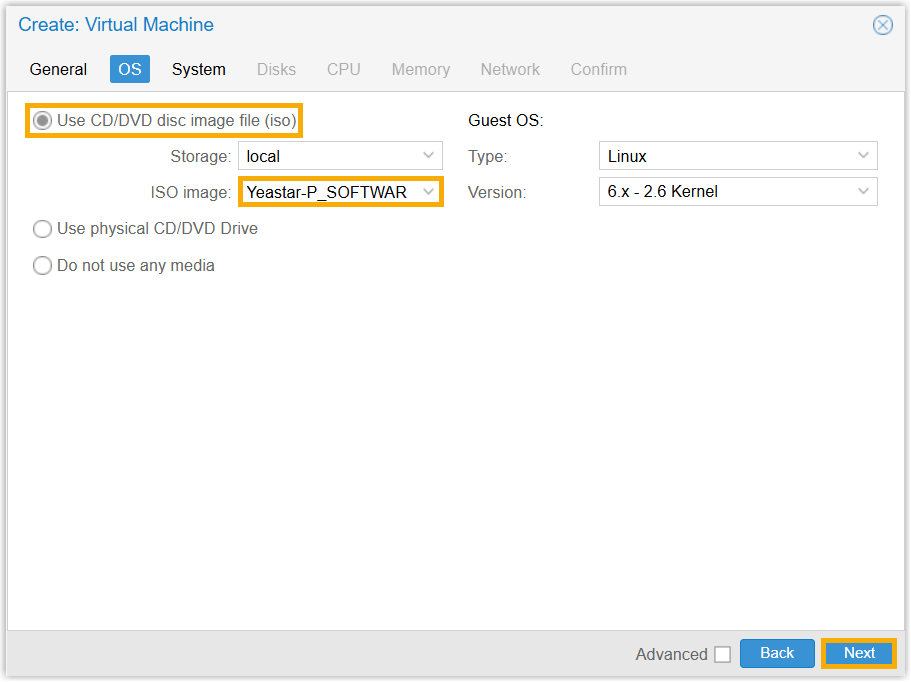
- On OS tab, choose Use CD/DVD disc image
file (iso), select the ISO image of Yeastar P-Series Software Edition, then click
Next.
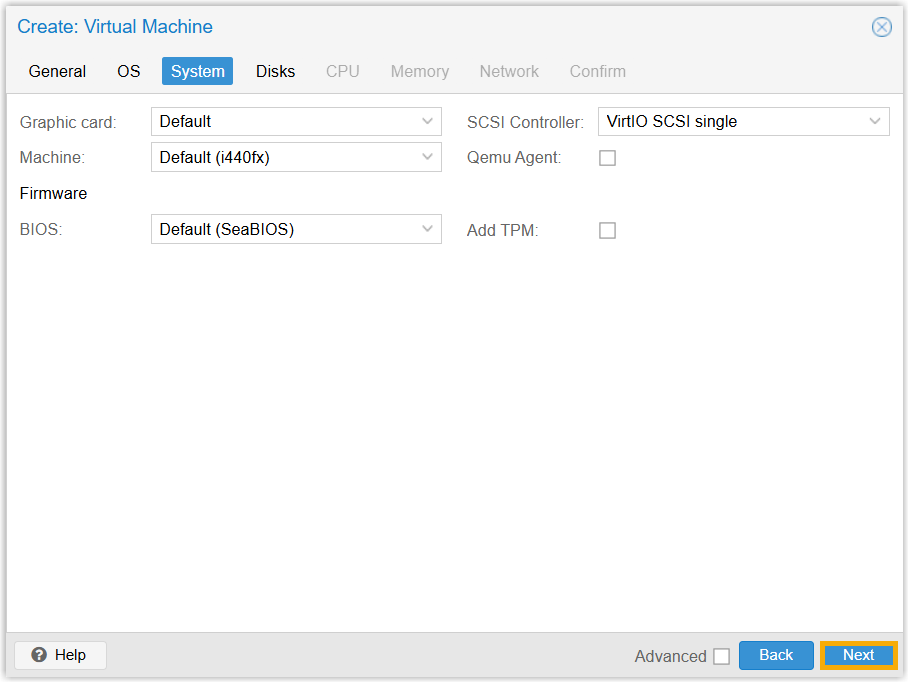
- On System tab, retain the default settings, then
click Next.
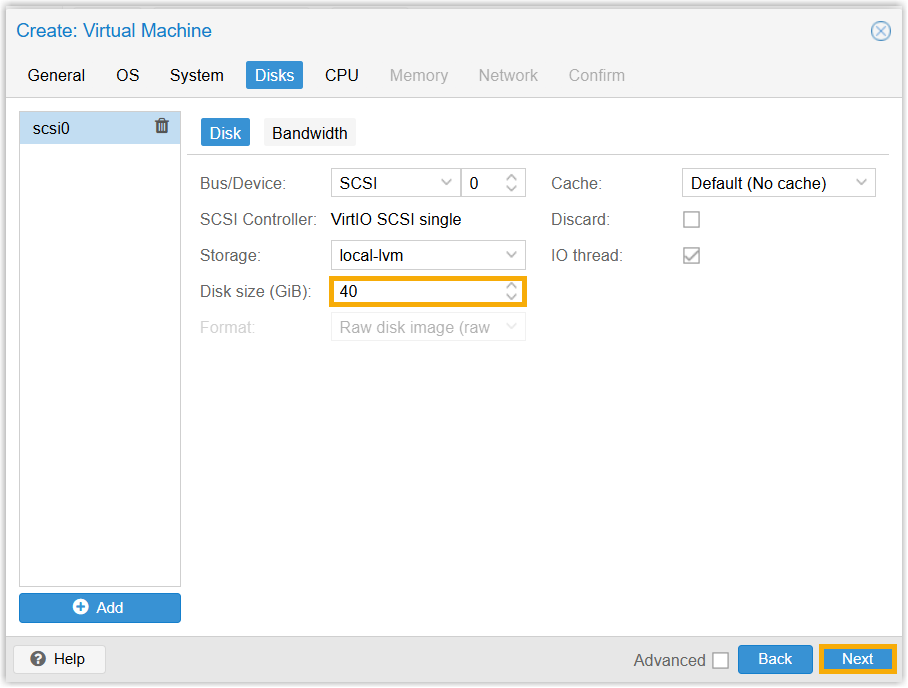
- On Disks tab, allocate at least 40 GiB in the
Disk size (GiB) field, then click
Next.
- On CPU tab, refer to the following table to set
Sockets and Cores based on
the Extensions (EXT) and Concurrent Calls (CC) of your PBX
system, then click Next.Note: CPU = Sockets * Cores
1-20 EXT (1-5 CC)
21-50 EXT (6-13 CC)
51-250 EXT (14-63 CC)
251-500 EXT (64-125 CC)
501-1000 EXT (126-250 CC)
EXT > 1000 (CC > 250)
CPU 2 2 4 6 8 Contact Yeastar 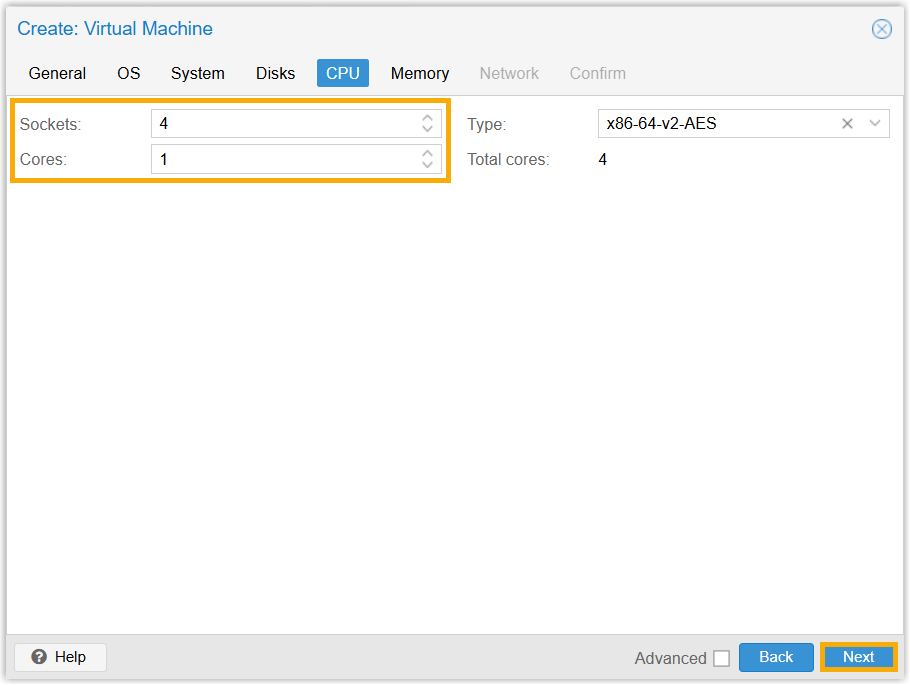
- On Memory tab, refer to the following table to set
memory based on the Extensions (EXT) and Concurrent Calls (CC)
of your PBX system, then click Next.
1-20 EXT (1-5 CC)
21-50 EXT (6-13 CC)
51-250 EXT (14-63 CC)
251-500 EXT (64-125 CC)
501-1000 EXT (126-250 CC)
EXT > 1000 (CC > 250)
Memory 2048 MiB 4096 MiB 4096 MiB 8192 MiB 16384 MiB Contact Yeastar 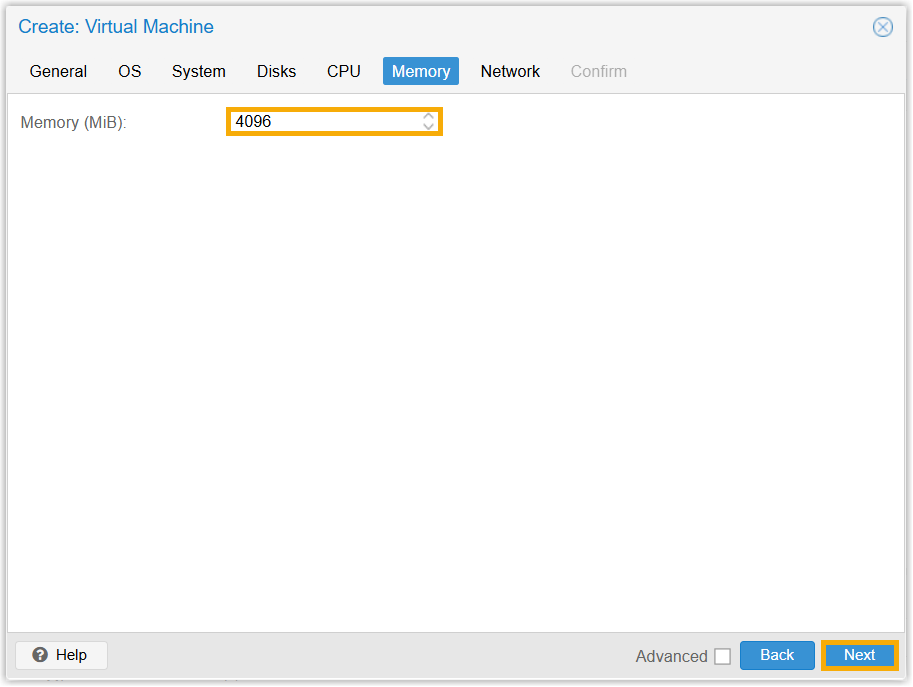
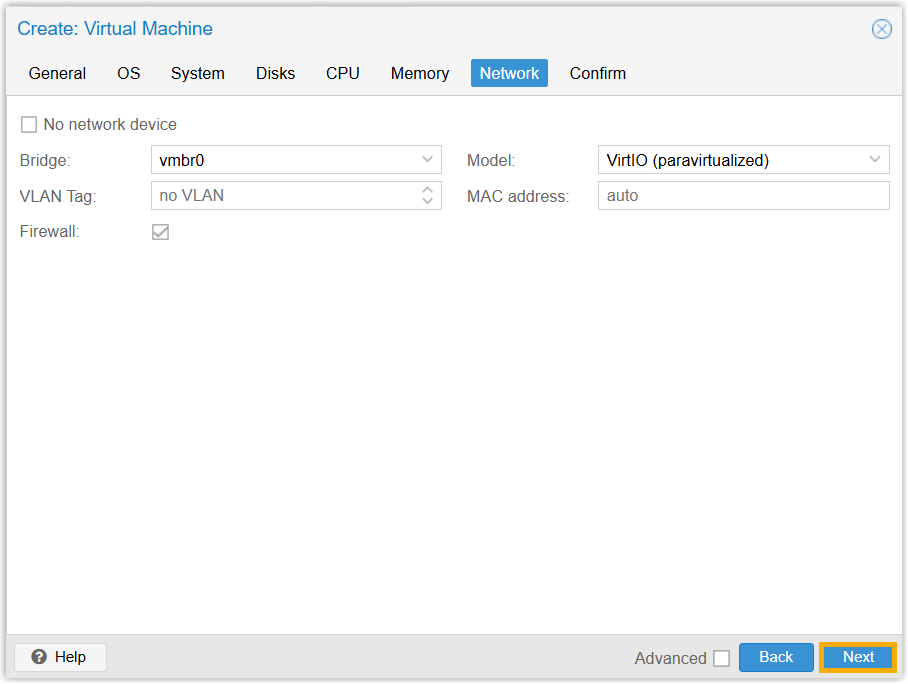
- On Network tab, retain the default settings, then
click Next.
- On Confirm tab, preview the configurations, then
click Finish.
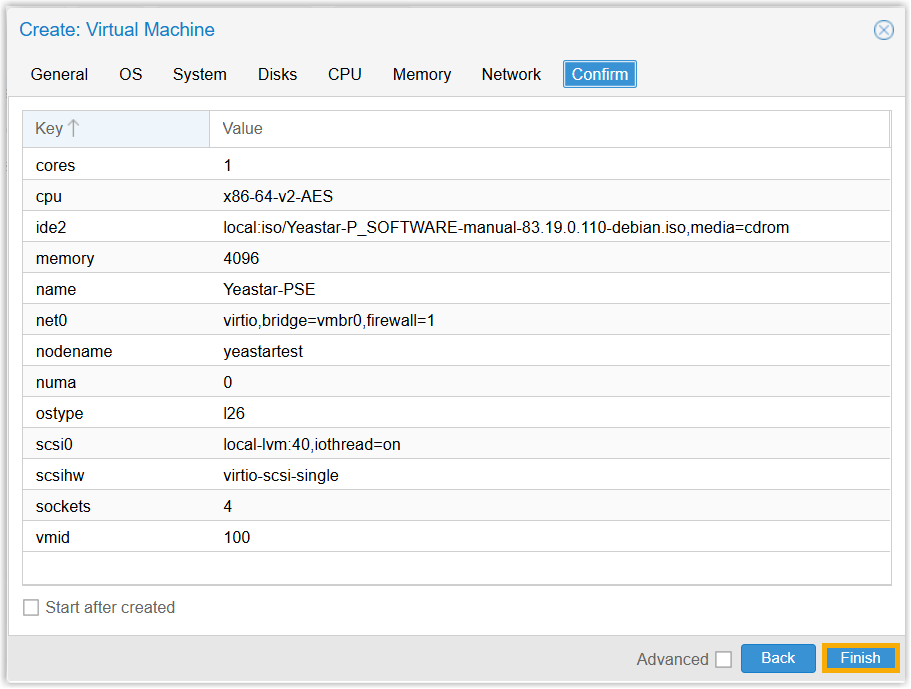
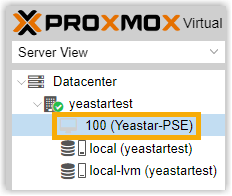
The virtual machine is created and displayed under the node.
Step 3. Install Yeastar P-Series Software Edition
Follow the instructions below to install Yeastar P-Series Software Edition.
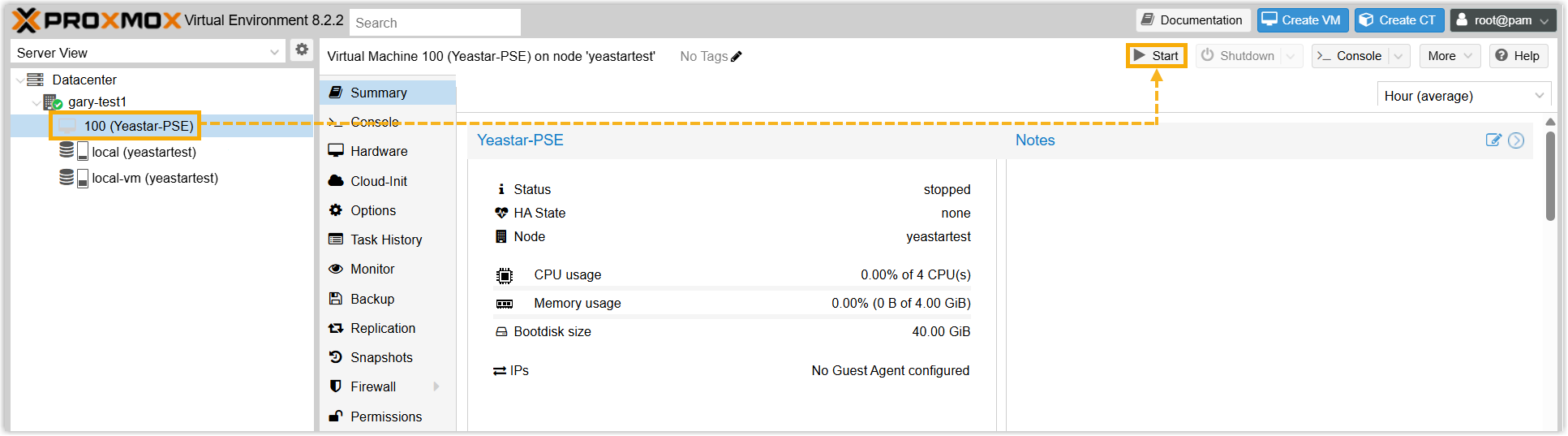
- Select the created virtual machine, then click
Start.
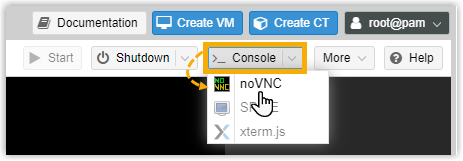
- At the top-right corner, select noVNC from the
drop-down list of Console.
This will open a new web page to show the installation process.
- Select Start installer, then press
Enter.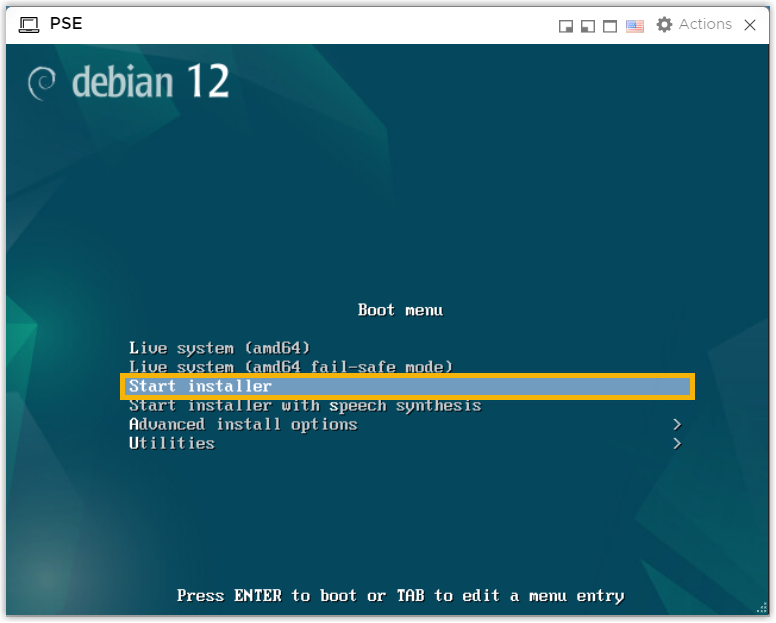
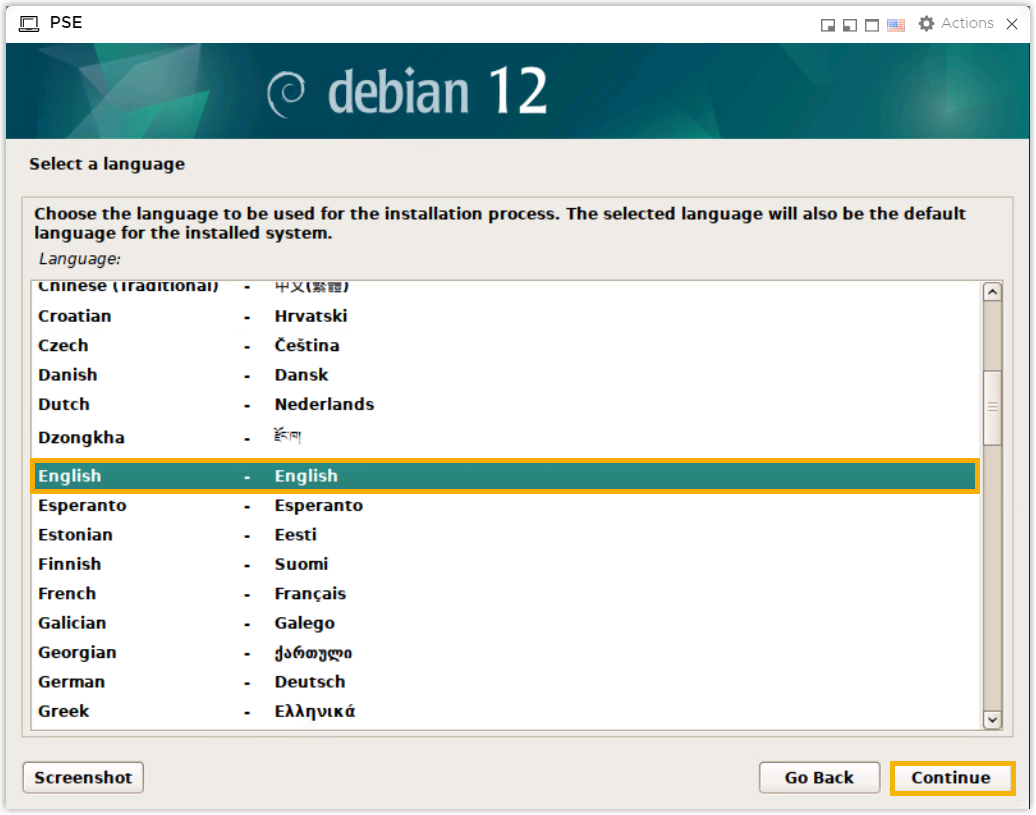
- Select localization options.
- Select a language to be used for the installation process, then
click Continue.
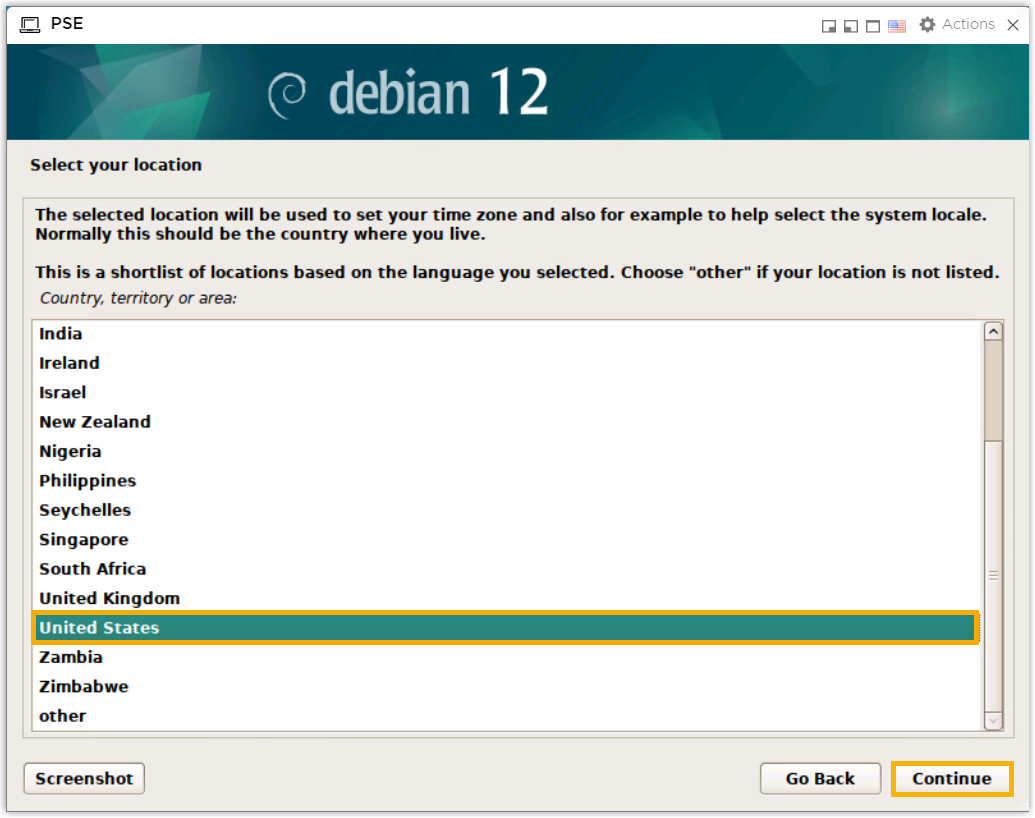
- Select a location to be used to set the correct time zone, then
click Continue.
- Select a language to be used for the installation process, then
click Continue.
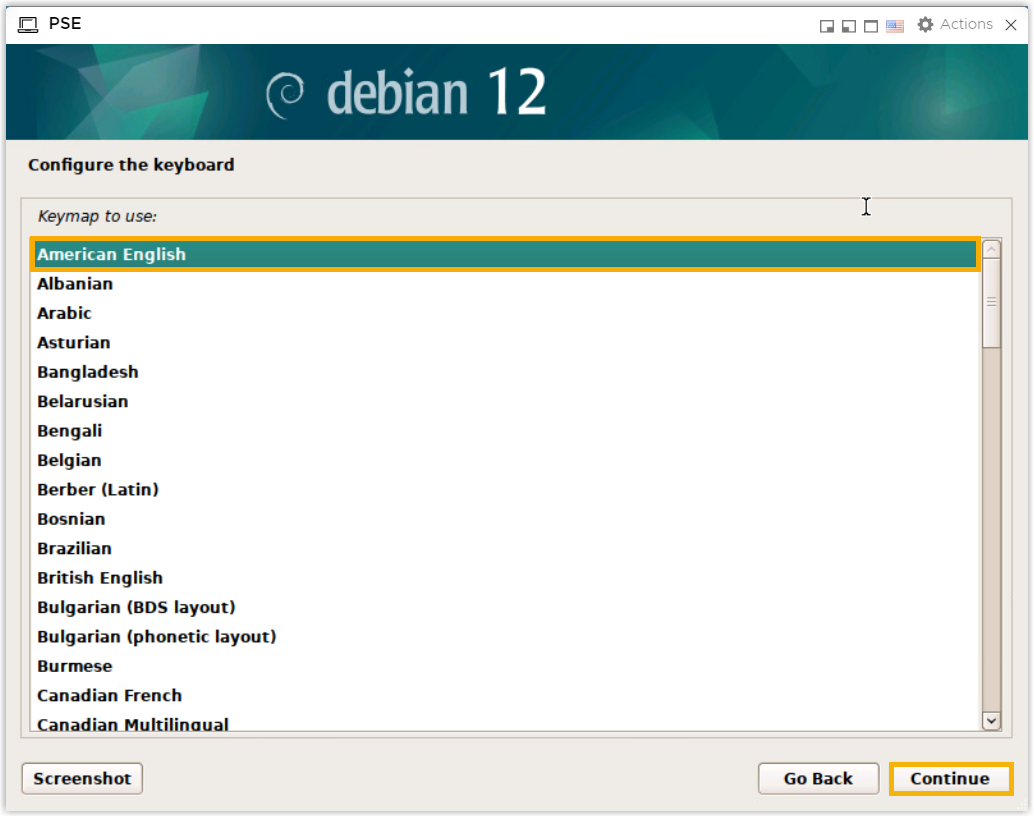
- Select a keyboard, then click
Continue.
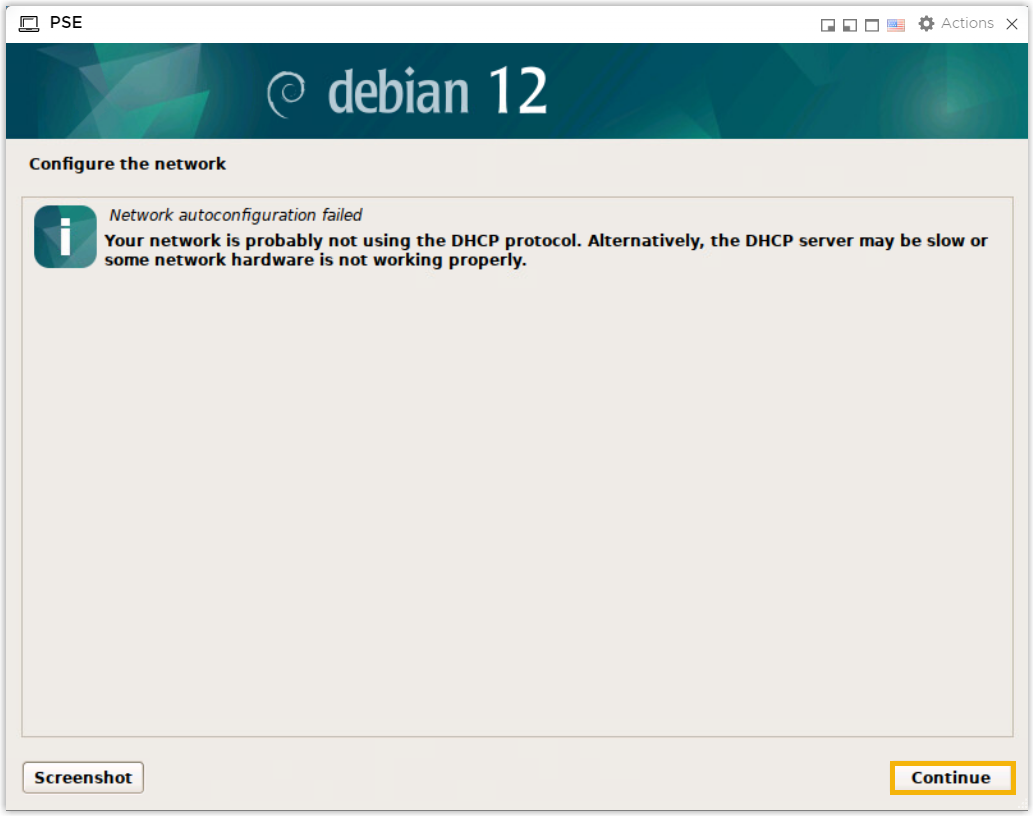
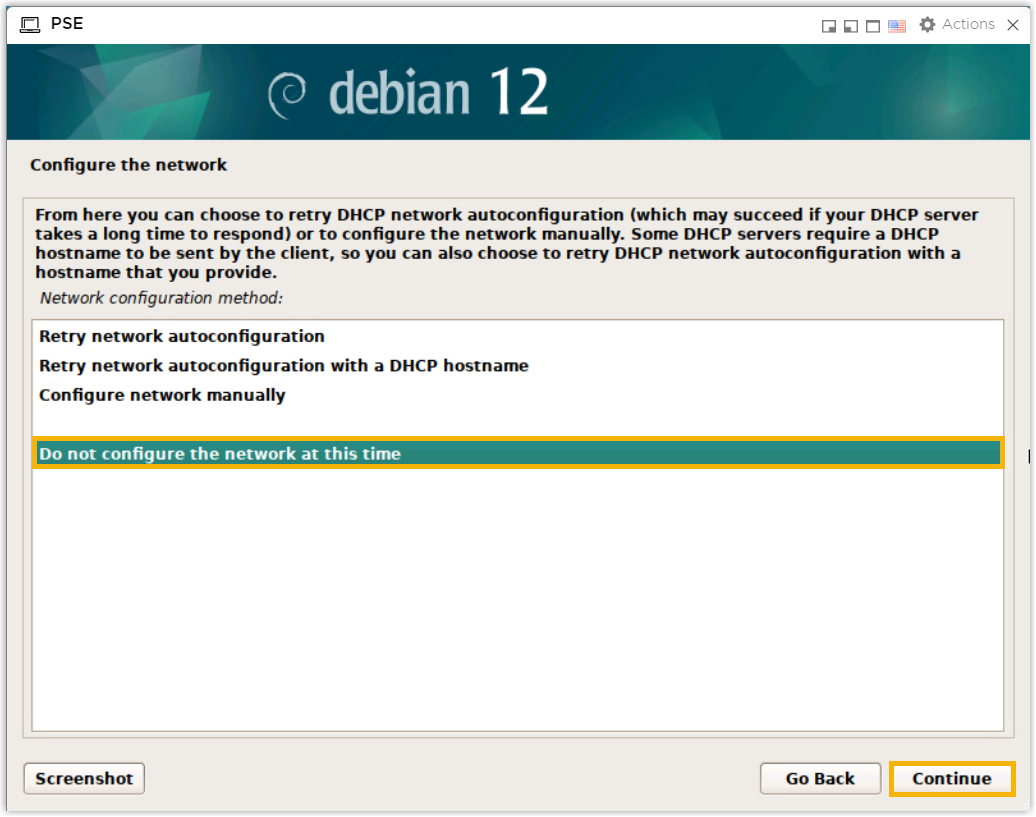
- Skip network setup.Note: By default, debian-installer tries to configure your computer's network automatically as far as possible. If the automatic configuration fails, you will be asked if you want to retry, or if you want to perform a manual setup. Skip network setup as shown below.
- Select Continue.
- Select Do not configure the network at this
time, then click
Continue.
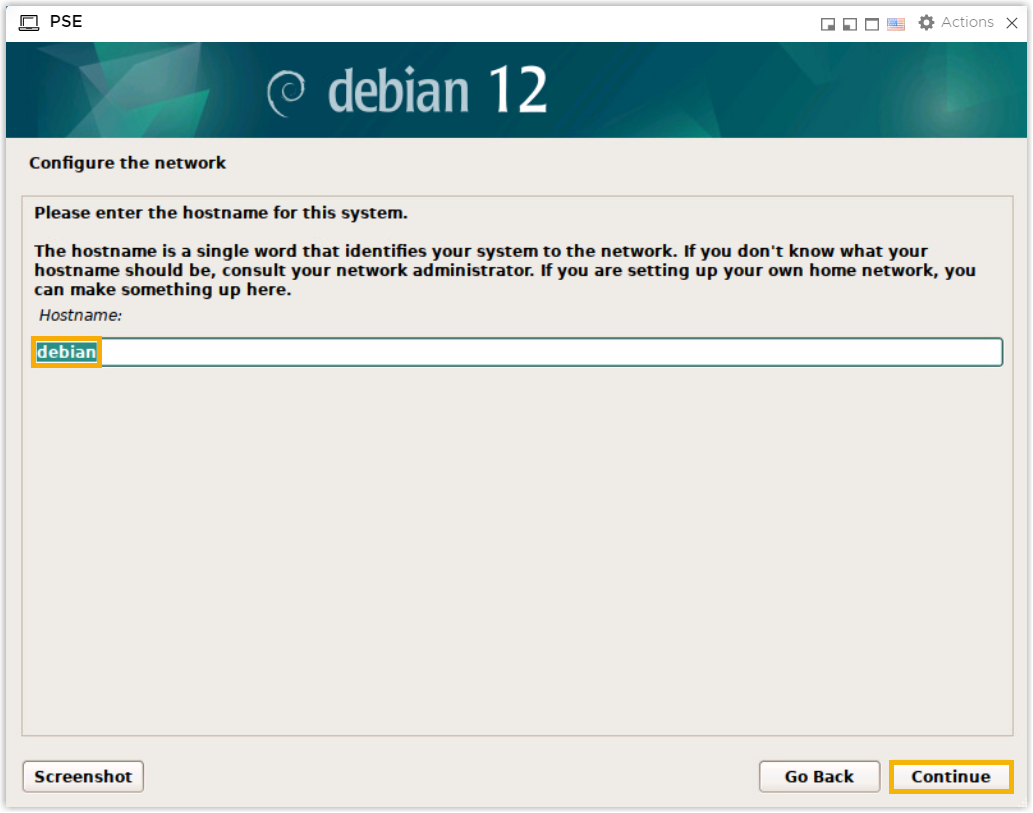
- Retain the default hostname, then click
Continue.
- Select Continue.
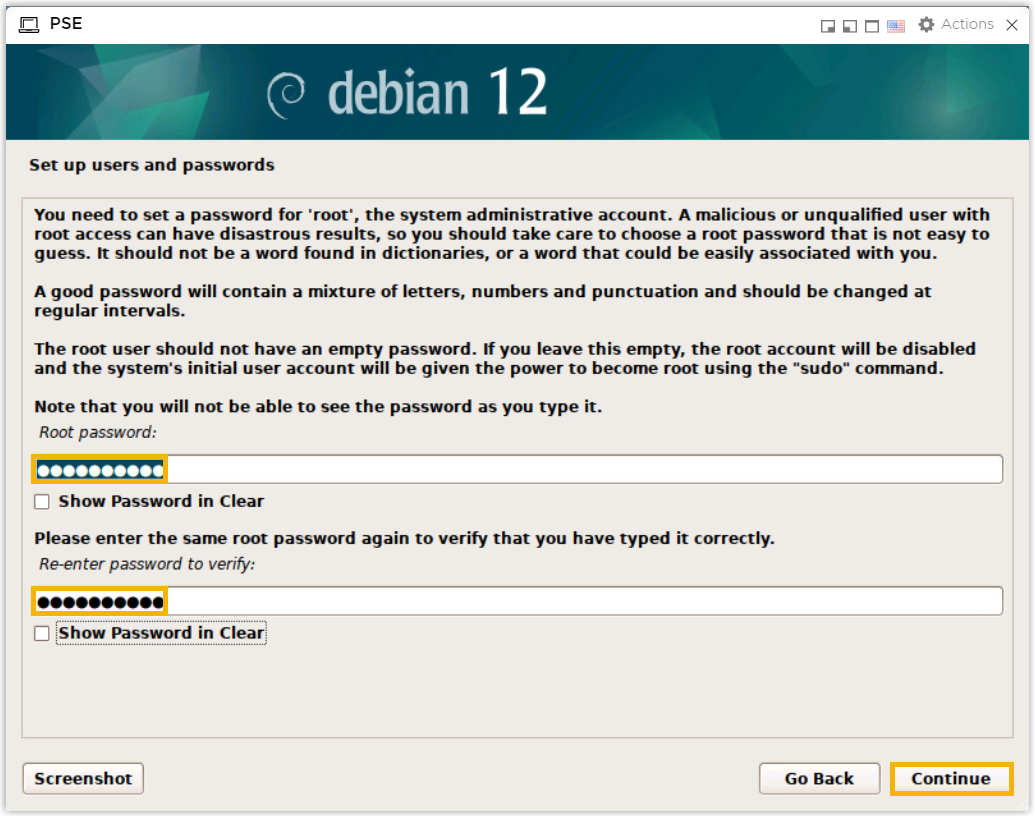
- Set up users and passwords.
- Set root password, then click
Continue.
- Create an ordinary user.
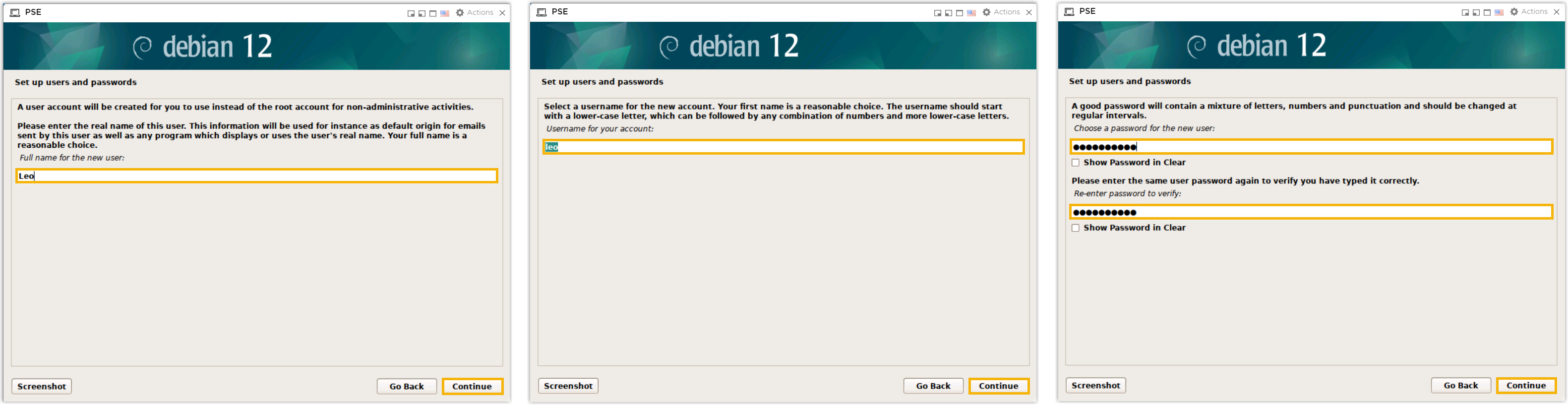
- Set root password, then click
Continue.
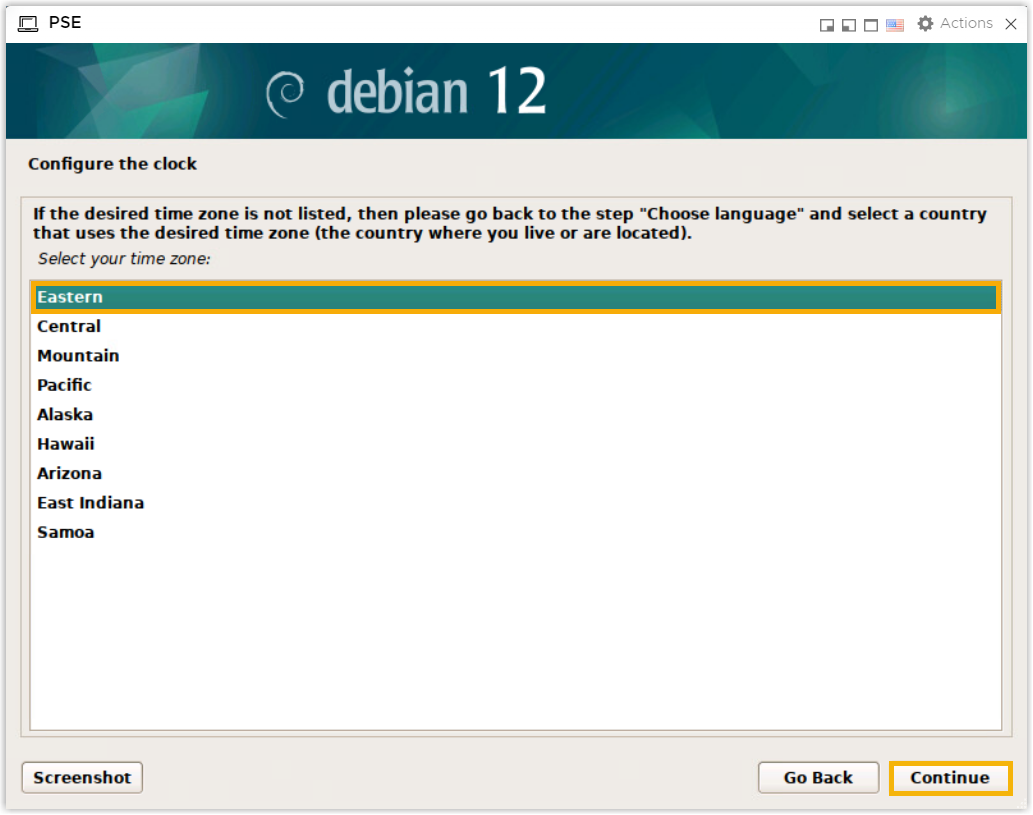
- Configure clock and time zone, then click
Continue.
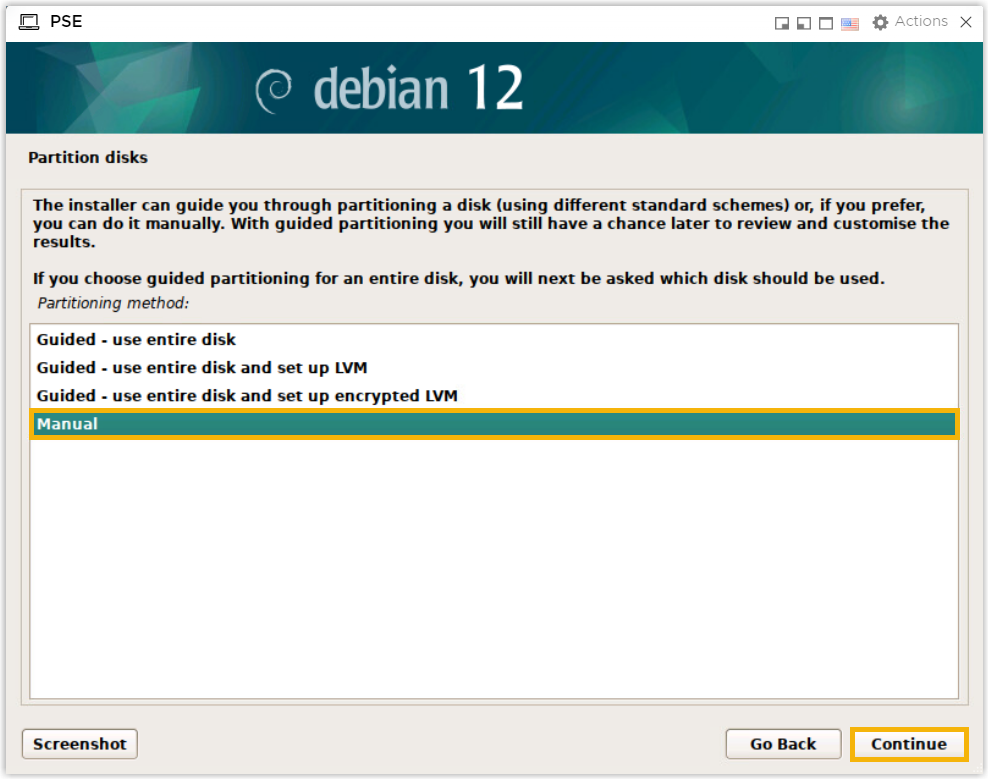
- Manually partition the disk.
- Select Manual, then click
Continue.
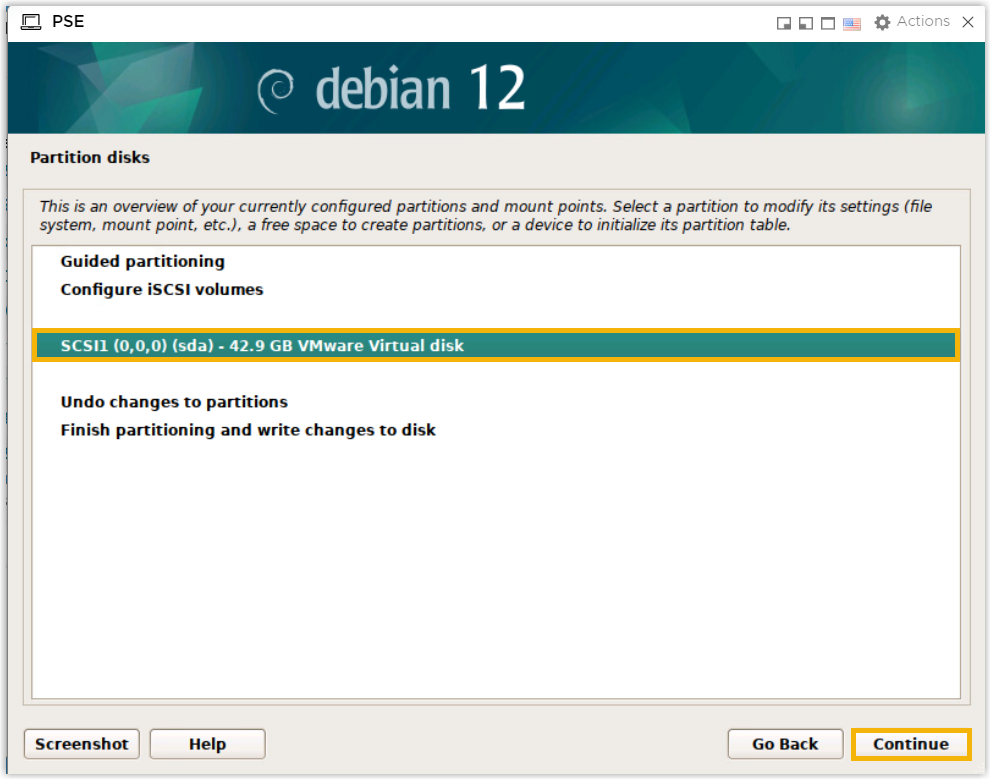
- Select the disk that you want to partition, then click
Continue.
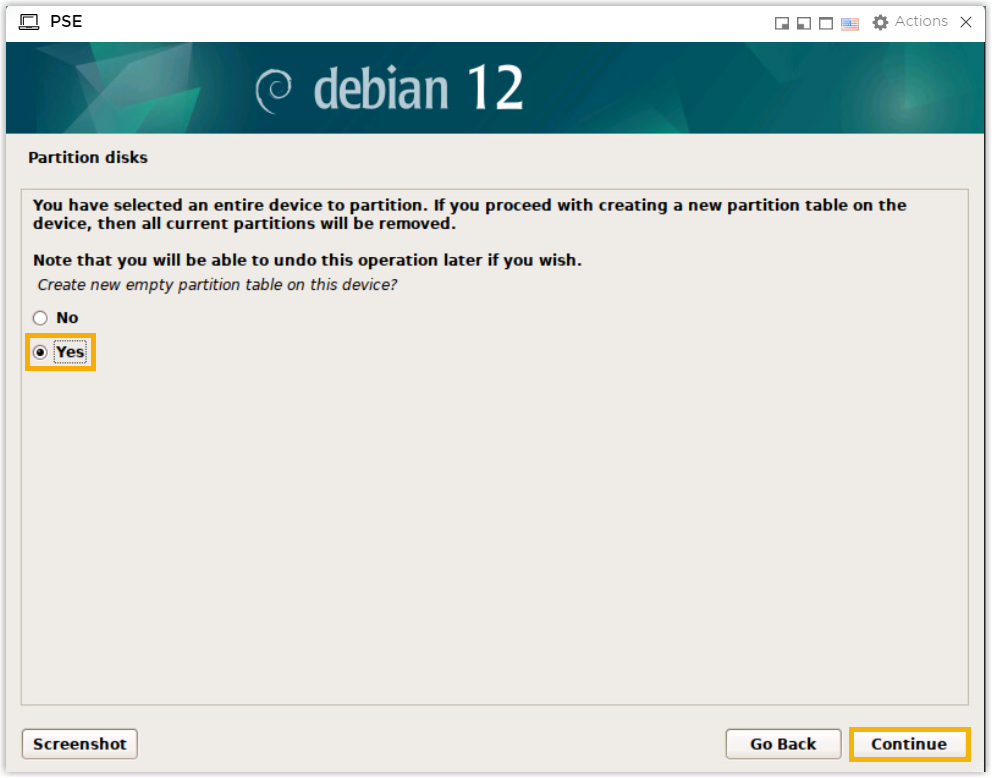
- Select Yes to create a new partition table,
then click Continue.
- Create the required partitions and custom partitions according to
your needs.Note: The following partitions are required.
Partition Name Description Format Recommended Partition Space /The slash /alone stands for the root of the file system tree.ex4 Minimum 10 GB /swapThis is where you extend the system memory by dedicating part of the hard drive to it. swap Minimum 10 GB /homeThis holds all the home directories for the users. ex4 Remaining Free Space after other partitions created or second drive. - Select
pri/log FREE SPACE, then create a/partition.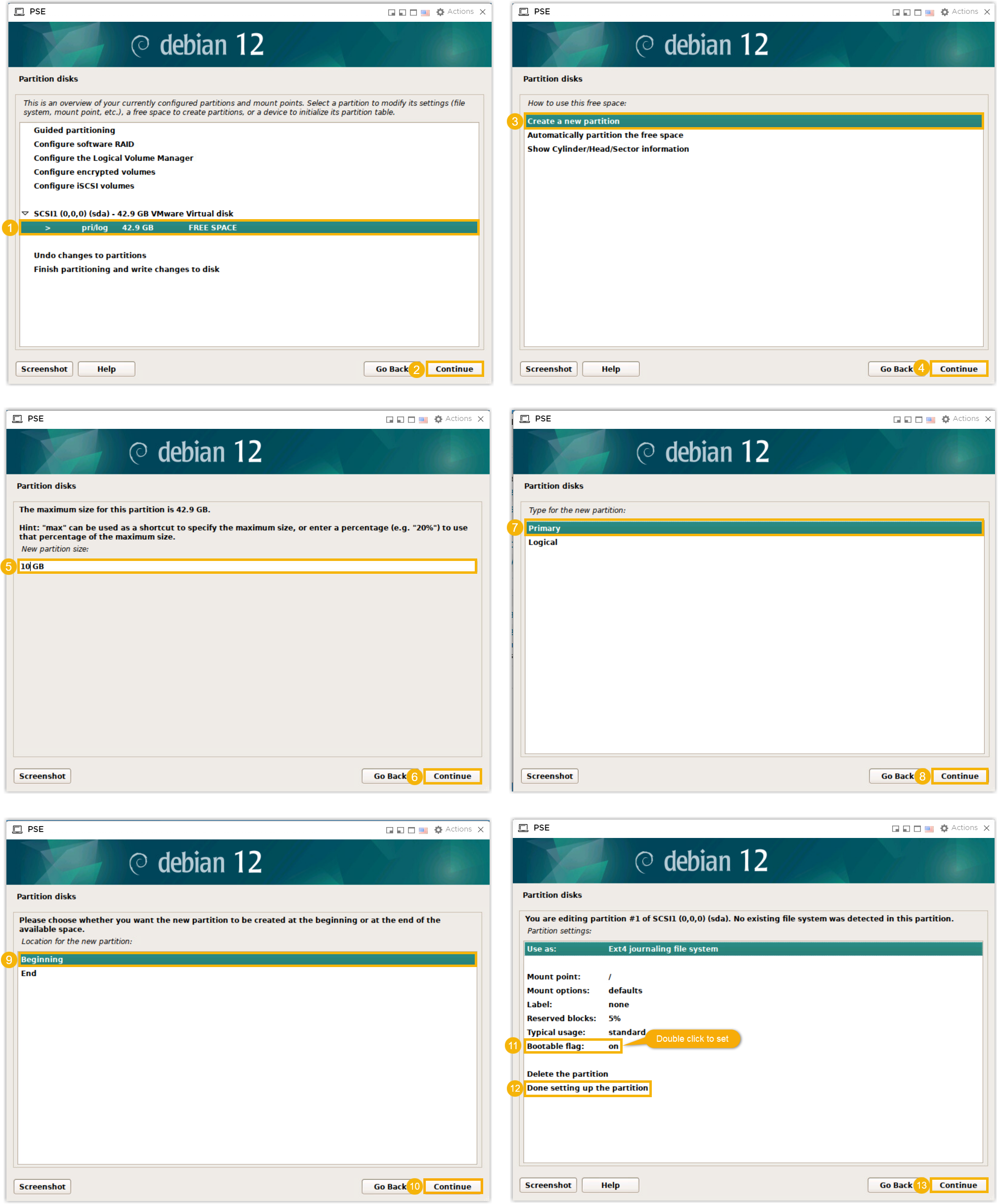
- Select
pri/log FREE SPACE, then create a/swappartition.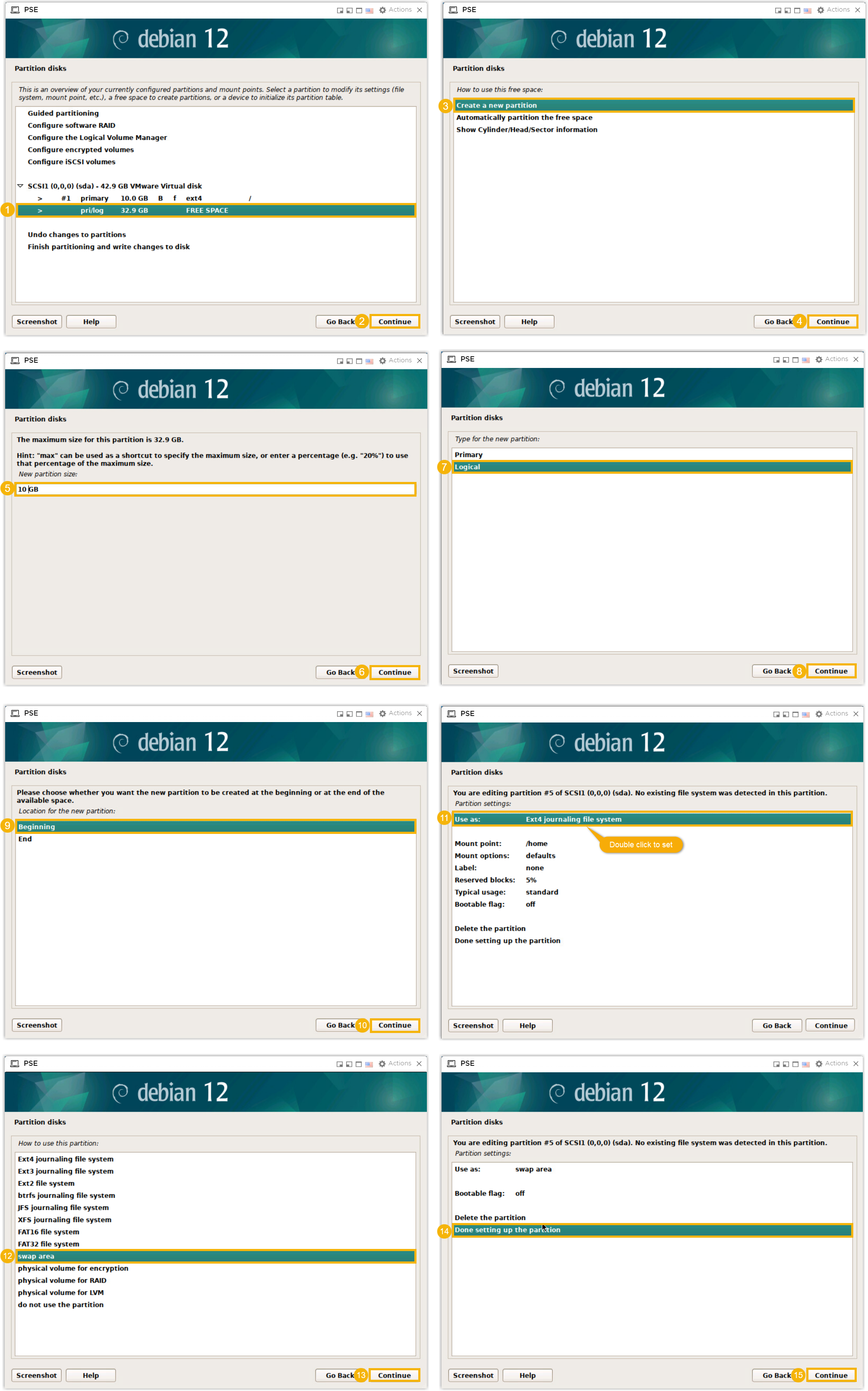
- Select
pri/log FREE SPACE, then create a/homepartition.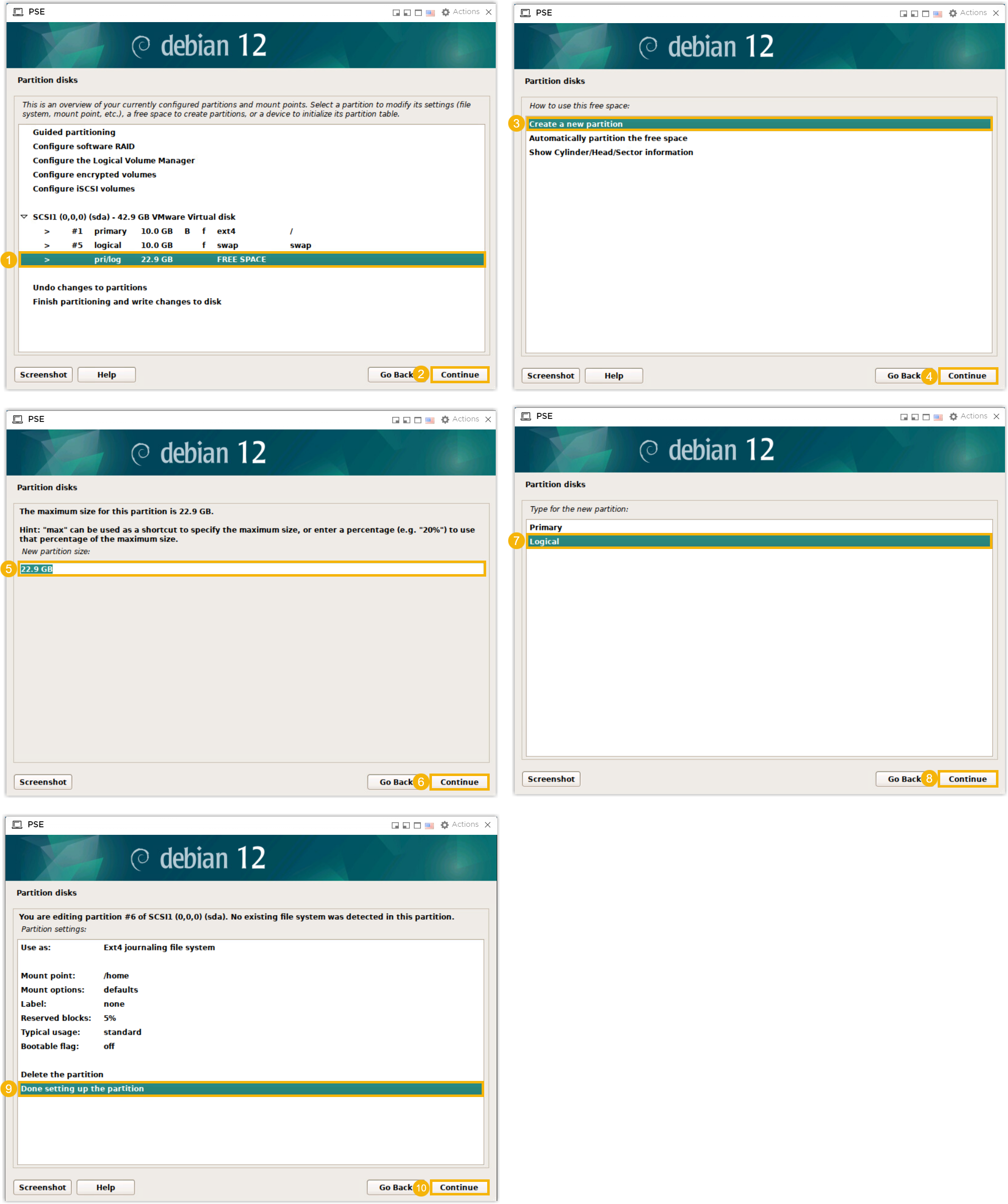
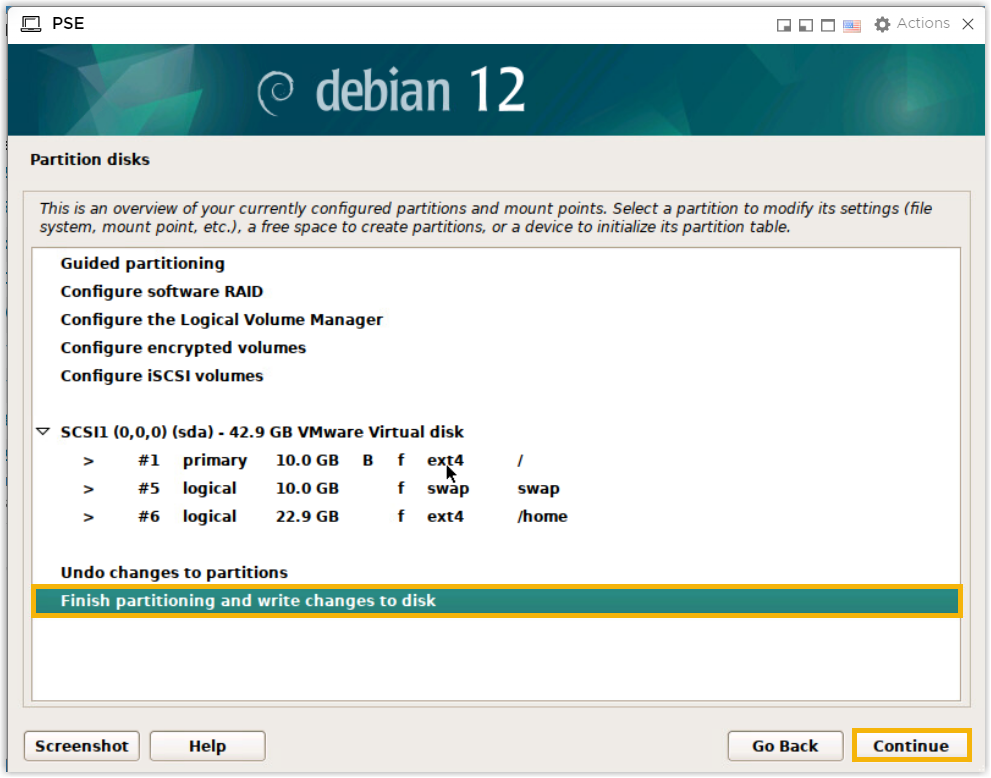
Partitions are created successfully and displayed on the list.
- Select
- Click Finish partitioning and write changes to
disk, then click
Continue.
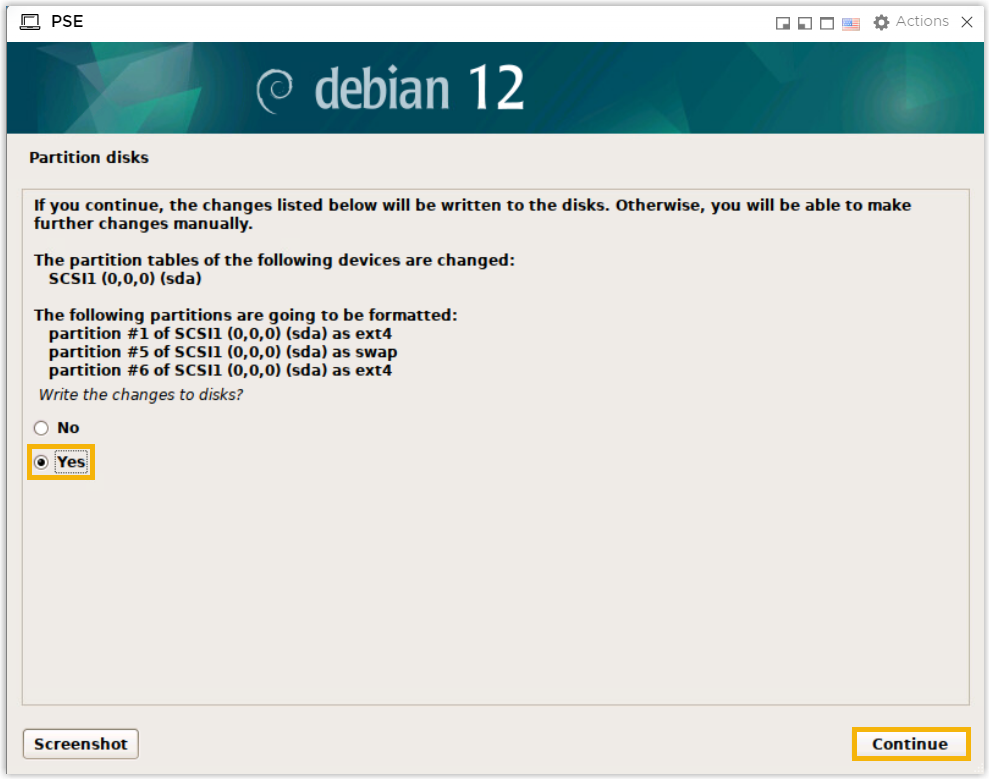
- Select Yes to write the changes to the
selected disk, then click Continue.
- Select Manual, then click
Continue.
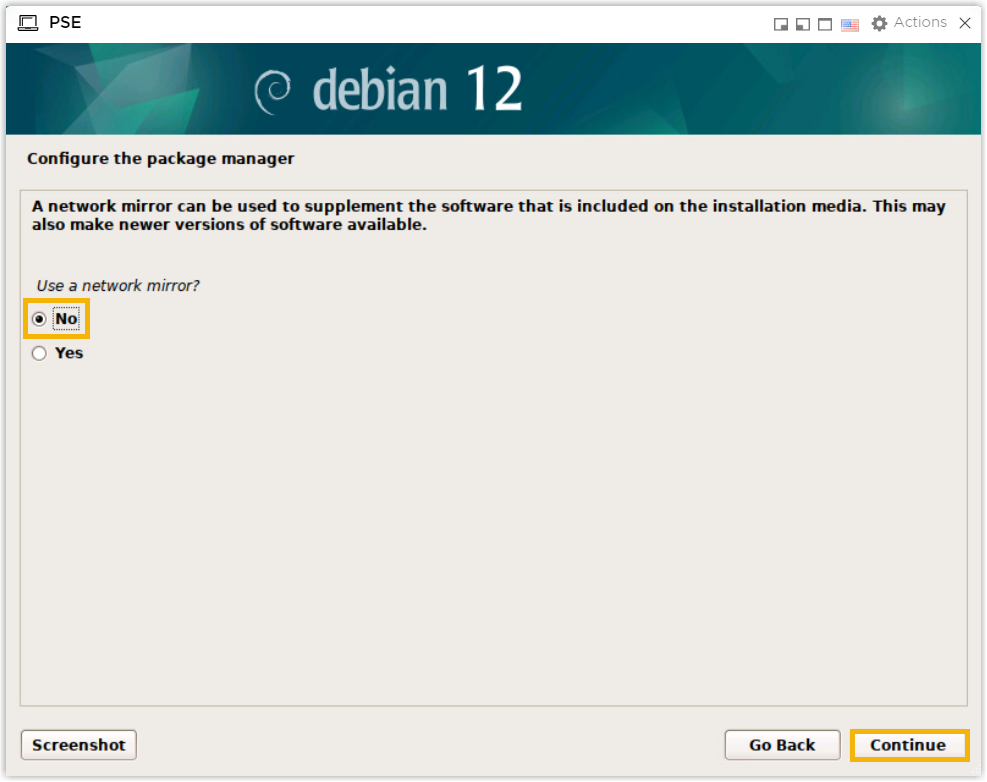
- Select No to choose not to use a network
mirror, then click Continue.
- Install the GRUB boot loader on the drive.
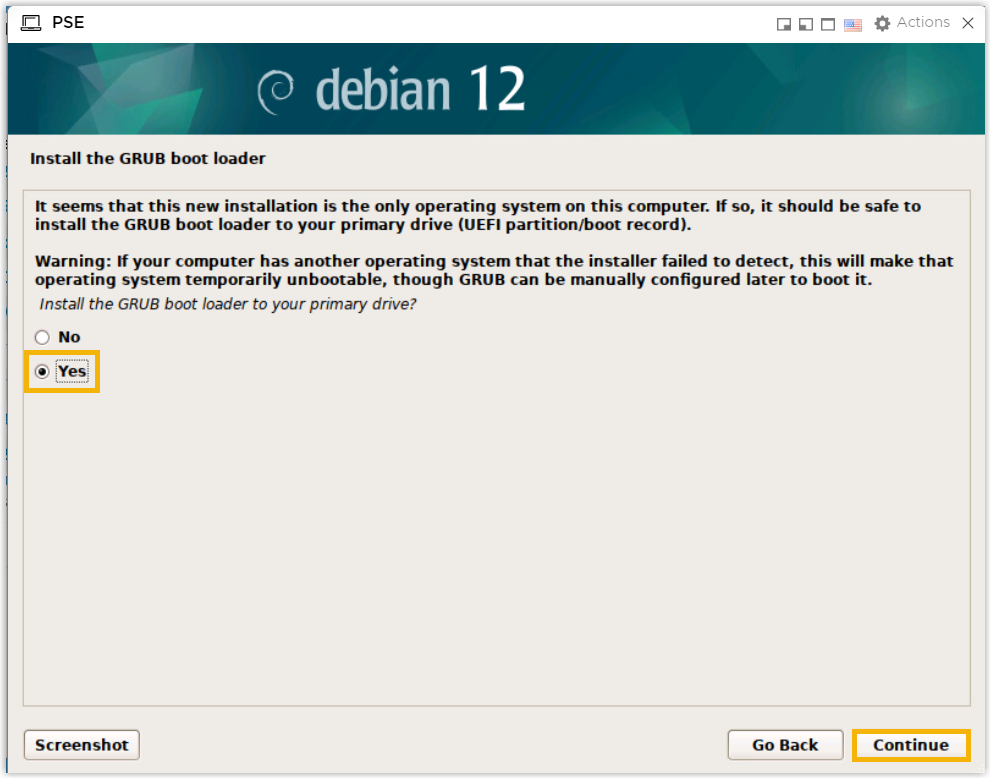
- Select Yes to install GRUB boot loader, then
click Continue.
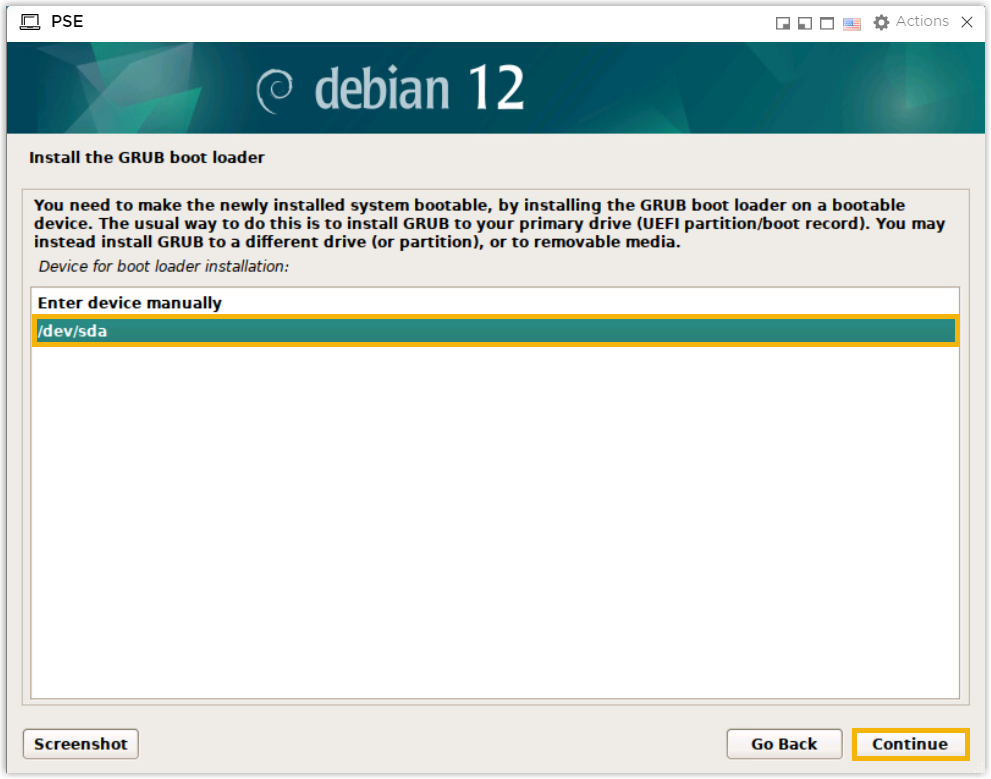
- Select a device to install GRUB boot loader, then click
Continue.
- Select Yes to install GRUB boot loader, then
click Continue.
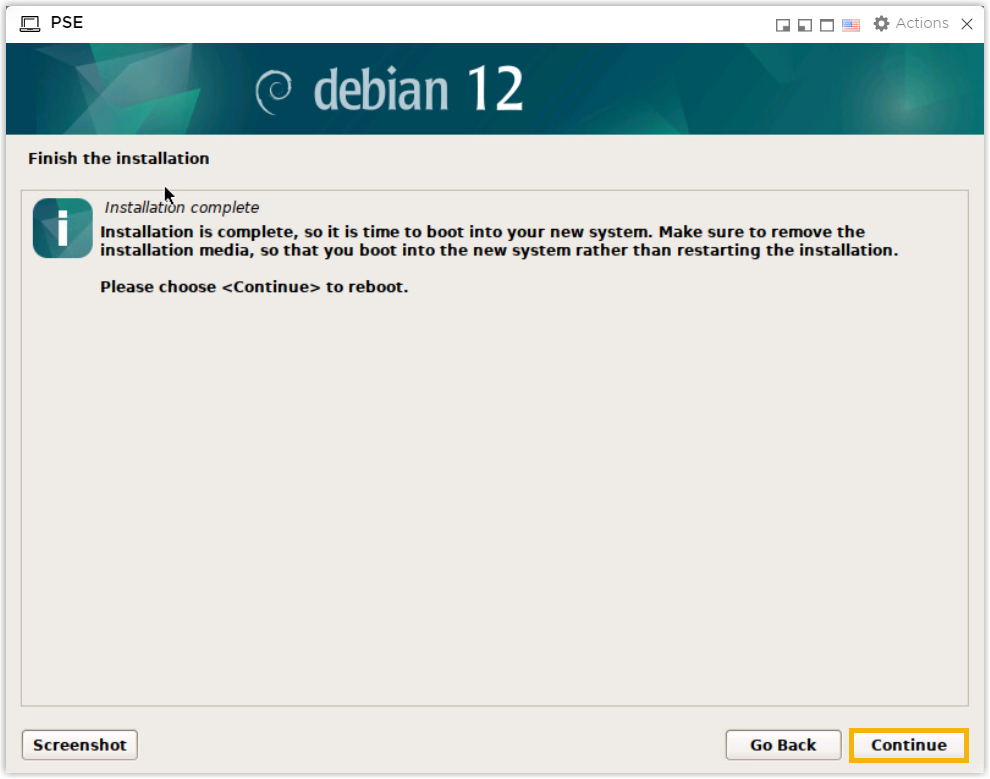
- Click Continue to reboot the
system.
- Wait 5 to 10 minutes until the installation process is no longer
running, then press
Enter.If a
IPPBX loginprompt is displayed and no errors likewait for basicsrv run okoccur, it indicates that P-Series Software Edition is installed.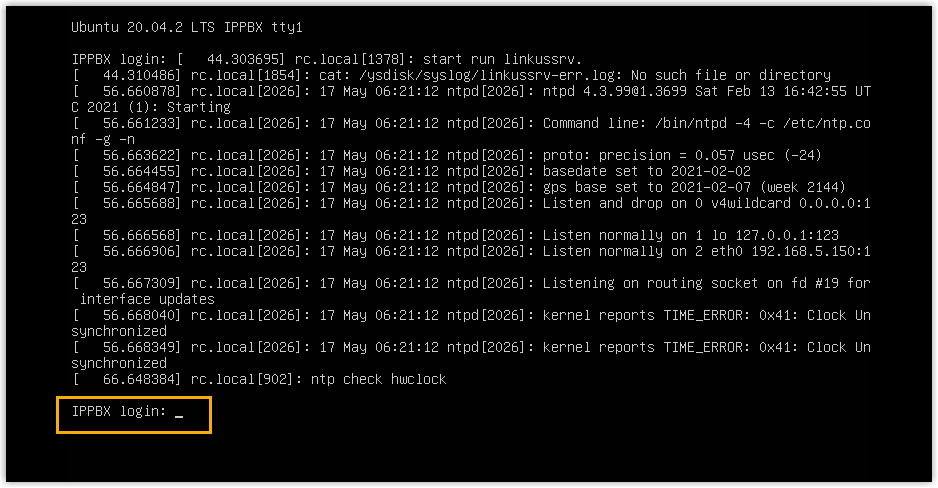
(Optional) Step 4. Change the default IP address of Yeastar P-Series Software Edition
192.168.5.150. If you prefer another IP address or your PC is
on a different network segment such as 192.168.28.X, you can change
the PBX's default IP address.We assume that your PC is on the network segment
192.168.28.X and your desired PBX IP address is
192.168.28.45. Refer to the following instructions to change
the PBX's IP address.
- At the
IPPBX loginprompt, typesupportand pressEnter.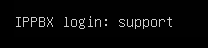
- At the
Passwordprompt, typeloginpbx(if the PBX firmware version is 83.18.0.59 or later) orQhcyaxsGcywymg2022(if the PBX firmware version is 83.18.0.18 or earlier), then pressEnter. Note: Generally, you will NOT get any visual feedback from the screen when you type the password.
You are presented with a prompt, displaying the Ubuntu information and system information. In the meanwhile, you are given the option to ping an IP address, view or update current network configuration, and log out the
supportaccount. You can type a specific number to run the command of the corresponding number.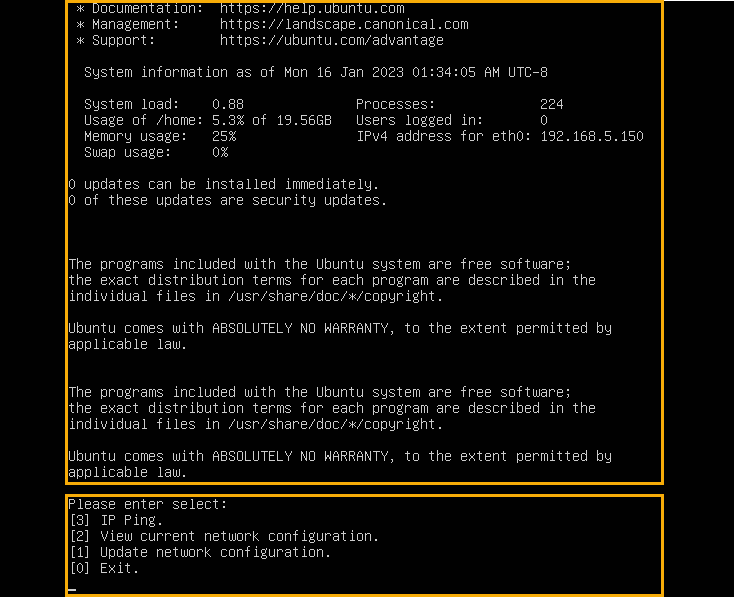
- Type
1and pressEnterto update the network configuration.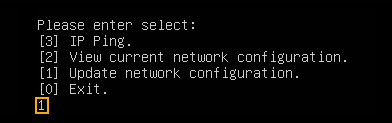
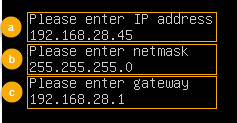
- Change the IP address of Yeastar P-Series Software Edition as
follows.
- At the
Please enter IP addressprompt, type the desired IP address and pressEnter.In this example, type
192.168.28.45. - At the
Please enter netmaskprompt, type the subnet mask and pressEnter.In this example, type
255.255.255.0. - At the
Please enter gatewayprompt, type the gateway address and pressEnter.In this example, type
192.168.28.1.It takes about two minutes to change the PBX's IP address from
192.168.5.150to your desired IP address.
- At the
Result
Yeastar P-Series Software Edition is installed successfully.
What to do next
Activate and set up Yeastar P-Series Software Edition to make it ready for use. You can do this using one of the following methods:
- Complete setup via Web GUI using the installation wizard
-
- Open a web browser, enter the PBX's IP address and port
in the address bar (e.g.
https://192.168.28.45:8088), and
press
Enter.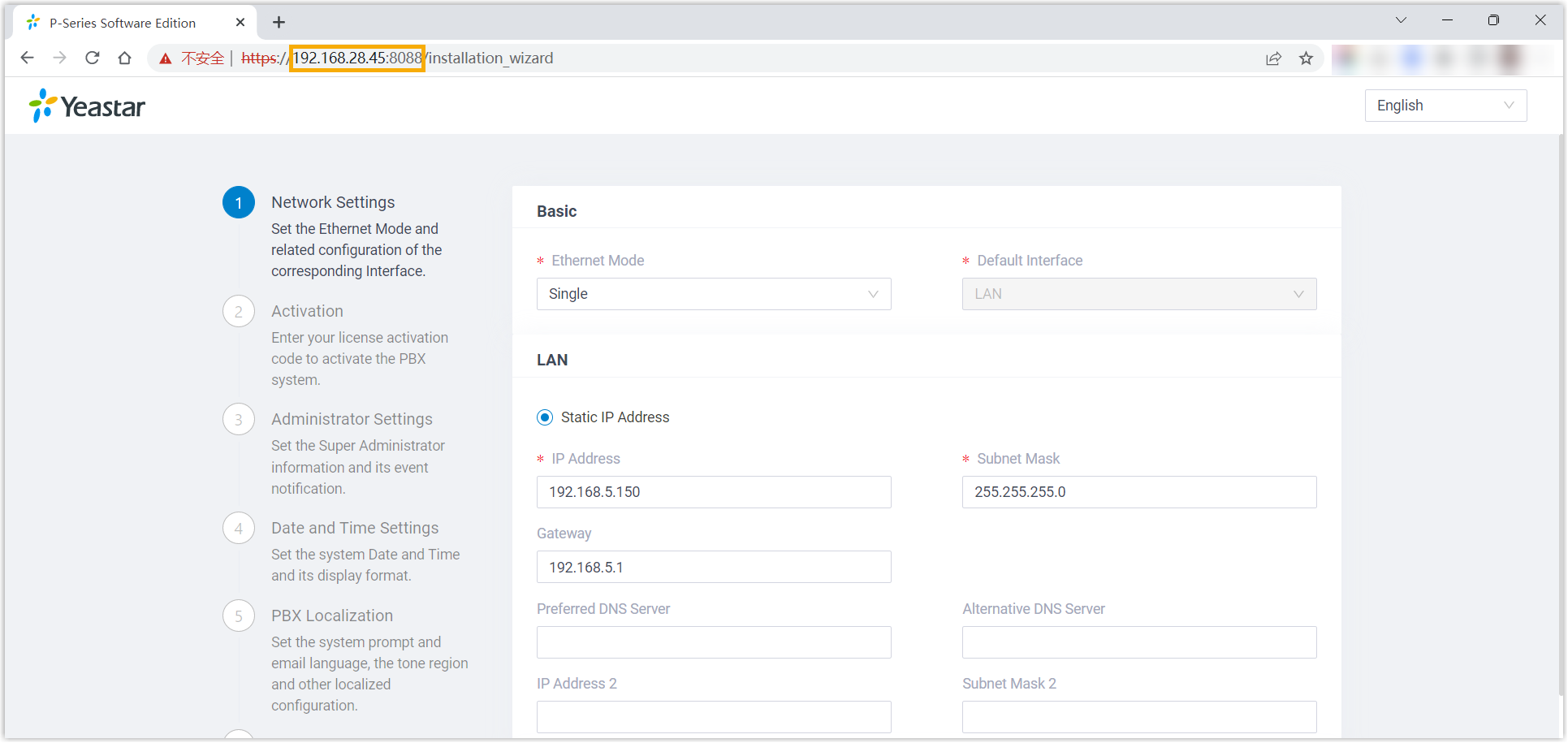
- Activate and initially set up Yeastar P-Series Software Edition following the installation wizard.
- Open a web browser, enter the PBX's IP address and port
in the address bar (e.g.
https://192.168.28.45:8088), and
press
- Complete setup via SSH using a prepared XML file
Upload a prepared XML file to the PBX via SSH. This method allows you to complete the initial setup and apply additional supported PBX settings, such as creating extensions, trunks, inbound routes, and more.
- Download the XML configuration file and edit it as needed.
- Upload the XML configuration file to the designated directory and reboot the PBX to take effect.
For more information, see Activate and Set up Yeastar P-Series Software Edition Using XML Configuration File.
- Root Account: Username is
root, and password is the credential configured in XML configuration file.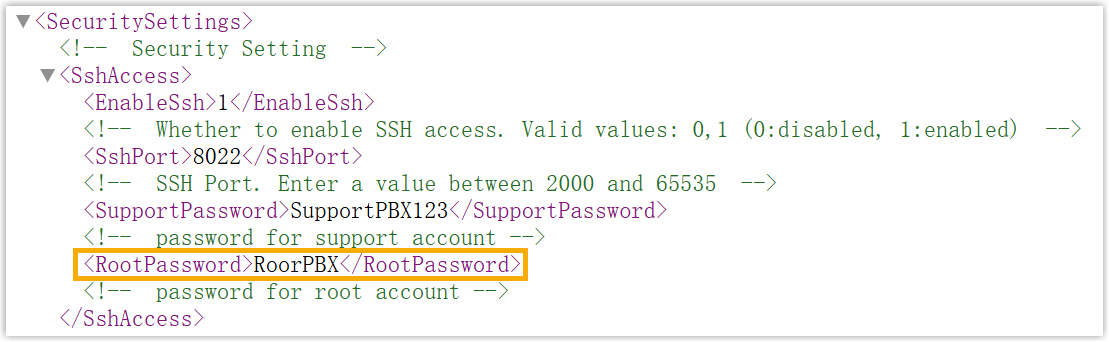
- Support Account: Username is
support, and password is the credential configured in PBX web portal (Path: ) or in XML configuration file.Figure 1. Support password in PBX web portal 
Figure 2. Support password in XML configuration file 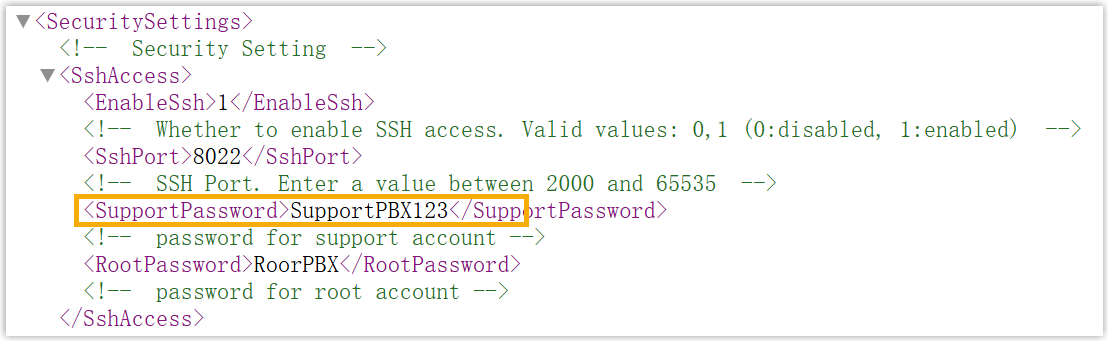
- Custom Account: Username and password are the credentials configured during installation process