Install Yeastar P-Series Software Edition on Aruba in Ubuntu
You can host and manage Yeastar P-Series Software Edition on Aruba in Ubuntu using command line and leverage your Aruba knowledge to stay in full control of your PBX deployment.
Step 1. Create a Cloud VPS
- Log in to Aruba Cloud Control Panel, go to .
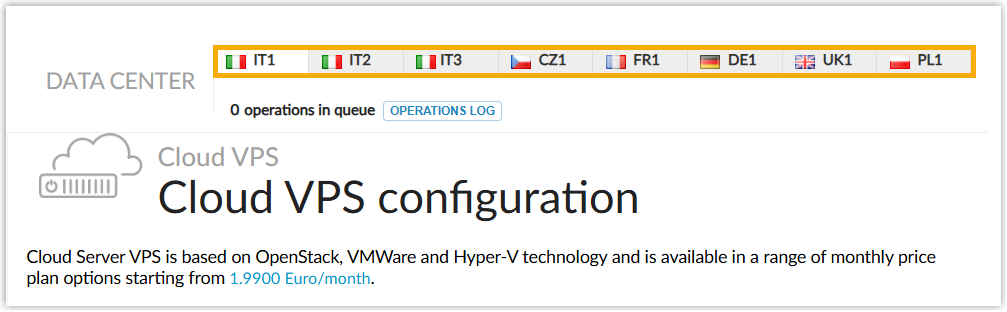
- On the top of the page, select a data center closest to your
location.
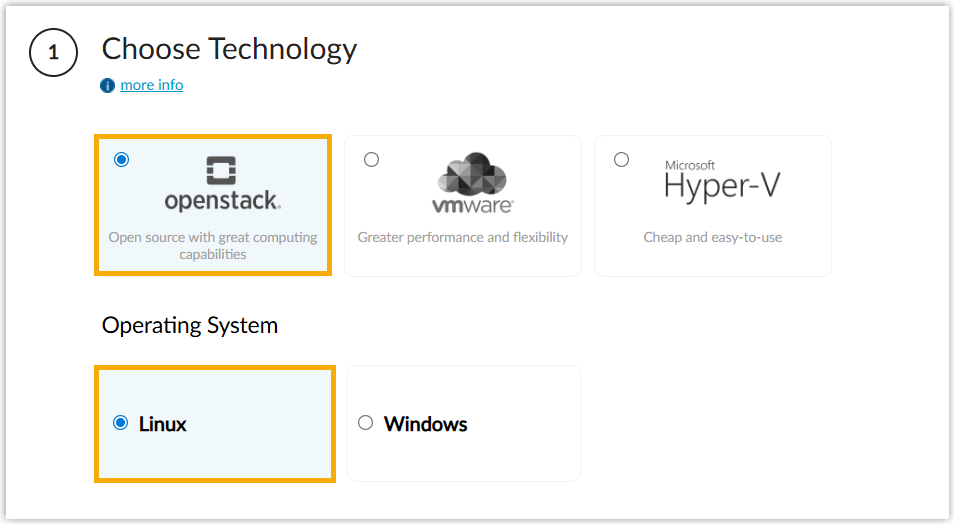
- In the Choose Technology section, select
openstack hypervisor and Linux
operating system.
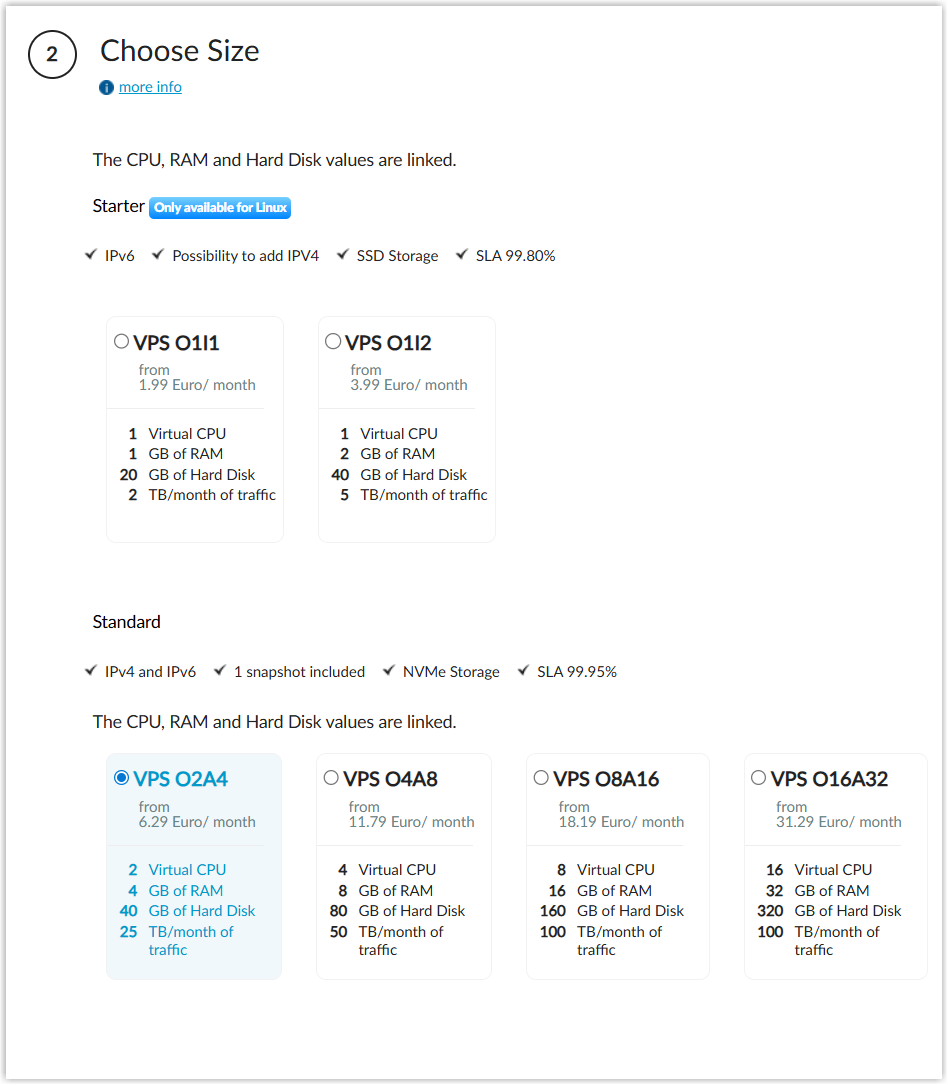
- In the Choose Size section, select the
server size based on the Extensions (EXT) and Concurrent Calls
(CC) of your PBX system.
1-20 EXT (1-5 CC)
21-50 EXT (6-13 CC)
51-250 EXT (14-63 CC)
251-500 EXT (64-125 CC)
501-1000 EXT (126-250 CC)
EXT > 1000 (CC > 250)
vCPU 2 2 4 6 8 Contact Yeastar Memory 2 GB 4 GB 4 GB 8 GB 16 GB Storage Call Recording Disabled 40 GB 40 GB 50 GB 100 GB 200 GB Call Recording Enabled 1 GB of storage holds approximately 1000 minutes of recorded calls. You can set up the storage based on your recording usage. - In the Choose Template section, select
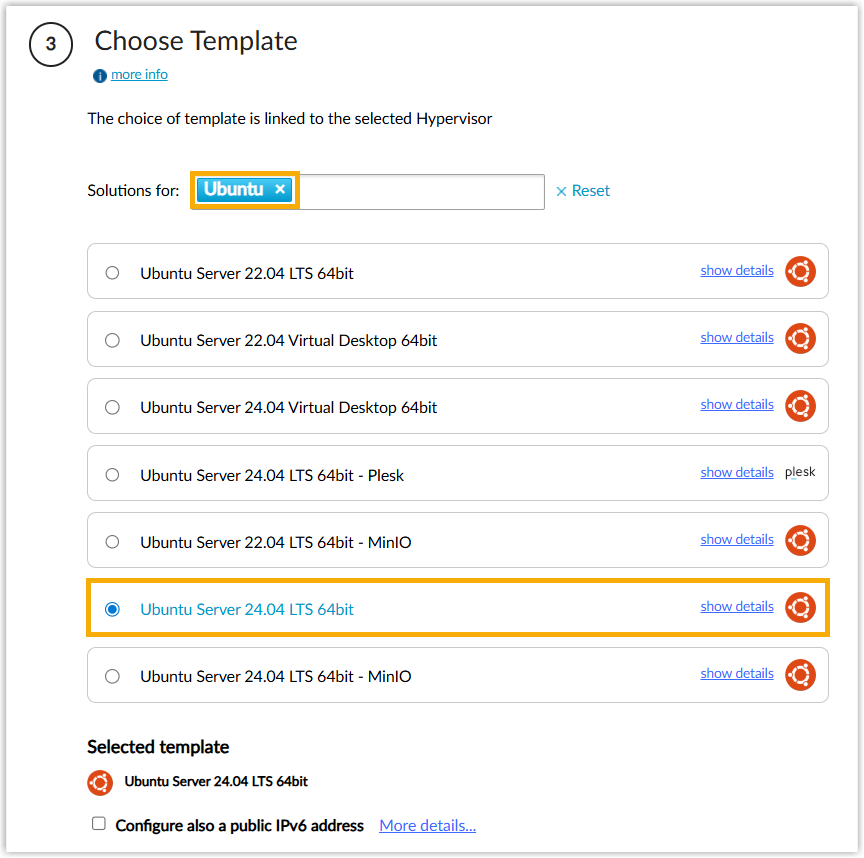
Ubuntu from the Solutions for
drop-down list to filter Ubuntu templates, then choose Ubuntu Server
24.04 LTS 64bit from the results.
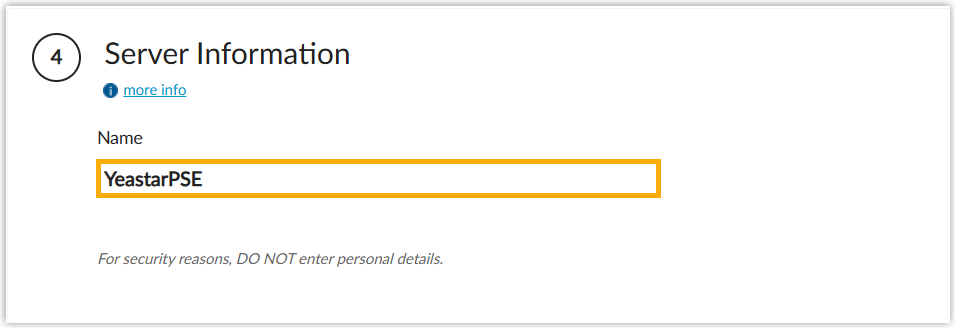
- In the Server Information section, enter
a name to help you identify the Cloud VPS.
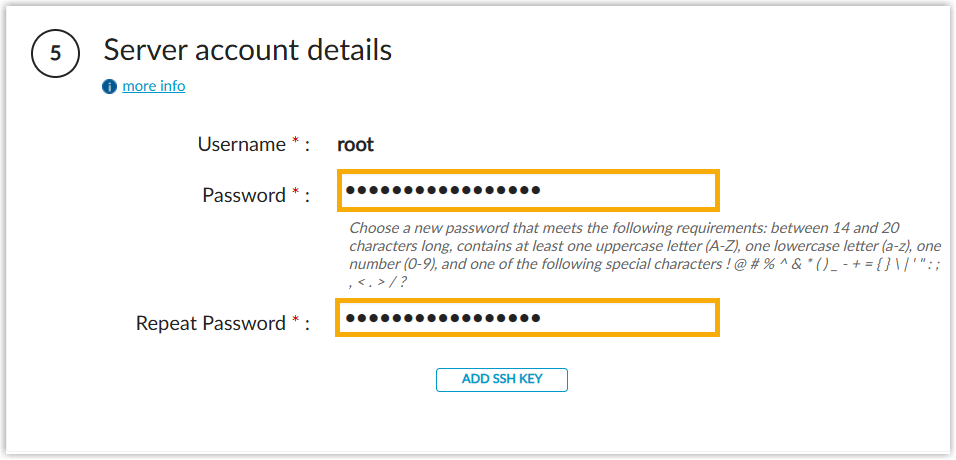
- In the Server account details section, set a
password to use for the Cloud VPS, and add an SSH key as needed.
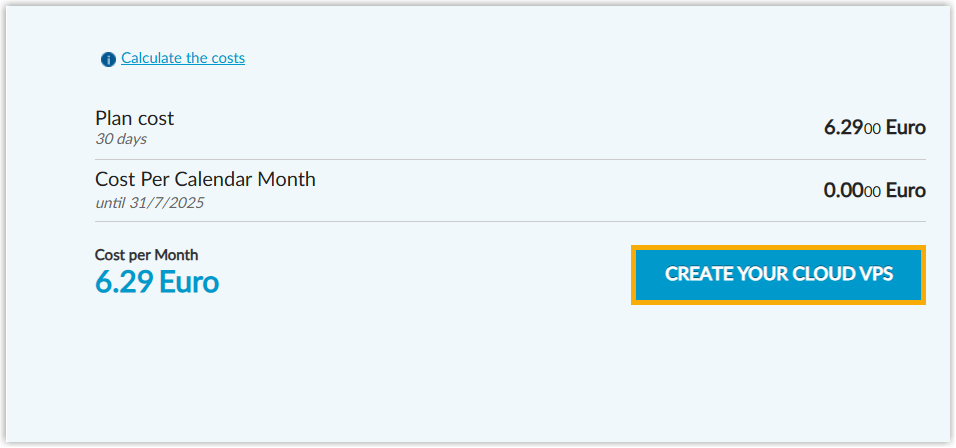
- Click CREATE YOUR CLOUD VPS.
- In the pop-up window, click CONFIRM
NOW.
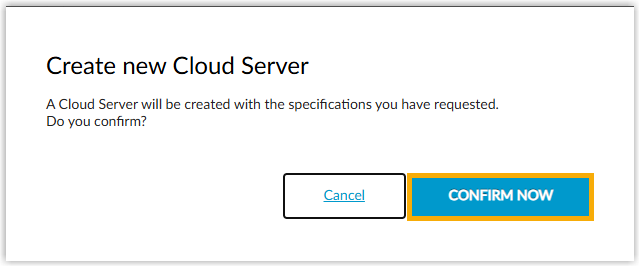
Wait a few minutes for the Cloud VPS to be created and launched.
Step 2. Install Yeastar P-Series Software Edition
- Go to console for the Cloud VPS.
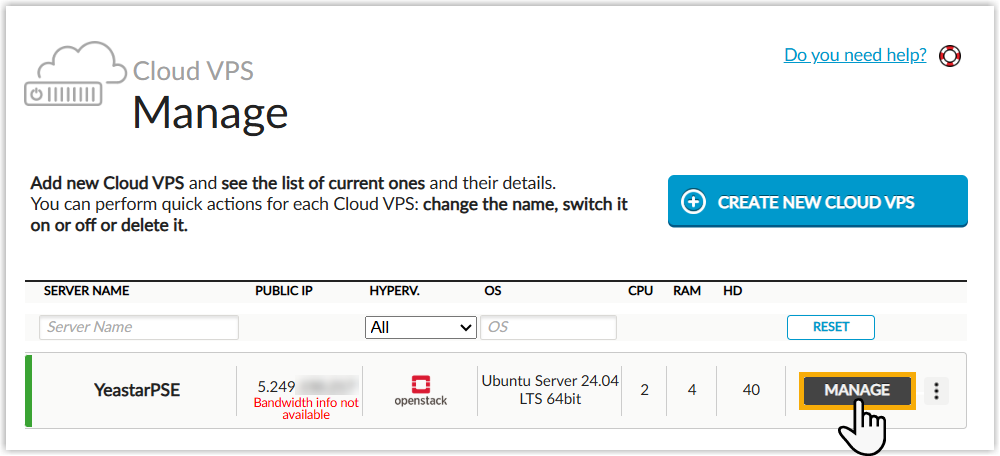
- On the Cloud VPS list, click MANAGE beside
the Cloud VPS.
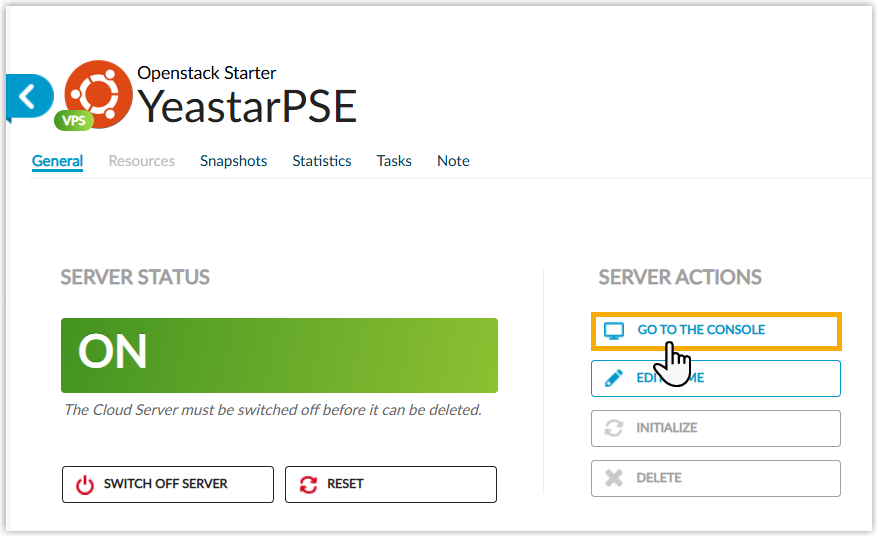
- On the right of the page, click GO TO
THE CONSOLE.
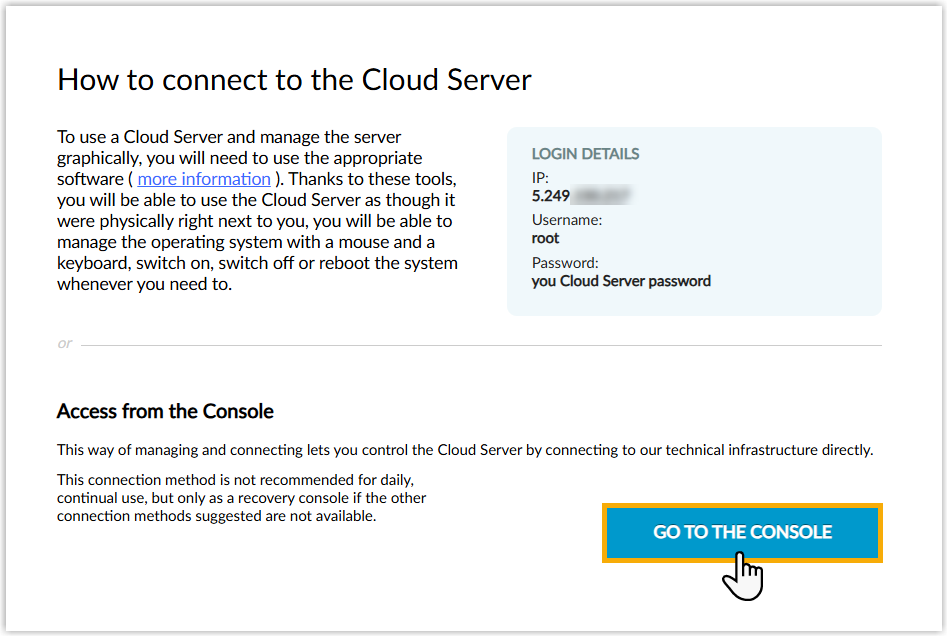
- In the pop-up window, click GO TO
THE CONSOLE.
- On the Cloud VPS list, click MANAGE beside
the Cloud VPS.
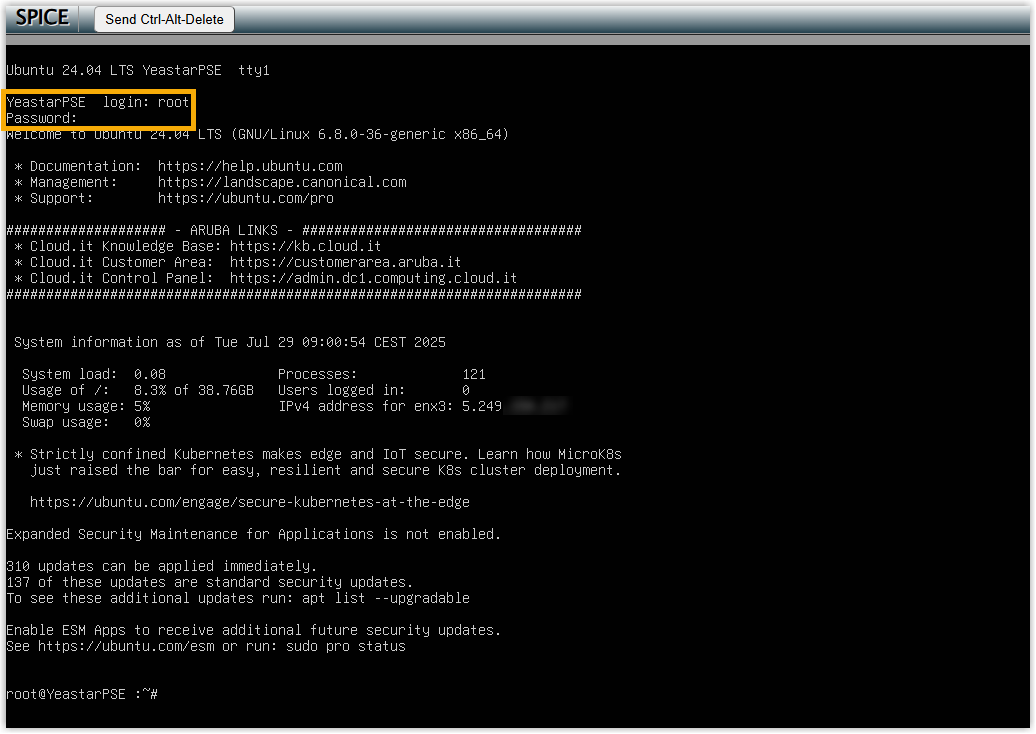
- Connect to the Cloud VPS using the root credentials.
- Run the following commands to install Yeastar
P-Series Software Edition.
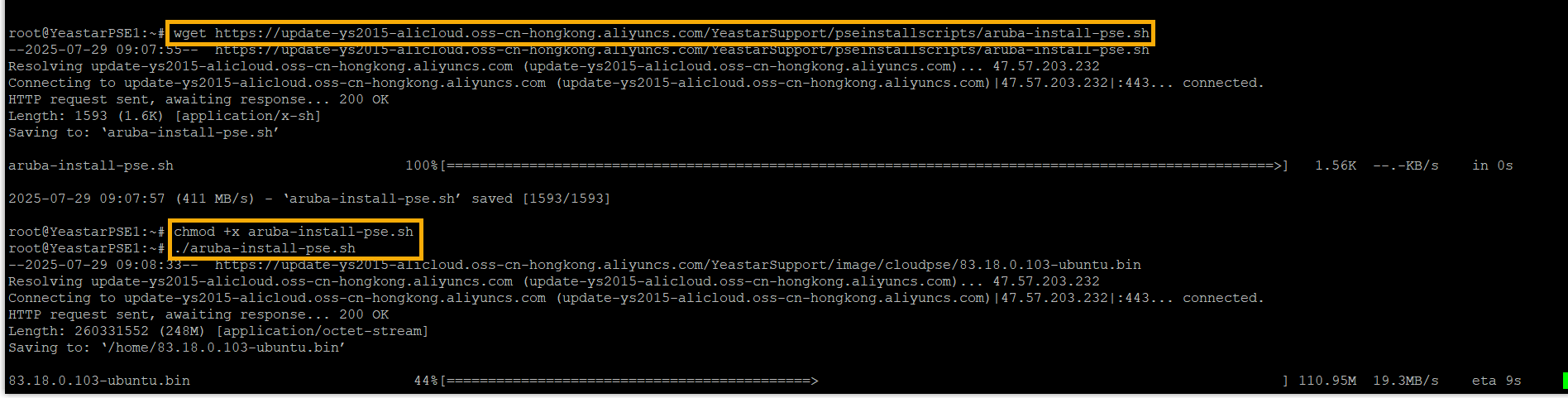
wget
                                    https://update-ys2015-alicloud.oss-cn-hongkong.aliyuncs.com/YeastarSupport/pseinstallscripts/aruba-install-pse.sh
chmod +x aruba-install-pse.sh./aruba-install-pse.sh
- Wait for the installation process to complete.
If a
IPPBX
                                login
prompt is displayed, it indicates that P-Series Software Edition is installed.
Result
Yeastar P-Series Software Edition is installed successfully.
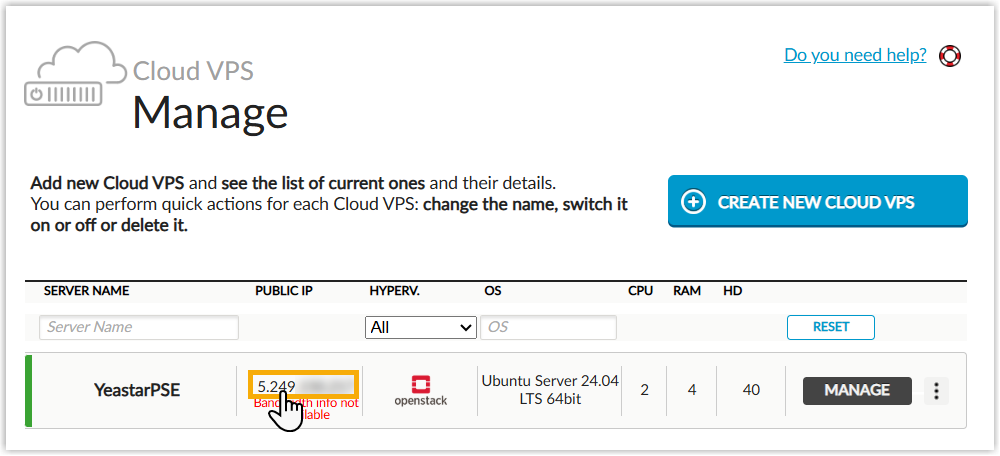
Open a web browser, enter the PBX's IP address and port in the address bar (e.g.
https://5.249.150.211:8088), and press
Enter.
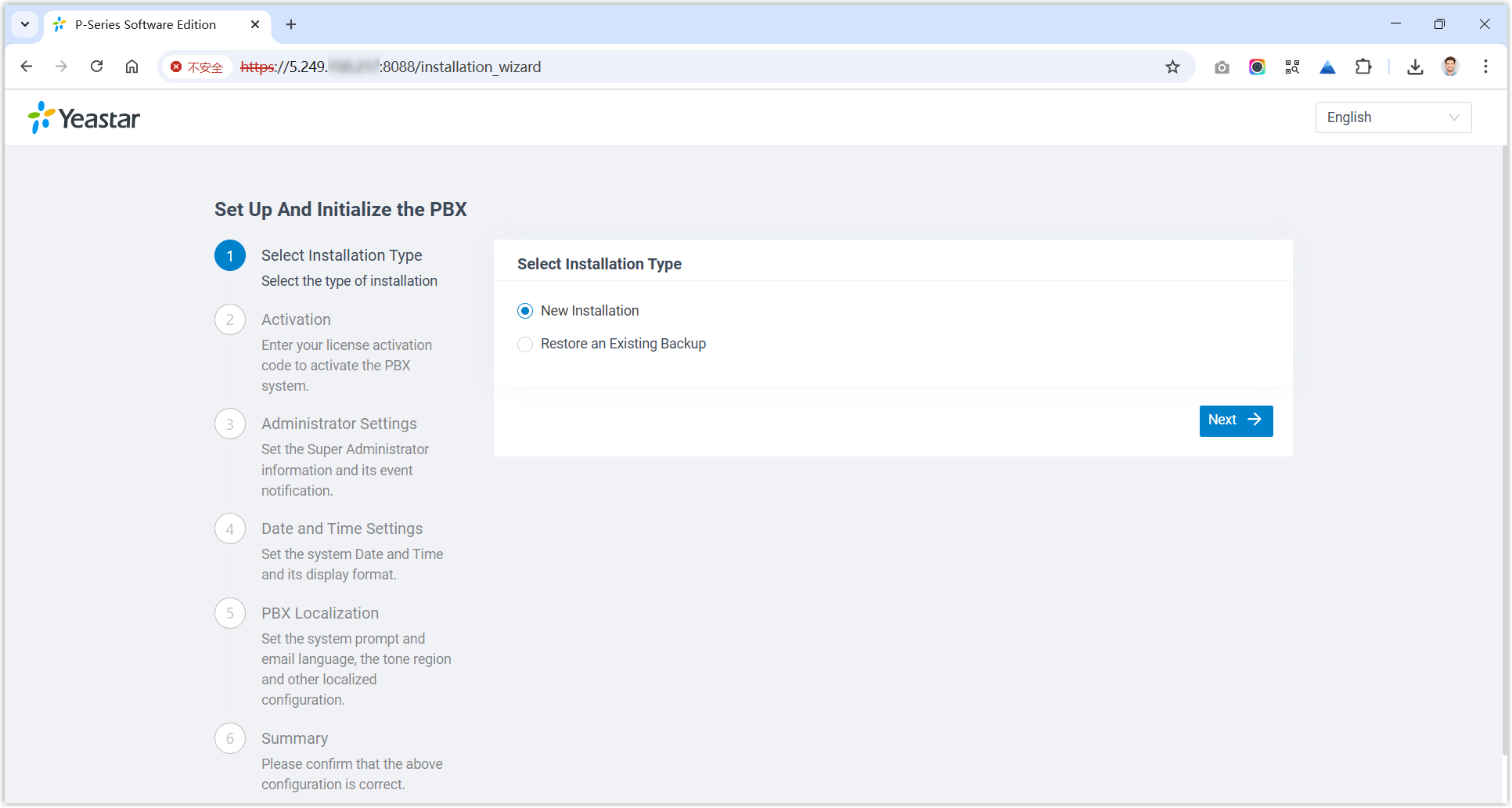
You will access the PBX web portal and enter the installation wizard of Yeastar P-Series Software Edition.
What to do next
Activate and set up Yeastar P-Series Software Edition to make it ready for use. You can do this using one of the following methods:
- Complete setup via Web GUI using the installation wizard
- Continue with the installation wizard in the Web GUI. This method only supports to complete the settings included in the wizard.
- Complete setup via SSH using a prepared XML file
-
Upload a prepared XML file to the PBX via SSH. This method allows you to complete the initial setup and apply additional supported PBX settings, such as creating extensions, trunks, inbound routes, and more.
- Download the XML configuration file and edit it as needed.
- Upload the XML configuration file to the designated directory and reboot the PBX to take effect.
For more information, see Activate and Set up Yeastar P-Series Software Edition Using XML Configuration File.
- Root Account: Username is
root, and password is the credential configured in XML configuration file.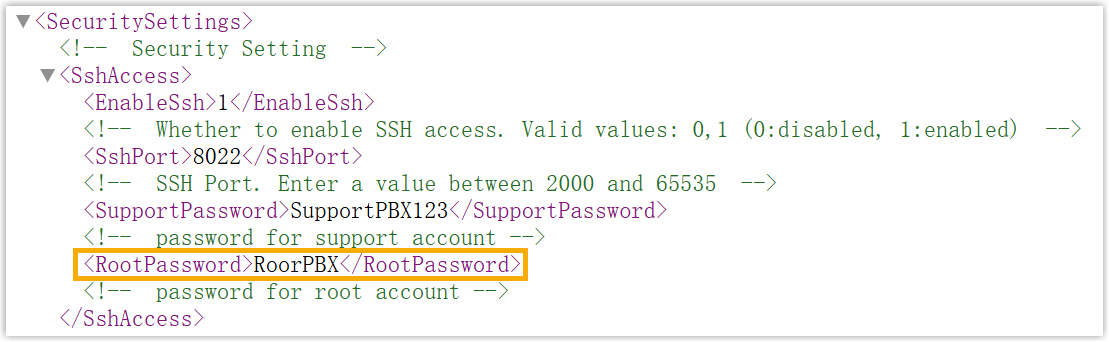
- Support Account: Username is
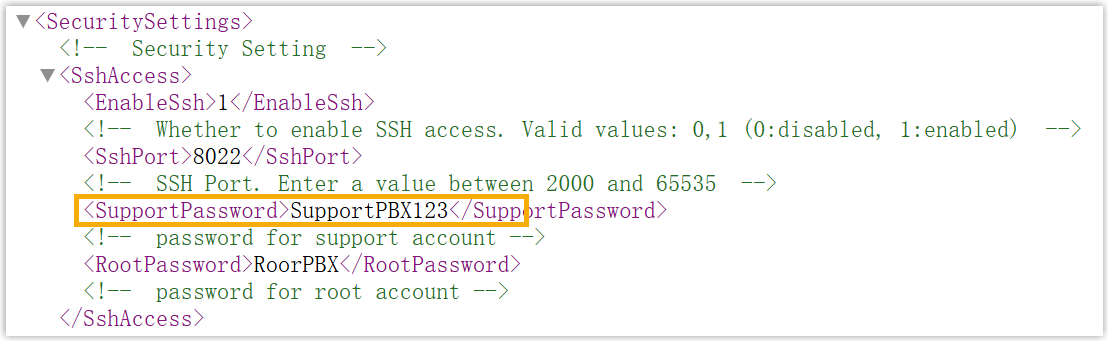
support, and password is the credential configured in PBX web portal (Path: ) or in XML configuration file.Figure 1. Support password in PBX web portal 
Figure 2. Support password in XML configuration file