Install Yeastar P-Series Software Edition on Dell Server - UEFI Mode
This topic takes Dell PowerEdge R760 as an example to demonstrate how to install Yeastar P-Series Software Edition on a hardware server in UEFI mode.
Prerequisites
- Write Yeastar P-Series Manual-install ISO image to a USB drive.
- Make sure the server meets requirements.
- Make sure no external hard disk is installed on the server, or an installation error may occur.
Procedure
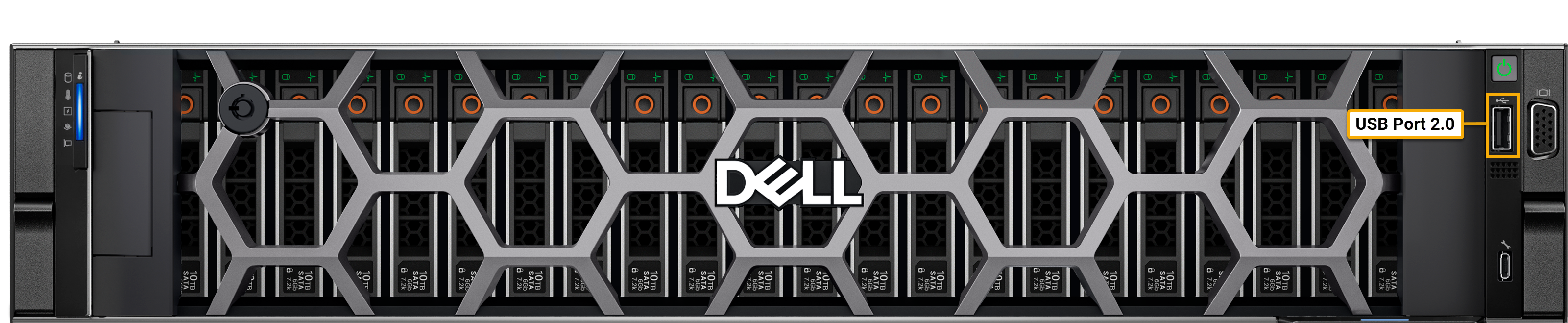
- Connect the USB drive to the USB 2.0 port on Dell server.
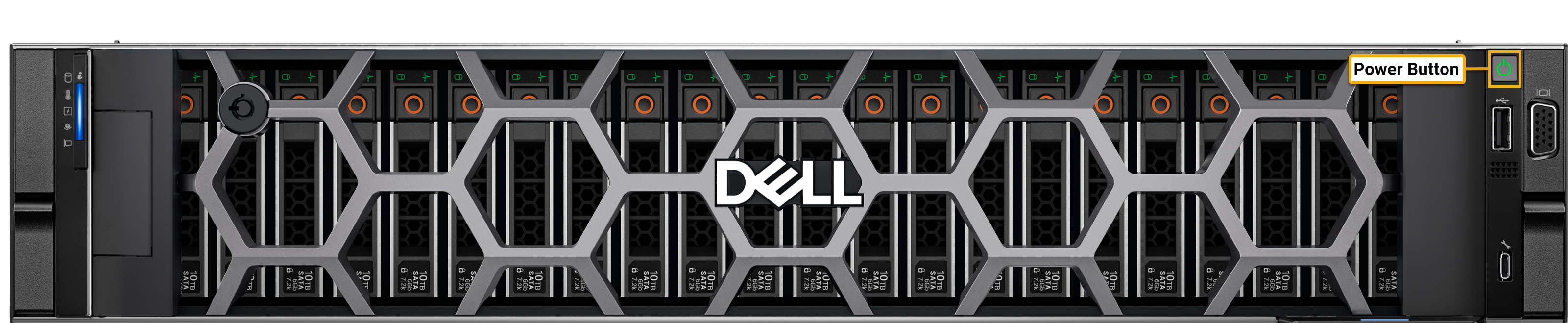
- Press the power button to power on Dell server.
- Press
F2immediately after you see the following image.
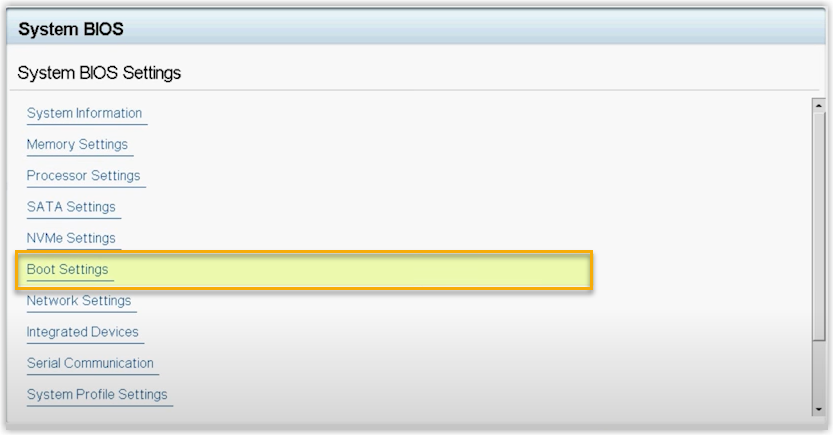
- Set boot mode to UEFI.
- Go to .
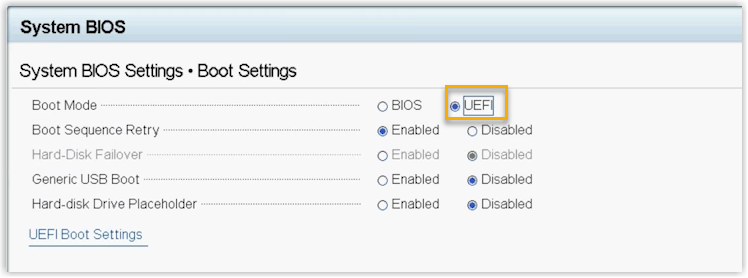
- Set Boot Mode to
UEFI.
- Go to .
- Set the system to optimal performance.
- Go to .
- Select Performance.
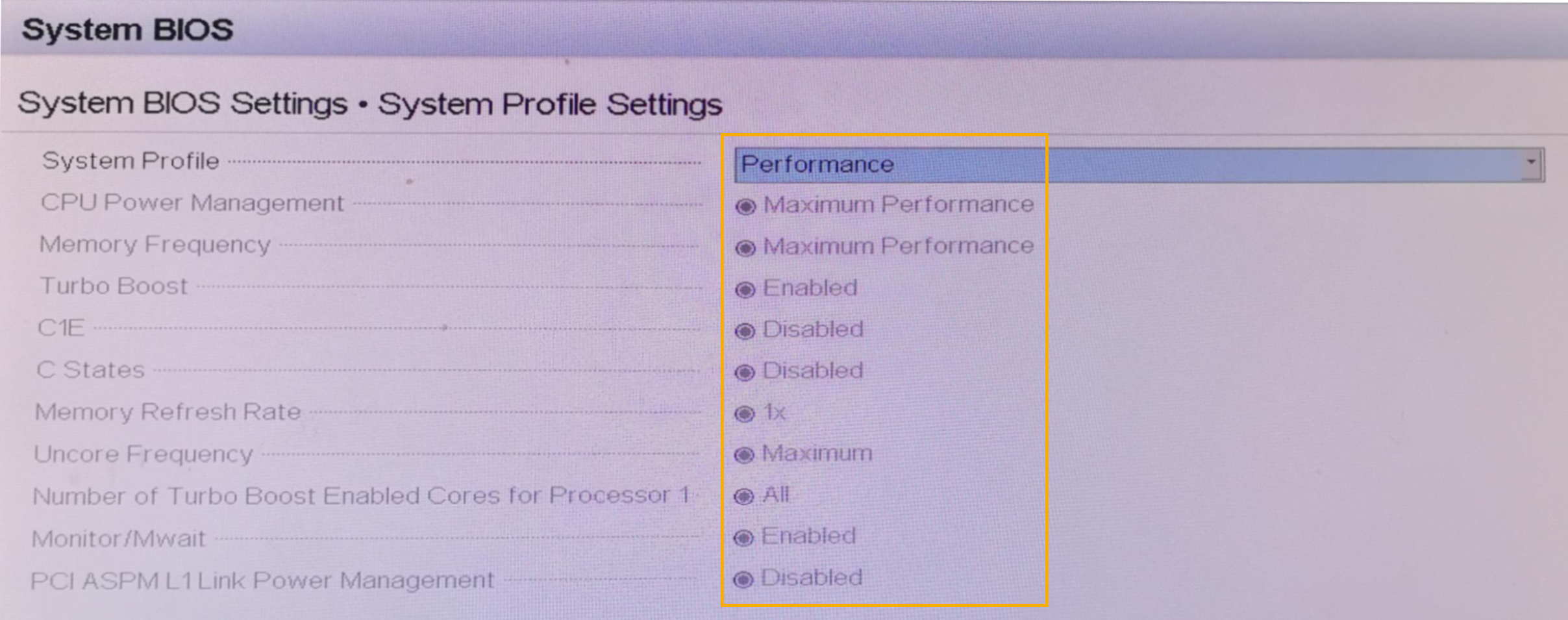
- Press
Esctwice to exit System BIOS Settings, then select Yes to save the setting.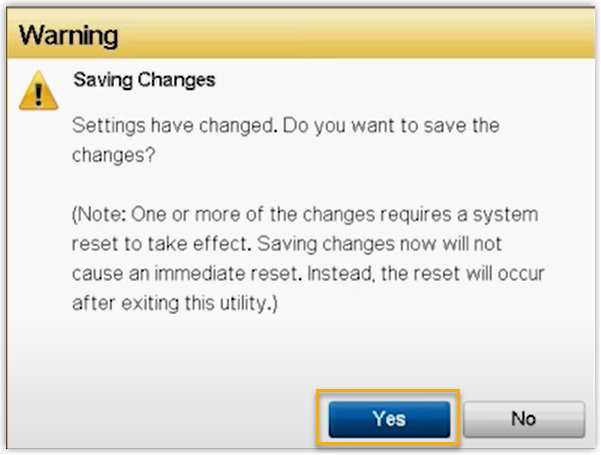
- Press
Ctrl+Alt+Deletekey to reboot the sever. - During boot, press
F11to enter the Boot Manager. - Select One-shot UEFI Boot Menu, then select
Disk connected to front USB 1: DT Rubber
3.0.
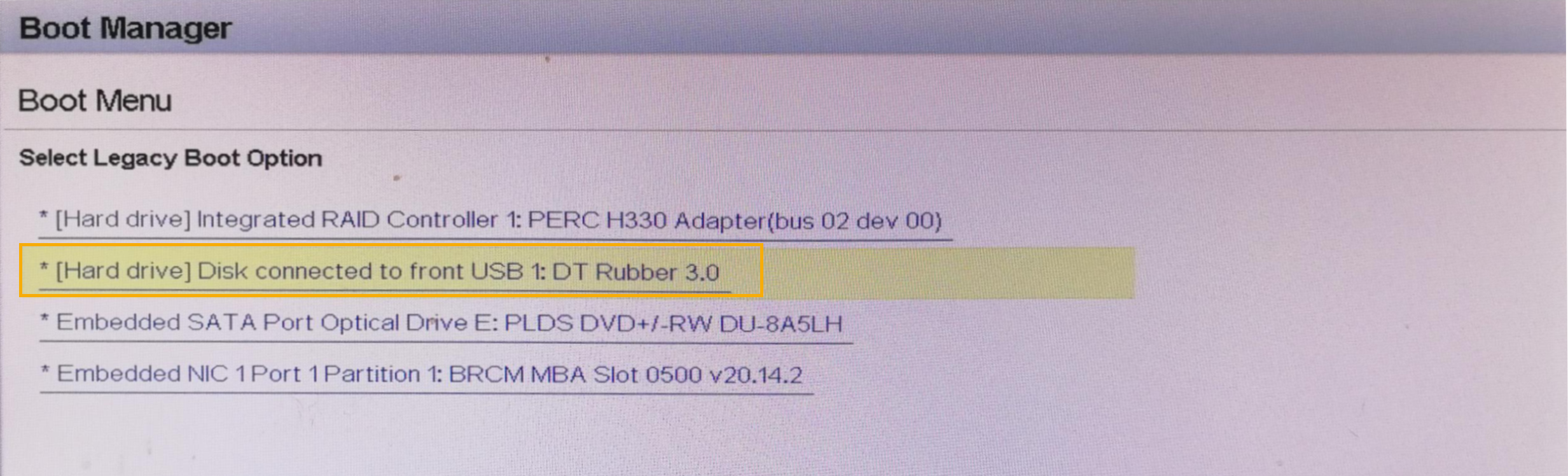
- Select Install Ubuntu Server to install Ubuntu
server.

- Select
Try or Install Ubuntu
                                        Server
, then pressEnter.
-
Configure the disk partitioning.
- Select Custom storage layout
and select Done.
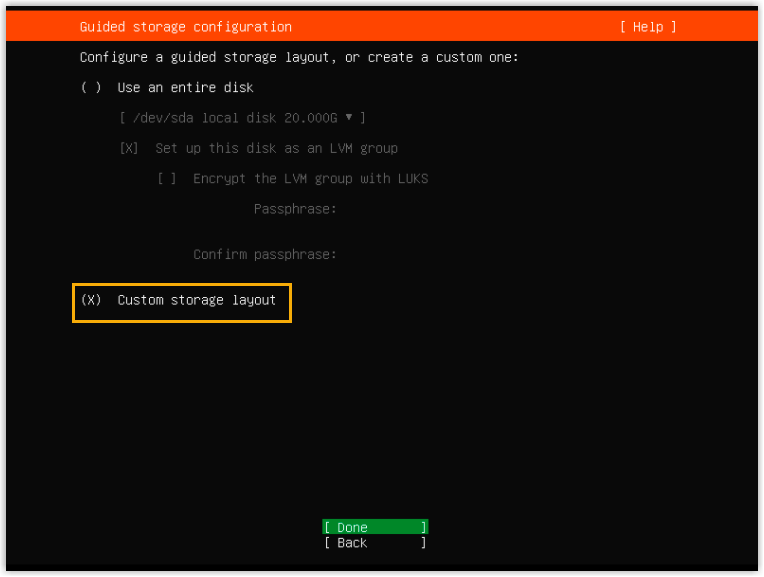
- In the AVAILABLE DEVICES section, select
the free disk space, then select Add GPT
Partition.Note: If other devices are displayed, select the disk and click Reformat to reformat it, then select Add GPT Partition.
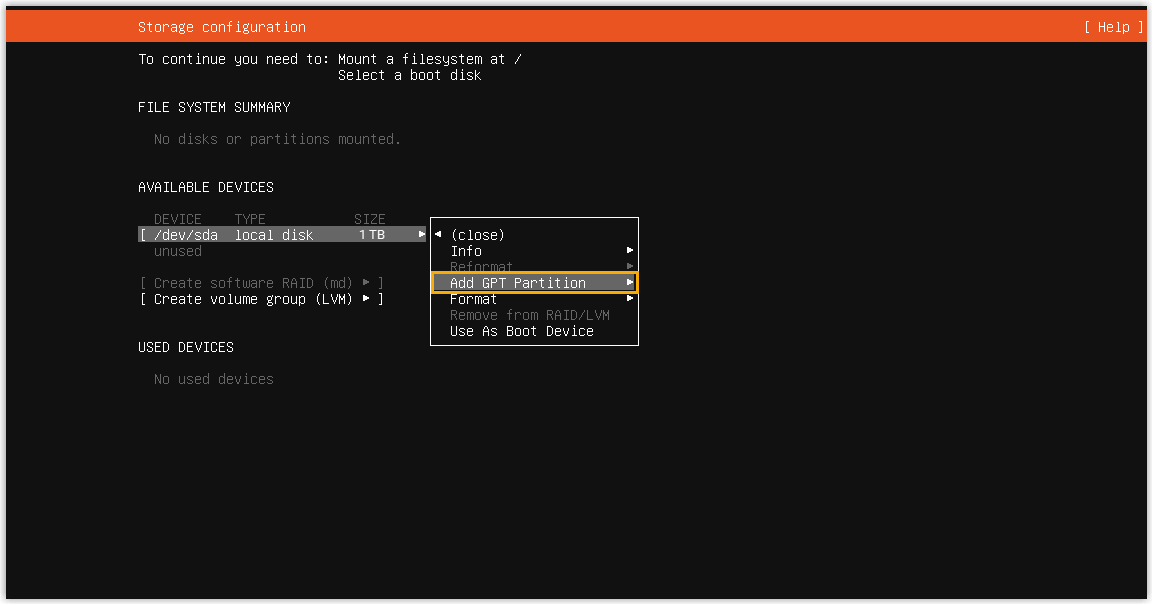
- In the pop-up window, partition the disk according to your
needs.
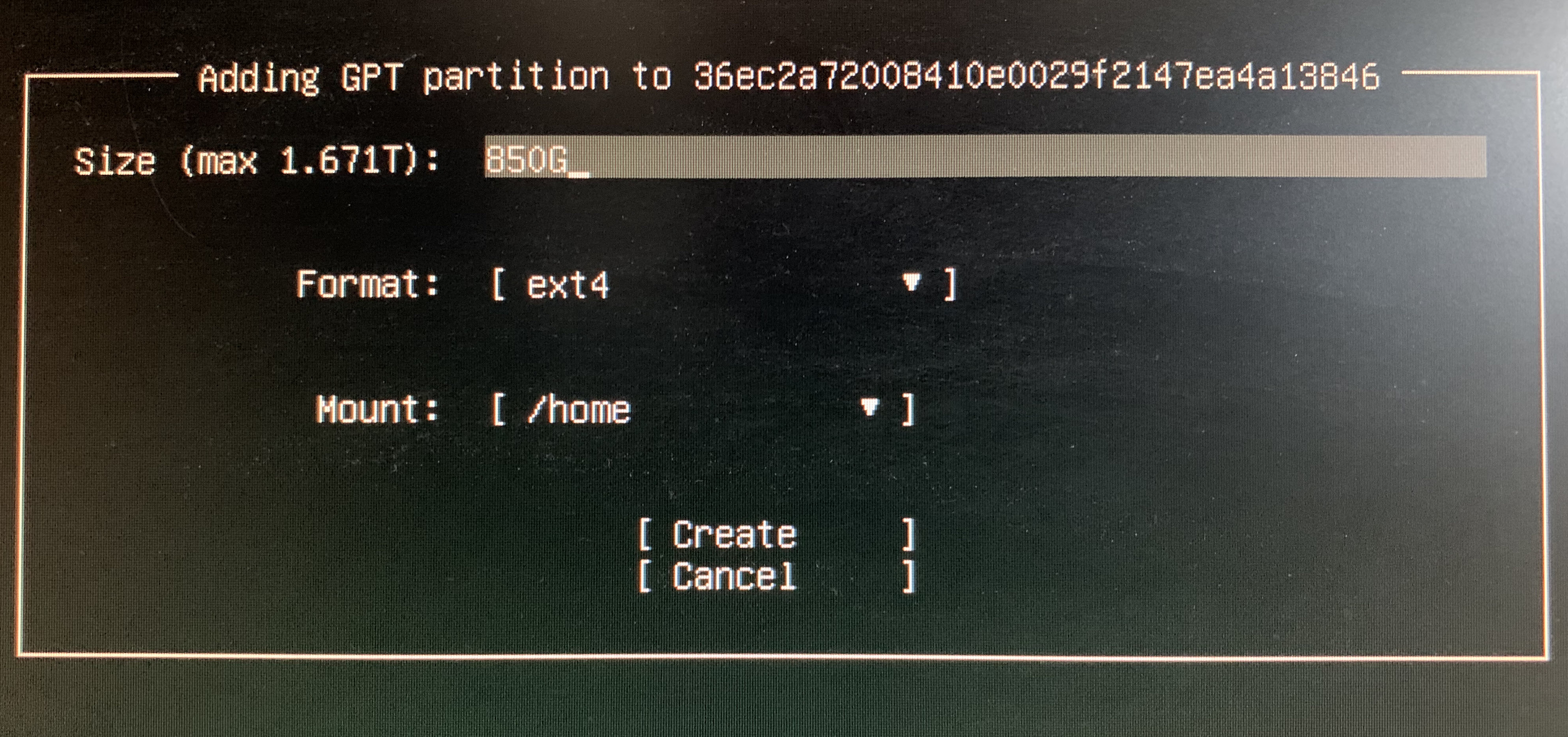 Note: The following partitions are required. You can also add other partitions.
Partition Size Format Mount Partition 1 Minimum 50G swap No action required. Partition 2 Minimum 100G ext4 /Partition 3 Remaining free space (Recommended: 500G or more) ext4 /home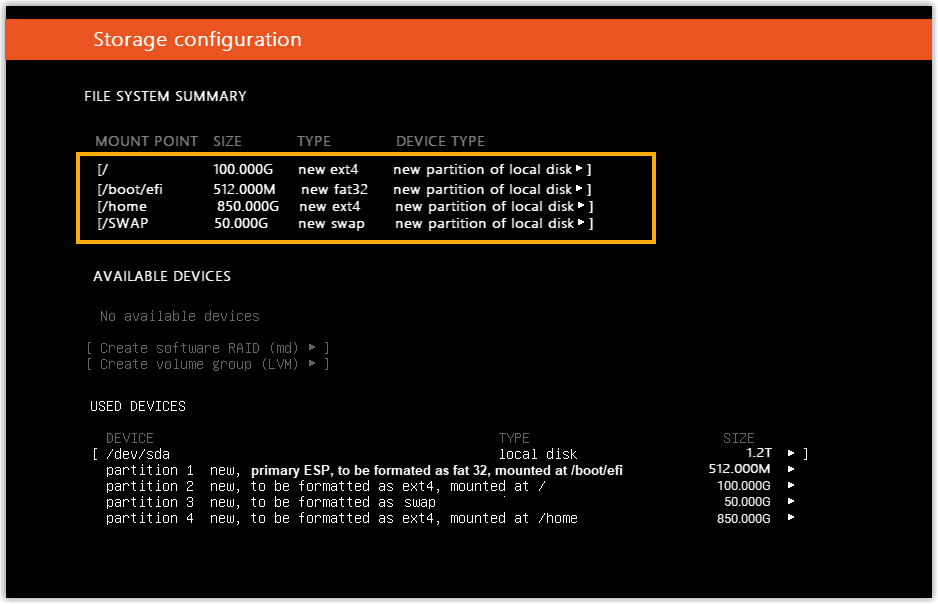
- Select Done.
- Select Custom storage layout
and select Done.
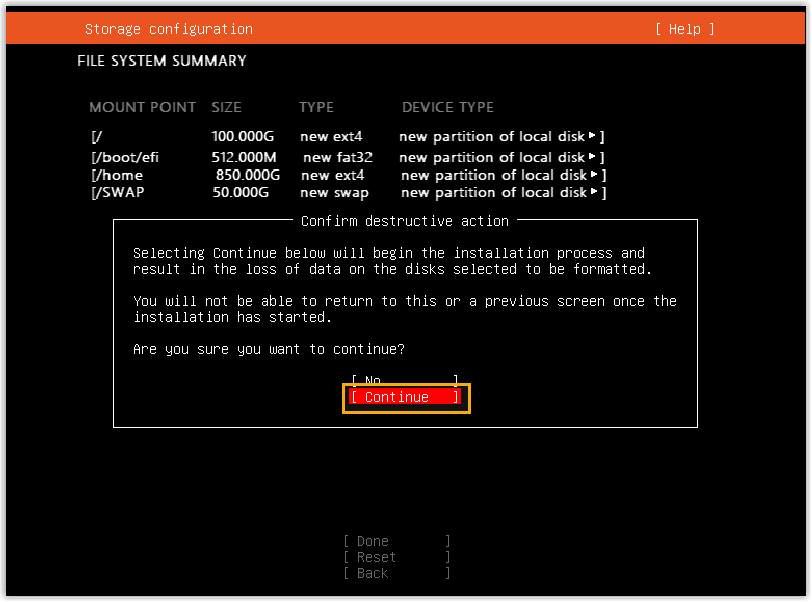
- In the pop-up dialog box, click Continue to install
PBX system.
- Create a user account, then select
Done.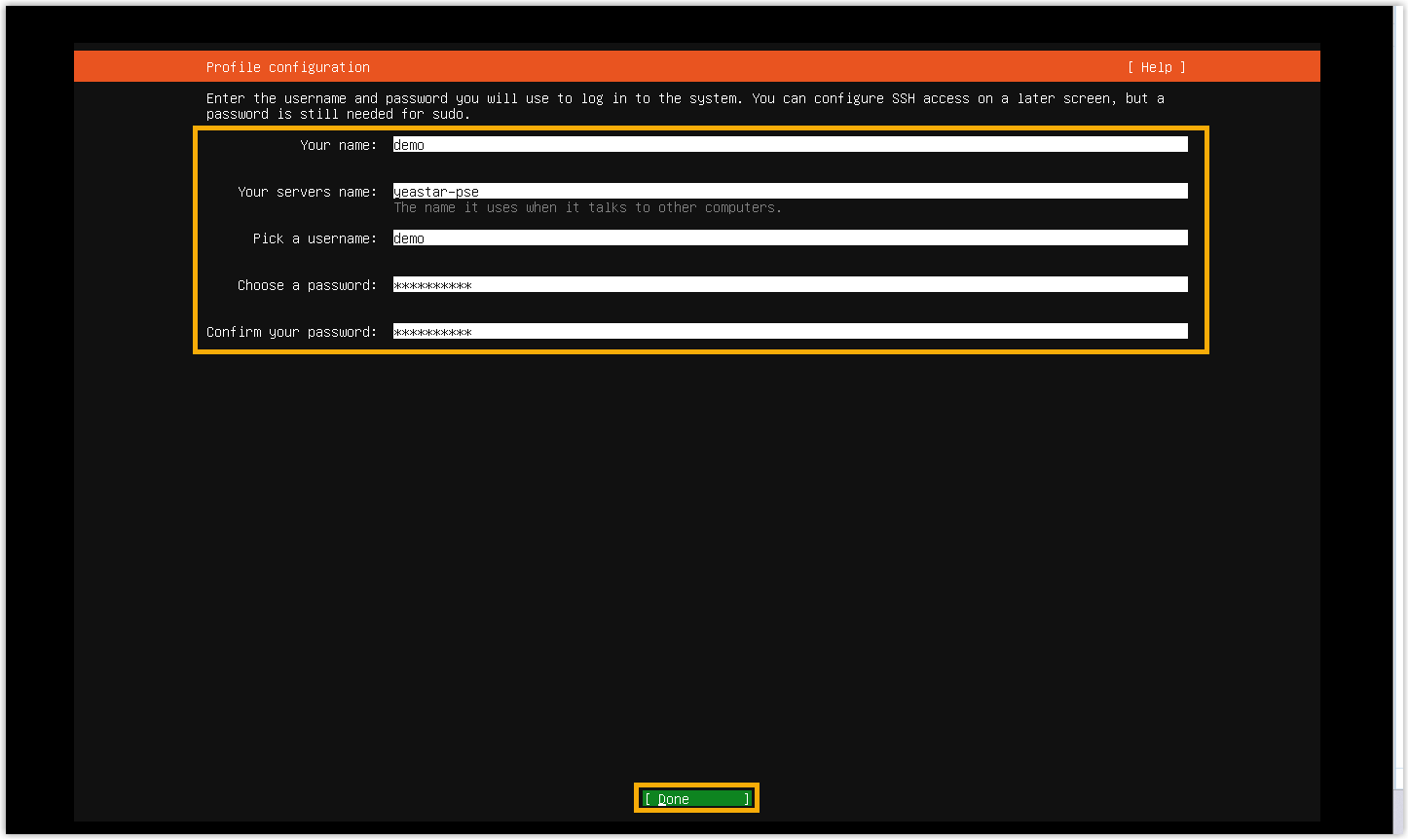
- When the process completes, remove the USB drive. The server will reboot
automatically.
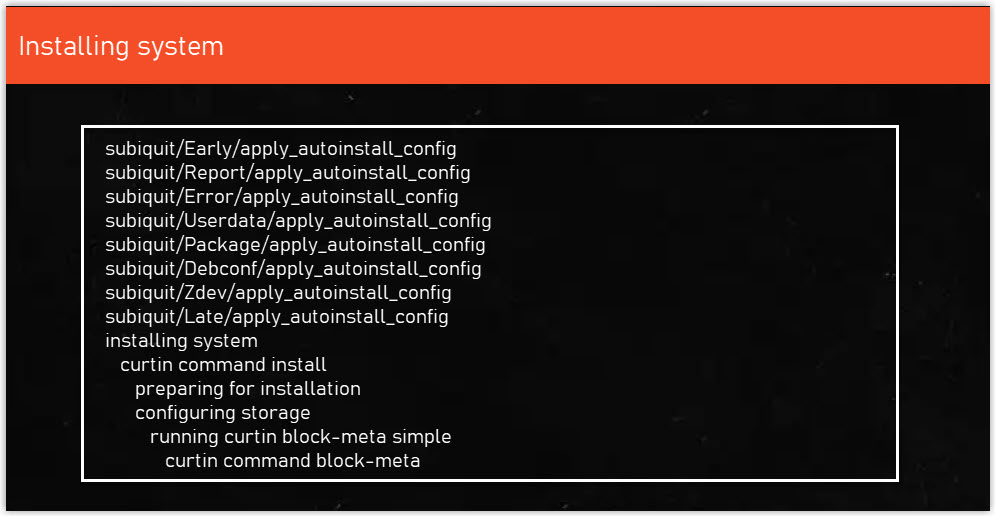
- Wait 5 to 10 minutes until the installation process is no longer running,
then press
Enter.If a
IPPBX loginprompt is displayed and no errors likewait for basicsrv run okoccur, it indicates that Yeastar P-Series Software Edition is installed.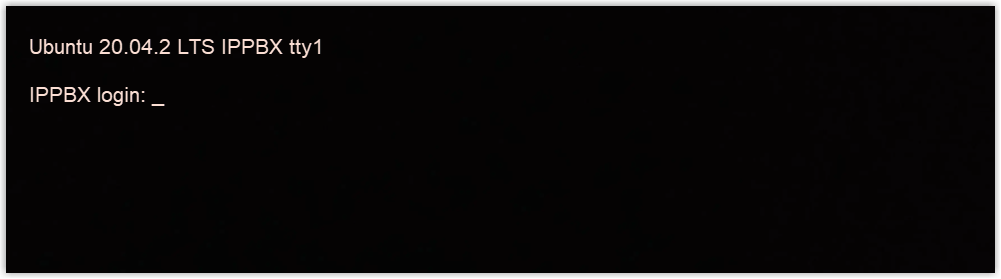
- Optional: If you prefer another IP address or your PC is on a
different network segment such as
192.168.28.X, you can change the PBX's default IP address.Important: PBX's IP address MUST be on the same network segment as your PC, or you can NOT access the PBX from your PC.We assume that your PC is on the network segment
192.168.28.Xand your desired PBX IP address is192.168.28.45. Refer to the following instructions to change the PBX's IP address.- Access PBX.
- At the
IPPBX loginprompt, typesupportand pressEnter.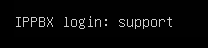
- At the
Passwordprompt, typeloginpbx(if the PBX firmware version is 83.18.0.59 or later) orQhcyaxsGcywymg2022(if the PBX firmware version is 83.18.0.18 or earlier), then pressEnter. Note: Generally, you will NOT get any visual feedback from the screen when you type the password.
You are presented with a prompt, displaying the Ubuntu information and system information. In the meanwhile, you are given the option to ping an IP address, view or update current network configuration, and log out the
supportaccount. You can type a specific number to run the command of the corresponding number.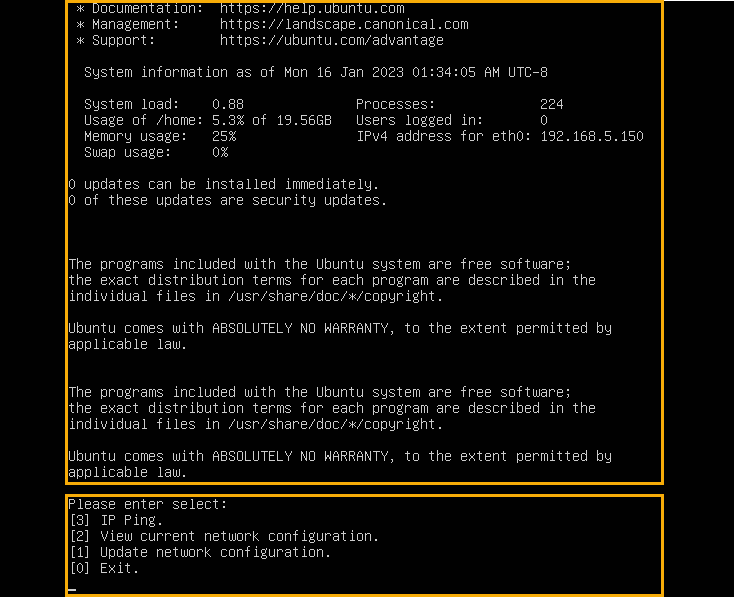
- At the
- Type
1and pressEnterto update the network configuration.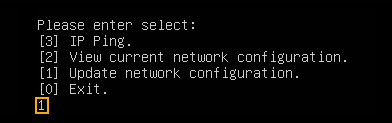
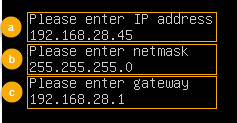
- Change the IP address of Yeastar P-Series Software Edition as
follows.
- At the
Please enter IP addressprompt, type the desired IP address and pressEnter.In this example, type
192.168.28.45. - At the
Please enter netmaskprompt, type the subnet mask and pressEnter.In this example, type
255.255.255.0. - At the
Please enter gatewayprompt, type the gateway address and pressEnter.In this example, type
192.168.28.1.It takes about two minutes to change the PBX's IP address from
192.168.5.150to your desired IP address.
- At the
- Access PBX.
Result
Yeastar P-Series Software Edition is installed successfully.
What to do next
Activate and set up Yeastar P-Series Software Edition to make it ready for use. You can do this using one of the following methods:
- Complete setup via Web GUI using the installation wizard
-
- Open a web browser, enter the PBX's IP address and port
in the address bar (e.g.
https://192.168.28.45:8088), and
press
Enter.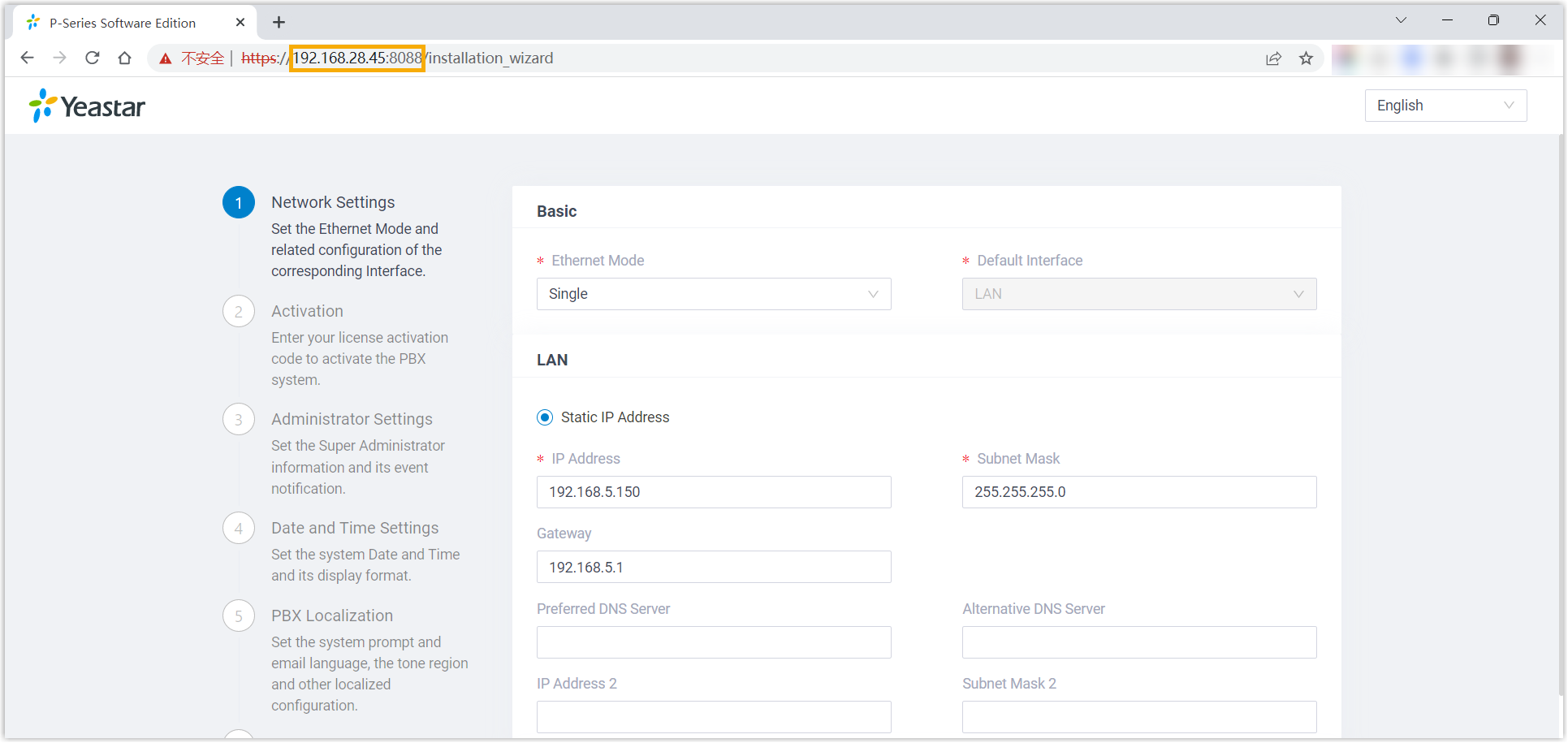
- Activate and initially set up Yeastar P-Series Software Edition following the installation wizard.
- Open a web browser, enter the PBX's IP address and port
in the address bar (e.g.
https://192.168.28.45:8088), and
press
- Complete setup via SSH using a prepared XML file
Upload a prepared XML file to the PBX via SSH. This method allows you to complete the initial setup and apply additional supported PBX settings, such as creating extensions, trunks, inbound routes, and more.
- Download the XML configuration file and edit it as needed.
- Upload the XML configuration file to the designated directory and reboot the PBX to take effect.
For more information, see Activate and Set up Yeastar P-Series Software Edition Using XML Configuration File.
- Support Account: Username is
support, and password is the credential configured in PBX web portal (Path: ) or in XML configuration file.Figure 1. Support password in PBX web portal 
Figure 2. Support password in XML configuration file 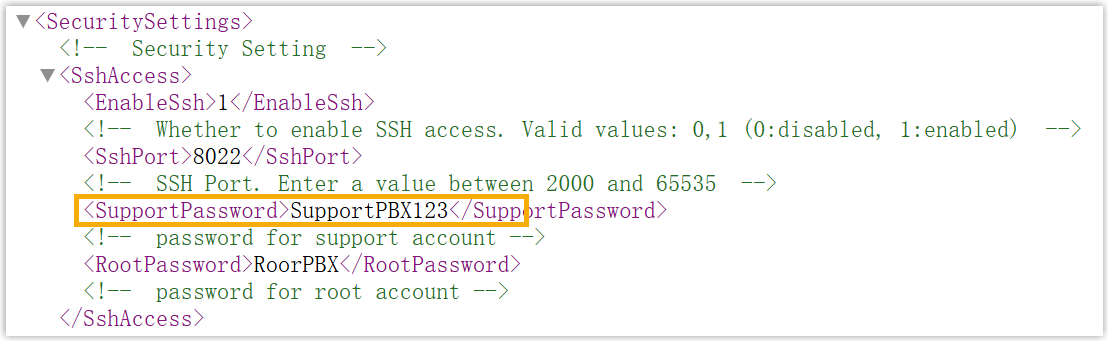
- Custom Account: Username and password are the credentials configured during installation process.