Configure Additional Caller ID Name for Key Events
This topic describes how to configure additional caller ID name for key events.
Background information
If multiple keys in the IVR have a destination of the same ring group or queue, when a call is routed to the ring group or queue via these keys, the caller ID name displayed on members' incoming call windows are identical. This prevents members from quickly identifying customer needs.
To enable members to quickly identify customer needs, you can configure different additional caller ID names for these keys. After configured, when the key events are triggered, the corresponding names will be prepended to the original caller ID name in the SIP message and displayed on the members' incoming call windows.
Requirements
The firmware version of Yeastar P-Series PBX System is 37.24.0.73 or later.
Procedure
- Log in to PBX web portal, go to .
- Click
 beside the desired IVR, then go to the Key Press
Event tab.
beside the desired IVR, then go to the Key Press
Event tab. - Enable the Additional Caller ID Name option.
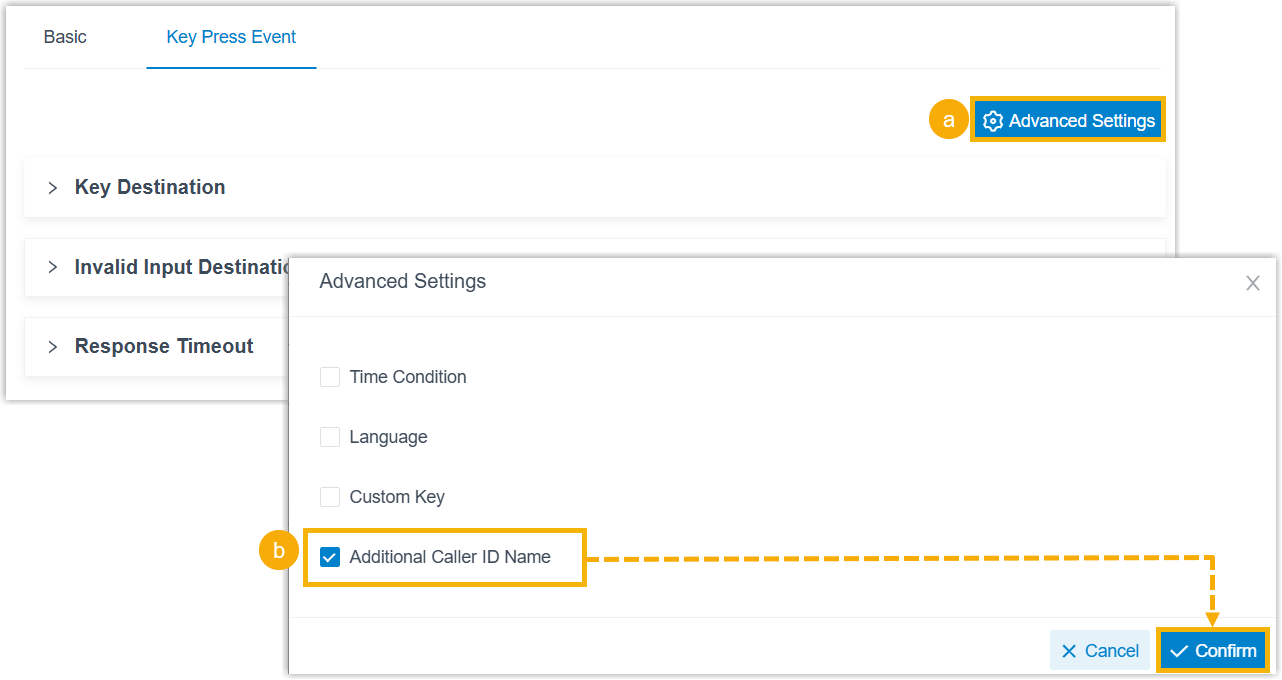
- At the top-right corner of the page, click Advanced Settings.
- In the pop-up window, select the checkbox of Additional
Caller ID Name and click
Confirm.
For key events with the destination set to Ring Group or Queue, the Additional Caller ID Name field appears in the corresponding configuration section.
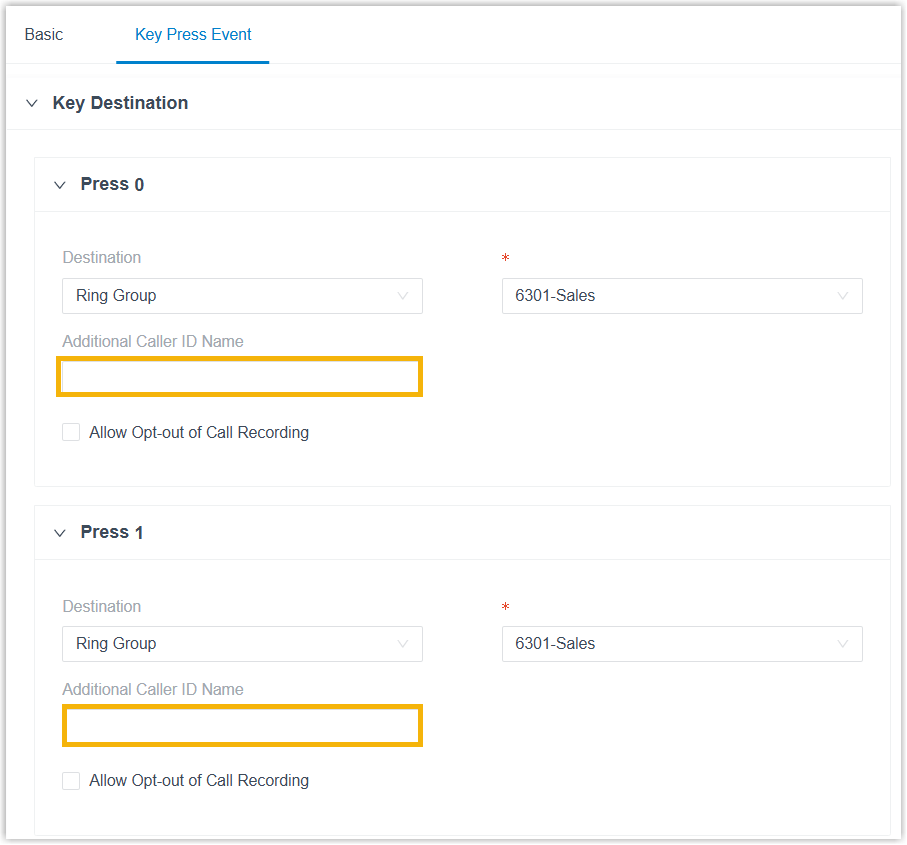
- In the Additional Caller ID Name field of the desired
key event, enter the additional caller ID.
For example, key
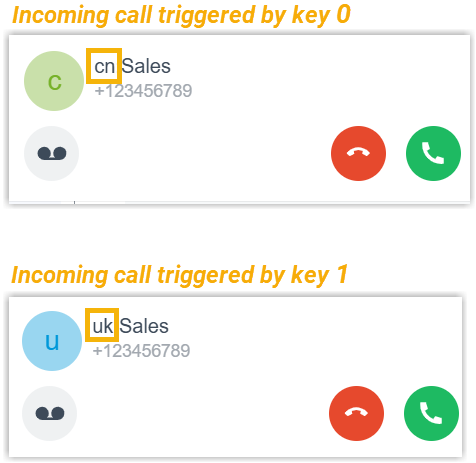
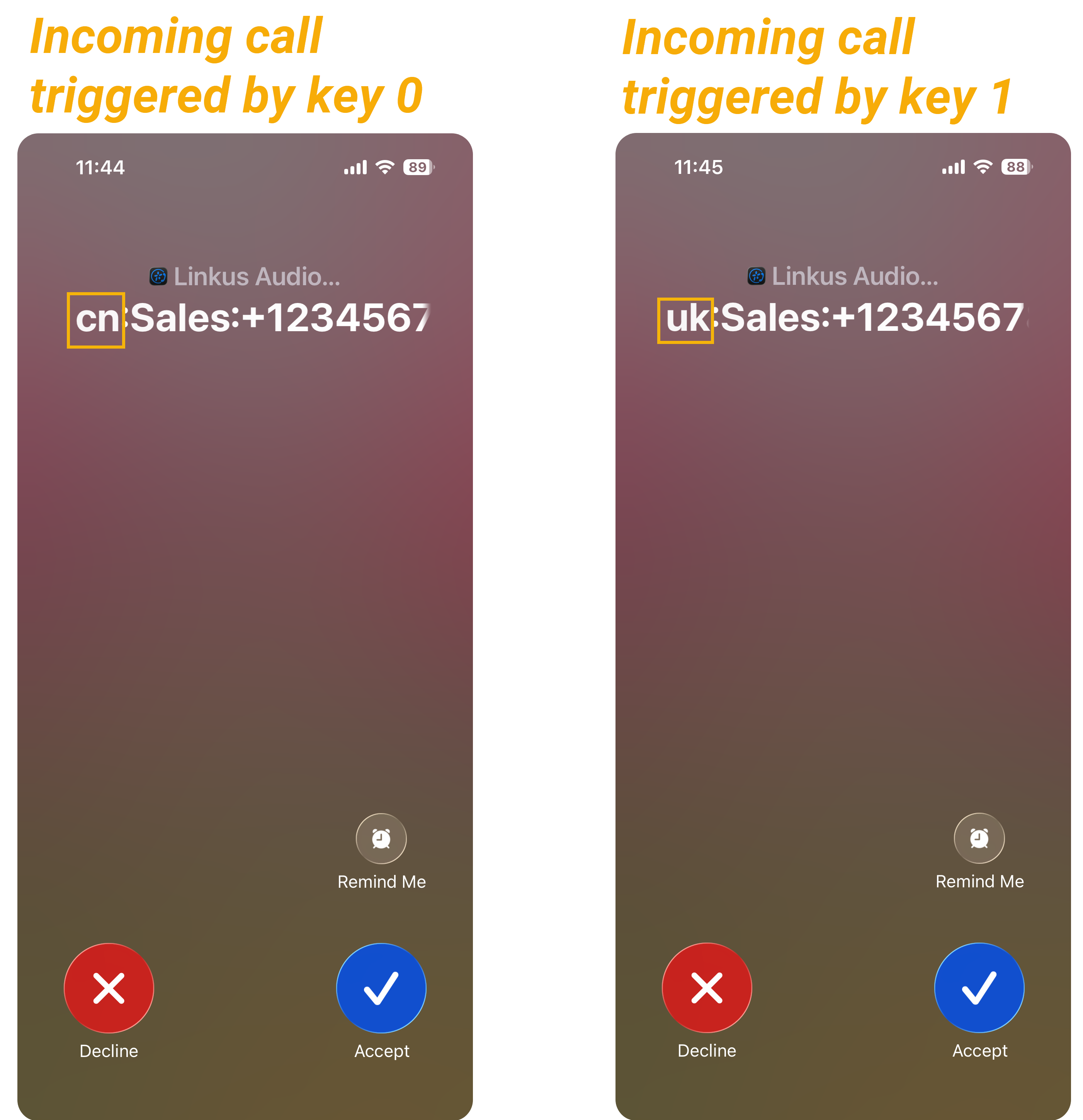
0and key1both route calls to the same ring group. Set cn for key0and uk for key1to help recipients identify the caller's intent before answering.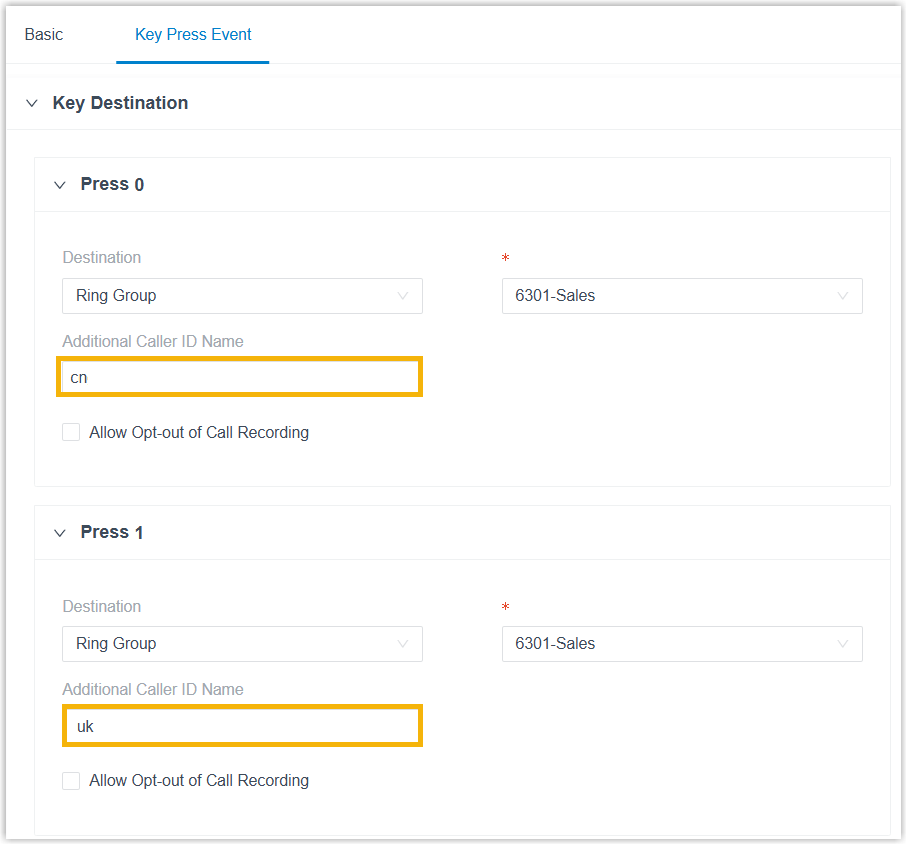
- Click Save and Apply.
Result
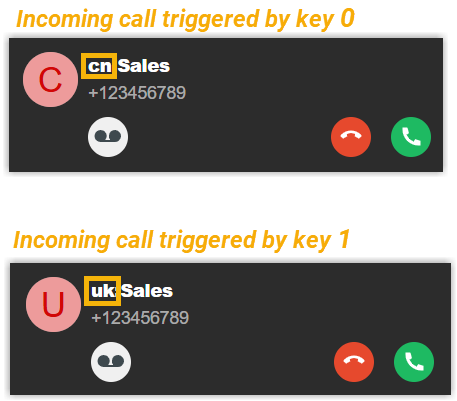
0 or key
1, the call is routed to the specified same ring group, while
the additional caller ID names displayed on the incoming call windows of ring group
members differ.| Linkus Web Client | Linkus Desktop Client | Linkus Mobile Client |
|---|---|---|
 |
 |
 |