Auto Provision Grandstream FXS Gateway with Yeastar P-Series Software Edition
This topic takes Grandstream HT802 (firmware: 1.0.63.3) as an example to introduce how to auto provision a Grandstream FXS gateway with Yeastar P-Series Software Edition.
Requirements
The firmwares of Grandstream FXS gateway and Yeastar PBX meet the following requirements.
| Model | Phone Requirement | PBX Requirement | Supported Auto Provisioning Method |
|---|---|---|---|
| GXW4216 | 1.0.23.4 or later | 83.6.0.24 or later |
|
| GXW4224 | 1.0.23.4 or later | 83.6.0.24 or later |
|
| GXW4232 | 1.0.23.4 or later | 83.6.0.24 or later |
|
| GXW4248 | 1.0.23.4 or later | 83.6.0.24 or later |
|
| HT801 | 1.0.63.3 or later | 83.6.0.24 or later |
|
| HT802 | 1.0.63.3 or later | 83.6.0.24 or later |
|
| HT812 | 1.0.5.10 or later | 83.6.0.24 or later |
|
| HT814 | 1.0.63.3 or later | 83.6.0.24 or later |
|
| HT818 | 1.0.63.3 or later | 83.6.0.24 or later |
|
Scenarios
The provisioning methods and operations vary depending on the network environment of Grandstream FXS gateway and Yeastar PBX, as the following table shows:
| Scenario | Description |
|---|---|
| Gateway and PBX are in the SAME subnet (LAN) | In this scenario, you can provision the Grandstream FXS
gateway with the PBX via PnP method. For more information, see Auto provision a Grandstream FXS gateway in the same subnet (PnP). |
| Gateway and PBX are in DIFFERENT subnets (LAN) | In this scenario, you can provision the Grandstream FXS
gateway with the PBX via DHCP method. For more information, see Auto provision a Grandstream FXS gateway in different subnets (DHCP). |
| Gateway and PBX are in DIFFERENT networks | In this scenario, you can provision the Grandstream FXS
gateway with Yeastar PBX via Provision Link method. For more information, see Provision a Grandstream FXS gateway in remote network (Provision Link). |
Auto provision a Grandstream FXS gateway in the same subnet (PnP)
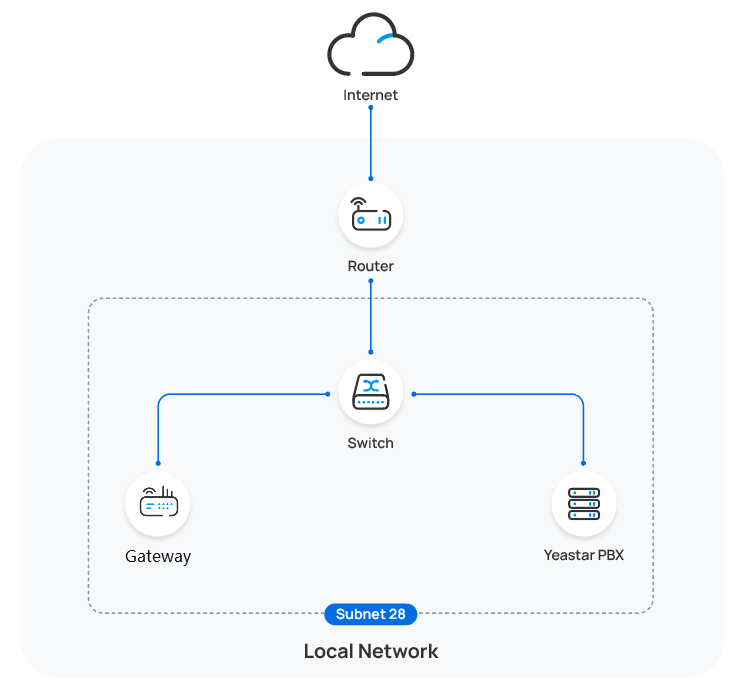
In this example, the Grandstream FXS gateway (IP: 192.168.28.190)
and the Yeastar PBX (IP: 192.168.28.39) are both deployed in subnet
28.
- Prerequisites
-
- Make sure that you have downloaded the template for the desired model (Path: ).
- If the gateway is previously used, you need to RESET it, then re-configure the network settings for the gateway.
- Procedure
-
- Log in to PBX web portal, go to .
The Grandstream gateway detected by the PBX via PnP is displayed in the phone list.
- Click
 beside the Grandstream
gateway.
beside the Grandstream
gateway.
- Optional: In the Options
section, select a desired template from the
Template drop-down list.Note: You can select the default template corresponding to the model, or customize your own template. For more information, see Create a Custom Auto Provisioning Template.
- In the Assign Extension
section, assign extensions for handsets according to your
needs.Note: The assigned extensions will be associated with the gateway's FXS ports, and the analog terminals connected to the ports will then use the extension numbers for calls.
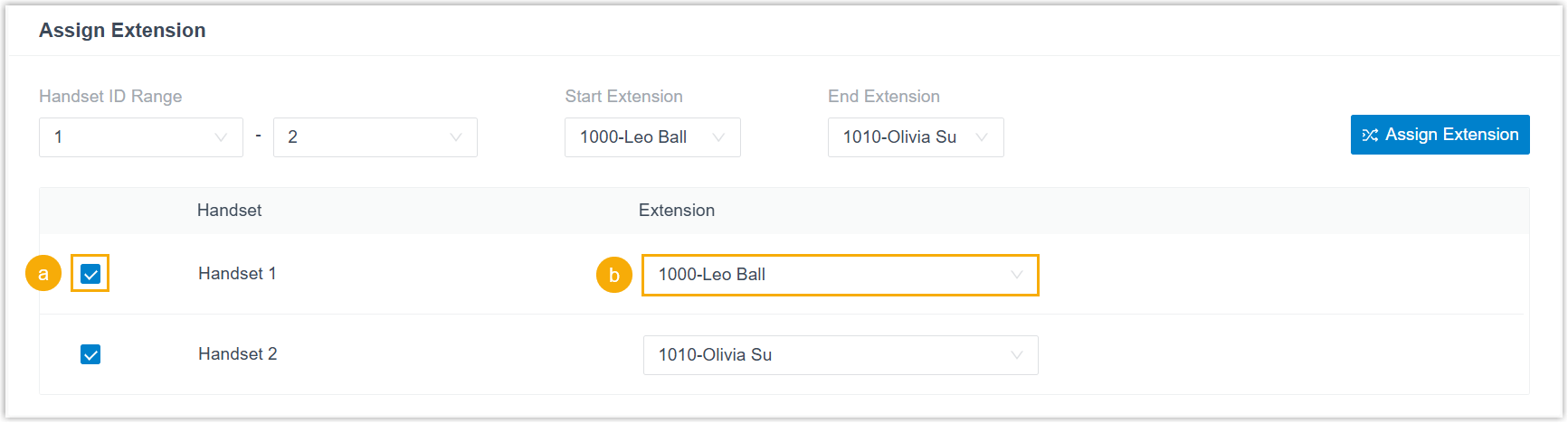
- To assign extensions one by one, select the checkbox of
corresponding handset, then select the desired extension
in the Extension drop-down
list.
- To assign extensions in bulk, set the extension range in
the Start Extension and
End Extension drop-down
lists, then click Assign
Extension.
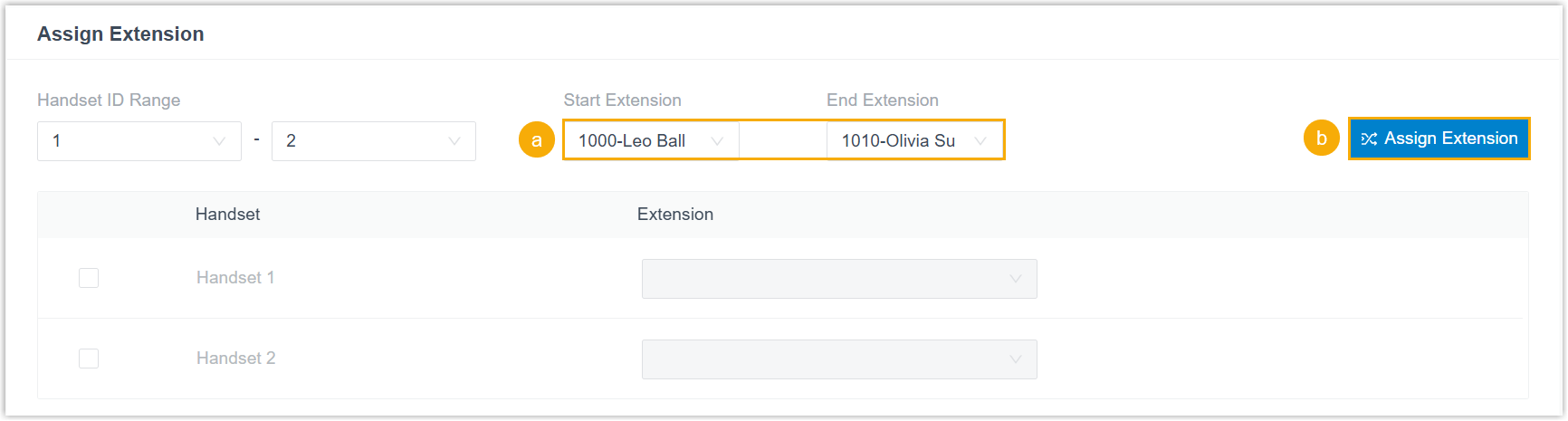
Handsets are automatically enabled and assigned with available extensions in sequence.
Tip: If your desired extension is not listed in the drop-down list of the Extension column, it indicates that the devices registered to the extension has reached the limit. You can use either of the following methods to proceed.- To release the extension from the associated IP phone or gateway, see Release an Extension from a Provisioned IP Phone/Gateway.
- To raise the phone registration limit, you need to configure the concurrent registration setting for the extension, as the PBX only allows an extension to register with one SIP endpoint by default.
- To assign extensions one by one, select the checkbox of
corresponding handset, then select the desired extension
in the Extension drop-down
list.
- Optional: In the
Preference section, change the gateway's
admin password in the Admin Phone Password
field as needed.Note: The default admin password of the gateway is
admin.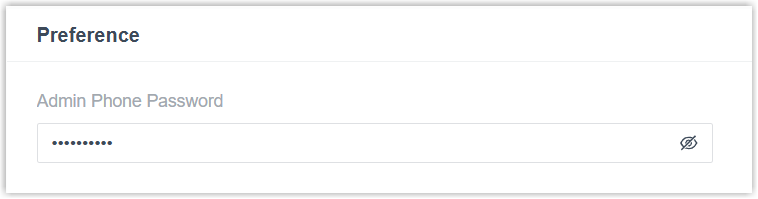
- Click Save.
- Manually reboot the Grandstream gateway.
- Log in to PBX web portal, go to .
- Result
-
- The gateway automatically downloads the configurations from the PBX and applies the settings.
- The extension is successfully registered on the
gateway. You can check the registration status on in PBX web portal.

Auto provision a Grandstream FXS gateway in different subnets (DHCP)
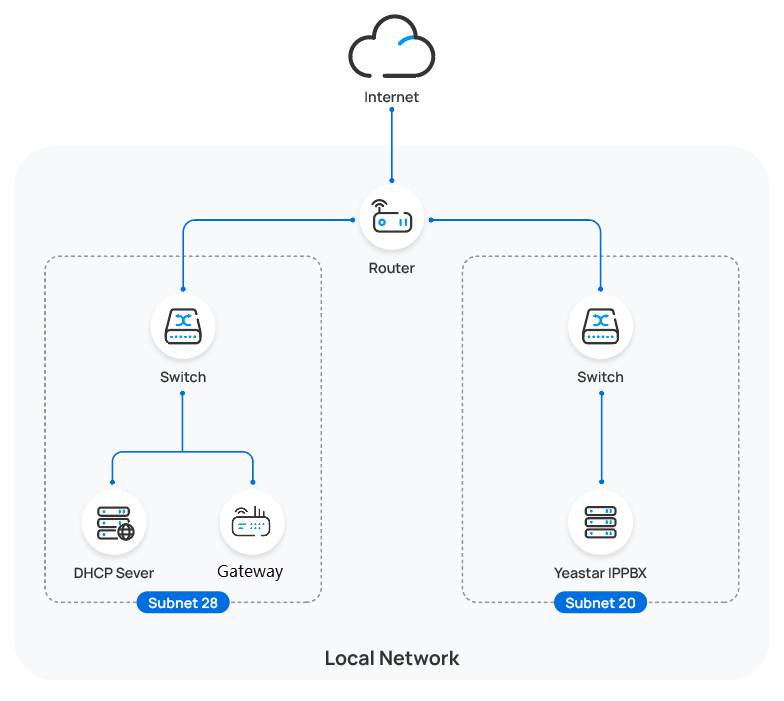
In this example, the Grandstream gateway and DHCP server are deployed in subnet 28,
while the Yeastar PBX (IP: 192.168.20.58) is deployed in subnet
20.
- Prerequisites
-
- Set up a third-party DHCP server in the same subnet as the gateway
to assign it an IP address.Note: Make sure that there is only one DHCP server running in the subnet, or the gateway would fail to obtain an IP address.
- Make sure that you have downloaded the template for the desired model (Path: ).
- Make sure that the gateway and PBX can communicate with each other over the subnets.
- Make sure that you have downloaded the template for the desired model (Path: ).
- RESET the gateway if it is previously used.
- Gather information of gateway, including Vendor, Model, and MAC address.
- Set up a third-party DHCP server in the same subnet as the gateway
to assign it an IP address.
- Procedure
- Step 1. Enable Remote Registration feature for the extension on PBX
- Enable the Remote Registration feature for the extension to be assigned to
the gateway, so that the extension can be registered in a different subnet.
- Log in to PBX web portal, go to , edit the desired extension.
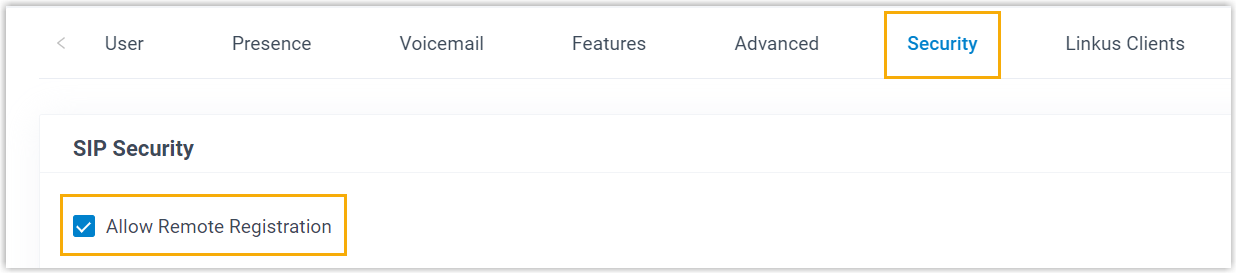
- Click Security tab, select the checkbox of
Allow Remote
Registration
in the SIP Security section.
- Click Save and Apply.
- Step 2. Add the Grandstream gateway on PBX
-
Add the gateway on PBX. The PBX will generate a configuration file based on the device's MAC address.
- On PBX web portal, go to .
- Click .
- In the IP Phone section, enter the
following information.

- Vendor: Select Grandstream.
- Model: Select the model. In this example, select HT802.
- MAC Address: Enter the MAC address of the gateway.
- In the Options section, configure the
following settings.

- Template: Select a
desired template from the drop-down list.Note: You can select the default template corresponding to the model, or customize your own template. For more information, see Create a Custom Auto Provisioning Template.
- Provisioning Method:
Select DHCP (In the Office).
A provisioning link is automatically generated and displayed in the Provisioning Link field. This provisioning link points to the location where the gateway's configuration file is stored.
- Template: Select a
desired template from the drop-down list.
- In the Assign Extension
section, assign extensions for handsets according to your
needs.Note: The assigned extensions will be associated with the gateway's FXS ports, and the analog terminals connected to the ports will then use the extension numbers for calls.
- To assign extensions one by one, select the checkbox of
corresponding handset, then select the desired extension
in the Extension drop-down
list.
- To assign extensions in bulk, set the extension range in
the Start Extension and
End Extension drop-down
lists, then click Assign
Extension.
Handsets are automatically enabled and assigned with available extensions in sequence.
Tip: If your desired extension is not listed in the drop-down list of the Extension column, it indicates that the devices registered to the extension has reached the limit. You can use either of the following methods to proceed.- To release the extension from the associated IP phone or gateway, see Release an Extension from a Provisioned IP Phone/Gateway.
- To raise the phone registration limit, you need to configure the concurrent registration setting for the extension, as the PBX only allows an extension to register with one SIP endpoint by default.
- To assign extensions one by one, select the checkbox of
corresponding handset, then select the desired extension
in the Extension drop-down
list.
- Optional: In the
Preference section, change the gateway's
admin password in the Admin Phone Password
field as needed.Note: The default admin password of the gateway is
admin. - Click Save.
- Step 3. Configure DHCP option 66 on DHCP server
-
In the subnet where the gateway is deployed, use the generated provisioning link to configure option 66 on the DHCP Server.
- On PBX web portal, copy the provisioning link from the gateway's
detail page.

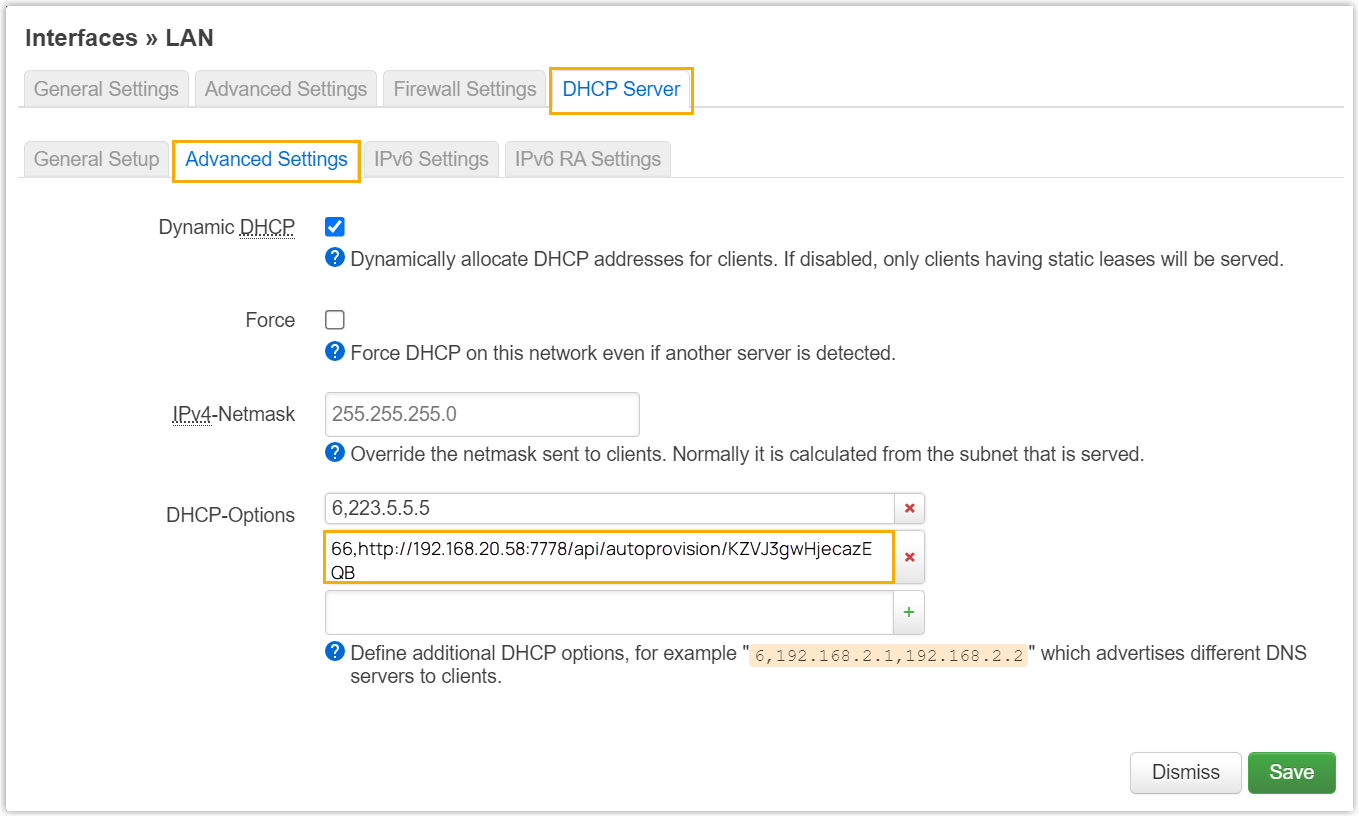
- On the third-party DHCP server, set up option 66 with
the provisioning link.
In this example, the configuration on a router's DHCP server is shown below.
- On PBX web portal, copy the provisioning link from the gateway's
detail page.
- Result
-
- After the gateway is manually rebooted, it obtains an IP address from the DHCP server, downloads the configurations from the PBX via the provisioning link, and applies the settings automatically.
- The extension is successfully registered on the gateway. You can
check the registration status on on the PBX web portal.

Provision a Grandstream FXS gateway in remote network (Provision Link)
In this example, the Grandstream gateway and the Yeastar PBX are deployed in different networks. A DHCP server is set up in the gateway’s network to assign an IP address and deliver the provisioning link (obtained from the PBX) to the gateway.
- Prerequisites
-
- Set up a third-party DHCP server in the same subnet as the
gateway to assign it an IP address.Note: Make sure that there is only one DHCP server running in the subnet, or the gateway would fail to obtain an IP address.
- Make sure that you have downloaded the template for the desired model (Path: ).
- Make sure that you have completed the corresponding settings
shown below according to the method used for provisioning
Grandstream FXS gateway.
Method Setting Using Yeastar FQDN -
Subscribe to Enterprise Plan or Ultimate Plan for the PBX and ensure the FQDN is available.
- Grant remote access permission for extension
to be registered on the remote gateways:
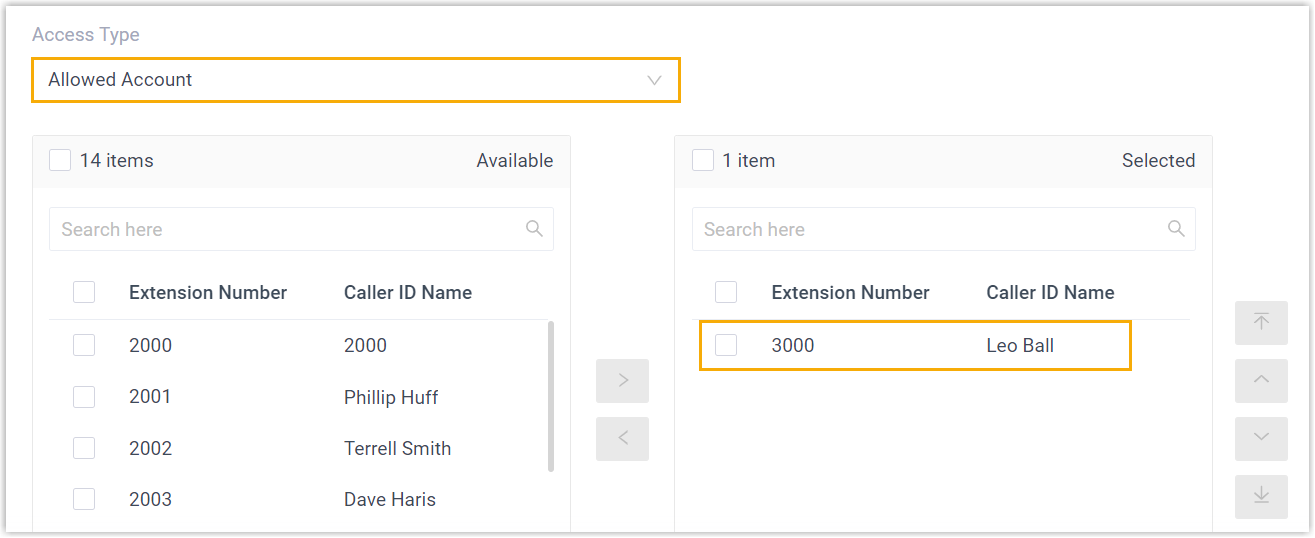
- Grant remote SIP access permission for the
extension, so that the extension can be
registered remotely via FQDN (Path: ).
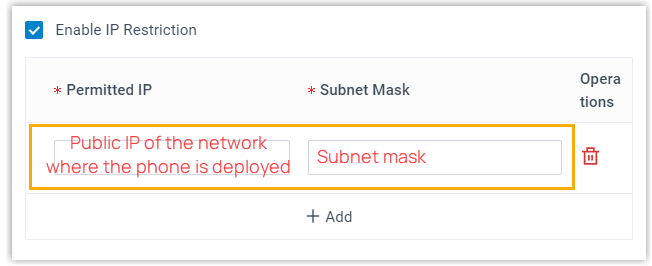
- If you have enabled IP restriction for Yeastar FQDN remote
Web access, make sure that you have added
the gateway's IP address to the permitted IP list,
so that the gateway can obtain configuration files
from the PBX (Path: ).
- Grant remote SIP access permission for the
extension, so that the extension can be
registered remotely via FQDN (Path: ).
- Make sure that you have downloaded the template for the desired model (Path: ).
- RESET the gateway if it is previously used.
- Gather information of gateway, including Vendor, Model, and MAC address.
Using Public IP address / external host / Yeastar domain name - Configure PBX network for remote access
by a public IP address, by an external host domain name, or by a Yeastar domain name.Important: The following PBX ports MUST be forwarded for RPS provisioning.
- RTP ports
- SIP port
- Web Server port
- Set up the extension for remote
registration.
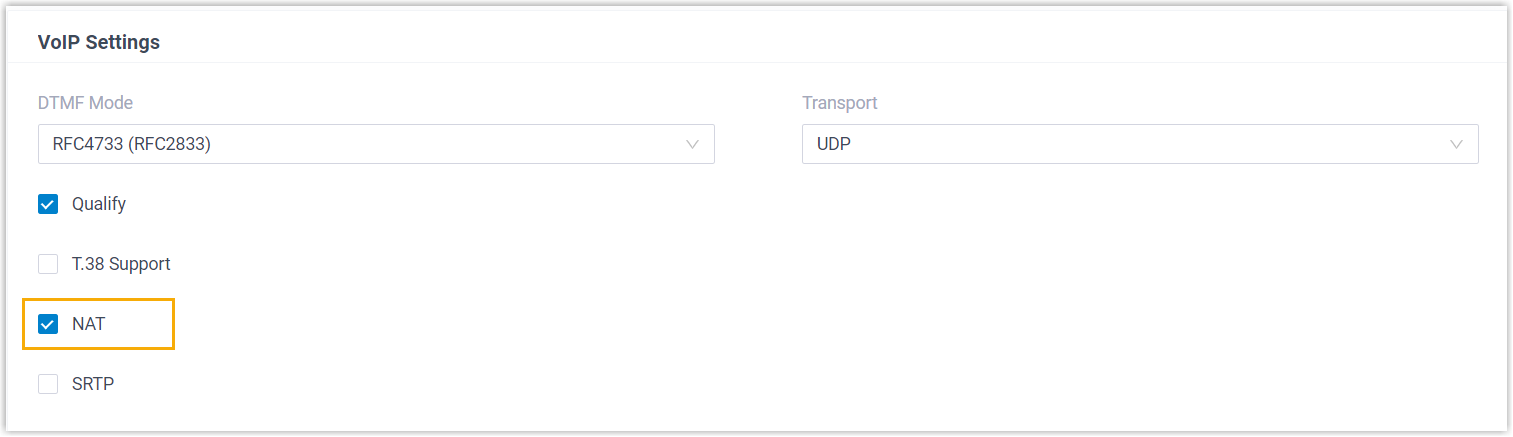
- Enable
NAT
for the extension (Path: Extension and Trunk > Extension > > Advanced > VoIP Settings > NAT).
- Enable Remote Registration feature for the extension
(Path: Extension and Trunk > Extension > > Security > SIP Security > Allow Remote Registration).
- Enable
NAT
for the extension (Path: Extension and Trunk > Extension >
- Make sure that you have downloaded the template for the desired model (Path: ).
- RESET the gateway if it is previously used.
- Gather information of gateway, including Vendor, Model, and MAC address.
- Make sure that you have downloaded the template for the desired phone model (Path: ).
-
- Set up a third-party DHCP server in the same subnet as the
gateway to assign it an IP address.
- Procedure
- Step 1. Add the Grandstream gateway on PBX
-
Add the gateway on PBX. The PBX will generate a configuration file based on the device's MAC address.
- Log in to PBX web portal, go to .
- Click .
- In the IP Phone section, enter the
following information.
- Vendor: Select Grandstream.
- Model: Select the model. In this example, select HT802.
- MAC Address: Enter the MAC address of the gateway.
- In the Options section, configure the
following settings.
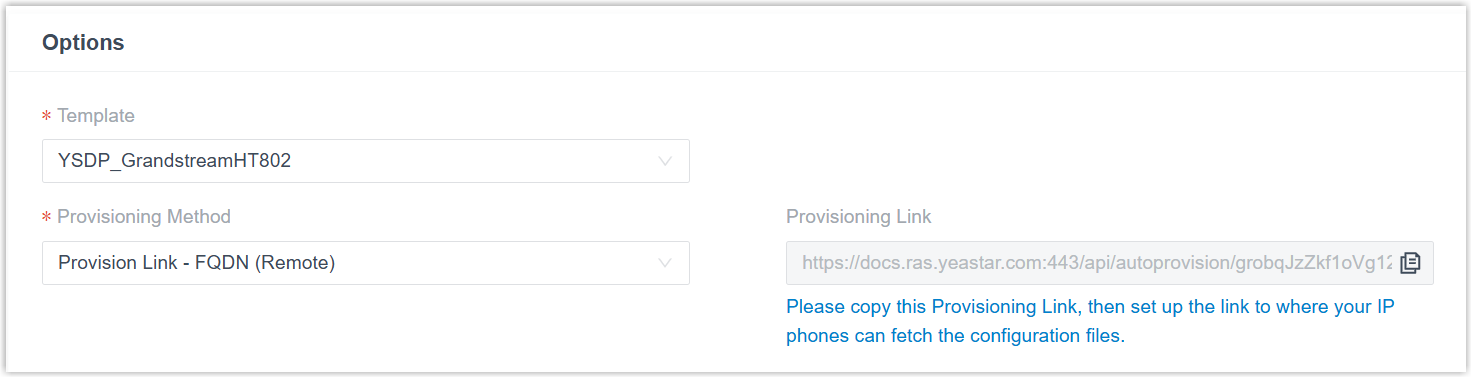
- Template: Select a desired
template from the drop-down list.Note: You can select the default template corresponding to the model, or customize your own template. For more information, see Create a Custom Auto Provisioning Template.
- Provisioning
Method: Select Provision Link
- FQDN (Remote) or Provision
Link (Remote) as needed.
The Provisioning Link field displays a provisioning link, which points to the location where the gateway's configuration file is stored.
- Template: Select a desired
template from the drop-down list.
- In the Assign Extension
section, assign extensions for handsets according to your
needs.Note: The assigned extensions will be associated with the gateway's FXS ports, and the analog terminals connected to the ports will then use the extension numbers for calls.
- To assign extensions one by one, select the checkbox of
corresponding handset, then select the desired extension
in the Extension drop-down
list.
- To assign extensions in bulk, set the extension range in
the Start Extension and
End Extension drop-down
lists, then click Assign
Extension.
Handsets are automatically enabled and assigned with available extensions in sequence.
Tip: If your desired extension is not listed in the drop-down list of the Extension column, it indicates that the devices registered to the extension has reached the limit. You can use either of the following methods to proceed.- To release the extension from the associated IP phone or gateway, see Release an Extension from a Provisioned IP Phone/Gateway.
- To raise the phone registration limit, you need to configure the concurrent registration setting for the extension, as the PBX only allows an extension to register with one SIP endpoint by default.
- To assign extensions one by one, select the checkbox of
corresponding handset, then select the desired extension
in the Extension drop-down
list.
- Optional: In the
Preference section, change the gateway's
admin password in the Admin Phone Password
field as needed.Note: The default admin password of the gateway is
admin. - Click Save.
- Step 2. Configure DHCP option 66 on DHCP server
- In the subnet where the gateway is deployed, use the generated
provisioning link to configure option 66 on the DHCP Server.
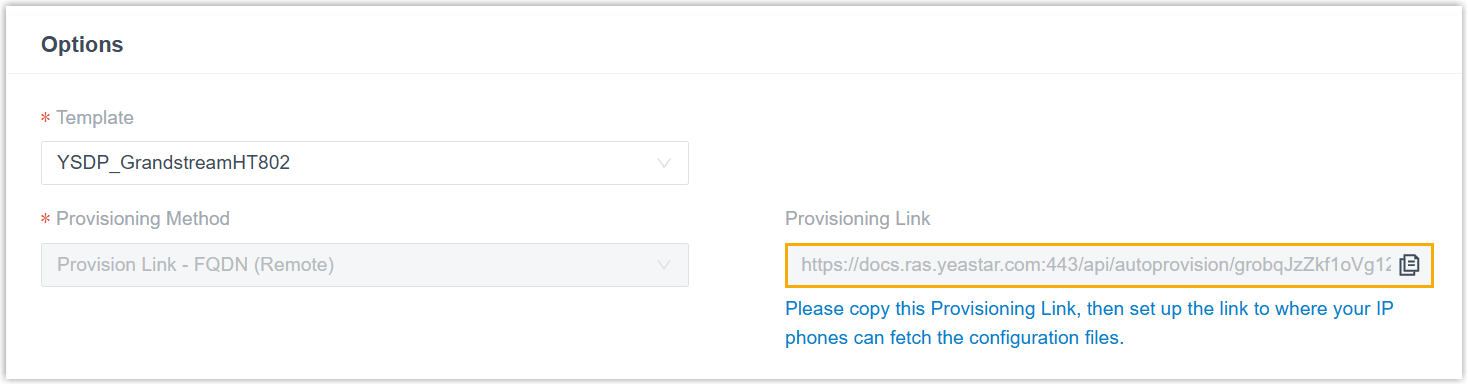
- On PBX web portal, copy the provisioning link from the
gateway's detail page.
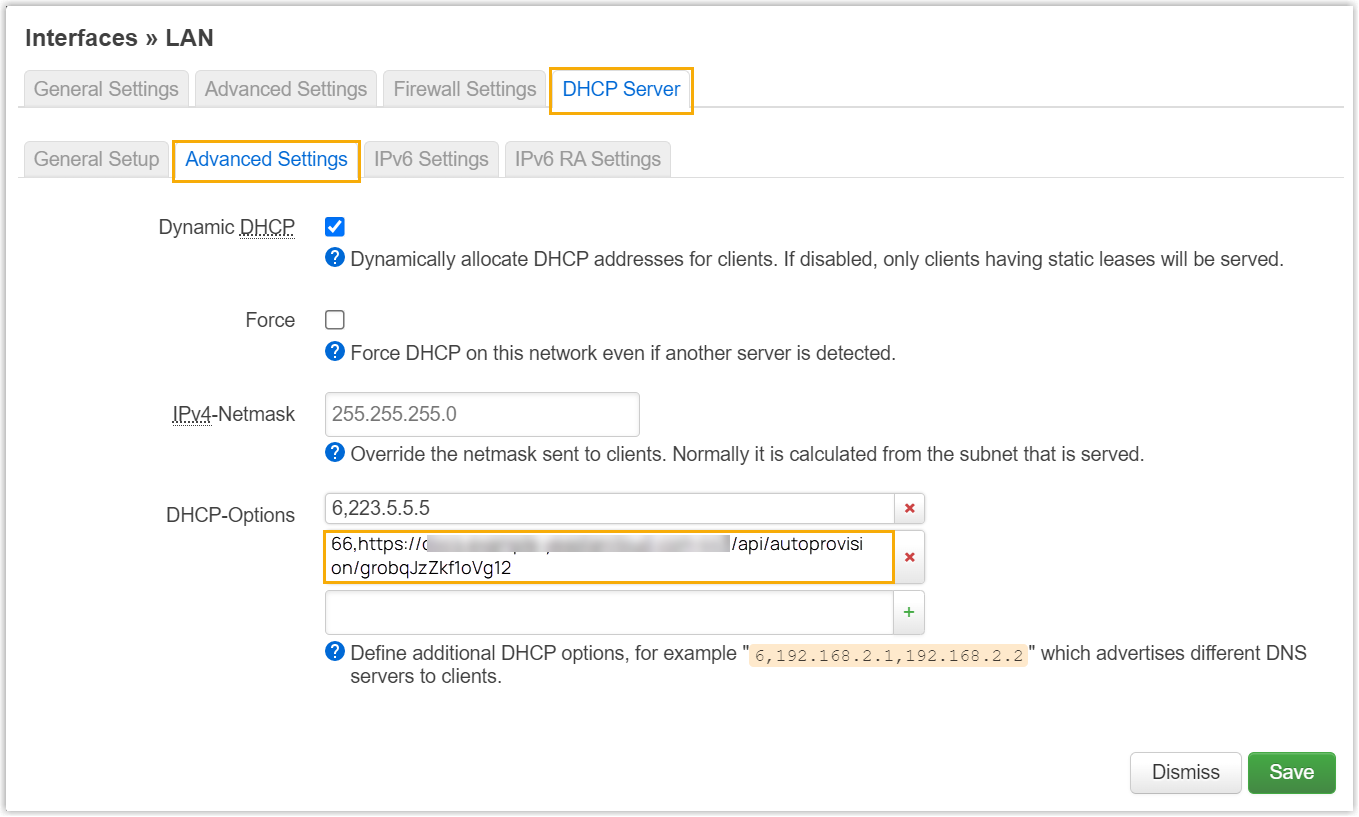
- On the third-party DHCP server, set up option 66 with the
provisioning link.
In this example, the configuration is shown below:
- On PBX web portal, copy the provisioning link from the
gateway's detail page.
- Result
-
- After the gateway is manually rebooted, it obtains an IP address from the DHCP server, downloads the configurations from the PBX via the provisioning link, and applies the settings automatically.
- The extension is successfully registered on the gateway. You can
check the registration status on on the PBX web portal.
