Auto Provision Fanvil DECT System with Yeastar P-Series Cloud Edition
A DECT system consists of two parts, DECT base station and DECT handsets (namely DECT phones). This topic describes how to provision the Fanvil DECT base station with Yeastar P-Series Cloud Edition, so that the Fanvil DECT handsets can be connected to the PBX via the base station, allowing users to utilize the handsets as PBX extensions to make and receive calls.
Requirements
The firmwares of Fanvil DECT base station and Yeastar PBX meet the following requirements.
| Base Station | Version Requirement | PBX Requirement |
|---|---|---|
| W710D | 1.18.11 or later |
84.14.0.26 or later |
| W710H | 1.0.14.5 or later |
84.14.0.26 or later |
The device model and firmware version of the Fanvil DECT system used in this example are shown in the table below.
| Device Model | Firmware Version |
|---|---|
| Fanvil DECT base station | |
| W710D | v1.18.11 |
| Fanvil DECT handset | |
| W610D | v1.16.2 |
Prerequisites
- Make sure that there is only one DHCP server running in the subnet where the Fanvil DECT system (base station and handset) is deployed, or the base station would fail to obtain an IP address.
- Downloadand install the Fanvil Device Manager (an IP scanning tool) on your computer that is on the same subnet as the Fanvil DECT system.
- Make sure that you have downloaded the template for the desired phone model (Path: ).
- Gather information of the Fanvil DECT base station, including Vendor, Model, and MAC address.
Step 1. Add the Fanvil DECT base station on PBX
On PBX web portal, add the DECT base station, configure the provisioning settings, and assign extensions to the DECT handsets.- Log in to PBX web portal, go to .
- Click .
- In the IP Phone section, enter the following
information.
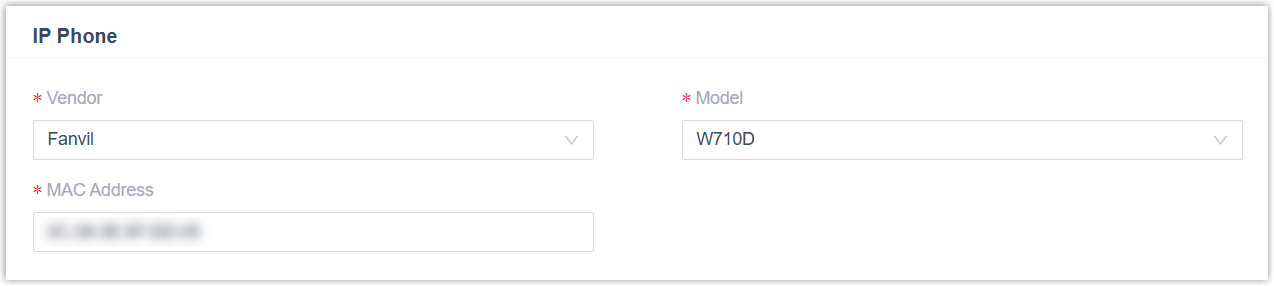
- Vendor: Select Fanvil.
- Model: Select the device model. In this example, select W710D.
- MAC Address: Enter the MAC address of the DECT base station.
- In the Options section, configure the following
settings.

- Template: Select a
desired template from the drop-down list.Note: You can select the default template corresponding to the phone model, or customize your own template. For more information, see Create a Custom Auto Provisioning Template.
- Provisioning Link: A provisioning link is automatically generated, which points to the location where the phone's configuration file is stored.
- Authentication for the First-time Auto
Provisioning: Unselect the checkbox.Note: To successfully connect the DECT base station to the Yeastar PBX, it is necessary to disable this option.
- Template: Select a
desired template from the drop-down list.
- In the Assign Extension section,
assign extensions for the DECT handsets according to your needs.
- To assign extensions one by one, do as follows:
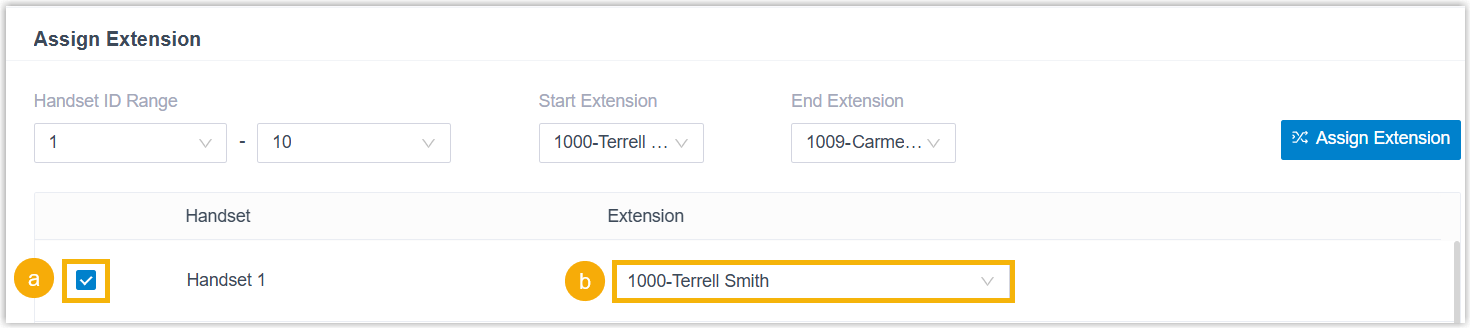
- Select the checkbox of the desired handset.
- In the Extension drop-down list, select the desired extension.
- To assign extensions in bulk, do as follows:
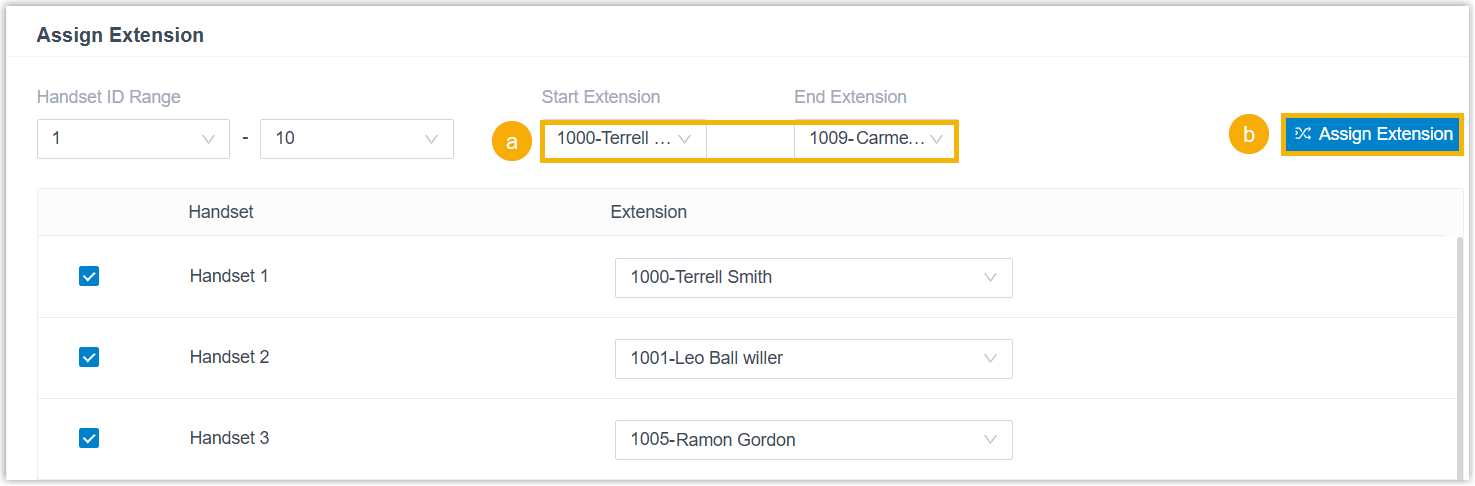
- In the Start Extension and End Extension drop-down lists, set the extension range.
- Click Assign Extension.
Handsets are automatically enabled and assigned with the specified extensions in sequence.
Tip: If your desired extension is not listed in the drop-down list of the Extension column, it indicates that the devices registered to the extension has reached the limit. You can use either of the following methods to proceed.- To release the extension from the associated IP phone or gateway, see Release an Extension from a Provisioned IP Phone/Gateway.
- To raise the phone registration limit, you need to configure the concurrent registration setting for the extension, as the PBX only allows an extension to register with one SIP endpoint by default.
- To assign extensions one by one, do as follows:
-
Optional: Configure other settings according to your needs.
- Click Save.
The DECT base station is added to the PBX, and displayed in the Auto Provisioning phone list; The PBX will send an event notification of RPS Request Success.
Tip: You can click in front of the DECT base station to see
the extensions assigned to the DECT handsets.
in front of the DECT base station to see
the extensions assigned to the DECT handsets.
Step 2. Obtain the IP address of the Fanvil DECT base station
- Press and hold the Reset Key on the DECT base station for at least 10
seconds until all three LEDs start flashing rapidly, then release the
button.
The DECT base station is reset, and it takes several minutes for the device to boot up. After booted up, the three LEDs are solidly lit, indicating that the DECT base station gets an IP address from the DHCP server and automatically downloads configurations from the PBX.
-
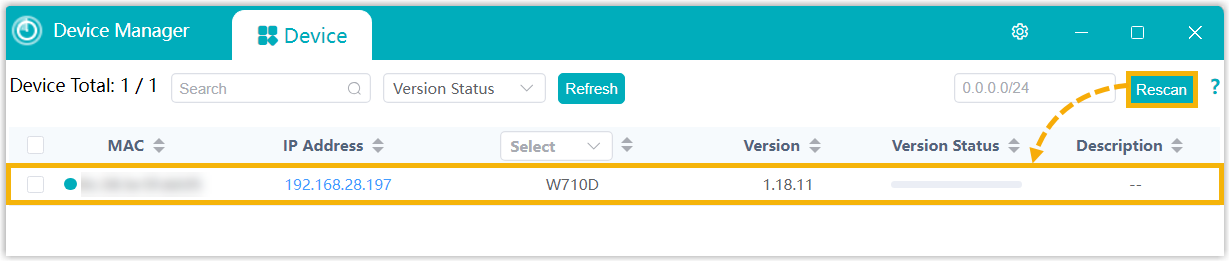
Open the Fanvil Device Manager (an IP scanning tool) and click Rescan.
The DECT base station appears in the Device list along with its IP address.
Step 3. Pair the Fanvil DECT handset with the DECT base station
- On the web interface of the DECT base station, enable the registration mode
of the base station.
- Access the web interface of the DECT base station using its IP
address.Note: The default username and password are both
admin.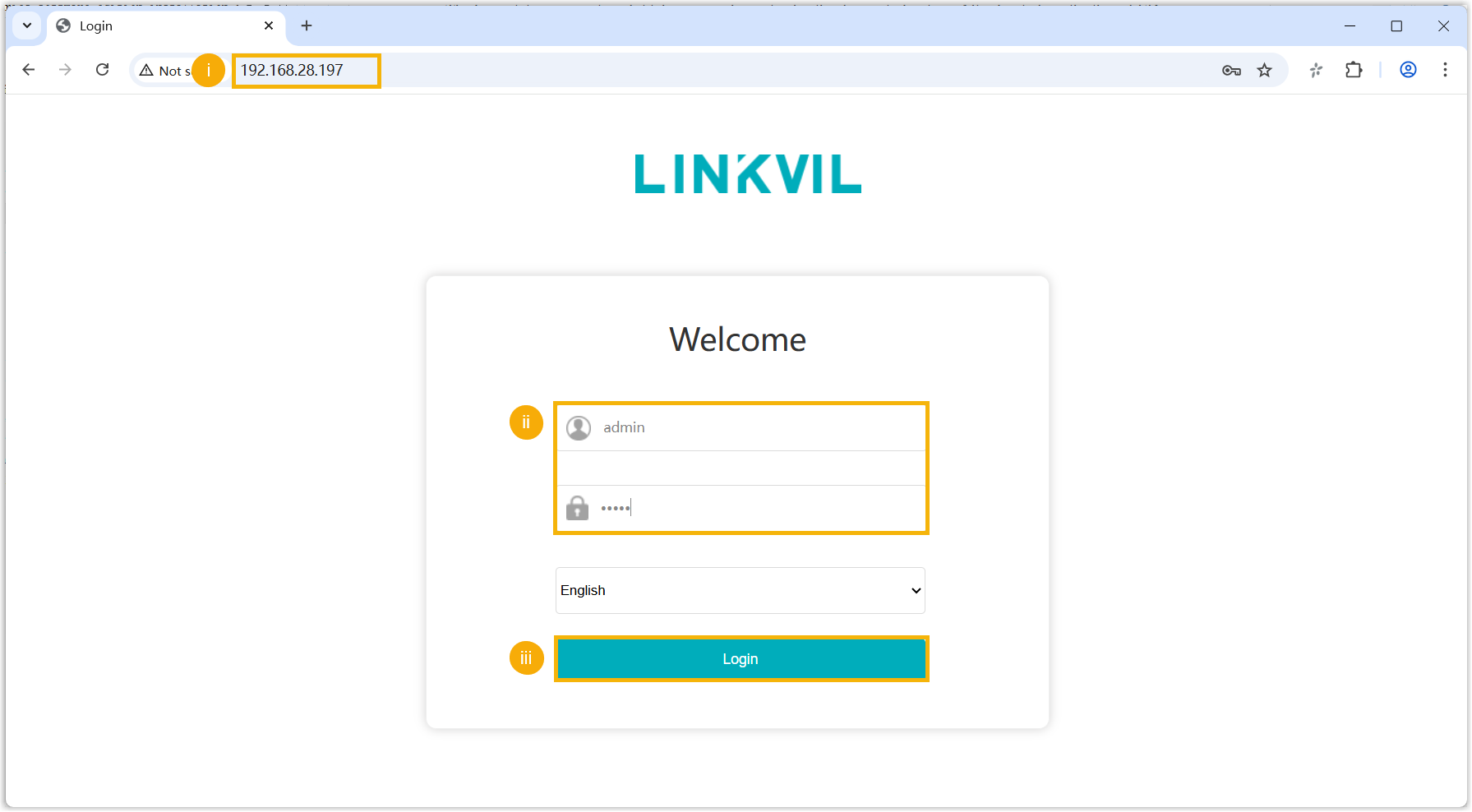
- Optional: Go to , change the default PIN code to enhance the
registration security.Note: In this example, the default PIN code of the W710D base station is
1234.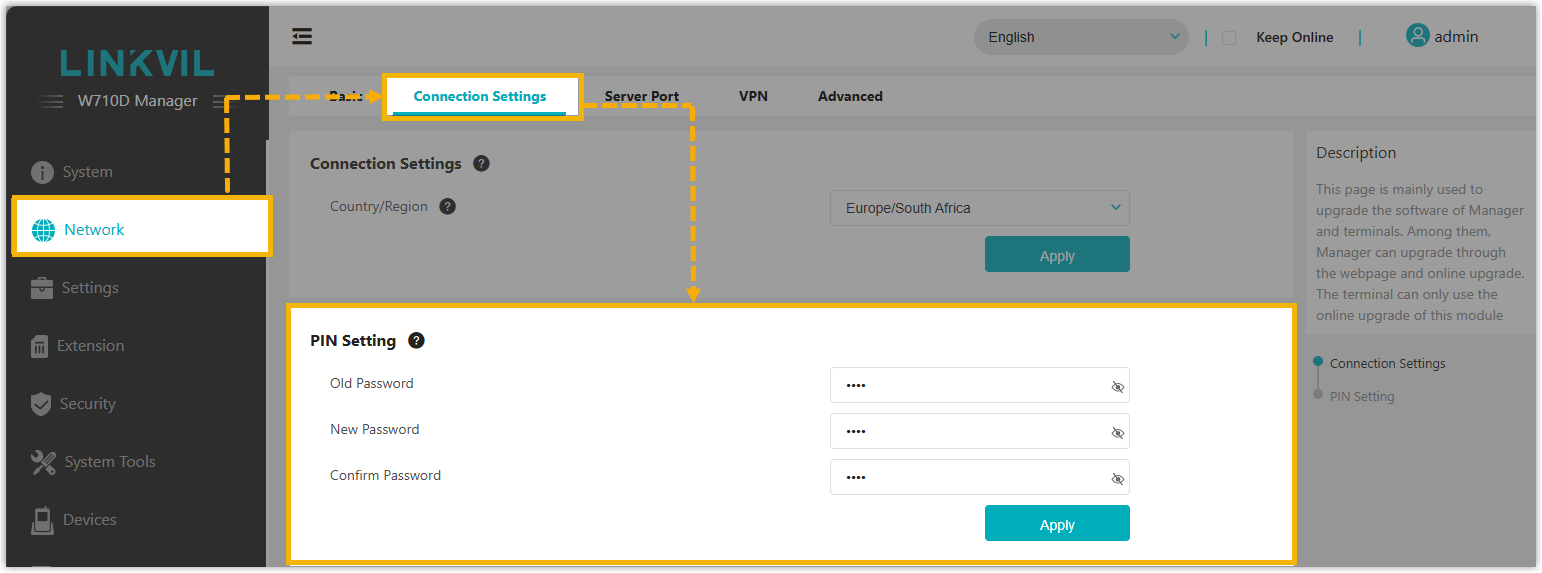
- Go to .
- In the Settings section, turn on the
Auto Authorized and click
Apply.
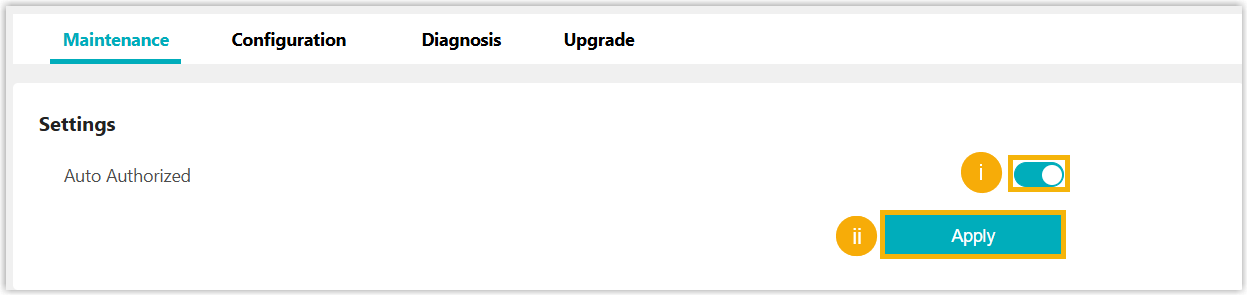
The registration mode of DECT base station is enabled.
- Access the web interface of the DECT base station using its IP
address.
- On the DECT handset, pair with the DECT base station.
- Go to .
- Press Scan to detect the
DECT base station.
The RFPI (Radio Fixed Part Identity) of the DECT base station is displayed on the screen.
- Press Link and enter the PIN code of the DECT
base station to complete pairing.
In this example, enter the default PIN code of the W710D base station
1234.When successfully paired, a
 icon appears next to the base
station's RFPI.
icon appears next to the base
station's RFPI.
Step 4. Register the Fanvil DECT handset to an extension
On the DECT base station, register the handset to the desired extension.
- On the web interface of the DECT base station, go to .
The paired handset appears in the list.
- Click
 to edit the desired DECT handset.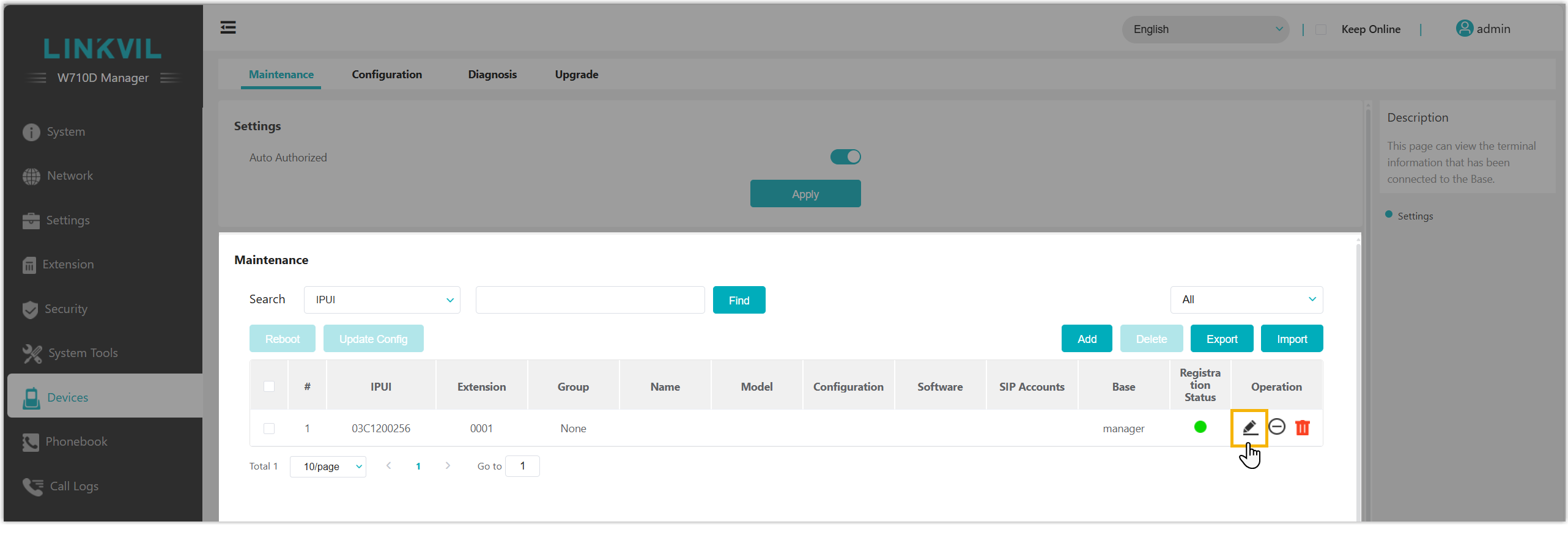
-
In the device details page, click Edit and complete the following settings in the pop-up window.
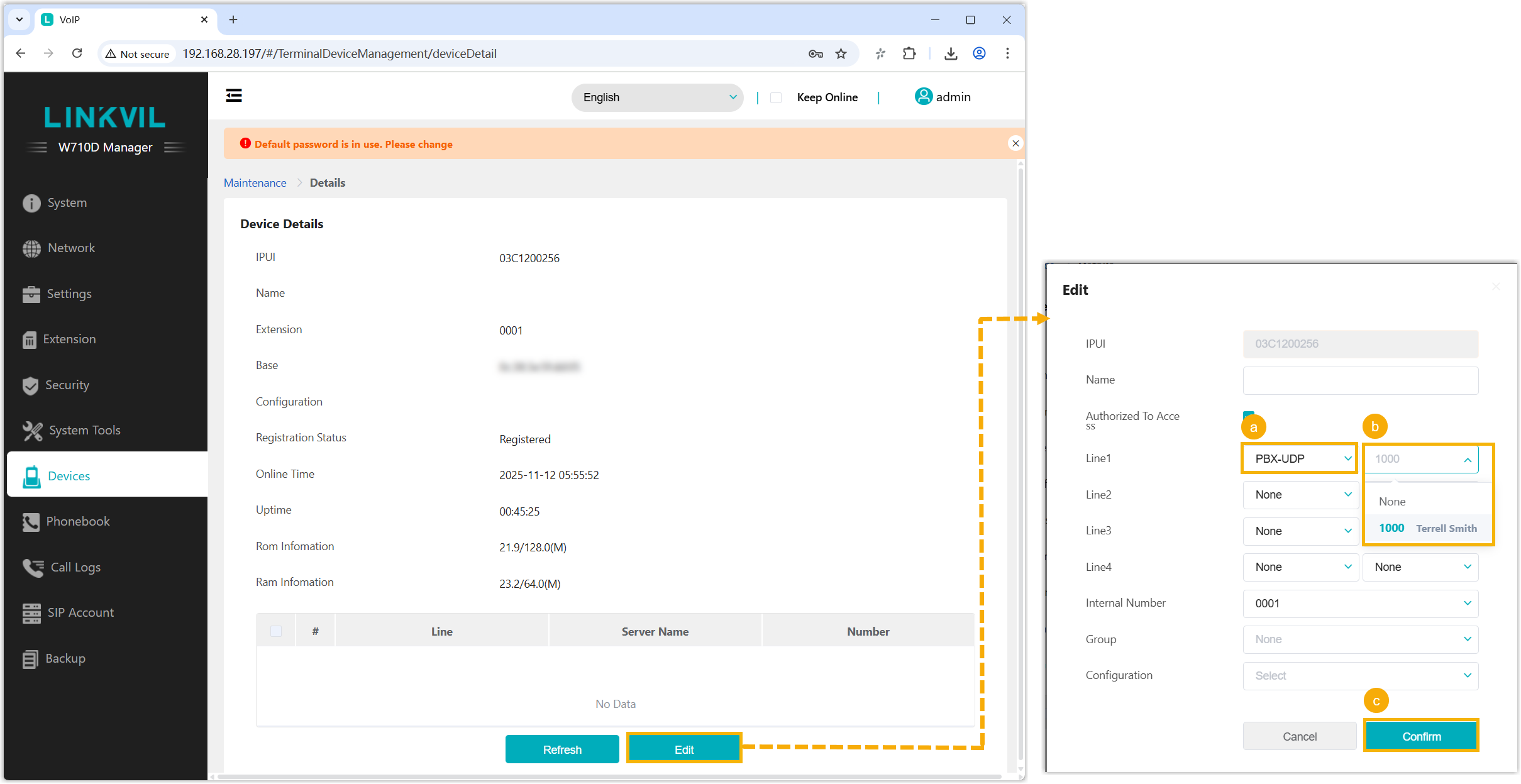
- In the first drop-down list of Line1, select
the transport protocol corresponding to the desired extension.Note: You can check the extension's transport protocol on PBX web portal (Path: ).
- In the second drop-down list of Line1, select the desired extension.
- Click Confirm.
- In the first drop-down list of Line1, select
the transport protocol corresponding to the desired extension.
Result
-
The handset are successfully registered to the DECT base station, and associated with the assigned PBX extension via the base station.
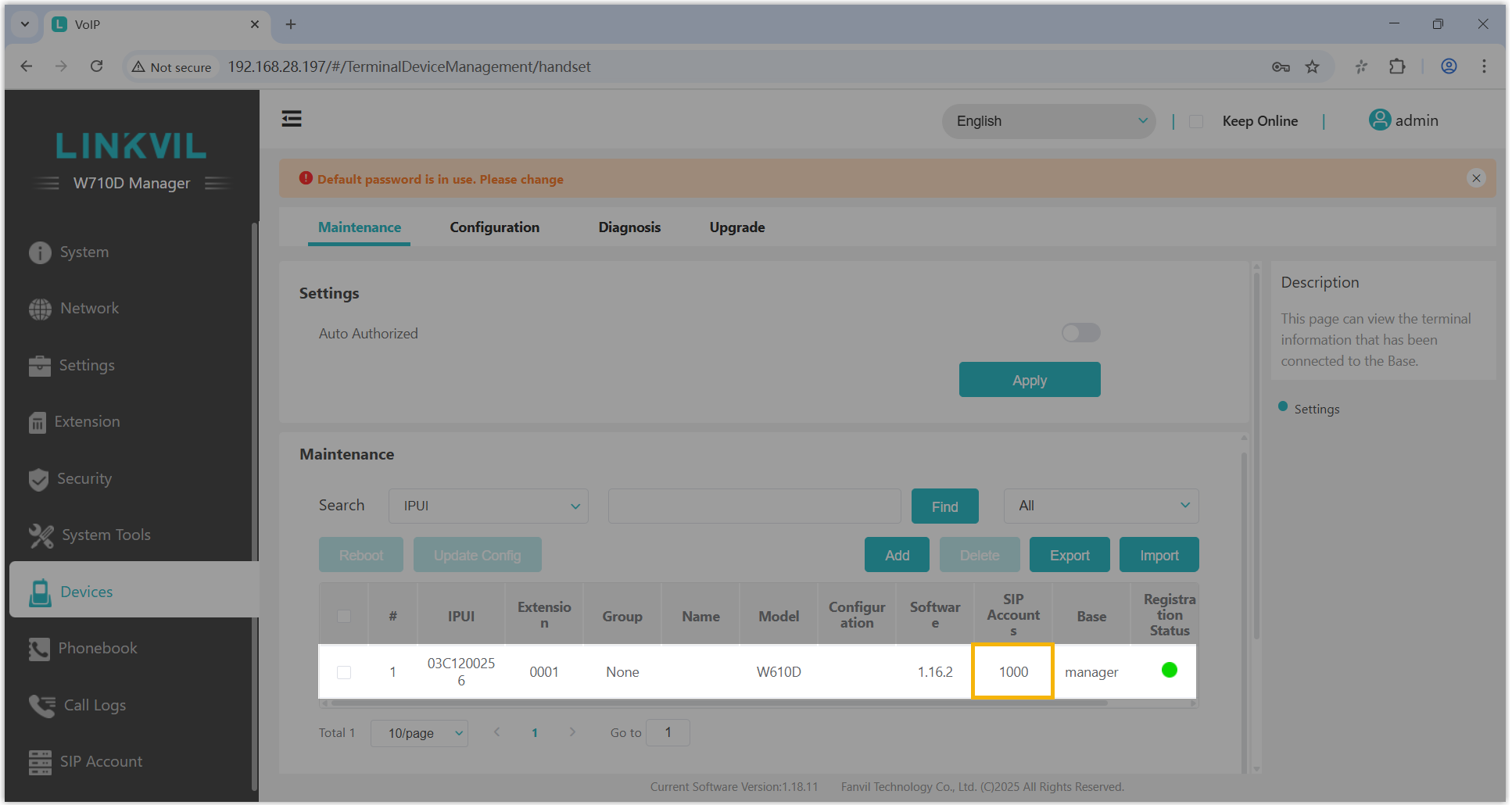
- On the web interface of the DECT base station, the handset
displays its assigned extension number (Path: ).
- On PBX web portal, you can check the registration status of the
extension on .

- On the DECT handset, the name of the assigned extension is displayed on the home screen.
- On the web interface of the DECT base station, the handset
displays its assigned extension number (Path: ).
- The registered DECT handset can be used as an extension to make and receive calls.