Provision Unify IP Phone with Yeastar P-Series Cloud Edition
This topic takes OpenScape CP210 as an example to describe how to provision Unify IP phone with Yeastar P-Series Cloud Edition.
Requirements
The firmwares of Unify IP phone and Yeastar PBX meet the following requirements.
| Model | Phone Requirement | PBX Requirement |
|---|---|---|
| OpenScape CP200 | V2 R4.13.0 or later | 84.19.0.23 or later |
| OpenScape CP210 | V2 R0.4.0 SIP 220614 or later | 84.19.0.23 or later |
| OpenScape CP400 | V2 R4.13.0 or later | 84.19.0.23 or later |
| OpenScape CP410 | V2 R4.13.0 or later | 84.19.0.23 or later |
Prerequisites
- Prepare a DHCP server in the subnet where the IP phone is located to provide
an IP address for the IP phone.Note: Make sure that there is only one DHCP server running in the subnet, or the IP phone would fail to obtain an IP address.
- RESET the IP phone if it is previously used.
- Gather information of IP phone, including Vendor, Model, and MAC address.
- Make sure that you have downloaded the template for the desired phone model (Path: ).
- Set the registration name to the same as the extension number for the
extension that will be assigned to the IP phone (Path: Extension and Trunk > Extension >
 > User > Extension Information).Important: Due to the IP phone's limitation, the extension's Registration Name must be the same as the Extension Number; otherwise, the registration will FAIL.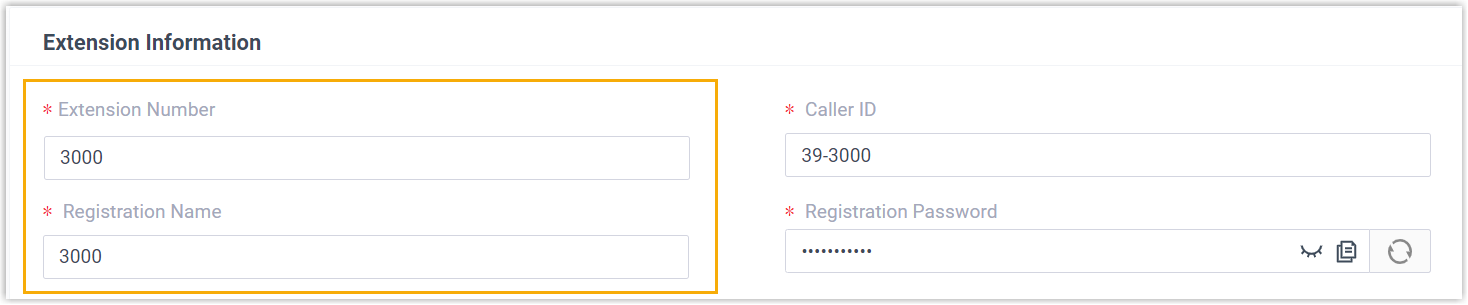
Procedure
Step 1. Add the Unify IP phone on PBX
Add the IP phone on PBX. The PBX will generate a configuration file based on the phone's MAC address.
- Log in to PBX web portal, go to .
- Click .
- In the IP Phone section, enter the following phone
information.
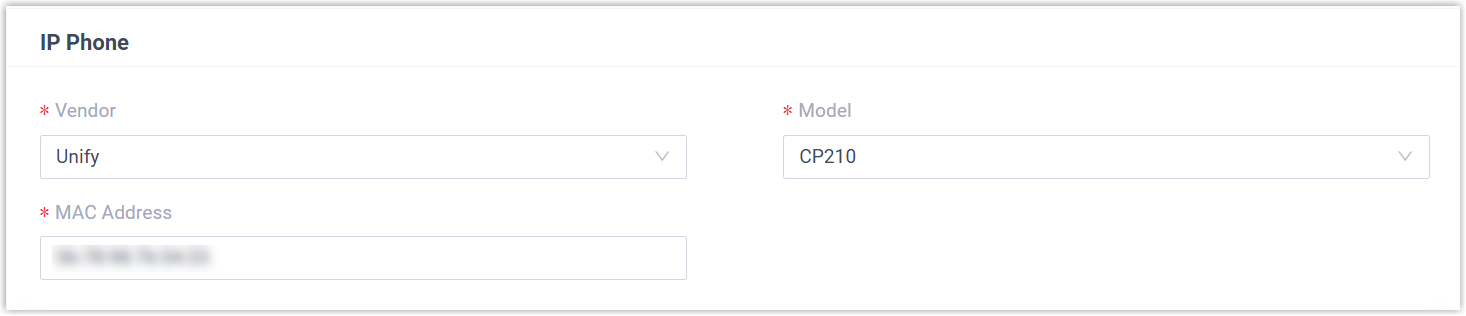
- Vendor: Select Unify.
- Model: Select the phone model. In this example, select CP210.
- MAC Address: Enter the MAC address of the IP phone.
- In the Options section, configure the following
settings.

- Template: Select a
desired template from the drop-down list.Note: You can select the default template corresponding to the phone model, or customize your own template. For more information, see Create a Custom Auto Provisioning Template.
- Provisioning Link: A provisioning link is
automatically generated and displayed in this field. This
provisioning link points to the location where the phone's
configuration file is stored.Note: Note down the provisioning link, as you will use it later.
- Template: Select a
desired template from the drop-down list.
- In the Assign Extension
section, assign extension(s) to the phone, then specify which
extension's phonebook and function keys you want to use on the
phone.Tip: If your desired extension is not listed in the drop-down list of the Extension column, it indicates that the devices registered to the extension has reached the limit. You can use either of the following methods to proceed.
- To release the extension from the associated IP phone or gateway, see Release an Extension from a Provisioned IP Phone/Gateway.
- To raise the phone registration limit, you need to configure the concurrent registration setting for the extension, as the PBX only allows an extension to register with one SIP endpoint by default.
- To assign a single extension to the phone, select a
desired extension from the drop-down list beside
SIP1.
Both the Phonebook Line and Function Key Line fields are set to SIP1 by default, indicating that the phone will use the authorized phonebook(s) and function keys of the extension assigned to the SIP line 1.
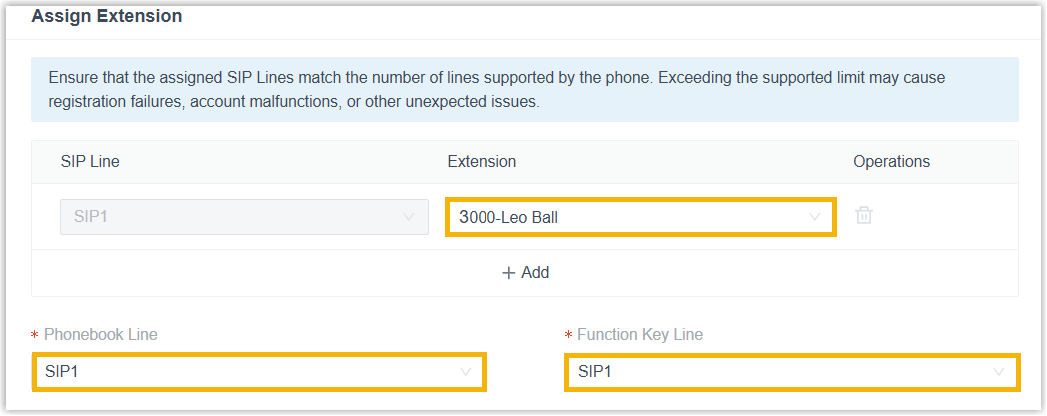
- To assign multiple extensions to the phone, complete the
following settings.
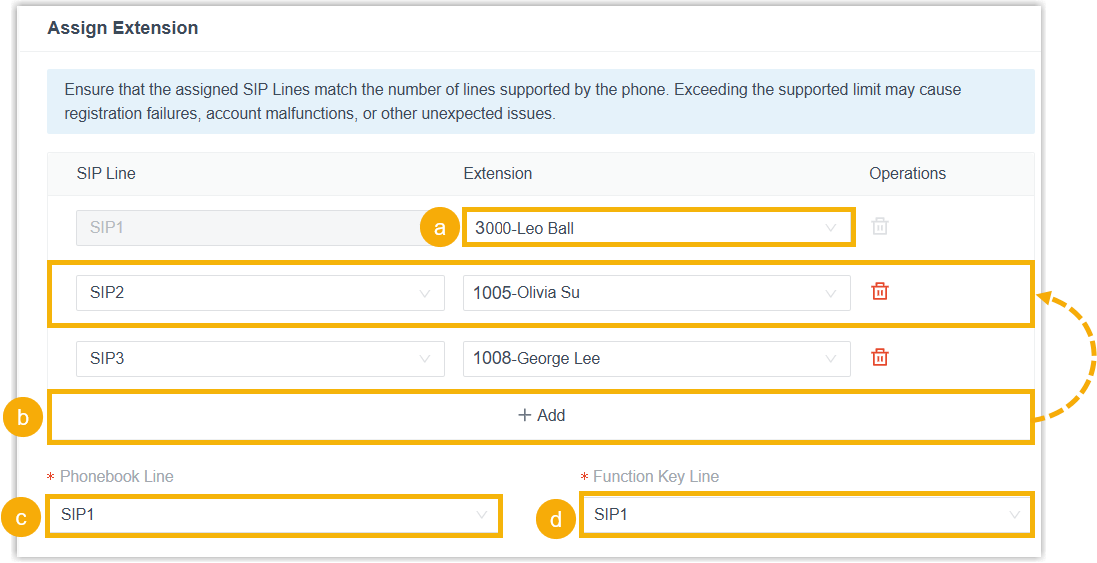
- In the drop-down list beside SIP1, select a desired extension for SIP line 1.
- Click Add, then select a
desired SIP line and an extension to be assigned
for the added entry.To assign more extensions to the phone, repeat this step.Note: The selected SIP lines must be supported by the phone, otherwise the configurations for unsupported SIP line will not be applied. You can check the phone's supported SIP lines via the phone webpage or on the device screen.
- In the Phonebook Line
drop-down list, select a SIP line. The phone book
of extension assigned to the SIP line will be
applied to the phone.Note: After successful registration, contacts are available regardless of which SIP line is currently active on the phone.
- In the Function Key Line
drop-down list, select a SIP line. The function
keys of extension assigned to the SIP line will be
applied to the phone.Note: After successful registration, the function keys take effect only when the selected SIP line is active on the phone.
- Click Save.
The IP phone is added and displayed in the Auto Provisioning phone list.
Step 2. Configure DHCP option 66 on DHCP server
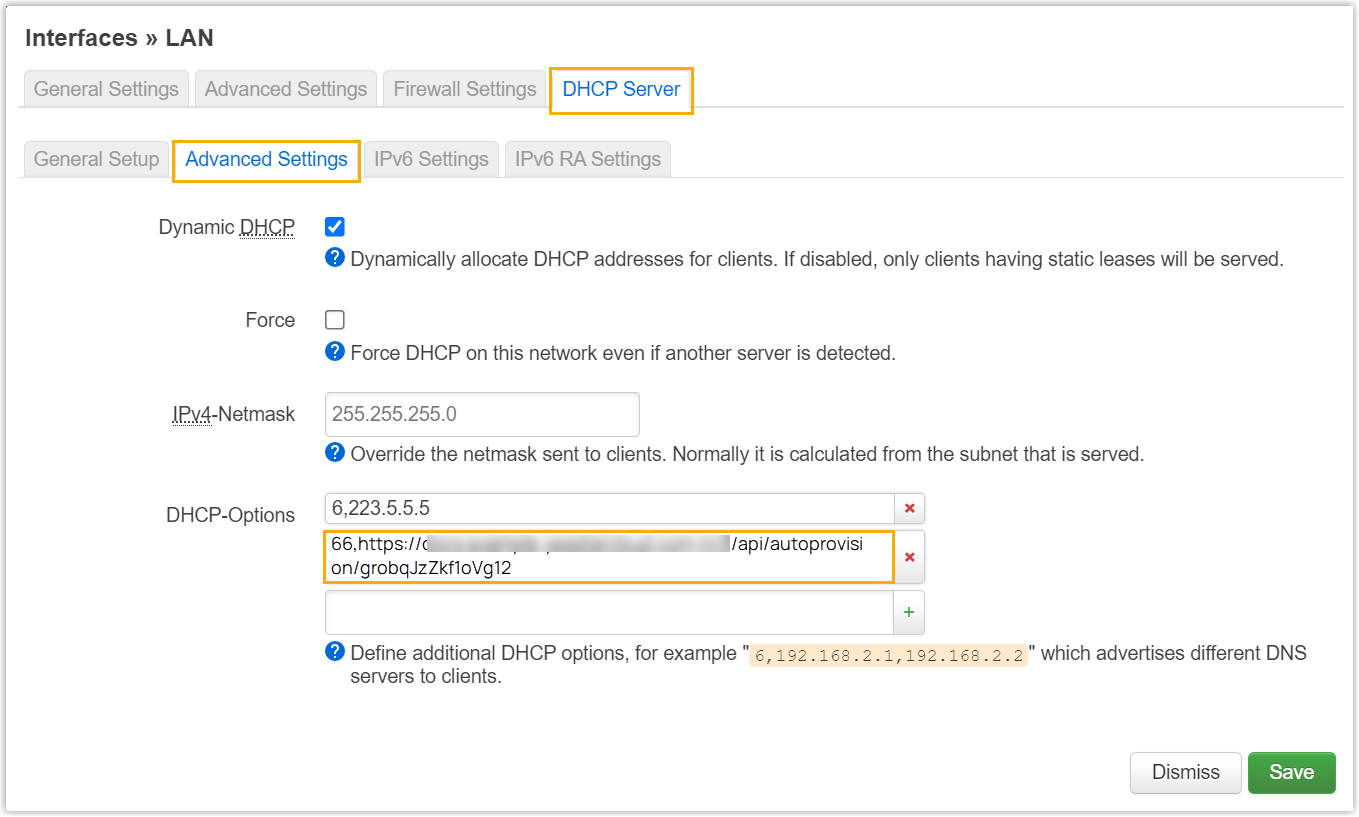
In this example, a DHCP server is set up in the IP phone’s network to deliver the provisioning link (obtained from the PBX) to the phone.
- On PBX web portal, copy the provisioning link from the phone's detail
page.

- On the DHCP server, set up option 66 with the provisioning link.
In this example, the configuration is shown below:
Results
- After rebooting the IP phone, it gets an IP address from the DHCP server, downloads the configurations from the PBX via the provisioning link, and applies the settings automatically.
- The extension is successfully registered on the IP phone. You can check the
registration status on on the PBX web portal.
 Note: If the status displays
 , this indicates that you assigned
multiple extensions to the IP phone but only some of them are
successfully registered on the phone. You can hover the mouse
over to check registered
details.
, this indicates that you assigned
multiple extensions to the IP phone but only some of them are
successfully registered on the phone. You can hover the mouse
over to check registered
details.
- If multiple extensions are
successfully registered on the phone, corresponding SIP lines are
associated with different physical line keys on the device.
You can press a line key to activate the target SIP line. The corresponding indicator LED illuminates, and all calls are processed over this SIP line.