Create a Ring Group
This topic describes how to create a ring group.
Limitations
The limits for ring groups and members per ring group vary based to the maximum number of extensions (represented by variable N), as shown in the table below.
| Item | N ≤50 | 50 < N ≤ 200 | N > 200 |
|---|---|---|---|
| The maximum number of ring groups | 32 | 32 | 64 |
| The maximum number of members per ring group | 25 | 60 | 120 |
Prerequisites
If you want to add external numbers as ring group members, ensure that outbound routes are configured to route calls to the external numbers.
Procedure
- Log in to PBX web portal, go to , click Add.
- Configure the basic settings for the ring group.
Setting Description Number Enter a virtual number for callers to access the group. The default ring group number range is from 6300 to 6399.
Name Enter a group name to help you identify it. Ring Strategy Select a ring method to distribute calls to members. - Ring All: Ring all available extensions simultaneously.
- Ring Sequentially: Ring all available extensions sequentially.
- Memory Hunt: Ring the first available extension in the list. If no answer within the ring time, progressively add the next available extension to ring, until all the available extensions in the list rang.
- Custom: Ring extensions
according to their individual ring delays and stop
ringing after their individual ring timeouts.Note: You can set ring delays and timeouts for each group member in the Members section.
Ring Timeout (s) Set a number of seconds that the system waits before ringing next member or routing the call to Failover Destination. Note: This option is available only when Ring Strategy is set to Ring All, Ring Sequentially, or Memory Hunt. - Optional: Configure prompts for the ring group.Note: The available prompts, music on hold playlists, and ringtones are synchronized from .
You can play and manage audio files in corresponding drop-down lists. If the desired audio file is not available in these lists, you can add a new one and apply (The file to be uploaded should meet the audio file requirements).
The changes for these audio files will be synchronized to .
Setting Description Join Announcement Set the announcement to be played to callers, which will be played only once. Play full Join Announcement to the caller before ringing extensions Set whether to play full join announcement to callers before ringing members. Ringback Tone Specify a prompt that will be played to callers before members answer the call. Note: The Ringback Tone is played after the Join Announcement.Music on Hold Specify the music that will be played to callers when the call is put on hold. Ring Group Alert Info Set an "alert info text" to add to Alert-info header in INVITE request for ring group calls. When receiving a ring group call, the phone will inspect "Alert-Info" header to determine which ring tone it should use for ringing.
Linkus Client Distinctive Ringtone Select or upload a ringtone for ring group member's Linkus clients. When a member receives a call from this ring group, the designated ringtone will be played on the member's Linkus client.
Note:- If you select an uploaded custom ringtone (rather than a built-in ringtone), it will only apply to user's Linkus Web Client and Desktop Client for ring group calls. Instead, the Linkus Mobile Client will play the ringtone configured in the app.
- If the call is from a contact with a distinctive ringtone set in the member's Linkus client, the contact's distinctive ringtone will take priority over the ring group ringtone.
- In the Members section, configure
members for the ring group based on the Ring
Strategy.
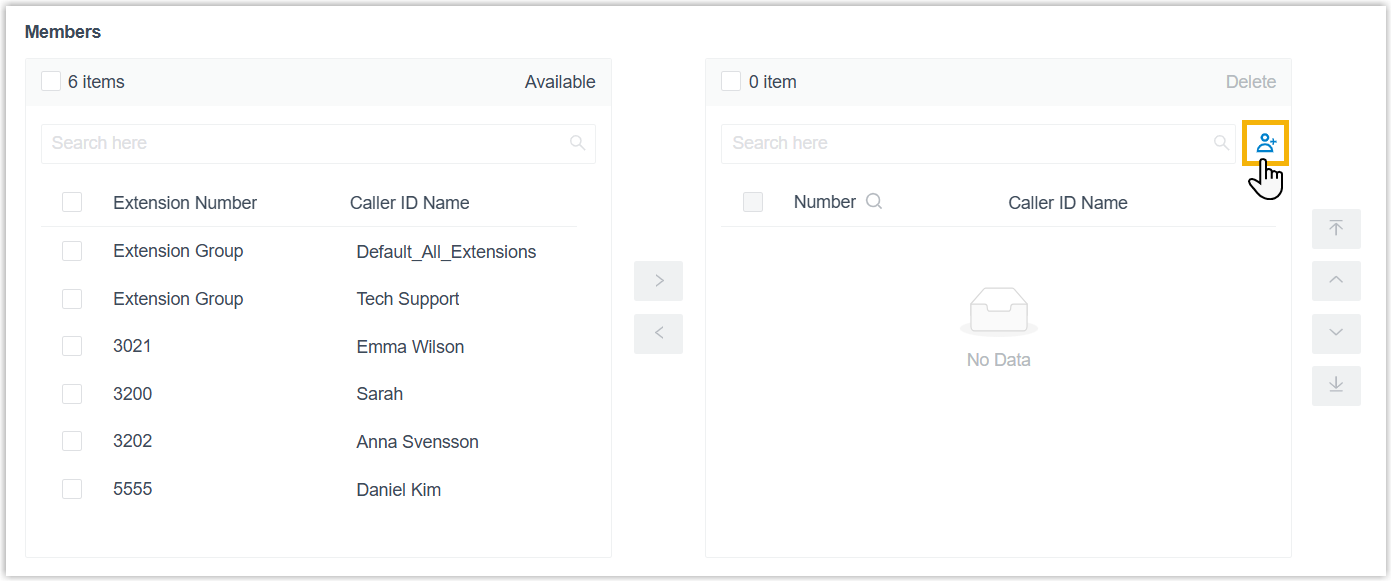
Ring Strategy Instruction Ring All - To add extensions as members, select the desired extensions or extension groups from the Available box to the Selected box.
- To add external numbers as members, complete the
following settings.Note: Up to 100 external numbers can be added, subject to the ring group member limitation.
- At the top-right corner of the
Selected box, click
 .
.
- In the pop-up
window, add external numbers using either of the
following methods.
- Add external numbers
individually
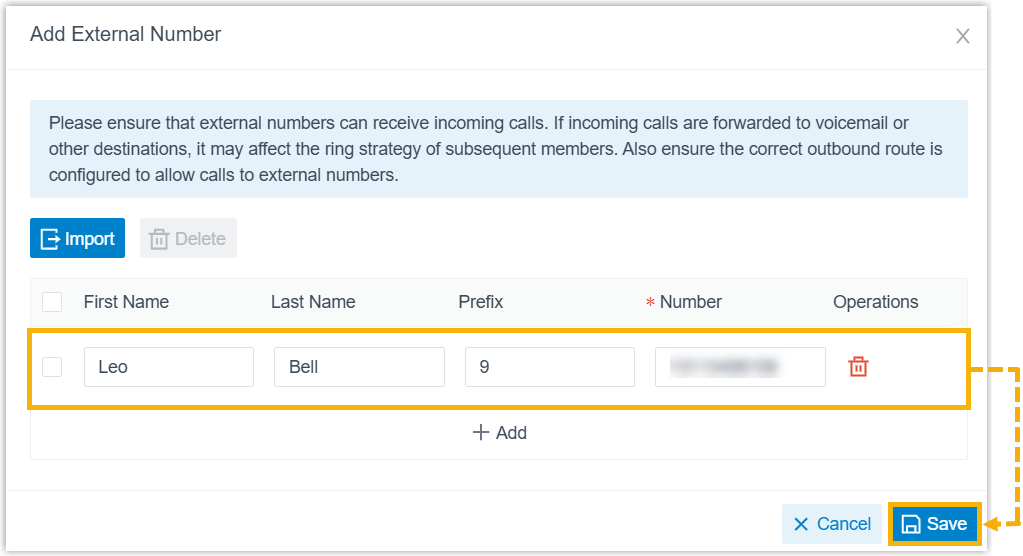
Fill in the first name, last name, dial-out prefix and external number in the corresponding column fields, then click Save.
Note:- At least one of the first name and last name fields is required.
- Click Add to add more external numbers.
- Import external numbers in bulkClick Import, then upload a
.csvfile.Note: For more information about requirements for the parameters in the file, see External Numbers Parameters.
The imported external numbers are displayed in the Selected box.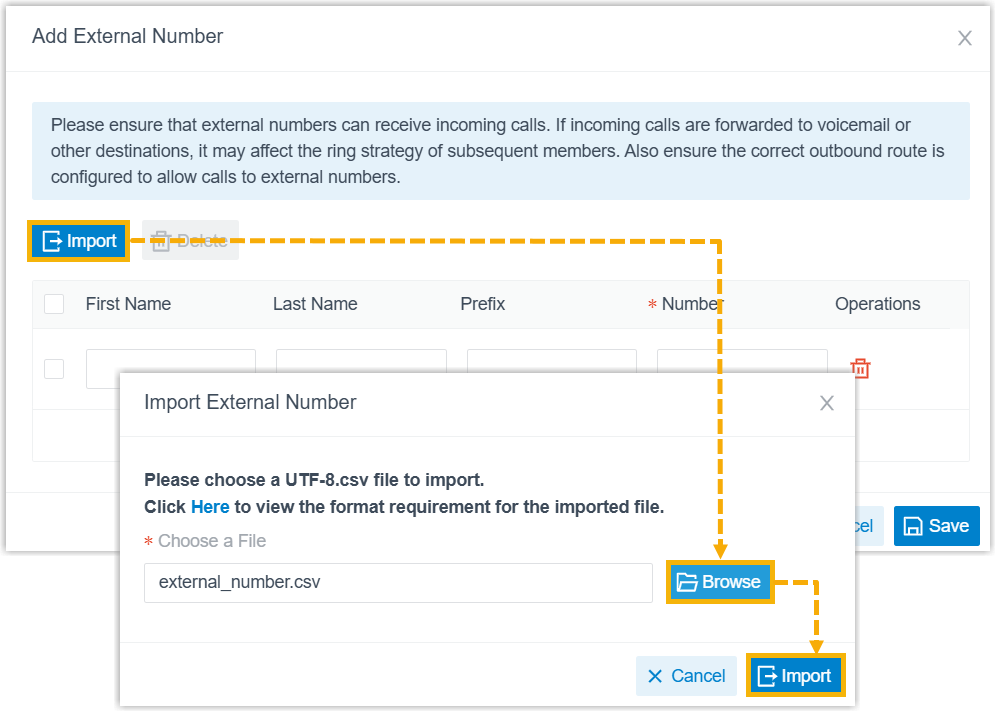
- Add external numbers
individually
- At the top-right corner of the
Selected box, click
Ring Sequentially Memory Hunt Custom 
- Click Add to add an entry. Each entry can have its own members and independent ringing rules.
- Add members for the entry.Note: The same member can belong to up to 5 entries.
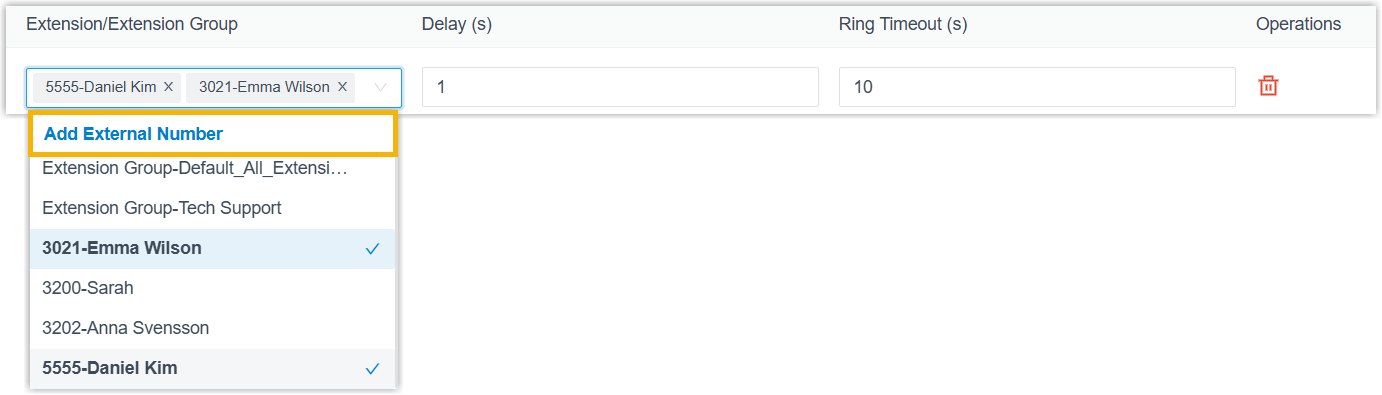
- To add extensions as members, select the desired extensions or extension groups from the drop-down list.
- To add external numbers as members, complete
the following settings.Note: Up to 100 external numbers can be added, subject to the ring group member limitation.
- Select Add External
Number from the drop-down
list.
- In the pop-up
window, add external numbers using either of the
following methods.
- Add external numbers
individually
Fill in the first name, last name, dial-out prefix and external number in the corresponding column fields, then click Save.
Note:- At least one of the first name and last name fields is required.
- Click Add to add more external numbers.
- Import external numbers in bulkClick Import, then upload a
.csvfile.Note: For more information about requirements for the parameters in the file, see External Numbers Parameters.
The imported external numbers are displayed in the Selected box.
- Add external numbers
individually
- Select Add External
Number from the drop-down
list.
- Configure
ringing rules for all members in the entry.
- Delay (s): Set the time delay in seconds (0 - 600, where 0 indicates ring immediately). All members in the item will start ringing after the configured delay time.
- Ring Timeout (s): Set the ring timeout in seconds (1 - 600). The member will stop ringing after the configured ring timeout. If all members time out, the call will be routed to the Failover destination.
- Optional:
Configure call settings for ring group members.
Setting Description Make the extension's 'Always' call forwarding destination effective Decide whether to apply the Always call forwarding destination of the extensions in the member list for ring group calls. After enabled, if a member's extension has an Always call forwarding destination set to Extension, Mobile Number, or External Number, and is currently in the corresponding presence, the system will directly ring the configured forwarding destination instead of the member's extension upon receiving a ring group call, while other members still ring normally based on the ring strategy.Note: If this setting is enabled but forwarding conditions are not met, or the setting is disabled, call handling differs across registered endpoints upon receiving ring group calls:- For Linkus clients logged in to a member extension, the extension rings normally.
- For IP phones registered to a member
extension, calls are processed based on the
phone‑side forwarding rules.
-
If the forwarding destination is set to an extension or an external number, the forwarding destination rings instead of the phone when the forwarding condition is met, while other registered endpoints still ring normally.
-
If the forwarding destination is set to a value other than extensions or external numbers, the call is automatically disconnected when forwarding conditions are met, while other registered endpoints still ring normally.
-
If the forwarding condition is not met or no forwarding destination is configured , the phone rings normally.
-
Call Confirmation Decide whether to require external number members to confirm call acceptance when receiving ring group calls, preventing calls from being answered by voicemail or other automated systems. When enabled, the system plays a prompt to the external number member, asking them to press a key to accept or decline the call.- Press 1 (Accept): The call is connected to the member.
- Press # (Decline): The call is dropped for this member, and the ring group continues to ring other members according to the ring strategy.
- Configure the call routing destination.
Setting Description Failover Destination Select a destination to route the call when no member answers within the ring timeout. - Hang up: End the current call.
- Extension: Route the call to the specified extension.
- Extension Voicemail: Route the call to voicemail box of the specified extension.
- Group Voicemail: Route the call to voicemail box of a queue, a ring group, or a custom group.
- IVR: Route the call to the specified IVR.
- Call Flow: Route the call to the specified call flow.
- Ring Group: Route the call to another ring group.
- Queue: Route the call to the specified queue.
- External Number: Route the call to an external number.
- Play Prompt and Exit: Play a custom prompt, and then hang up the call.
Record Missed Calls Decide whether to record missed calls from ring group to extension call logs. Note:- This option is available for the calls sent to
the
Failover
Destination, and is
appeared only when both Ring
Strategy and Failover
Destination are set to the
followings:
- Ring Strategy is set to Ring All, Memory Hunt, or Custom.
- Failover Destination is set to Extension, Queue, or Ring Group.
- If the member list of the ring group includes extensions, you can set up email alert on missed ring group calls for these extensions. To achieve this, enable this option, then turn on email notifications on missed calls for extensions. For more information, see Set up Email Notifications for Missed Calls.
No Extension Online Destination Select a destination to route the call when no extension in the ring group is online (i.e. all members' extensions are unregistered or disconnected). Note: This option takes effect only when all members of this ring group are extensions.- Hang up: End the current call.
- Extension: Route the call to the specified extension.
- Extension Voicemail: Route the call to voicemail box of the specified extension.
- Group Voicemail: Route the call to voicemail box of a queue, a ring group, or a custom group.
- IVR: Route the call to the specified IVR.
- Call Flow: Route the call to the specified call flow.
- Ring Group: Route the call to another ring group.
- Queue: Route the call to the specified queue.
- External Number: Route the call to an external number.
- Play Prompt and Exit: Play a custom prompt, and then hang up the call.
- Optional: In the Time Condition section,
enable the option and decide whether to route the calls received in
non-business hours to different destination based on the time in a specific
time zone.
Setting Description Time Zone Select a desired time zone. The business hours and holidays settings of the selected time zone (Path: ) will be applied to the ring group.
Note: The ring group always receive calls in the business hours.Outside Business Hours Destination Select the destination for calls received during the time periods that are not defined as business hours or holidays in the selected time zone. Holidays Destination Select the destination for calls received during holidays defined in the selected time zone. Ignore the Holiday Destination If you want to route incoming calls based on the business hours and non-working hours during holidays, select the checkbox of Ignore the Holiday Destination. Incoming calls during holiday will be distributed to other destinations according to your office hour setting.
Play Holiday Prompt During Holidays To play a prompt to callers before routing the inbound calls to the holiday destination, select the checkbox of Play Holiday Prompt During Holidays. Note: Make sure that you have set a prompt for the holiday (Path: ). Otherwise, the inbound calls will be directly routed to the holiday destination without playing a prompt. - Click Save and Apply.