Purchase Installation Service for Homer
If you host and manage cloud phone systems in your own environment, you can integrate the Homer service with your central management portal to implement SIP traffic monitoring. To achieve this, purchase installation service for Homer and contact Yeastar to proceed.
Procedure
- Log in to Yeastar Partner Portal, go to Products & Purchase.
- On the product list, click Purchase on
Add-on Service.
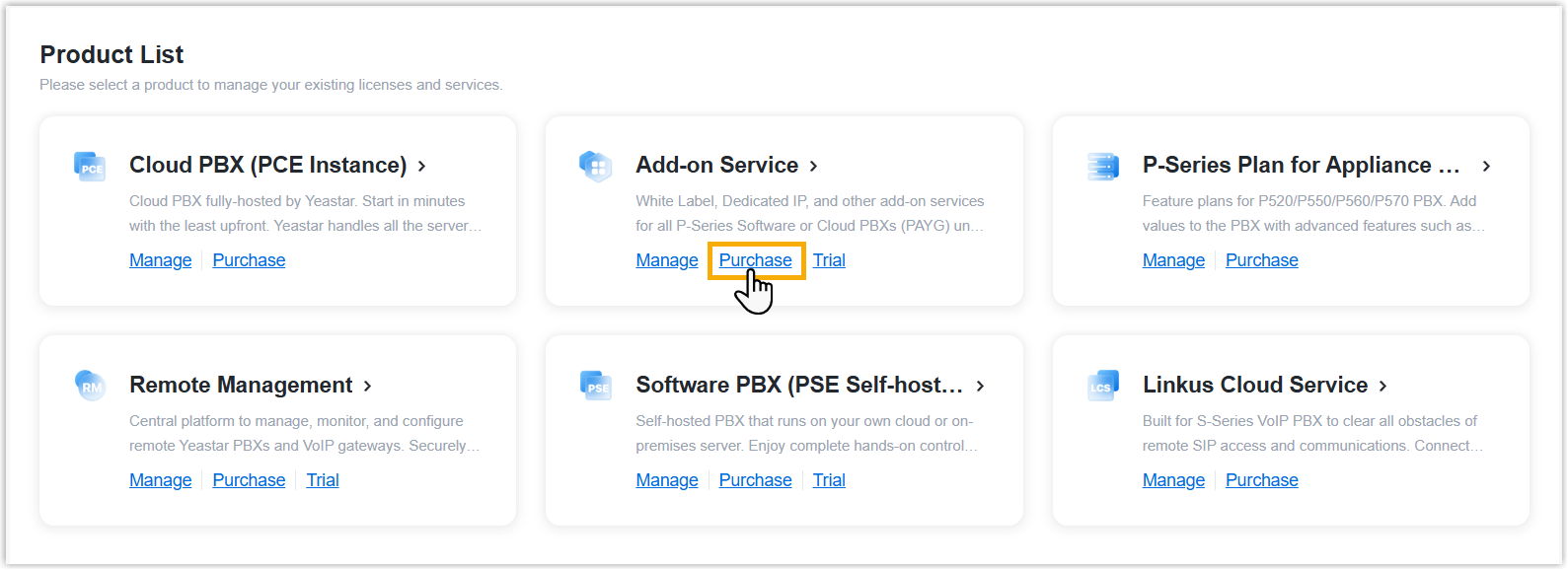
A side panel slides in from the right of the page.
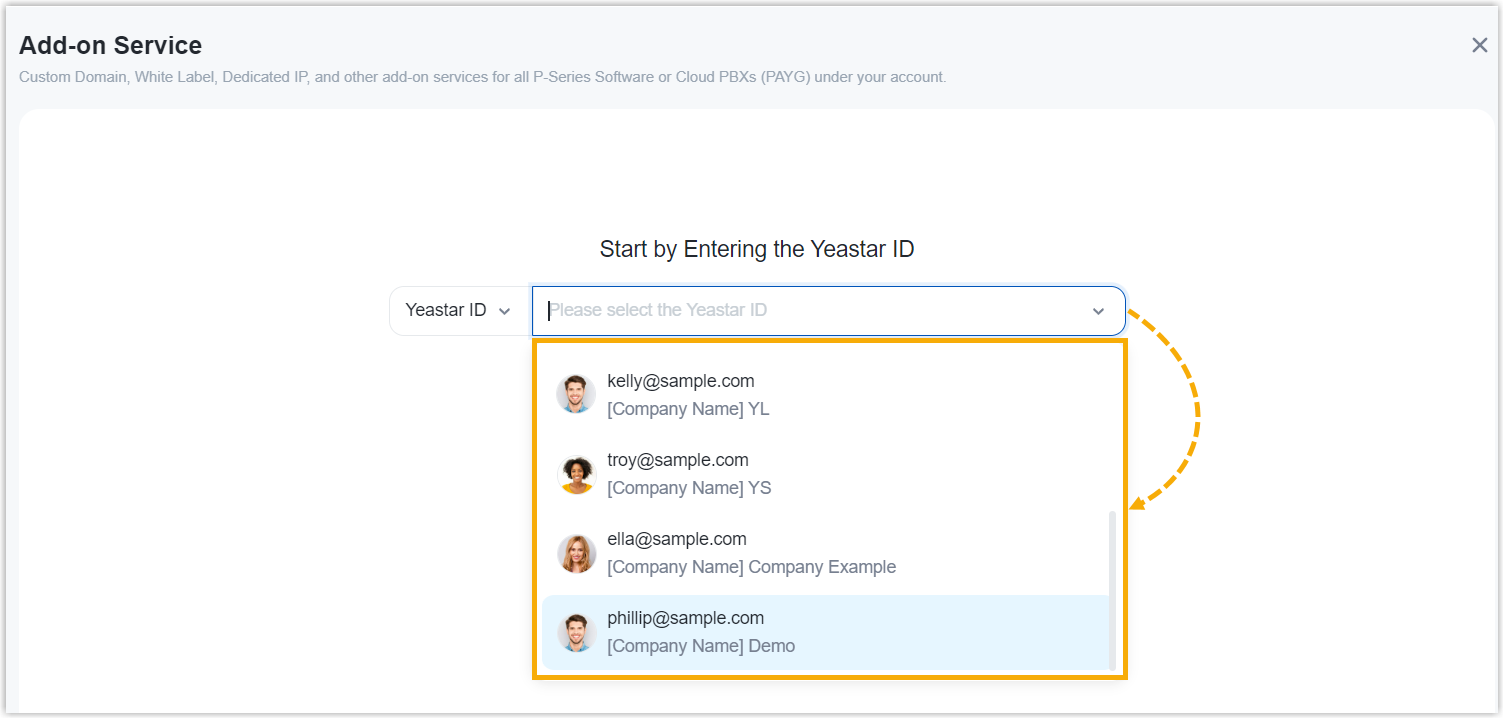
- Search and select the user for whom you want to purchase
Homer installation service from the drop-down list.
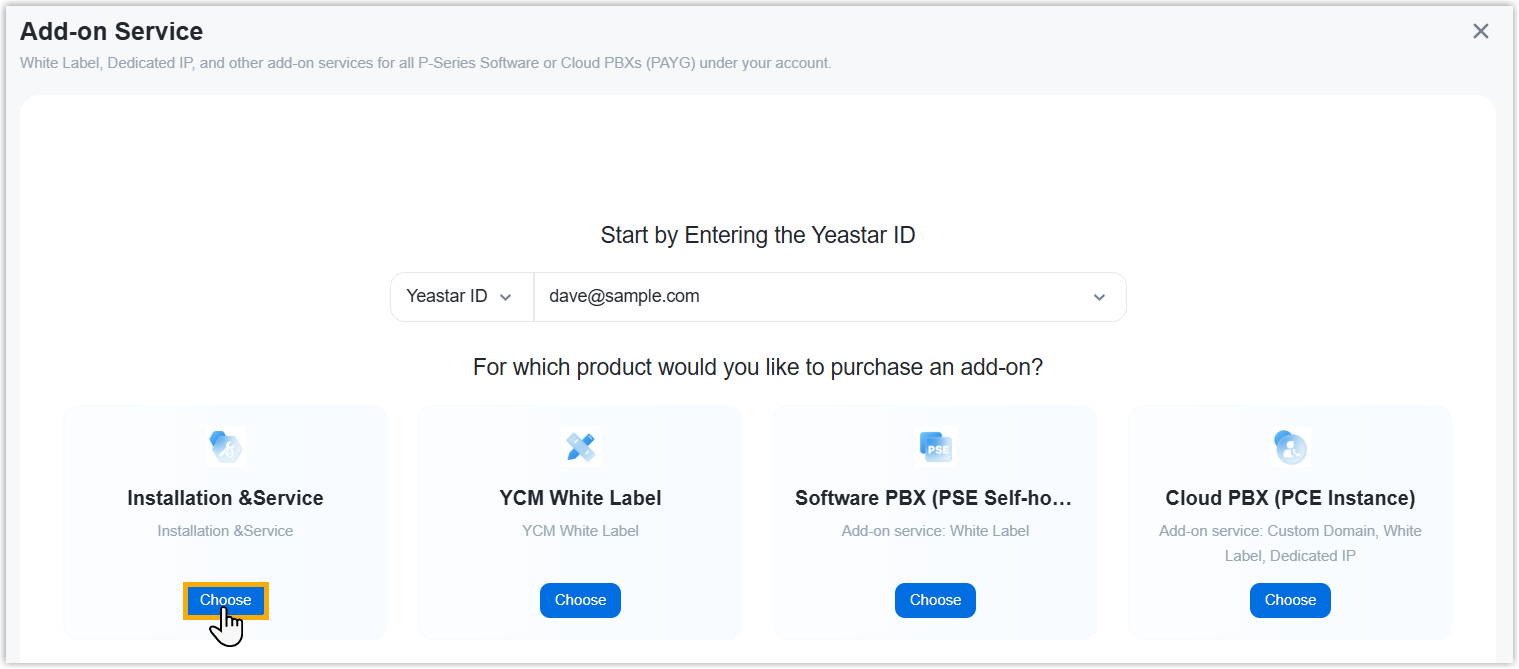
- Click Choose on Installation
& Service.
- Purchase Homer installation service.
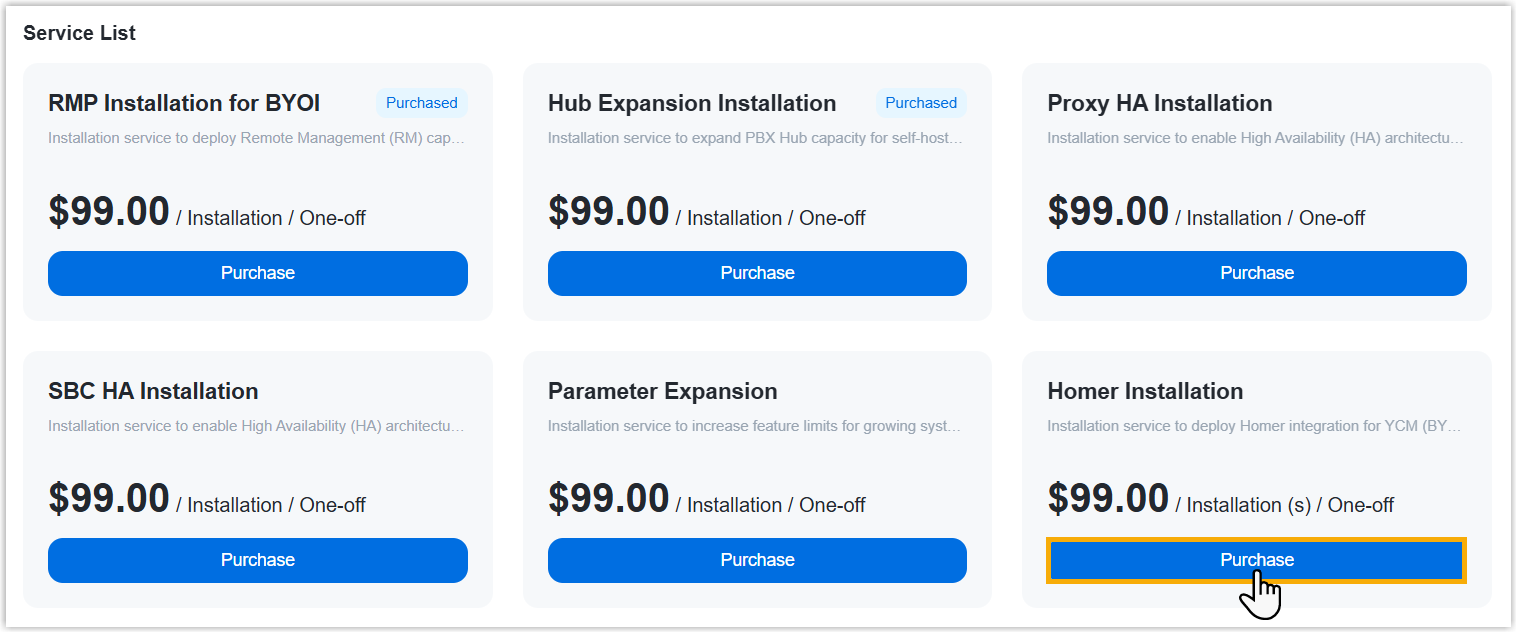
- On the service list, click Purchase on
Homer Installation.
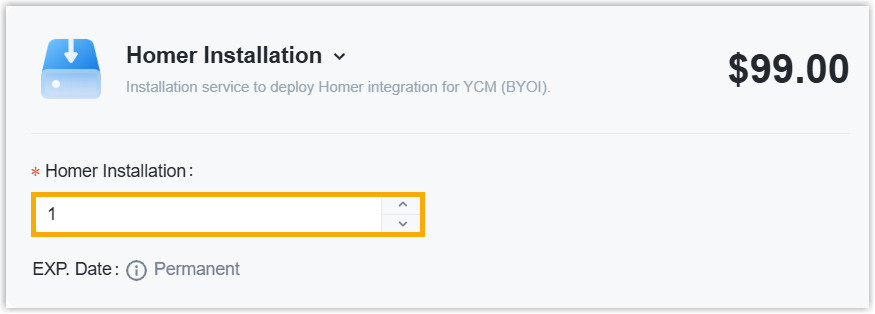
- Retain the default value of Homer
Installation, or edit it as needed.
- On the service list, click Purchase on
Homer Installation.
- Optional: On the left Assign This Product
To section, search and select a user to associate with the
product.
The selected user will have access to view the subscription details within the Partner Portal (Path: ).
Note: If the desired user doesn't exist, you can click Add Partner to add a user. This will create a new Partner Portal account, and an account activation email will be sent to the assigned email address. If you DO NOT want your customer to receive this email, DO NOT click Add Partner here.
- On the right Order Summary section, click Checkout.
-
Review the service information and billing information, then complete payment.
Result
Homer installation service is now available for the selected user.
What to do next
- Prepare the environment for Homer deployment.
- If you want to deploy Homer on a dedicated server, refer to Preparation for Dedicated Server.
- If you want to deploy Homer on the self-hosted YCM server, refer to Preparation for YCM Server.
- Contact Yeastar Sales/Support to deploy the Homer service.
- Connect the Homer service to your self-hosted central management portal to
implement SIP traffic monitoring.
For more information, see Homer Administrator Guide.