Restore a Cloud PBX backup on P-Series Appliance Edition / Software Edition
This topic explains how to migrate from Yeastar Cloud PBX to the P-Series PBX system by restoring backup files to the target system, which can be either the P-Series Appliance Edition or the P-Series Software Edition. This ensures a smooth transition of your configurations and data.
Prerequisites
- Properly set up the target P-Series PBX system with the required firmware version.
-
P-Series Appliance Edition: Version 37.19.0.70 or later
-
P-Series Software Edition: Version 83.19.0.70 or later
-
- Obtain backup files for Yeastar Cloud PBX from YMP server.
Procedure
- Log in to the PBX web portal of your P-Series PBX system, go to .
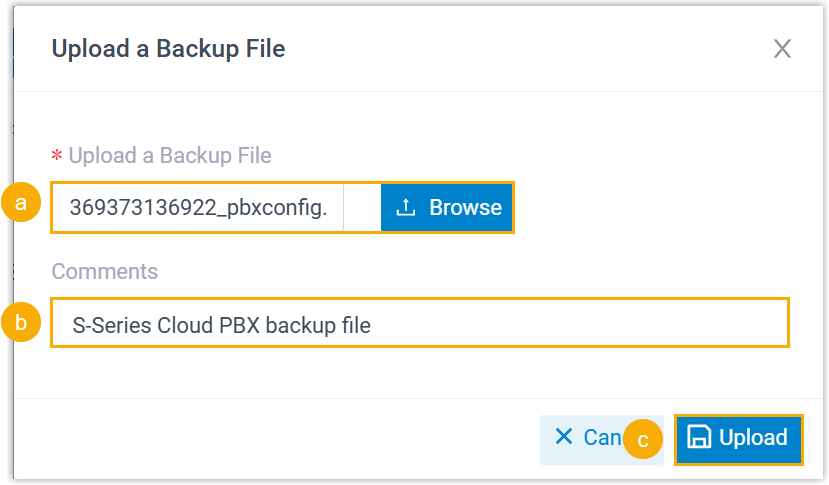
- Click Upload, and do as follows in the pop-up
window.
-
Click Browse to select the backup file of Cloud PBX.
-
Optional: In the Comments field, add a note to help you identify the backup file.
-
Click Upload.
The backup file is uploaded and displayed in the list.
-
- Restore the PBX system from the backup file.
- Click
 beside the backup file.
- In the pop-up window, click OK.
- Reboot the PBX to take effect.
- Click
Result
The configurations on your P-Series PBX system are overwritten with the data from the Cloud PBX backup file.
What to do next
- Verify that if the P-Series PBX system can be accessed via the original Cloud PBX domain name.
- Verify that the settings and data have been correctly migrated from Yeastar Cloud PBX to your P-Series PBX system.