Subscribe to PCE White Label Service
After subscribing to PCE White Label service, you can build your own brand and apply it to all the P-Series Cloud Edition you deliver. You can subscribe to the service by following the instructions in this guide.
Procedure
- Log in to Yeastar Partner Portal, go to Products & Purchase.
- On the product list, click Purchase on
Add-on Service.
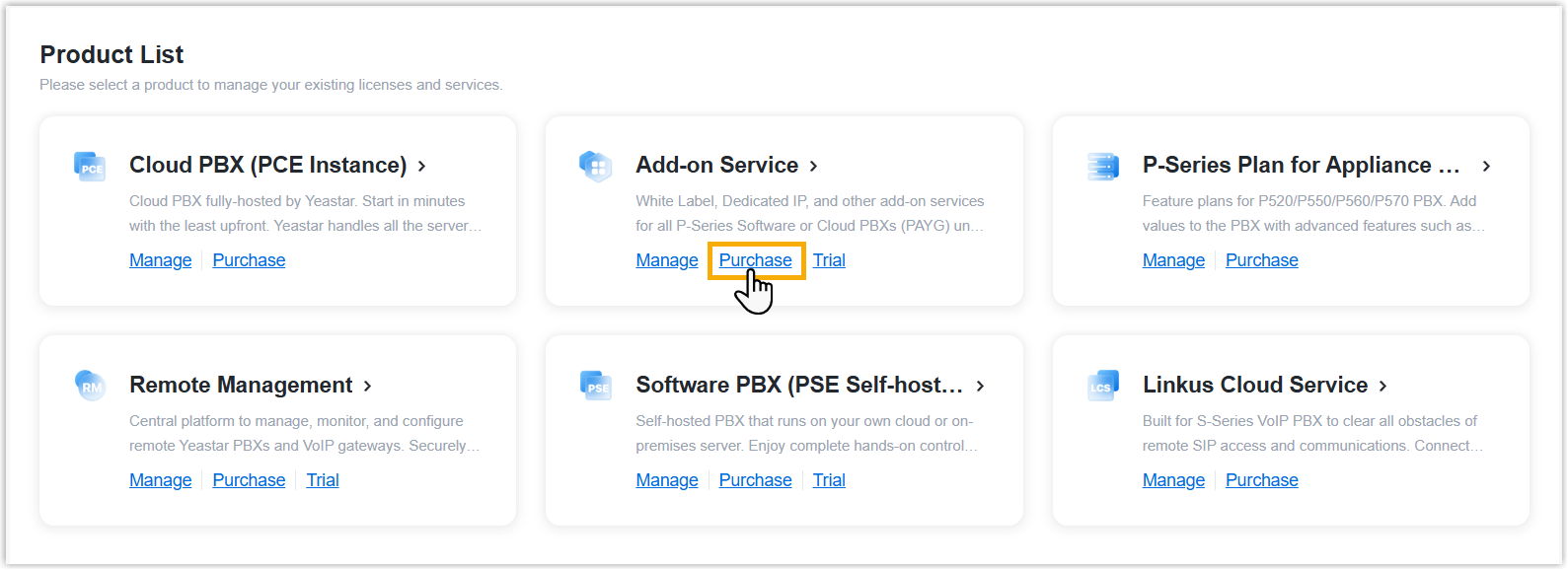
A side panel slides in from the right of the page.
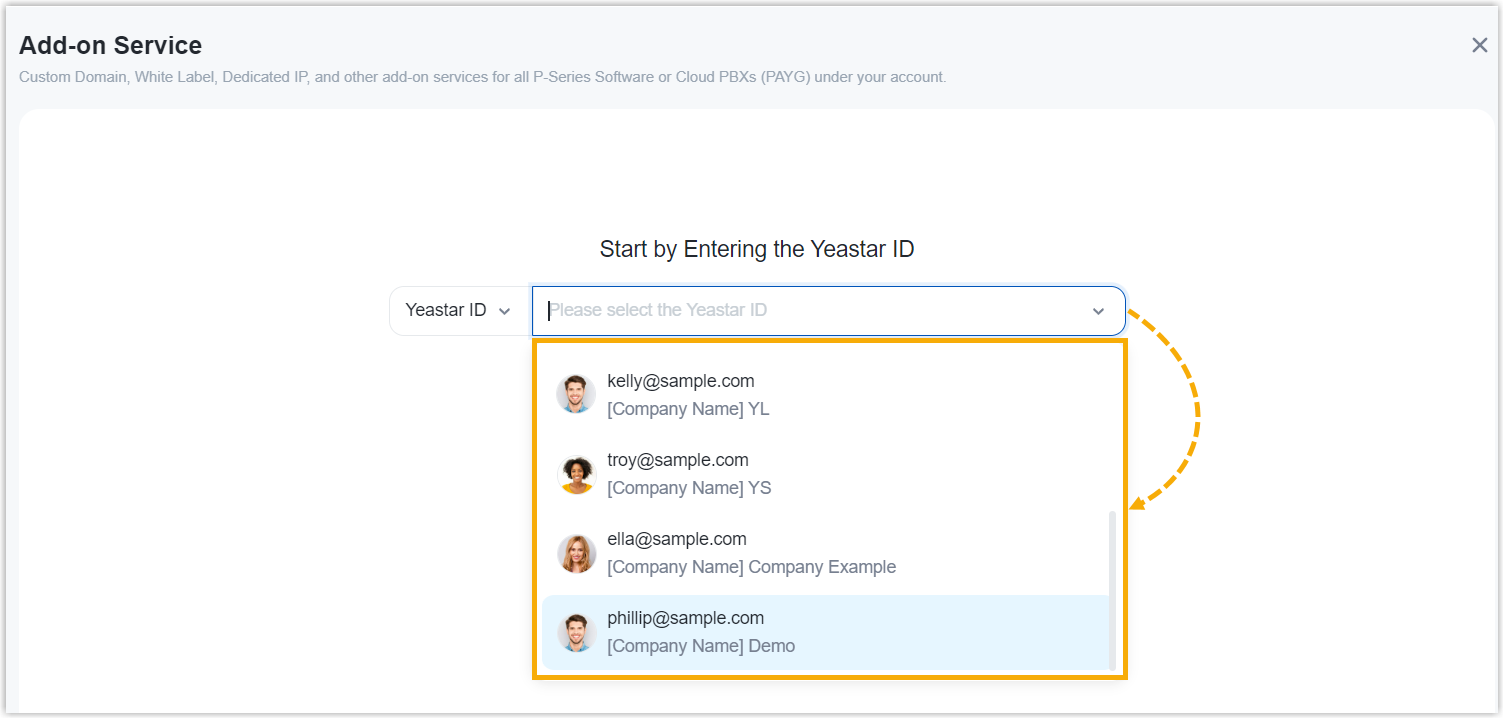
- Search and select the user for whom you want to subscribe
PCE white label service from the drop-down list.
The selected user will have full access to set up and manage PCE white label template on Yeastar Central Management.
-
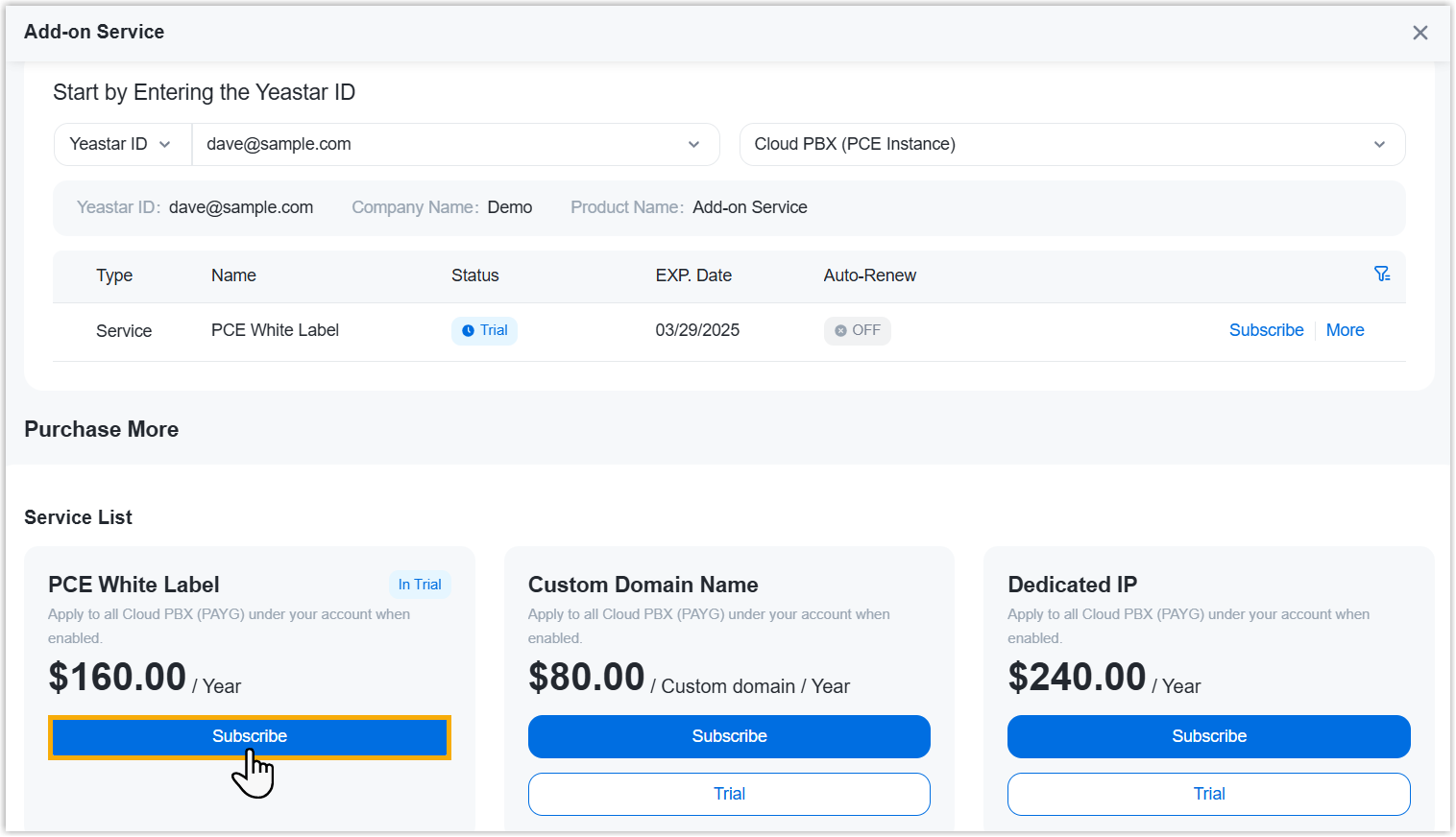
Click Choose on Cloud PBX (PCE Instance).
- On the service list, click Subscribe.
- Optional: On the left Assign This
Product To section, search and select a user to associate
with the product.
The selected user will have access to view the subscription details within the Partner Portal (Path: ).
Note:- This does NOT grant administration permission for PCE white label template within the corresponding Yeastar Central Management.
- If the desired user doesn't exist, you can click Add Partner to add a user. This will create a new Partner Portal account, and an account activation email will be sent to the assigned email address. If you DO NOT want your customer to receive this email, DO NOT click Add Partner here.

- On the right Order Summary section, click Checkout.
-
Review the service information and billing information, then complete payment.
Result
PCE white label service has been subscribed for the selected user, and synchronized to the user's Yeastar Central Management (Path: My Subscription).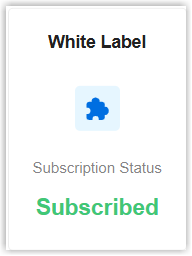
What to do next
Go to Yeastar Central Management to configure white label template and apply to Cloud PBXs.
For more information, see PCE White Label Guide (Yeastar-hosted) and PCE White Label Guide (Self-hosted).