Call Controls
This topic describes call controls supported by Yeastar for Teams Desktop Plugin, such as initiating a call, transcribing a call, adding call notes, and recording a call, among others.
Requirements
- The firmware version of PBX server is 83.24.0.122 or later.
- Operating system version must meet the following requirements:
- Windows: Windows 10 or later
- macOS: macOS 12 or later
- You have integrated Yeastar P-Series Software Edition with Microsoft Teams and set Yeastar for Teams Desktop Plugin as the call-control handler.
Supported call controls
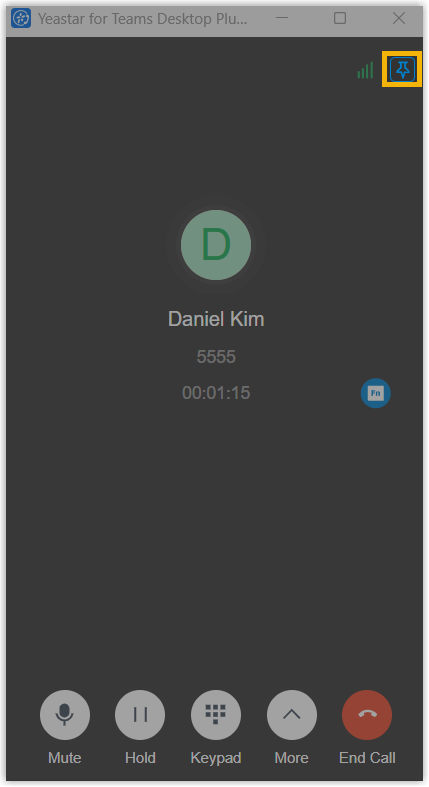
 is
displayed at the top‑right corner of the pop-up window, indicating that the
window is pinned to remain above other open applications and not be obscured; if
not, click
is
displayed at the top‑right corner of the pop-up window, indicating that the
window is pinned to remain above other open applications and not be obscured; if
not, click  as needed to enable the pin feature.
| Feature | Instruction |
|---|---|
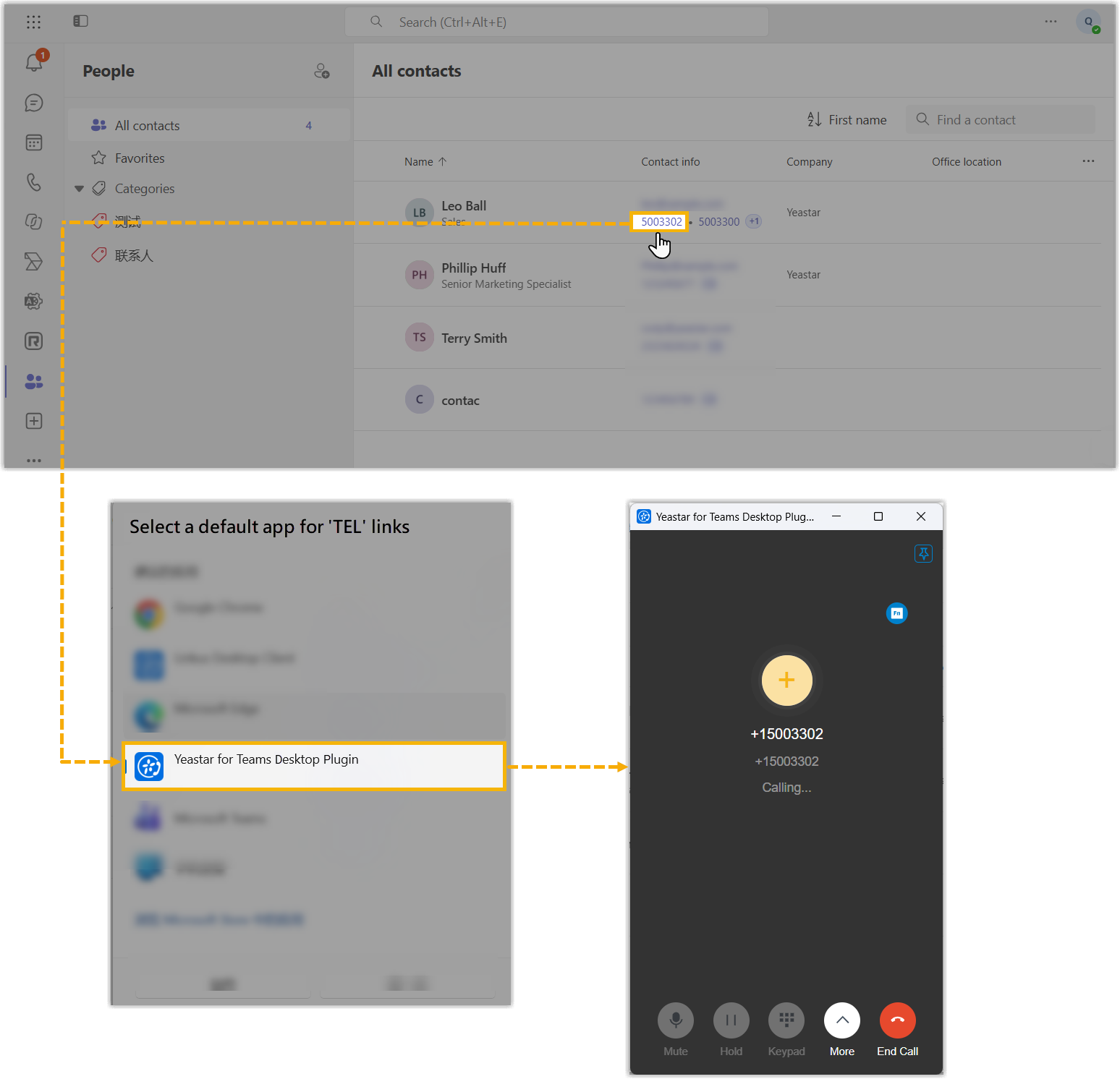
| Initiate a call |
Initiate a call based on the number source.
|
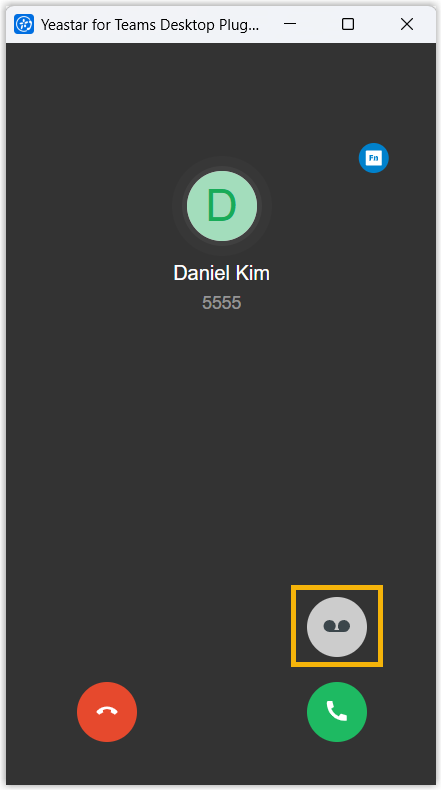
| Forward a call to extension voicemail | Note:
When receiving an incoming call, click
 on the incoming call pop-up. on the incoming call pop-up.
The call is forwarded to your extension voicemail. After the caller finishes leaving a message, a notification appears on the computer screen to alert you of the unread messages. You can view the messages on Yeastar Linkus for Teams within Microsoft Teams.
|
| Answer a call | Answer a call based on its call type.
|
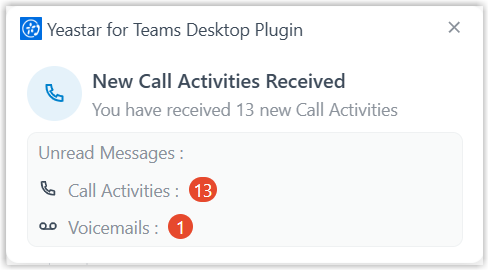
| Reject a call | When receiving an incoming call, click  on the incoming call pop-up. on the incoming call pop-up.A pop‑up notification appears on the screen to alert you of the unread messages. You can view the messages on Yeastar Linkus for Teams within Microsoft Teams.
|
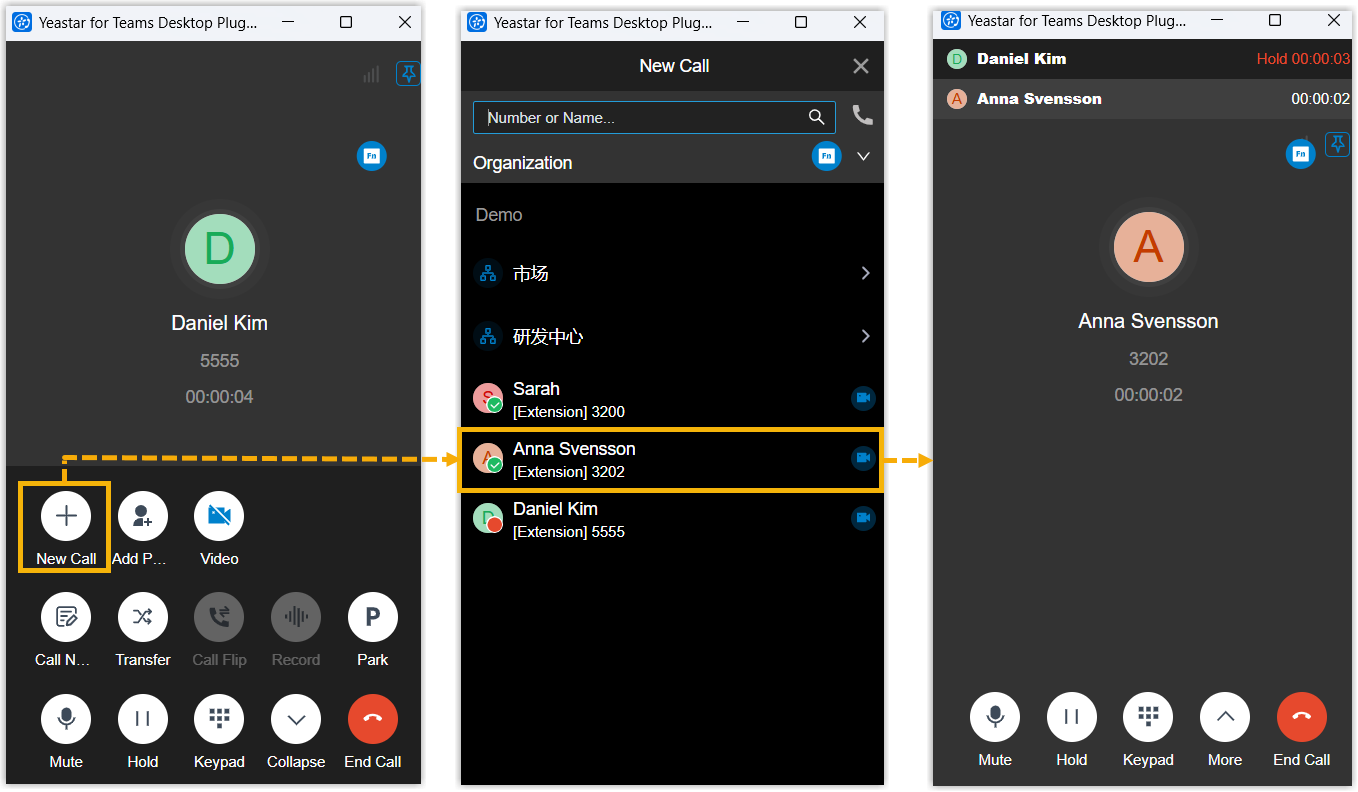
| Initiate a new call | During an active call, click on the call window, then select an extension or
specify a number. When a new call is initiated, the original call is automatically placed on hold, you can resume the original call to continue the conversation.
|
| Mute a call | During an active call, click Mute on the
call window. Your microphone is muted, and the other party cannot hear you. |
| Hold a call | During an active call, click Hold on the
call window. The call is put on hold, the other party can not communicate with you, and the held party may hear a piece of music, depending on system administrator's configuration. |
| Resume a call | During an active call, click Resume on the
call window. You can communicate with each other now. |
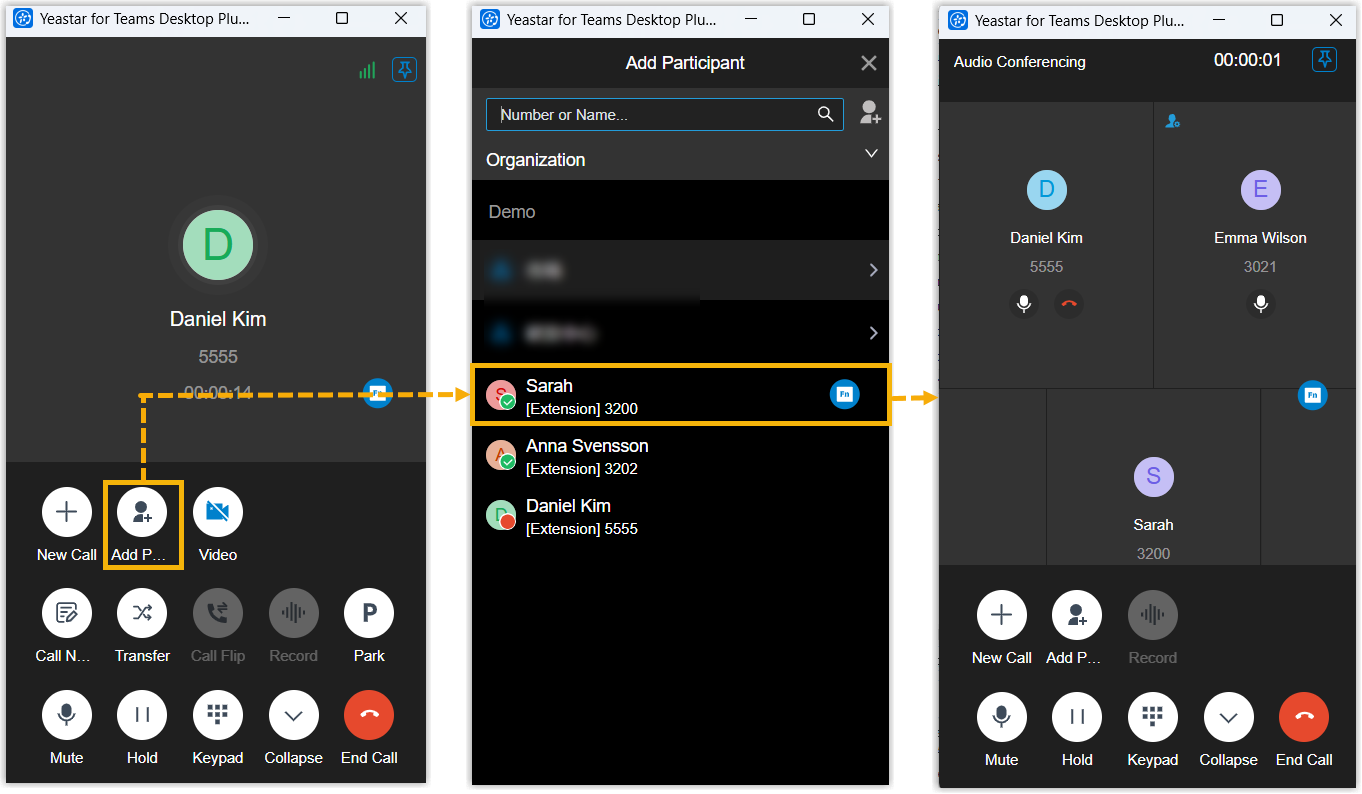
| Invite participants to an audio conference call | During an active call, click on the call window, then select an extension or
specify a number. The one‑to‑one audio call is automatically converted into an audio conference call.
|
| Switch an audio call to a video call | During an active call, click on the call window. The camera on your device turns on, and the other party receives a video call invitation. A video call is established once the recipient accepts the invitation; otherwise, the audio call remains active. |
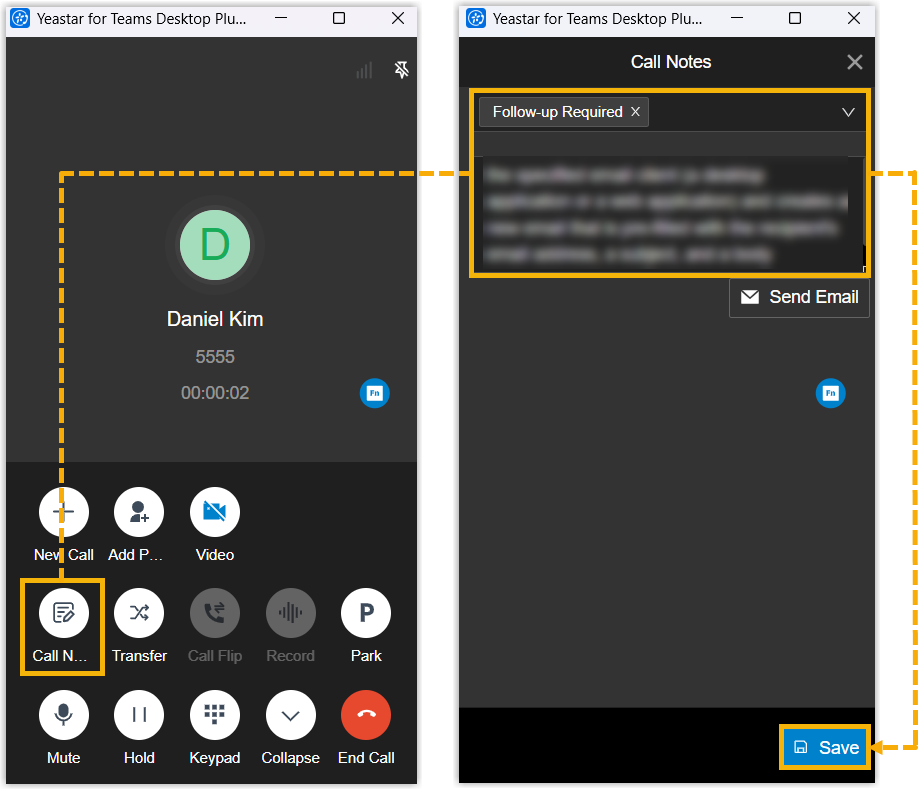
| Add call note | Note: This feature is available only when
system administrator has configured call disposition codes on
PBX server, and granted you the permission to use call note
feature. During an active call (received calls or outbound
calls), click on the call window, add tags and remarks for the call
according to your needs, then click
Save.Note: If you
need to send the call note and other call details to a specified
email address, click Send Email on the
call note panel.
The call note is saved successfully. After the call ends, you can check and manage the call note on Yeastar Linkus for Teams within Microsoft Teams. |
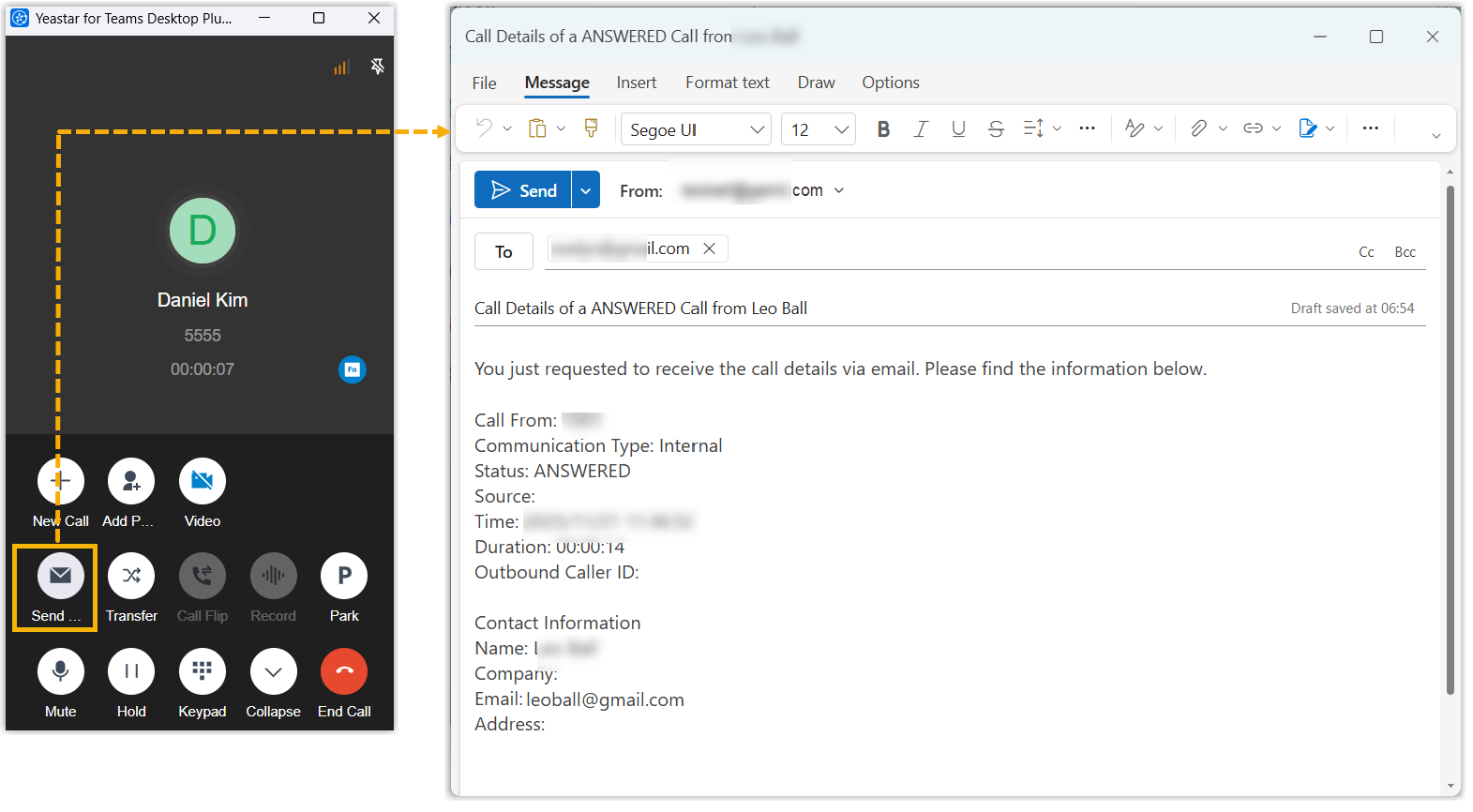
| Send call details via email | During an active call, click on the call window, then specify email client (a
desktop application or a web application), edit the automatically
generated email (pre-filled with the recipient's email address, a
subject, and a body containing the call details) and send.
The call details are sent to the specified email addresses. |
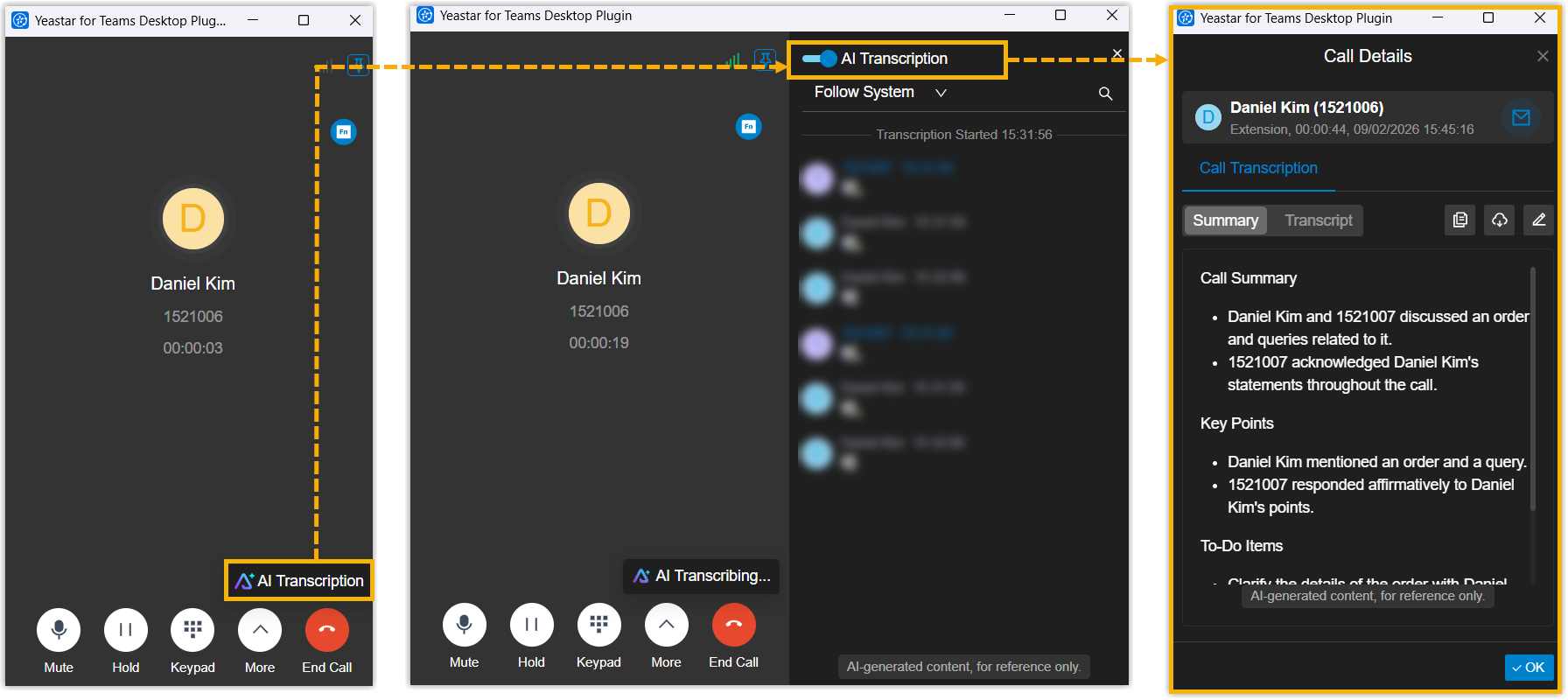
| Transcribe a call | Note: This feature is available only when
the following requirements are met: During an active call, click AI
Transcription, then turn on the switch of
AI Transcription in the right
panel.
The audio is being transcribed into readable text in real time and is being displayed in the right panel. After the call ends, the AI-generated summary and transcript is display on the window, and you can also review these on Yeastar Linkus for Teams within Microsoft Teams. Tip: Whether a summary can be automatically
generated and displayed depends on the system administrator's
configurations on the PBX server.
|
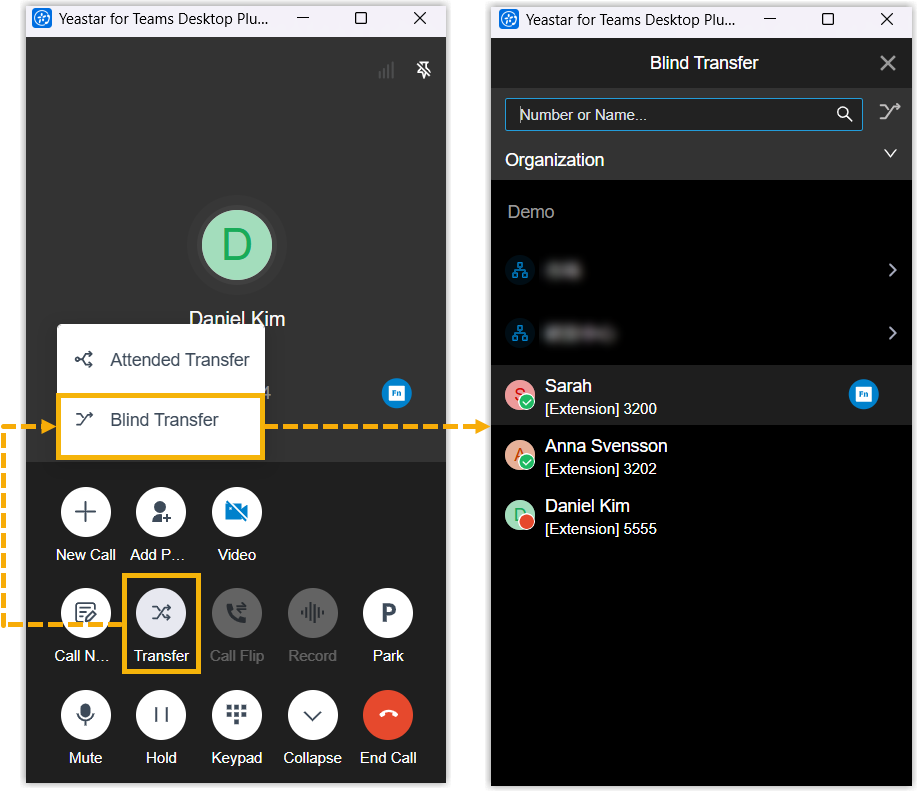
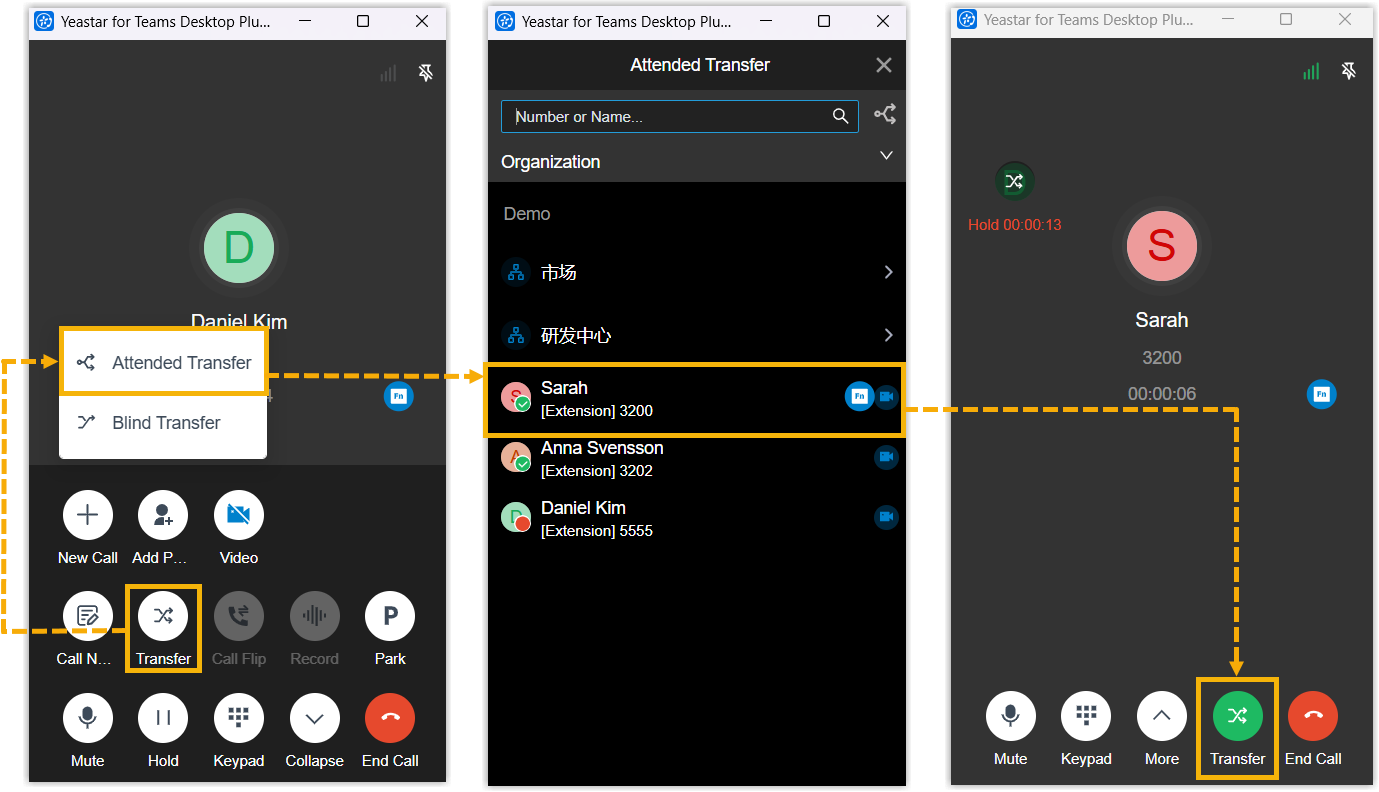
| Transfer a call |
During an active call, transfer the call as needed.
|
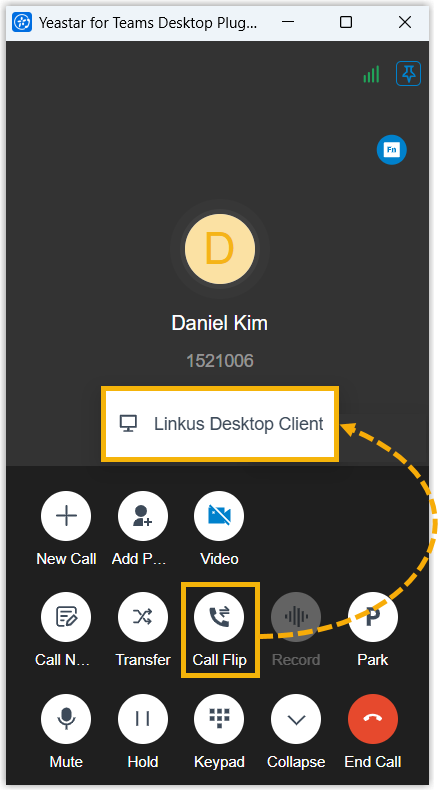
| Flip a call to another device |
Note: This feature is available only when your
extension has been registered on more than one device.
During an active call, click and select the target device type on the call window. All logged-in or registered devices of the specified type ring,
and you can answer the call on the target device.
Note: Before you answer the call on the
target device, if you want to cancel call flip, click
Cancel at the bottom of the call
window.
Once answered, the call is flipped from Yeastar for Teams Desktop Plugin to the desired device. |
| Record a call |
Note: This feature is available only when
system administrator has granted you the permission to
record calls. During an active call, click on the call window.The call is being recorded; both sides may hear a voice prompt announcing that the call is now being recorded, depending on system administrator's configuration. After the call ends, you can check the recording on Yeastar Linkus for Teams within Microsoft Teams. |
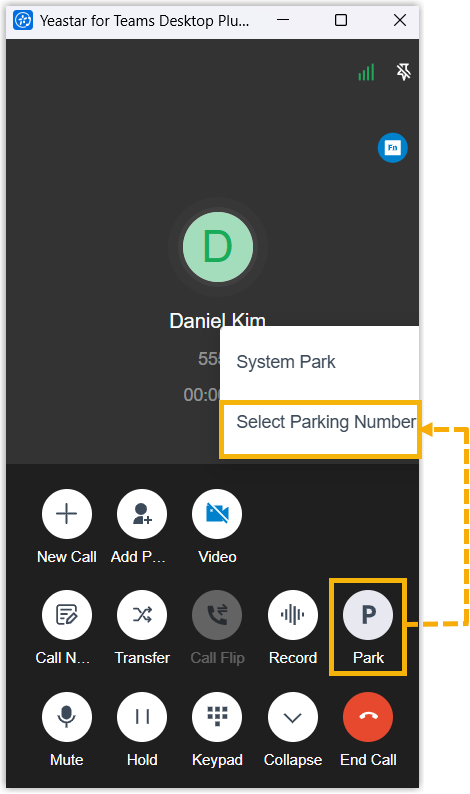
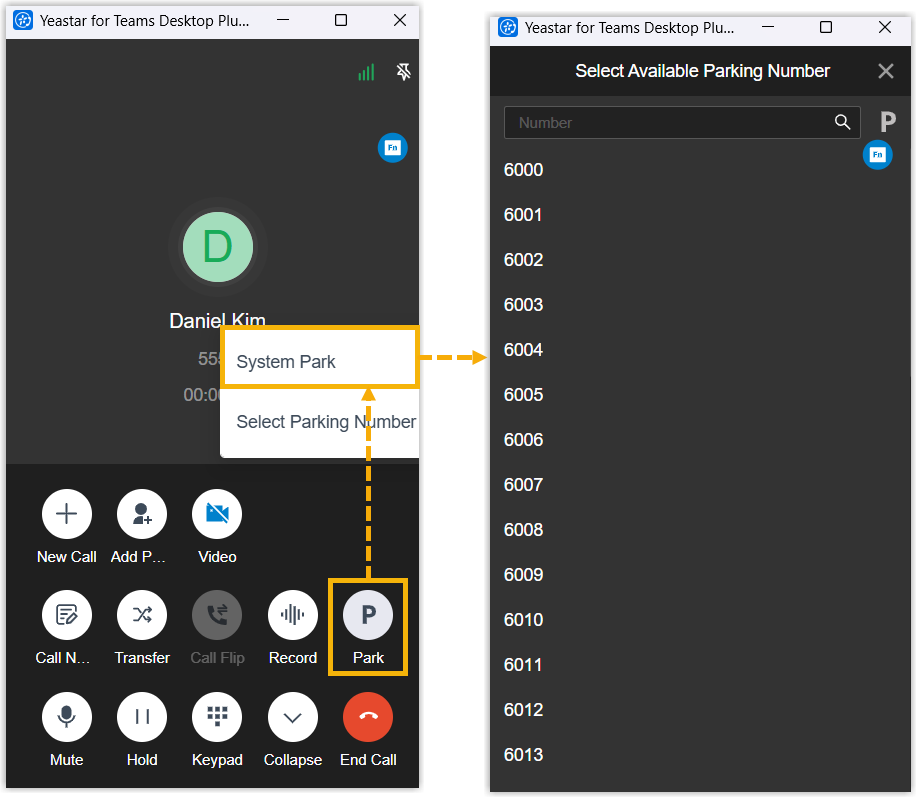
| Park a call |
During an active call, park the call as needed.
|
| End a call | During an active call, click (End
Call) on the call window. |
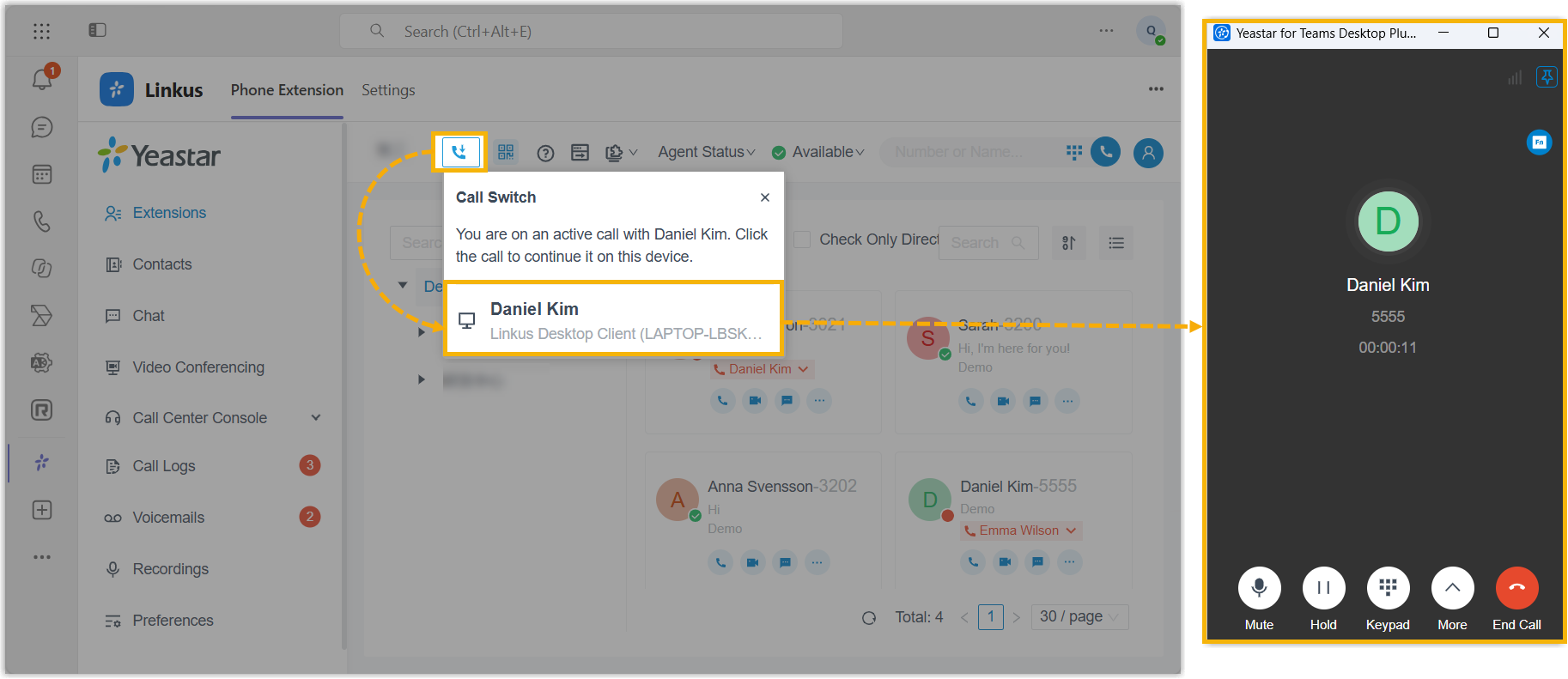
| Switch an active call | If you have an active call on another device, access Yeastar
Linkus for Teams within Microsoft Teams, click  at the top, then click the active
call. at the top, then click the active
call.The call is retrieved from the original device to Yeastar for Teams Desktop Plugin.
|
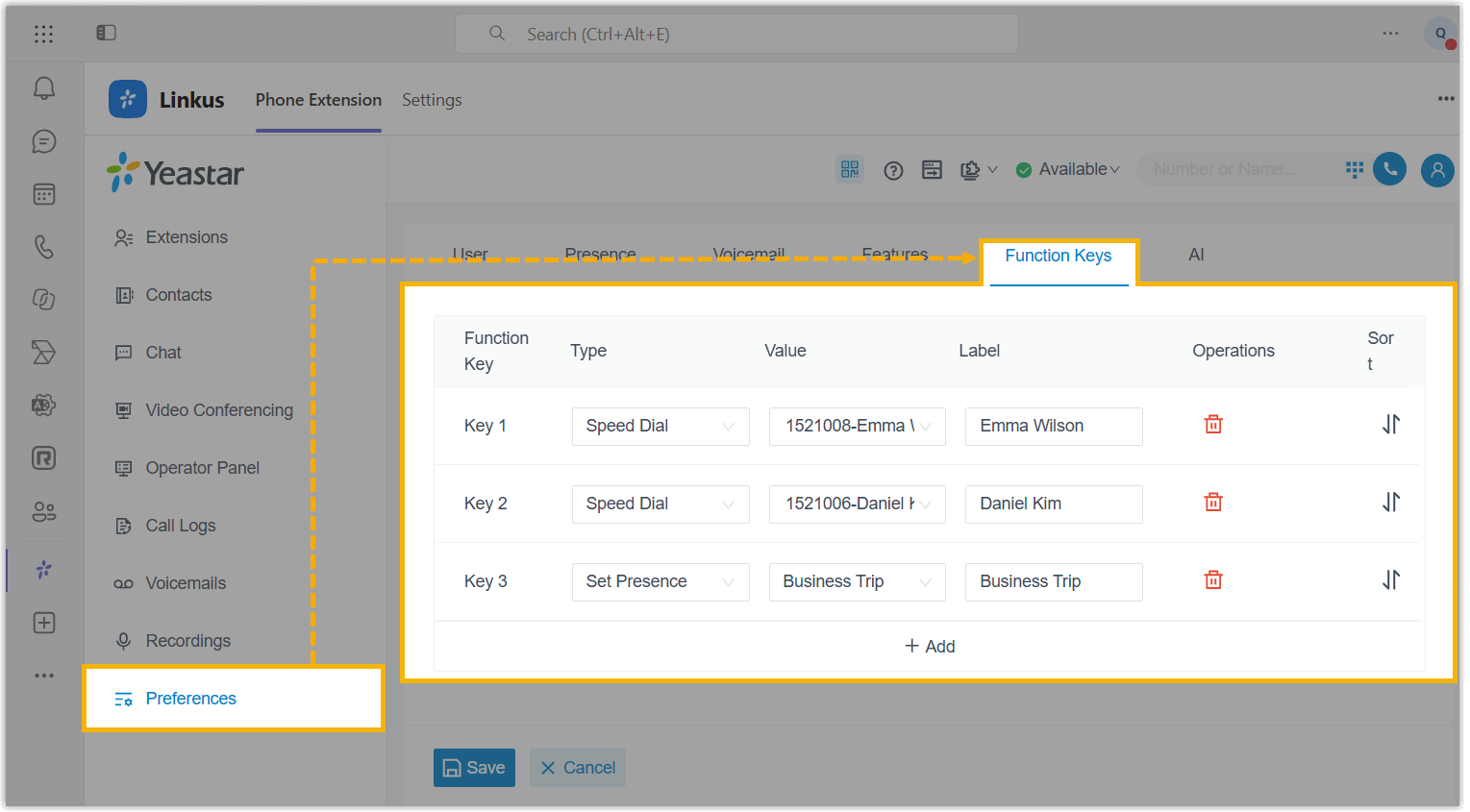
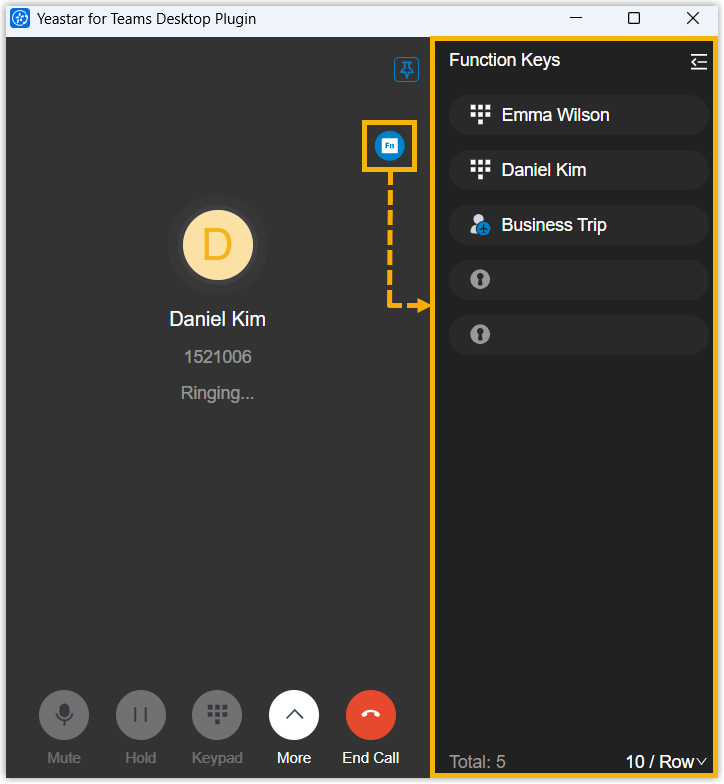
| Use function keys | Note: This feature is available only when
you have configured function keys on Yeastar Linkus for
Teams within Microsoft Teams. In the
outgoing call pop‑up, incoming call pop‑up or active call window,
click
 to open the function key
menu, then click desired function keys to quickly perform specific
operations or monitor status of specific objects. to open the function key
menu, then click desired function keys to quickly perform specific
operations or monitor status of specific objects.
|
 on the incoming call
pop-up.
on the incoming call
pop-up. to accept the video call or
click
to accept the video call or
click