Upload a Template for a Custom Phone Model
For unsupported phone models from Yeastar-supported vendors, you can upload custom templates and custom the model name. This allows you to add these phones to the PBX system for auto provisioning. This topic describes how to upload a template for a custom phone model.
Prerequisites
- Make sure that the firmware of Yeastar P-Series PBX System is 37.20.0.21 or later.
- Prepare a configuration file for your phone model.Note: The file size can NOT exceed 5 MB.
Procedure
- Log in to PBX web portal, go to .
- Click Add.
- In the Basic section, complete the following basic
settings.
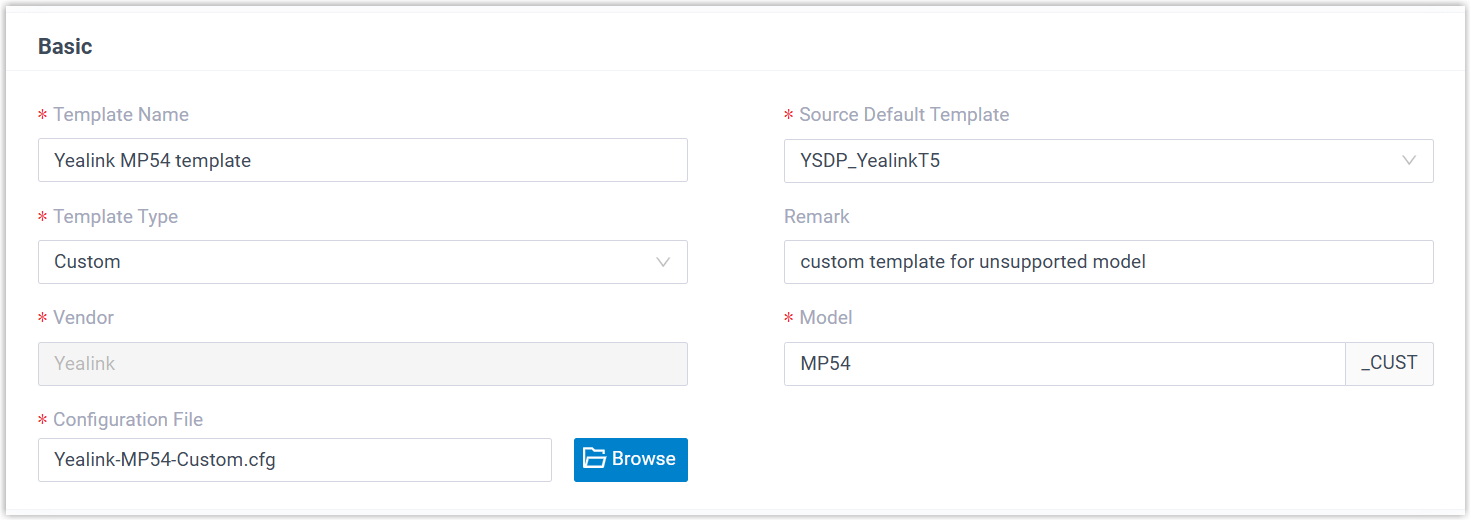
- Template Name: Enter a name to help you identify the template.
- Source Default Template: Select a
template for the phone model of the same vendor.
The system will recognize the vendor and retrieve general settings from the selected source template, ensuring your custom model inherits standard configurations.
- Template Type: Select Custom.
- Remark: Optional. Enter a remark for future reference.
- Model: Enter the custom phone model.
The system will automatically add a suffix
_CUSTto this name to indicate it is a custom phone model. - Configuration File: Click Browse, then select your configuration file to upload.
- Click Save.
Result
- The template is uploaded and displayed in the list.
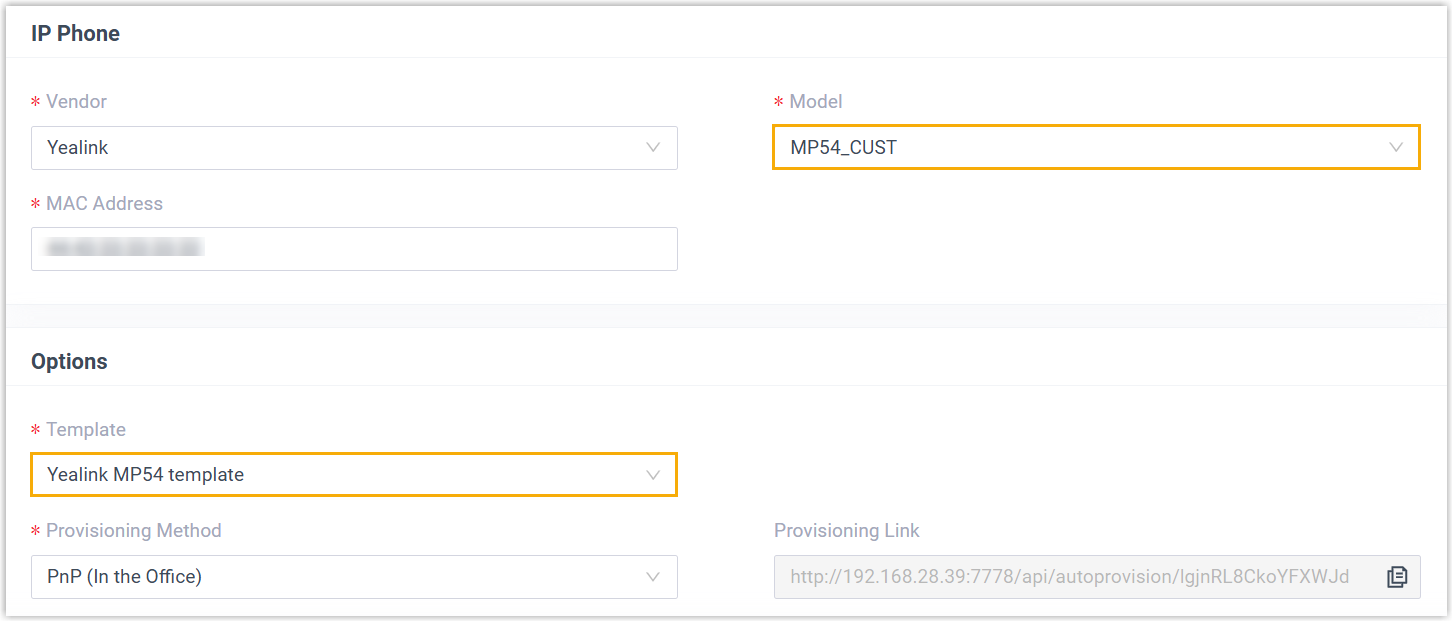
- You can select your custom phone model and the corresponding template when
adding a phone; The system will automatically deliver the configuration file
uploaded in the template to the phone.Note: If you want to modify phone configurations, click
 beside
the custom template to upload a new configuration file, and click
beside
the custom template to upload a new configuration file, and click  to update the configurations to the
phone.
to update the configurations to the
phone.