Set Up Function Keys for Users Using a Template
A function key template allows you to apply the same set of function keys to multiple user extensions, eliminating the need to configure the same function keys for each user individually.
Supported function key types
NovoOne supports multiple function key types, each providing different functionality.
The following table lists the supported function key types and their functions. For detailed configuration instructions and examples, refer to the corresponding topics.
| Key Type | Function |
|---|---|
| N/A | No function is assigned to the key. |
| Line | Select a SIP account for making calls. Note: The key type is supported on IP
phones only.
|
| BLF |
For more information, see Monitor User's Extension Status on an IP Phone. |
| Speed Dial | Place a call to frequently dialed numbers. |
| Check Voicemail |
|
| Park & Retrieve |
For more information, see Park a Call. |
| Intercom | Place an intercom call to a specific extension. |
| DTMF | Send DTMF digits without entering them manually each time. Note: Only numbers,
#,
and * are supported. |
| Agent Login/Logout |
|
| Agent Pause/Unpause |
|
| Call Forward | Always forward incoming calls to a specified destination. Note: The key type is supported on IP
phones only.
For more information, see Forward All Incoming Calls. |
| Action URL | Send an HTTP GET request to a specified URL. Note: The key type is supported on IP
phones only.
|
Step 1. Create a function key template
- Log in to NovoOne Tenant portal, go to .
- At the top of the user list, click Function Keys
Template.
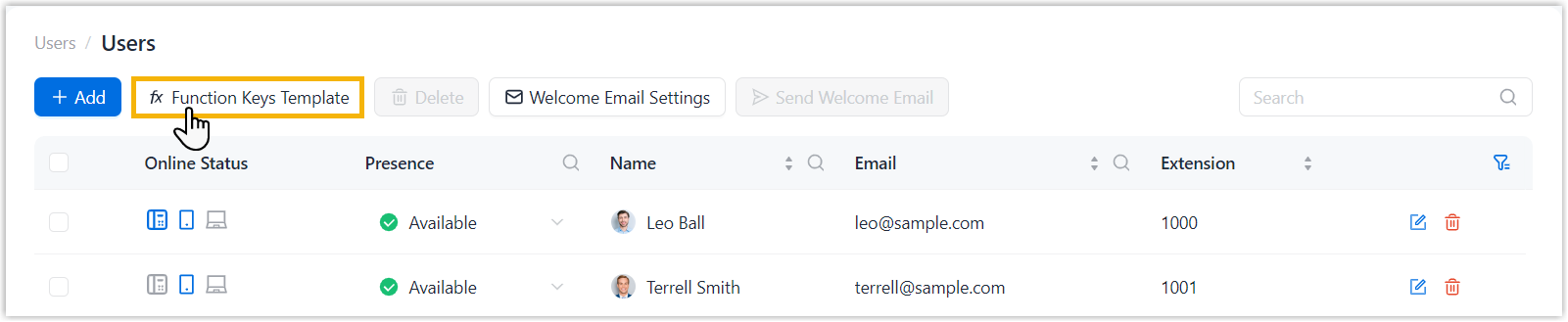
- In the pop-up widow, perform the following operations.
- On the top-left corner, click Add.
- In the pop-up window, complete the following settings.
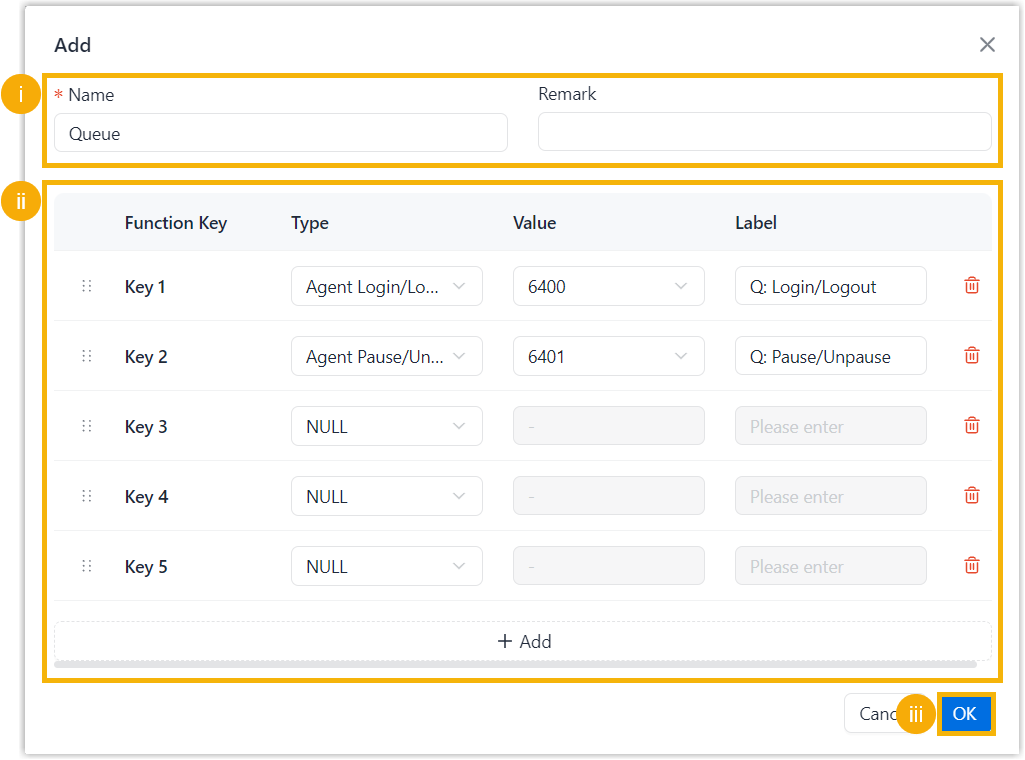
- Enter basic information for the template.
Setting Description Name Enter a name to help identify the template. Remark Enter a brief description of the template. - Add and configure function keys.
- Click OK.
- Enter basic information for the template.
- Close the window.
Step 2. Apply the template to user extensions
- On the users list, click
 beside the desired user.
 - In the Function Keys tab, click Apply Function
Keys Template.
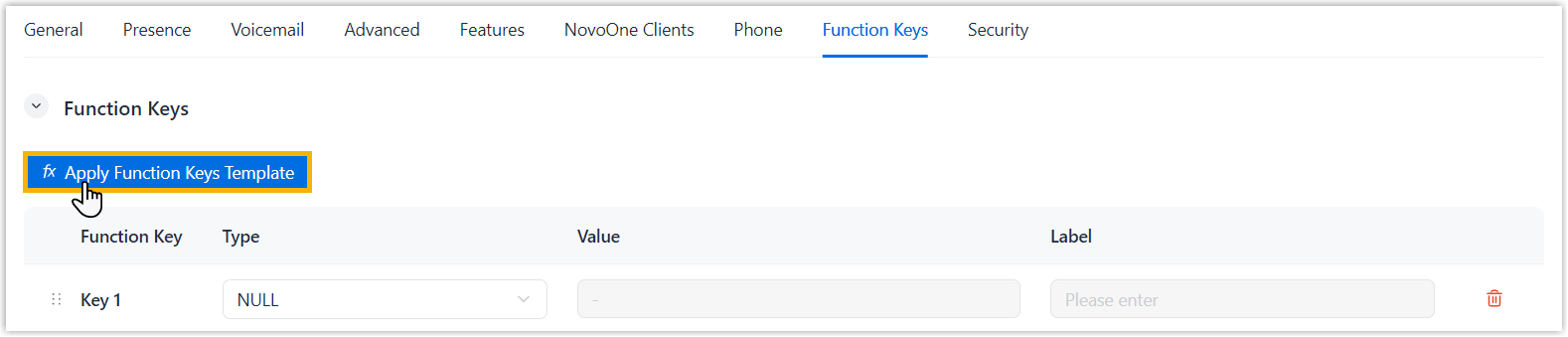
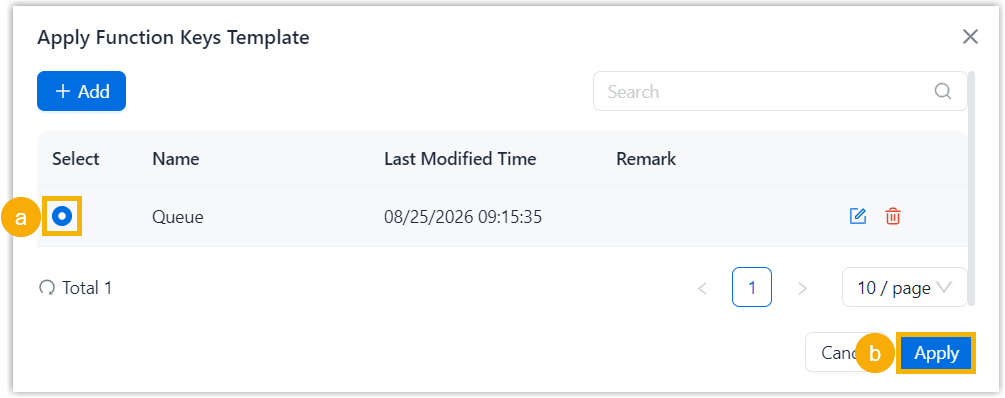
- In the pop-up window, select the desired template, then click
Apply.
- Click Save.
Result
The function keys in the selected template are applied to the user's NovoOne Web Client and provisioned IP phone.