Park and Retrieve Calls
This topic describes how to park an active call and retrieve it from another phone.
Park a call using feature code
Users can park active calls by dialing the configured feature code from any endpoint where their extension is registered.
- Park a call on a system-assigned parking number
-
- During an active call, dial the System
Park feature code (default:
*5).The system announces the assigned parking number, then hang up the call.
- Dial the announced parking number from any phone to retrieve the parked call.
- During an active call, dial the System
Park feature code (default:
- Park a call on a specific parking number
-
- During an active call, dial the Select Park
Extension feature code
(default:
*05) followed by {target_parking_number}.The system confirms that the call has been parked, then hang up the call.
- Dial the specified parking number from any phone to retrieve the parked call.
- During an active call, dial the Select Park
Extension feature code
(default:
Park a call using function key
For users who have access to NovoOne Web Client or have an IP phone, you can configure a function key mapped to a specific parking number for their extensions, allowing them to park an active call to that parking number by pressing the function key.
- Assign a function key for a user.
- Log in to NovoOne Tenant portal, go to .
- Click
 beside the
desired user.
beside the
desired user. - In the Function Keys tab, add and configure a
function key.
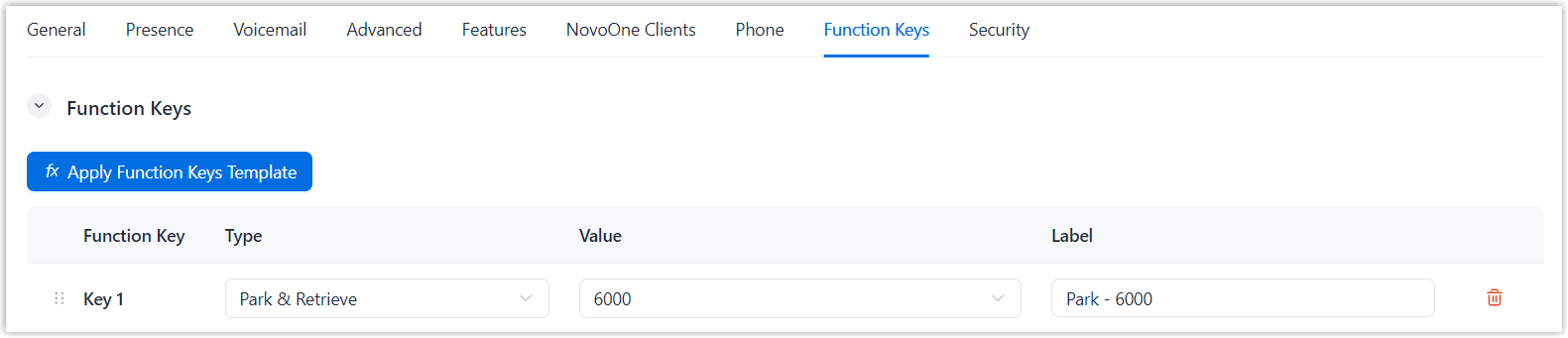
Setting Description Type Select Park & Retrieve. Value Select the target parking number. Label Optional. Enter a label, which will be displayed on the function key panel in NovoOne client or on the IP phone screen. - Click Save.
- (Optional) To apply the function key to an IP phone, register the user's
extension on the IP phone through provisioning. For more information, see
Auto Provision an IP Phone.After the extension is registered, the function key is assigned to the IP phone. The user can identify the parking number status by the LED indicator on the function key.
- Green LED: The parking number is available.
The user can press the key during an active call to park the call.
- Red LED: The parking number is occupied.
The user can press the key to retrieve the parked call.
- LED Off: The function key is not subscribed to the
parking number.Note: Check whether the configuration is correct.
- Green LED: The parking number is available.
- During an active call, press the key to park the
call.
The system confirms that the call has been parked.
- Dial the parking number from any phone to retrieve the parked call.
Park a call using dedicated button
For users who have access to NovoOne Mobile Client or Web Client, they can park their active calls using a dedicated button.
- Park a call on a system-assigned parking number
-
- During an active call, click Park on the
call panel, then click System Park.
The system announces the assigned parking number, then hang up the call.
- Dial the announced parking number from any phone to retrieve the parked call.
- During an active call, click Park on the
call panel, then click System Park.
- Park a call on a specific parking number
-
- During an active call, click Park on the
call panel, then click Select Park
Extension.
The system confirms that the call has been parked, then hang up the call.
- Dial the specified parking number from any phone to retrieve the parked call.
- During an active call, click Park on the
call panel, then click Select Park
Extension.