Configure Call Parking Settings
This topic describes how to configure call parking settings, including parking number range and timeout settings.
Procedure
- Log in to NovoOne Tenant portal, go to .
- In the left navigation pane, click Call Parking, then
configure the parking number range and timeout settings in the
Advanced Settings section.
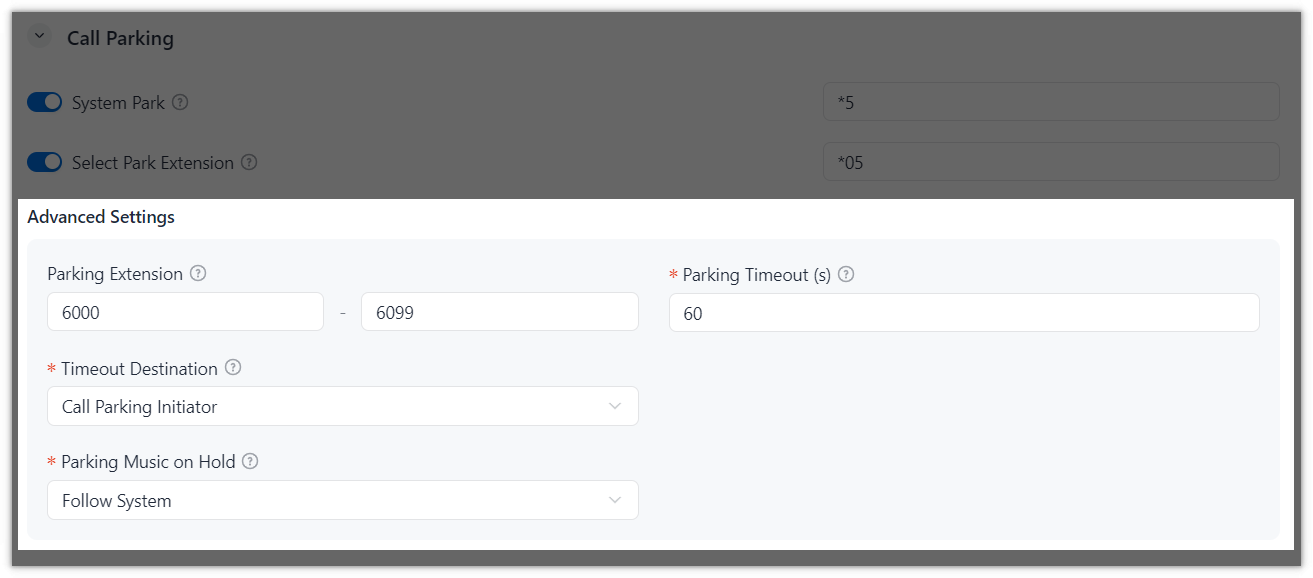
Setting Description Parking Extension Set the number range for call parking.
Note: The range is synchronized with .Parking Timeout (s) Set the maximum time allowed before a parked call is retrieved.
If the timeout is reached, the call is routed to the configured timeout destination.
Timeout Destination Select a destination to route the call when the parking timeout is reached. - Call Parking Initiator: Route the call back to the user who parked it.
- User: Route the call to
a specific user.
You need to select a user from the subsequent User drop-down list.
- User Voicemail: Route
the call to a specific user's voicemail.
You need to select a user from the subsequent User drop-down list.
- External Number: Route
the call to an external number.
You need to enter a number in the subsequent External Number field.
Note: If a dial prefix is required, enter it in the Prefix field.
Parking Music on Hold Set the music played when a call is parked. Note: Available music is synchronized from . You can select from existing music, or choose one of the following options.- Create New: Add a new Music on Hold playlist.
- Follow System: Play the default Music on Hold playlist (the playlist configured in ).
- Ring Tone: Play a ring tone.
- Default: Play the default Music on Hold playlist (the playlist named Default in ).
- Click Save.