Set up a SIP Phone
This topic describes how to manually register a user extension on a SIP phone.
Prerequisites
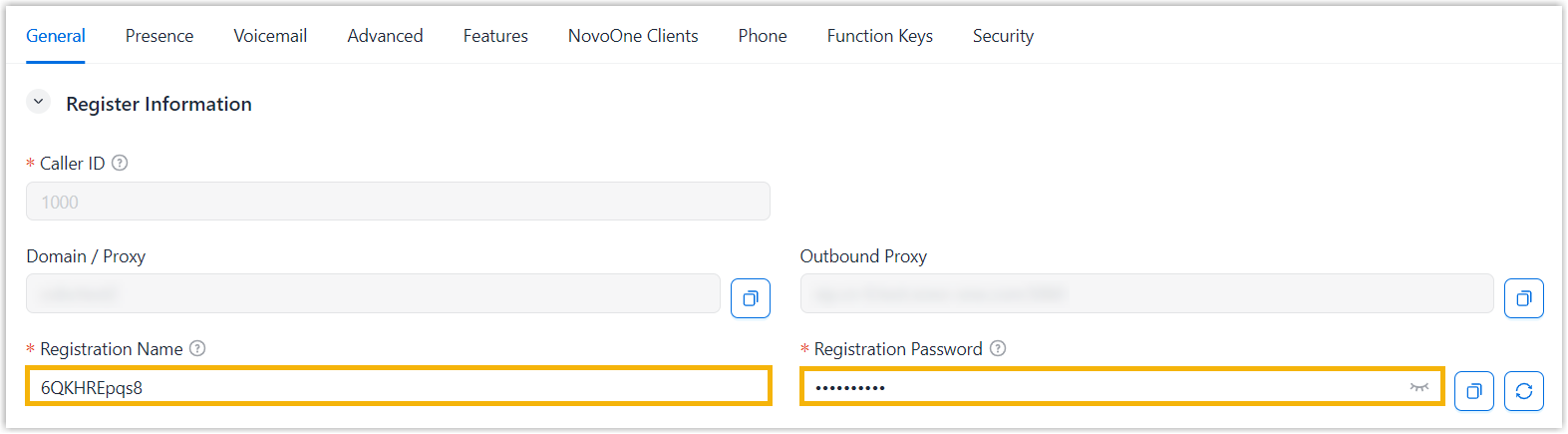
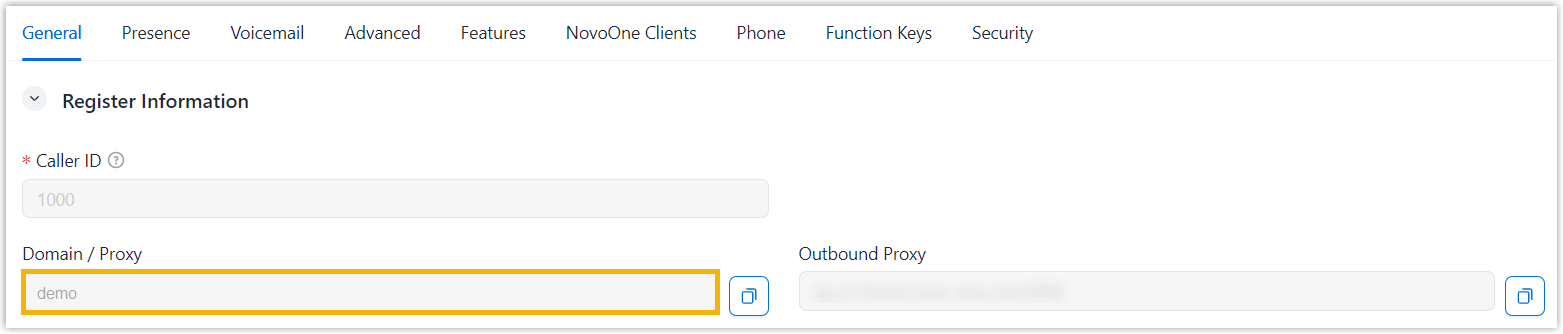
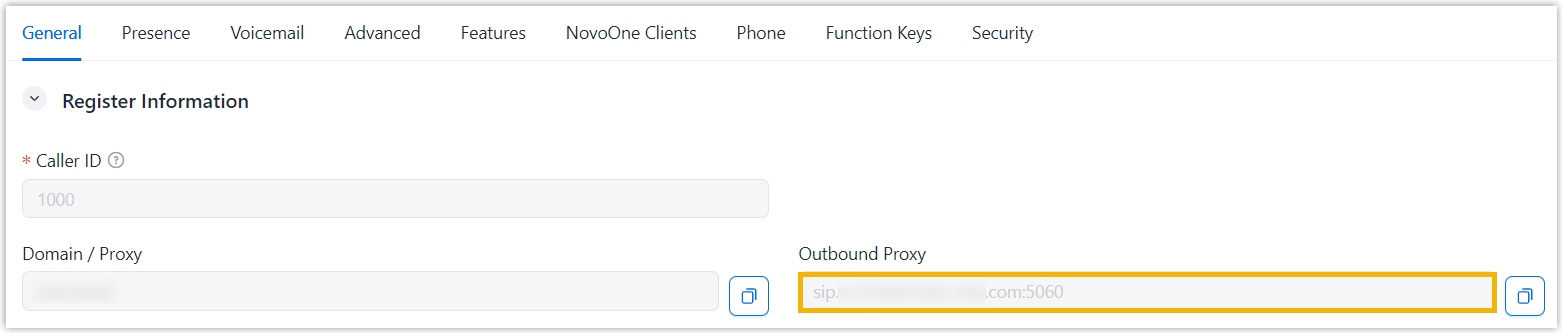
You have created a user extension and obtained the information required for extension registration.
| Item | Access Path |
|---|---|
| Extension Information |
|
| Tenant Information |
|

Procedure
We take Yealink T28P as an example to show you how to manually register an extension.
- Log in to the phone's web interface, go to Account tab.
- Select an available account and enable it.

- Enter the required information to register the extension.
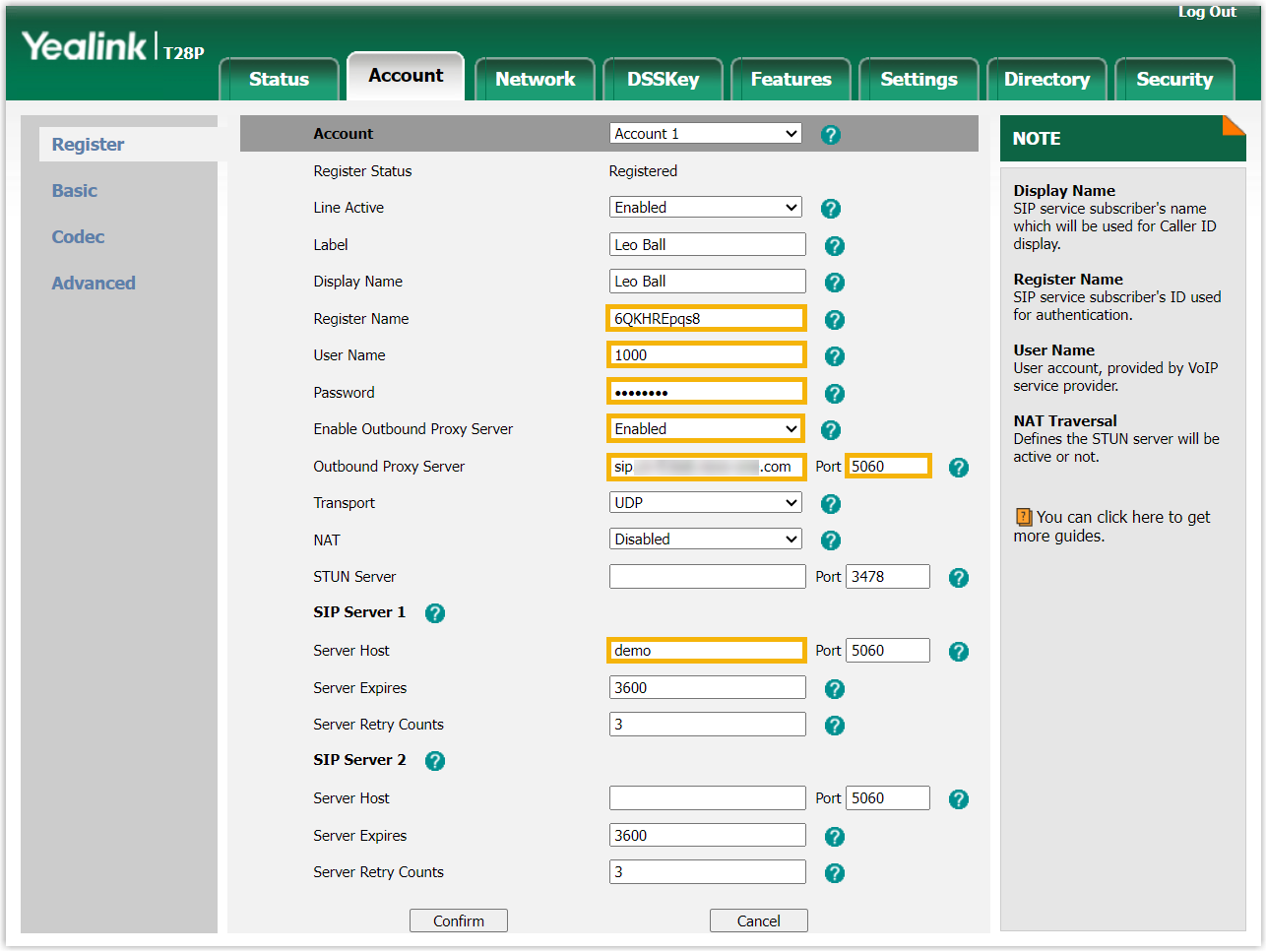
- Click Confirm.
Result
- The extension is registered on the SIP phone. You can verify the extension's
registration status in either of the following ways:
- On the phone's web interface, check whether the account is registered.
- On NovoOne tenant portal, go to to check whether the endpoint icon displays
 in the Online
Status column.
in the Online
Status column.
- The user can make and receive calls using the SIP phone.