Switch the RM Mode of P-Series Appliance / Software Edition
This topic describes how to switch the RM (Remote Management) mode of a P-Series Appliance / Software Edition remotely connected to Yeastar Central Management. By switching the RM mode, you can change the device to use its own remote connection quota instead of consuming your account's quota.
Introduction
Yeastar supports the following two RM (Remote Management) modes:
- Plan-bound: The remotely connected device uses its own Remote Management Connection to connect to Yeastar Central Management. The remote connection expires according to the device's subscription expiration date.
- Standalone: The remotely connected device uses your account's Remote Management Connection to connect to Yeastar Central Management. The remote connection expires according to the expiration date of your account's Remote Management service subscription.
If a device is connected to Yeastar Central Management using your account's remote connection quota, you can switch its RM mode from Standalone to Plan-bound to make it use its own connection quota.
Requirements and restriction
- Requirements
- P-Series Appliance / Software Edition must meet the following requirements:
- Restriction
-
- Switching RM mode is NOT supported on a standby server or redundancy server.
- Switching RM mode from Plan-bound to
Standalone is NOT allowed.Note: This ensures that the device's own connection quota always takes priority.
Prerequisites
P-Series Appliance / Software Edition is connected to Yeastar Central Management using your account's remote connection quota.Procedure
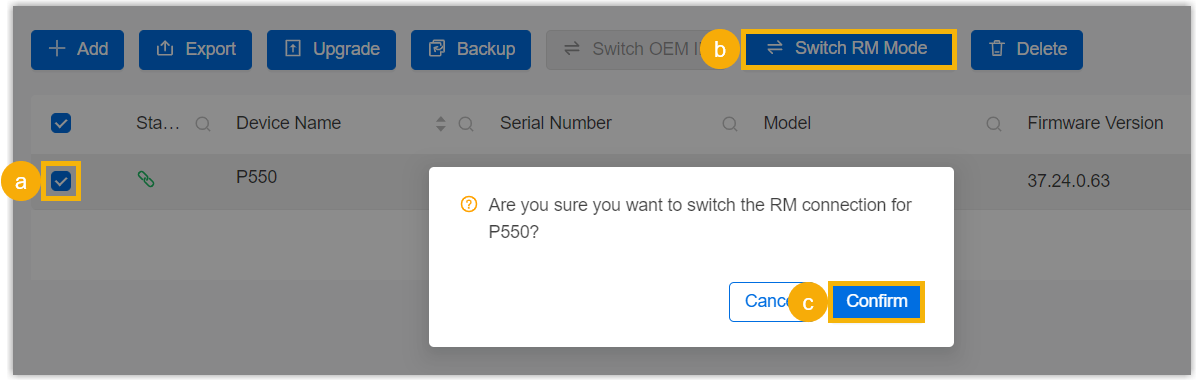
- Log in to Yeastar Central Management, go to .
- Select the checkboxes of the desired PBXs, click Switch RM
Mode and confirm the operation.
Result
The RM mode is switched from Standalone to Plan-bound, and the PBXs connected to Yeastar Central Management will use their own remote connection quota.