Park a Call
During an active call, you can directly tap on the call screen to park the call on a system-assigned or manually selected parking number.
Parking types
Both the parking timeout and the timeout destination are configured by your system administrator on PBX server.
- System Park: If you need to temporarily switch
devices or hand off a call to any available colleague, park the call on a system-assigned
parking number.
You can then either dial the number on another device or share it with your team for a quick handoff.
- Selected Park Number: If the departments or
individuals have their own dedicated parking numbers, you can park the call on a specified
parking number according to your need.
For example, you need to hand off a call to a designated department, park it directly on their shared parking number. Members of that department can then retrieve the call from their devices to seamlessly continue the call.
Park a call on a system-assigned parking number
- Requirements
-
Platform Requirements PBX Server - Version 84.21.0.66 or later.
- System administrator has enabled the Call Parking feature code on PBX server.
Linkus Mobile Client - Linkus iOS Client: 5.21.3 or later
- Linkus Android Client: 5.21.7 or later
- Scenario
- During a call, if you need to go from the public area to a conference room, you can park the call. On the IP phone in the conference room, simply dial the parking number to continue the call.
- Procedure
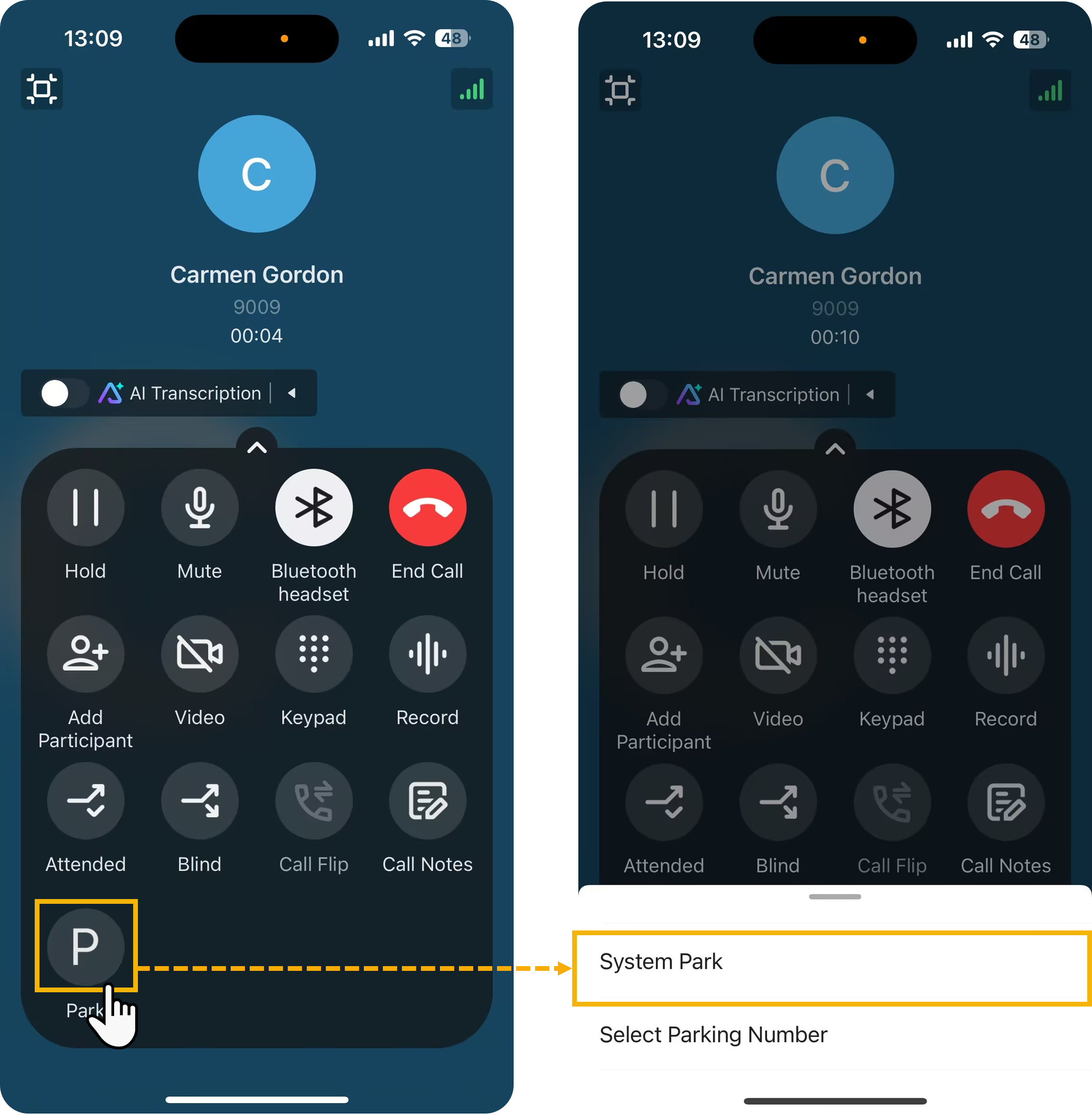
- During an active call, tap Park on the call screen,
then select System Park.
- Result
-
-
The call is parked on a system-assigned parking number, and a toast notification appears on the screen showing the parking number, for example, "The call has been parked at 6000.".Note: If no parking number available, a toast notification appears with the message "No available parking slot." and the call is automatically resumed.
- You can dial the parking number on the device with a PBX extension registered in the conference room to retrieve the call.
-
Park a call on a specified parking number
- Requirements
-
Platform Requirements PBX Server - Version 84.21.0.66 or later.
- System administrator has enabled the Call Parking feature code on PBX server.
Linkus Mobile Client - Linkus iOS Client: 5.21.3 or later
- Linkus Android Client: 5.21.7 or later
- Scenario
-
To facilitate internal collaboration, each department has its dedicated parking number (e.g.,
6004for Sales department).During an active call, if your customer requires another department's (e.g., Sales) service, you can park the call on the department's parking number. Anyone in the designated department can retrieve the call using the number to quickly assist the customer.
- Procedure
-
- During an active call, tap Park on the call
screen, then select Selected Park
Number.
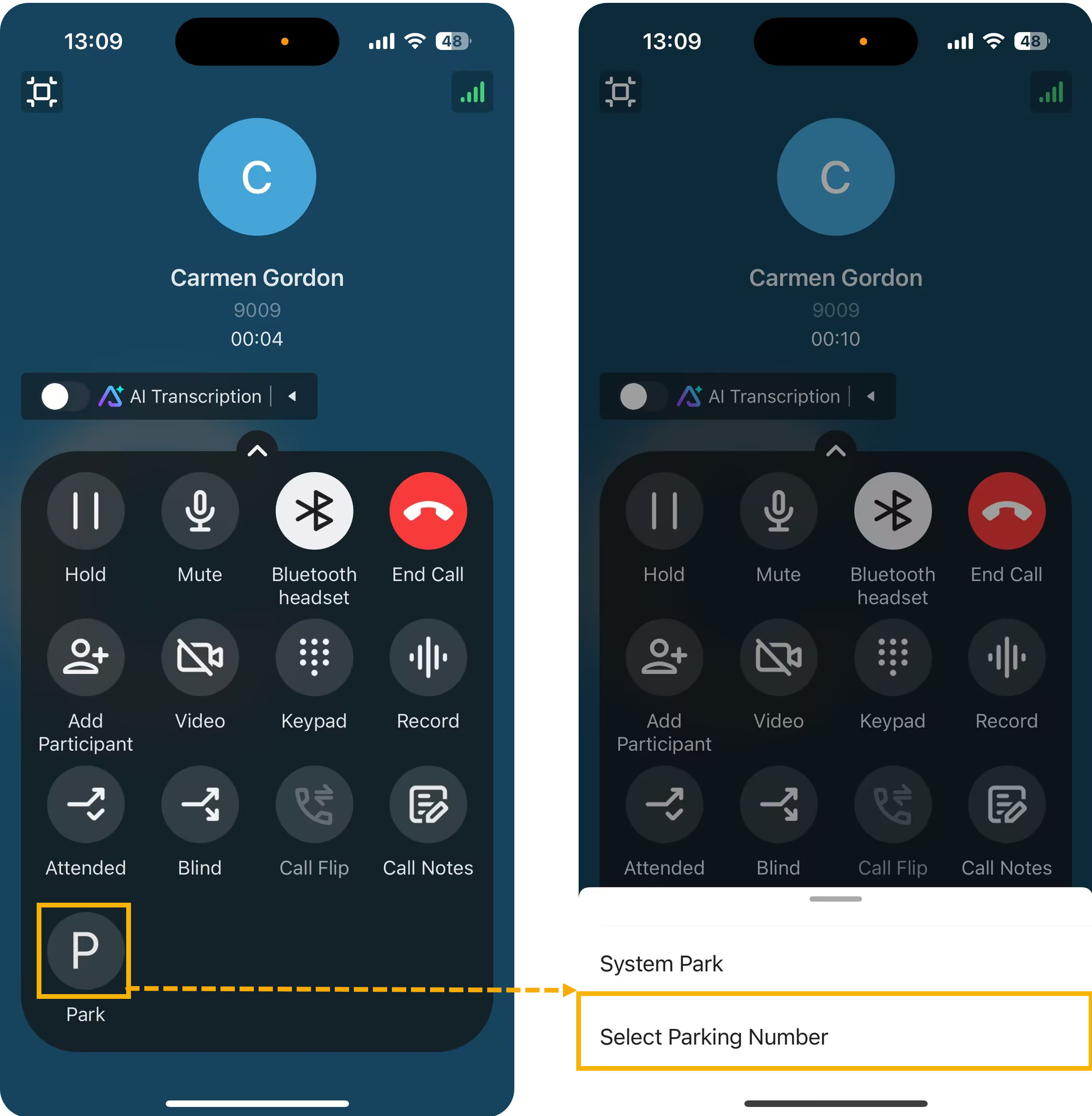
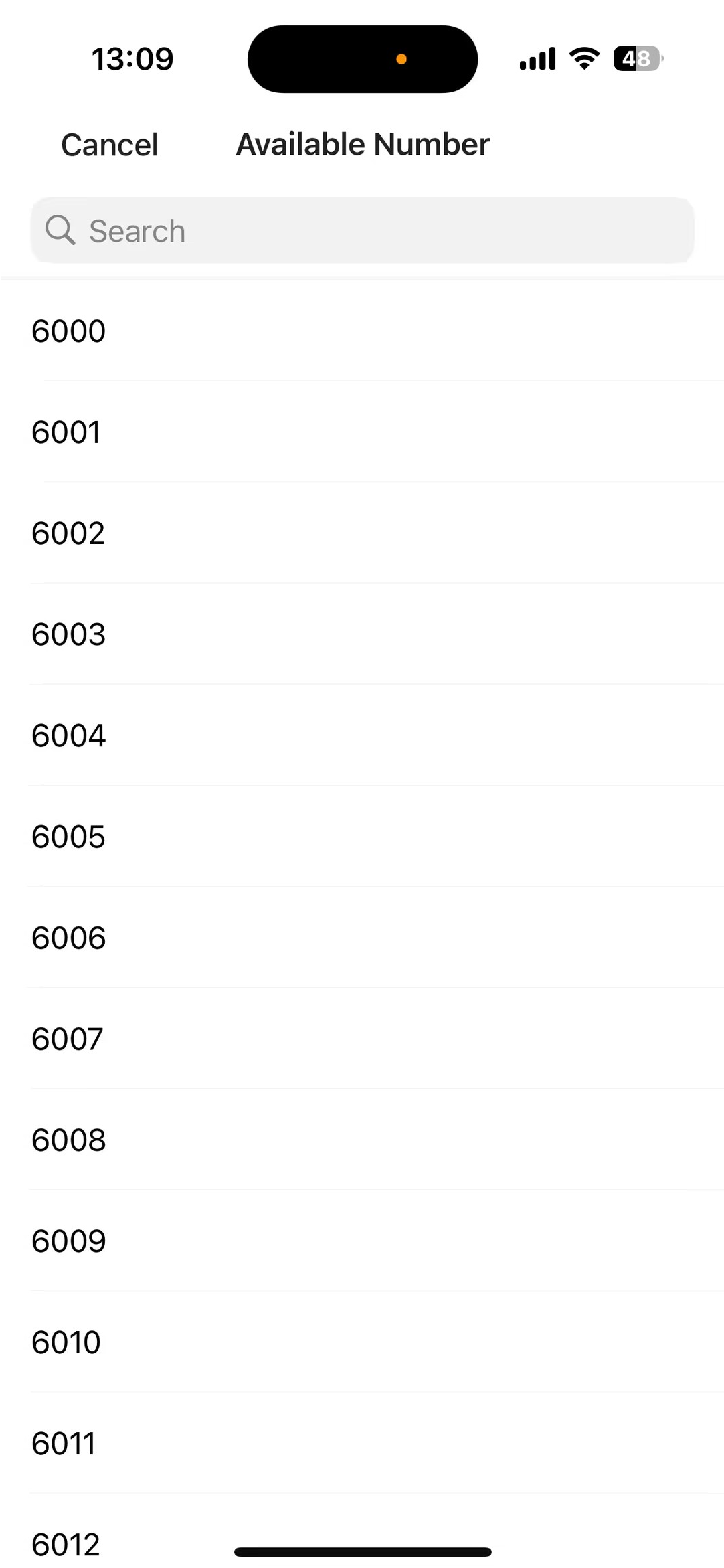
The call is put on hold, and the screen shows the list of currently available parking numbers.
-
In the Available Number list, search and select the desired parking number.
- During an active call, tap Park on the call
screen, then select Selected Park
Number.
- Result
-
- The call is parked on the specified parking number, and a toast
notification appears on the screen with the message "The call has
been parked at 6004.".Note: If the selected parking number is unavailable, a toast notification appears with the message "No available parking slot." and the call is automatically resumed.
- The salespersons can dial the parking number or press the associated Park & Retrieve function key to quickly retrieve the parked call.
- The call is parked on the specified parking number, and a toast
notification appears on the screen with the message "The call has
been parked at 6004.".