Configure AI Call Transcription
The AI-powered Call Transcription feature supports transcribing a call between two parties into readable texts, and automatically generating a summary after the call ends, helping you efficiently review call transcript, key points and to-do items. This topic describes how to configure AI call transcription on Linkus Mobile Client.
Note: The configuration will be synchronized across
your Linkus UC Clients.
Requirements
- PBX Server
-
- The firmware of the PBX server is 84.20.0.74 or later.
- System administrator has enabled Call Transcription for your extension.
- Linkus Mobile Client
- The version of your Linkus Mobile
Client meets the following requirements:
- Linkus iOS Client: 5.18.15 or later
- Linkus Android Client: 5.18.12 or later
Procedure
- At the top-left corner of the Calls page, tap your account.
- Go to .
- In the Call Transcription section, configure the
following settings according to your need.
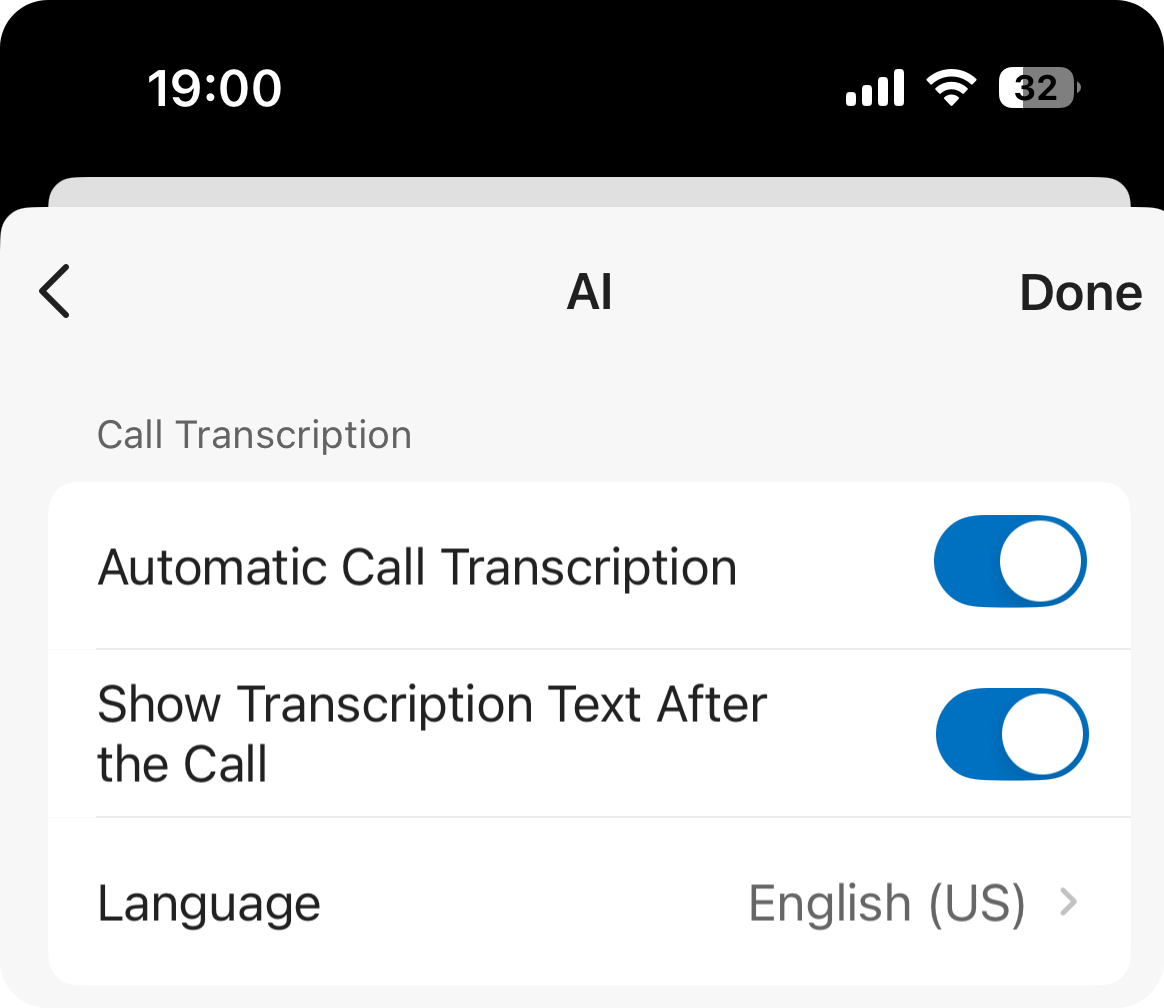
Setting Description Automatic Call Transcription Specify whether to automatically transcribe your calls in real time. Note: For calls belonging to call types for which the system administrator has configured automatic transcription, the call audio will still be automatically transcribed even if this option is disabled.Show Transcription Text After the Call Specify whether to automatically display the transcript and summary after the call ends. Note: Whether a summary can be automatically generated and displayed also depends on the system administrator's configurations on the PBX server.Language Select the desired language for call transcription. - At the top-right corner, tap Done.
Result
- Call audio can be recognized and transcribed in the configured language in real time, and can be automatically summarized after call ends.
- You can access the AI-generated transcript and summary of transcribed calls in call logs.