Use Function Keys on Linkus Mobile Client
Function keys allow you to monitor status of specific objects or quickly perform specific operations. This topic describes how to use function keys on your Linkus Mobile Client.
Requirements
- PBX Server
- The firmware version of the PBX server is 84.22.0.17 or later.
- Linkus Mobile Client
-
- Linkus iOS Client: Version 5.23.7 or later
- Linkus Android Client: Version 5.23.8 or later
Prerequisites
You have configured function keys on Linkus Web Client or Linkus Desktop Client.Procedure
- At the top-right corner of Linkus,
tap
 .Note: If you are on a Linkus call, tap
 to minimize the call screen first.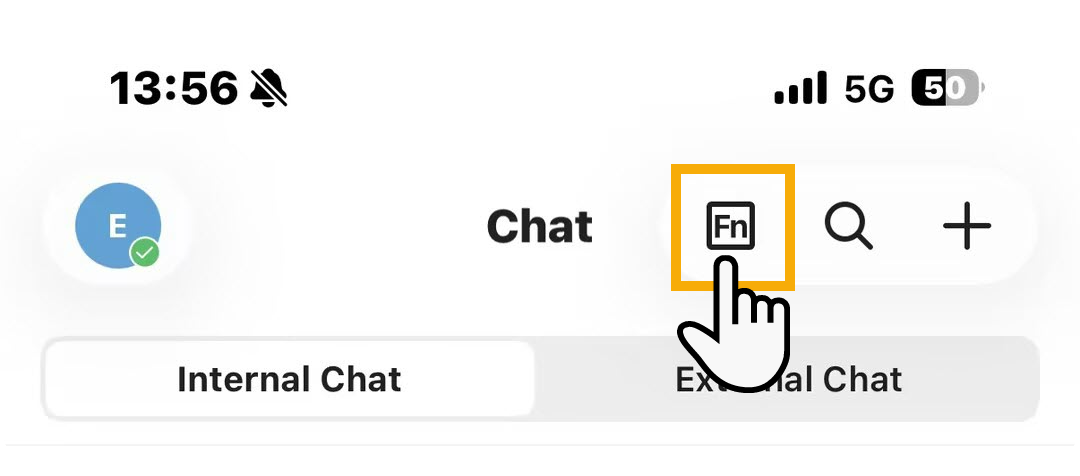
The Function Keys panel appears, displaying all configured function keys supported by Linkus, while those available only on IP phones are not shown.
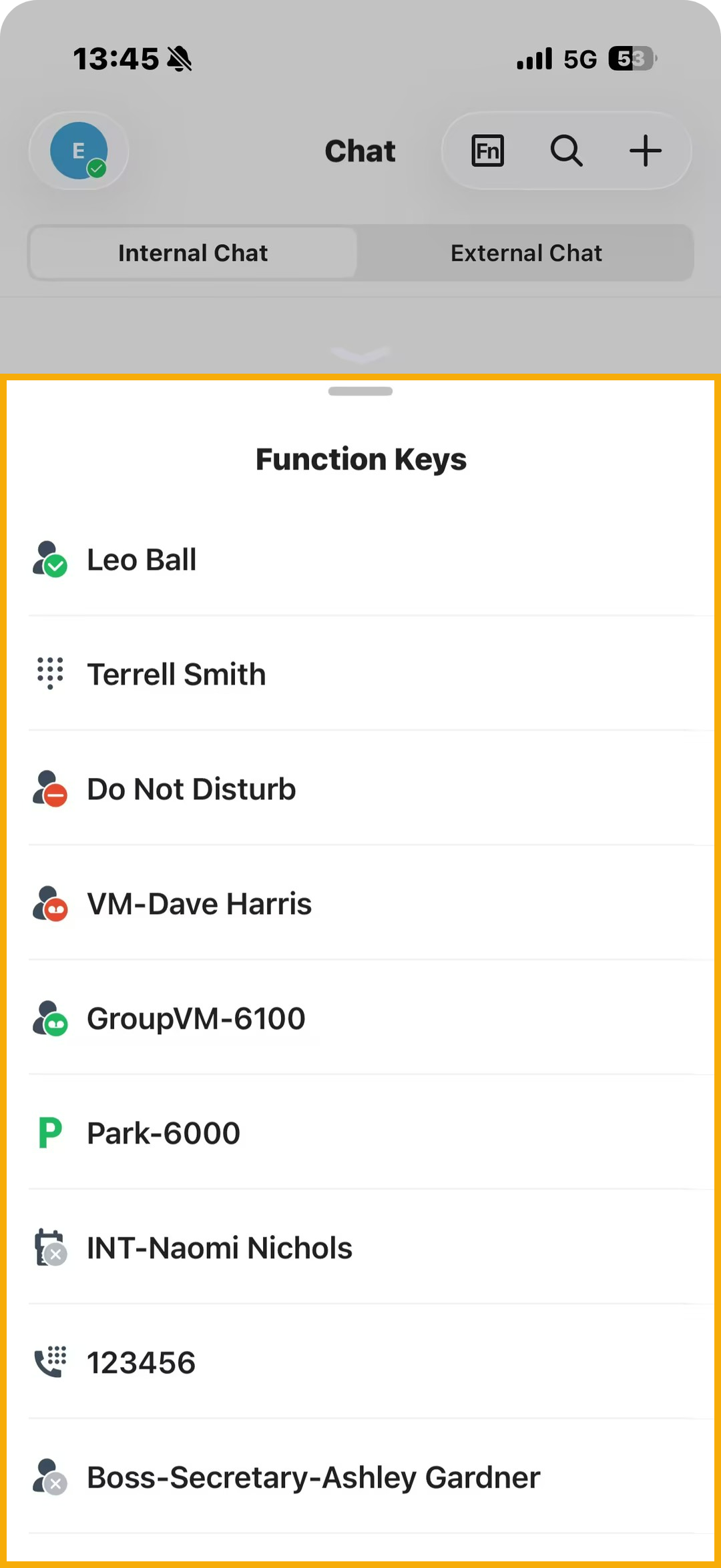
- Check the monitoring status of specific objects via the function keys, or tap the desired function key to quickly perform specific operations.
Troubleshooting: Why Can't I Use Some Function Keys
During a Call?
During a call, certain function keys may not perform their intended actions. The specific restrictions depend on the call type, as listed in the following table:
| Call Type | Description |
|---|---|
| Linkus 1:1 call | Tapping Speed Dial, Check Voicemail, Check Group Voicemail, Intercom, Boss-Secretary Feature function keys does not perform any call action. |
| Audio conference call / Multi-party call | Tapping BLF, Speed Dial, Check Voicemail, Check Group Voicemail, Park & Retrieve, Intercom, Boss-Secretary Feature function keys does not perform any call action. |
| GSM call |
|