Manage Logged-in Linkus Clients
On Linkus Mobile Client, you can view all Linkus clients logged into your extension and check information of their associated devices (device name, client type, and last login time). In addition, you can add remarks for the devices and log your extension out of specific ones.
Requirements
- System administrator has upgraded the PBX server to version 37.22.0.134 or later.
- The version of your Linkus Mobile Client
meets the following requirements:
- Linkus iOS Client: 5.24.13 or later
- Linkus Android Client: 5.24.7 or later
Add a remark for a device
- Procedure
-
- Log in to Linkus Mobile Client.
- At the top-left corner of the Calls page, tap your account.
- Tap
 beside your user
name.
beside your user
name.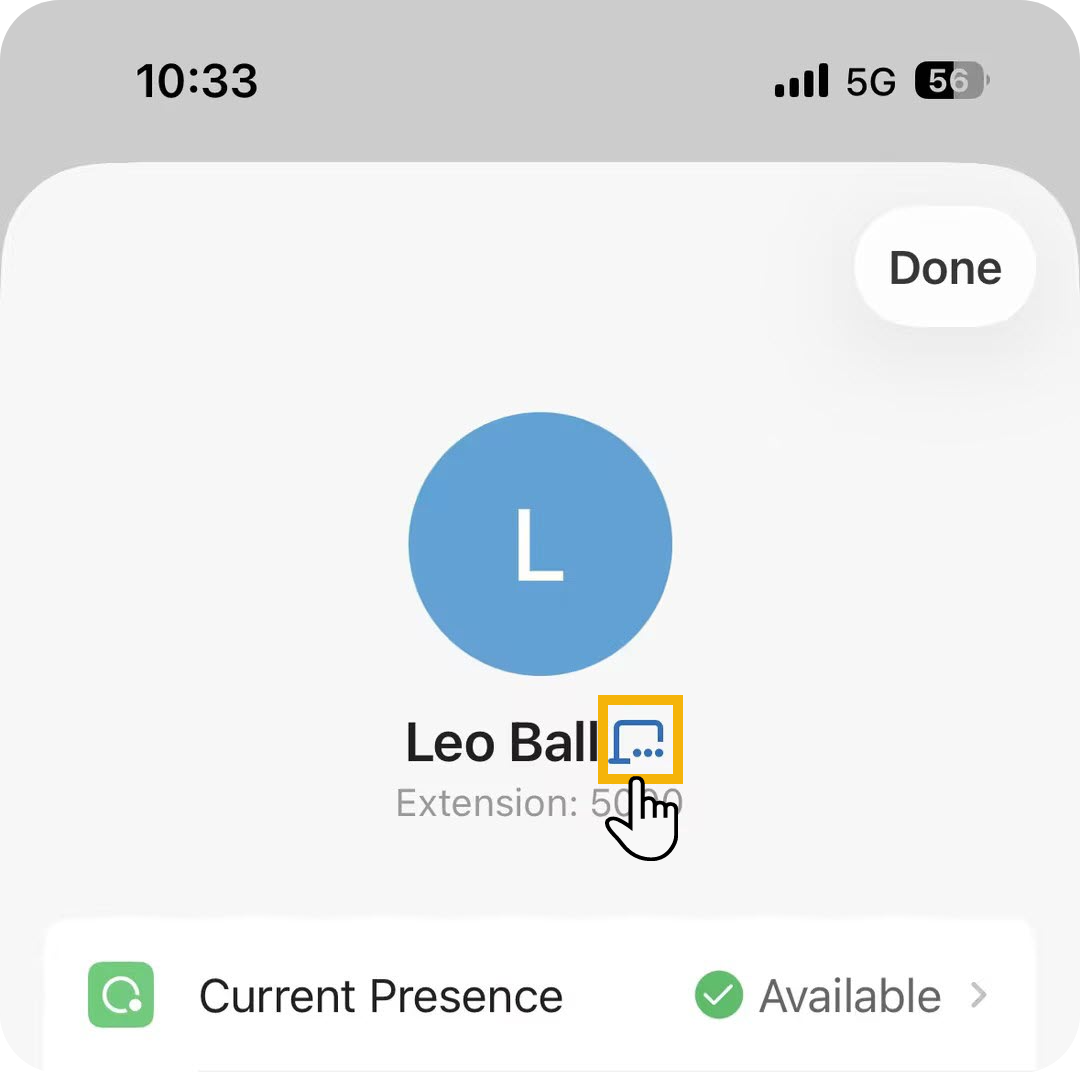
- In the list of currently logged-in devices, do
as follows.
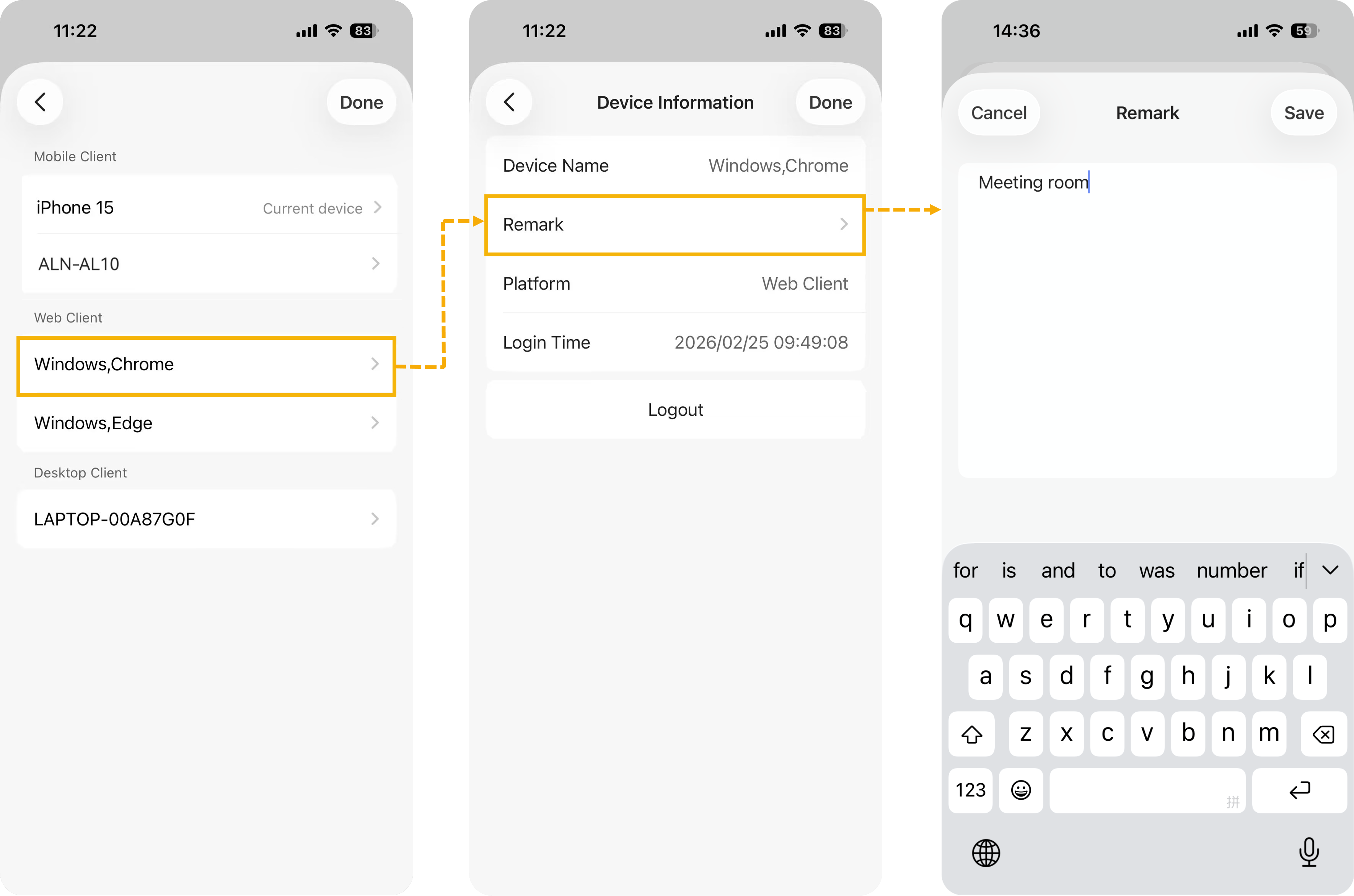
- Tap the desired device.
- In the Devices Information page, tap Remark.
- In the input text area, enter a remark, then tap Save.
- At the top-right corner, click Done.
- Result
- The remark is synchronized between all Linkus UC Clients.
Log out of a device
This section describes how to remotely log your extension out of other Linkus clients.Note: To log your extension out of current device, tap your
account at the top-left corner of Linkus
Call page, go to Account Management,
and then tap Logout.
- Procedure
-
- Log in to Linkus Mobile Client.
- At the top-left corner of the Calls page, tap your account.
- Tap beside your user
name.
- In the list of currently logged-in devices, do as
follows.
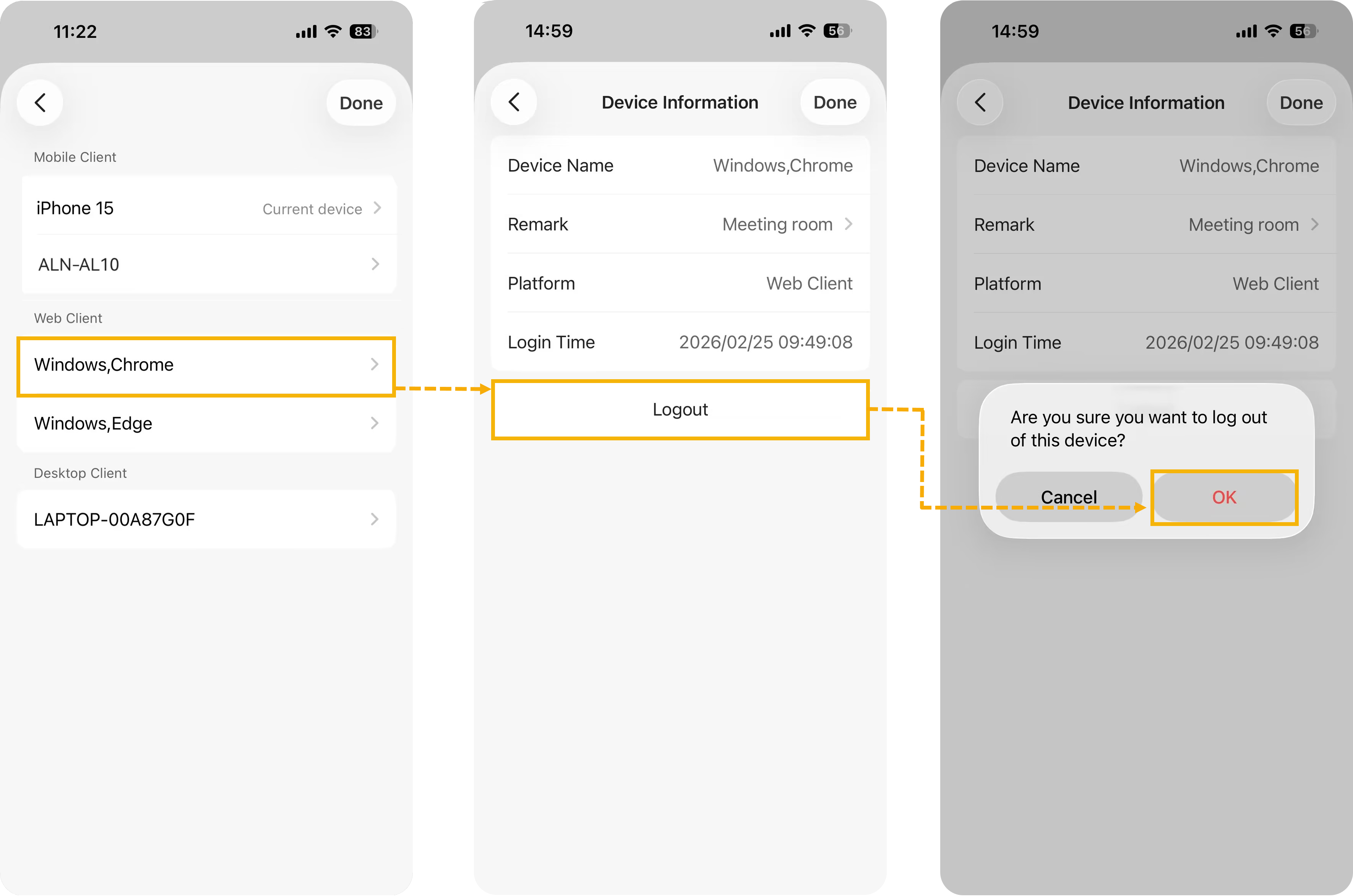
- Tap the desired device.
- In the Devices Information page, tap Logout.
- In the pop-up prompt, tap OK.
- Result
- The extension is successfully logged out of the desired device; A message "This device has been logged out by you or the administrator" appears on that device screen.