Set up Automatic Call Recording
Automatic call recording enables specified calls to be recorded automatically when they are connected, without manual intervention. You can set up automatic recording for internal calls, external calls, or queue calls.
Procedure
- Log in to NovoOne Tenant portal, go to .
- Configure the recording scope.
- In the Recording Scope section, configure the
recording range.
Setting Description Enable Internal Call Recording Specify whether to automatically record internal calls made or received by specific users.
If enabled, specify the users whose calls will be recorded in the Recording Objects section.
Enable External Call Recording Specify whether to automatically record external calls made or received by specific users. If enabled, specify the users whose calls will be recorded in the Recording Objects section.
Enable Queues Recording Specify whether to automatically record incoming calls received by specific queues. If enabled, specify the queues to be recorded, then specify agents whose calls will be recorded in the Recording Objects section.
- In the Recording
Objects section, specify the objects whose calls
will be automatically recorded.
Scenario Instruction Enable auto-recording for users with recording permission
In the Auto-Recording column, turn on the switch for the desired user.Note: By default, users with call recording permission (granted in ) are automatically synchronized to the list. You can enable auto-recording for users directly from this page.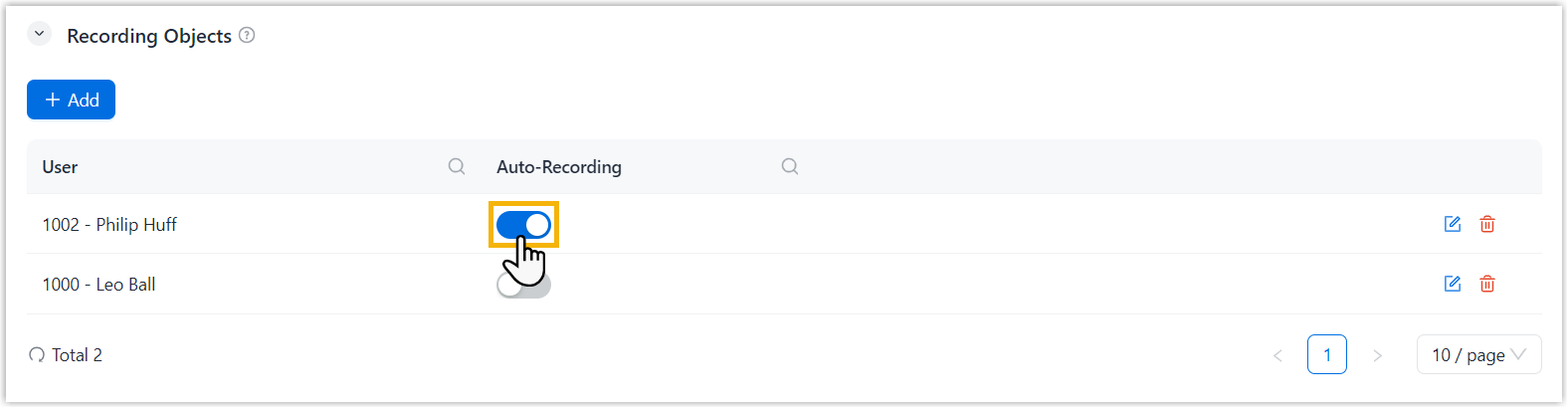
Add users to the recording list and enable auto-recording
Click Add to add users and configure them as recording objects. 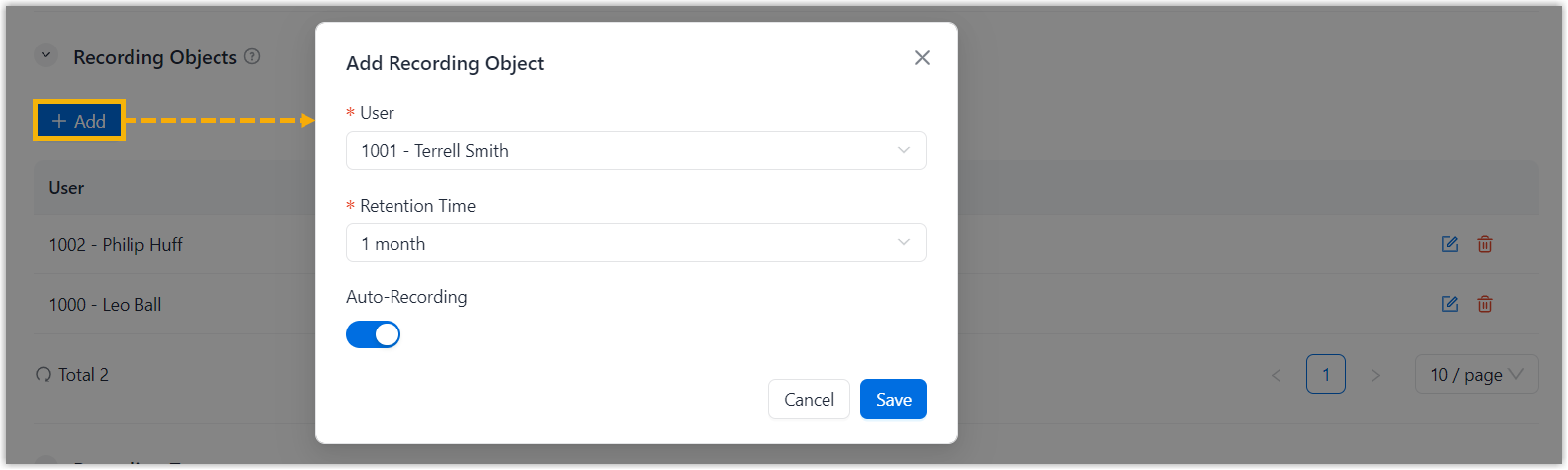
- User: Select the user whose calls will be automatically recorded.
- Retention Time: Select the retention time for recording files.
- Auto-Recording: Turn on the option.
Note: The setting is synchronized to corresponding user settings in .
- In the Recording Scope section, configure the
recording range.
- Click Save.
Result
- The system automatically records calls for the specified recording objects.
- Recording files are retained for the specified retention period, and
automatically deleted when the retention period expires.Note:
- By default, the recording retention period is determined by the user with call recording permission. If both call participants have call recording permission, the longer retention period takes precedence.
- As an administrator, you can access all recording files from
Tenant portal, while the authorized users can access their
recording files from NovoOne
clients.
For more information, see View and Manage Recording Files from Tenant Portal, View and Manage Recording Files from NovoOne Mobile Client, View and Manage Recording Files from NovoOne Mobile Client.