View and Manage Recording Files
After a call recording ends, you can view and manage recording files in Tenant portal.
View recording files
- Log in to NovoOne Tenant portal, go to .
- Set filter criteria to search for recording files.

Filter Description Time Set the start date and end date. Note: A maximum time range of 60 days is supported.Call From Enter the caller's number or name. Call To Enter the callee's number or name. CDR ID Enter the unique identifier of the associated CDR. Recording files that match the filter criteria are displayed in the list.

Play recording files
- Log in to NovoOne Tenant portal, go to .
- Optional: Set filter criteria to search for recording
files.
- Click
 beside the desired recording file, then select an option.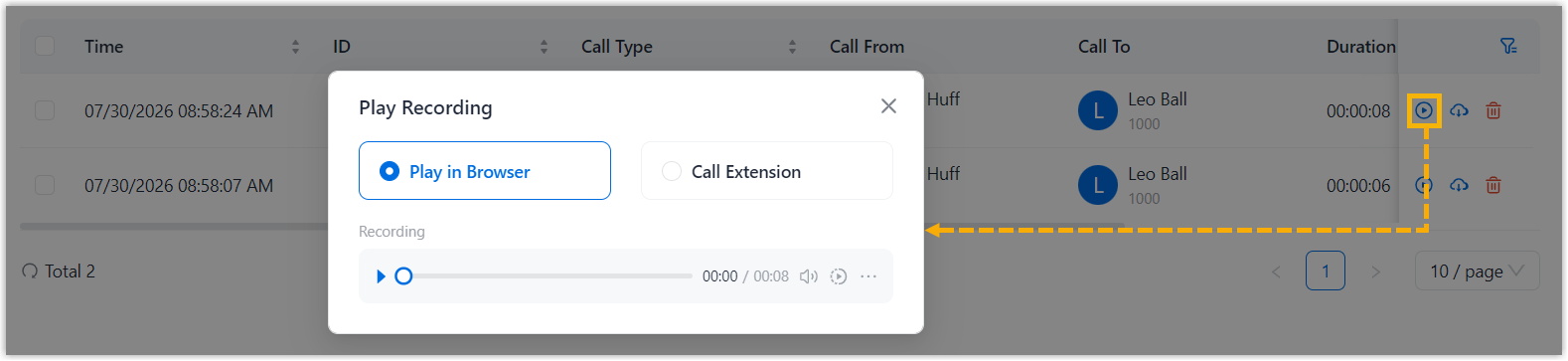
Option Instruction Play in Browser 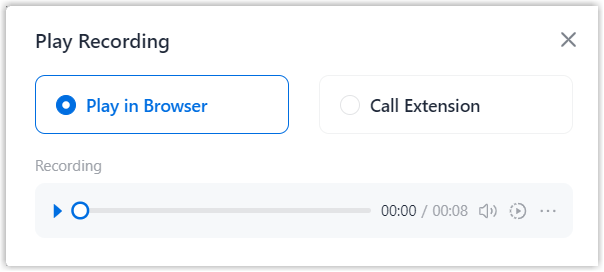
Play the recording directly in the browser. This option is selected by default. You can click
 to play the
recording, and adjust the playback speed as
needed.
to play the
recording, and adjust the playback speed as
needed.Call Extension 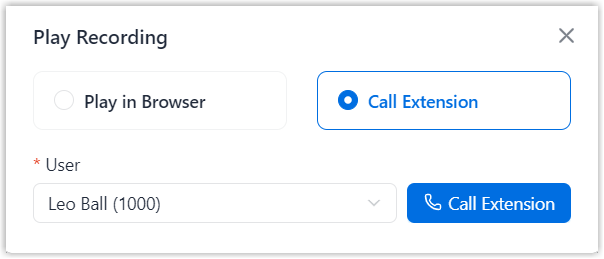
Play the recording on a user extension. If you choose this option, select a user and click Call Extension to initiate a call, then answer the call on the ringing device.
Download recording files
- Log in to NovoOne Tenant portal, go to .
- Optional: Set filter criteria to search for recording
files.
- Select the checkboxes of the desired recording files, then click
Download.

The recording files are downloaded to your local computer.
Delete recording files
- Log in to NovoOne Tenant portal, go to .
- Optional: Set filter criteria to search for recording
files.
- Select the checkboxes of the desired recording files, click
Delete and confirm the operation.
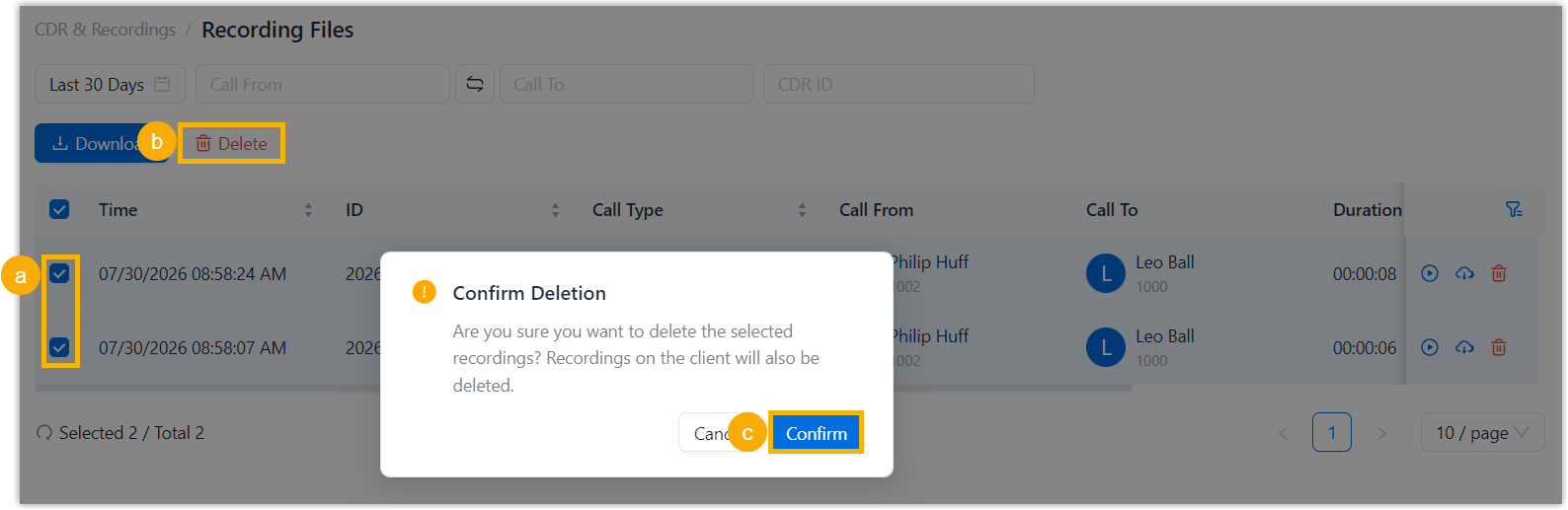
Recording files are permanently deleted and can no longer be accessed from the Tenant Portal or NovoOne clients.