Set up a Queue
This topic describes how to create and configure a call queue.
Prerequisites
- Join Announcement: Greet callers when they enter the queue.
- Music on Wait: Play background music to callers while they wait to be connected to an agent.
- Periodic Announcement: Provide periodic updates to callers while they wait, such as their position in the queue.
- Connection Prompt: Inform callers when the call is connected to an agent.
- Music on Hold: Keep callers engaged when they are on hold or waiting for transfer.
For more information, see Add a Custom Prompt and Add a MoH Playlist.
Procedure
- Log in to NovoOne Tenant portal, go to Call Features > Queue.
- At the top of the list, click Add.
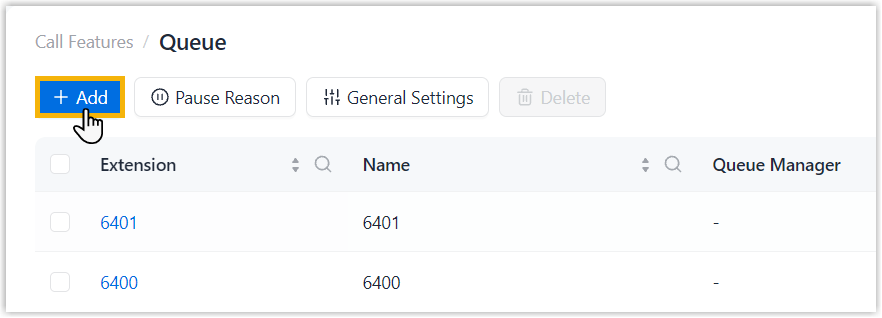
- In the Basic tab, configure the basic settings.
- General Settings
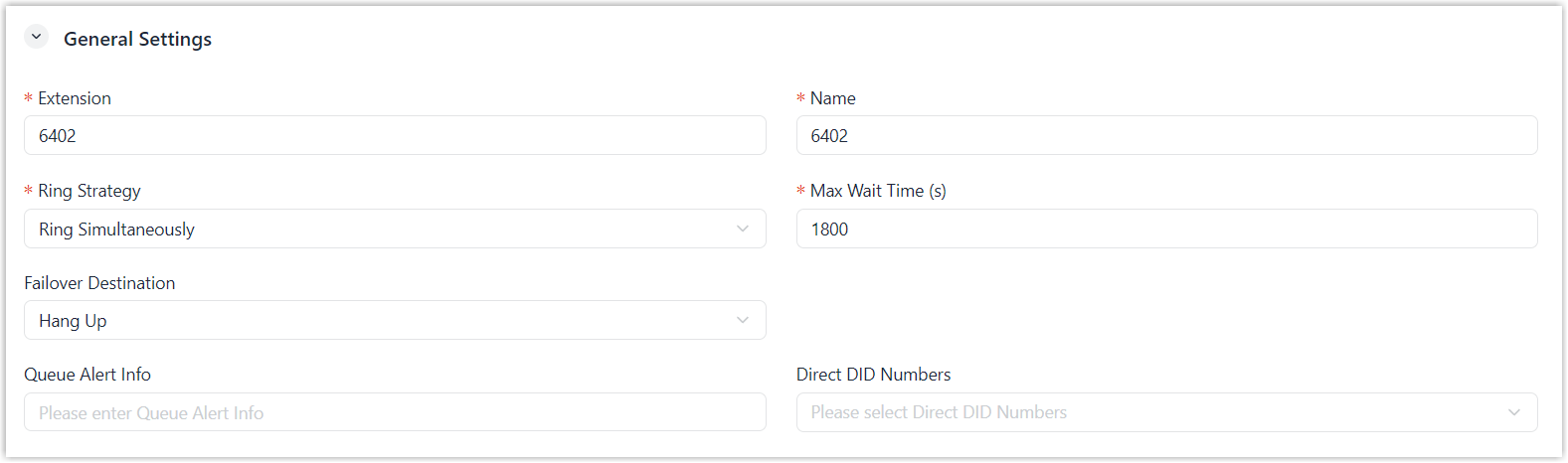
-
Setting Description Extension By default, the system assigns the first available virtual number from the default Queue extension range (6400 - 6499, which is defined in System > Preferences > Default Number Range > Queue) for callers to reach the queue.
You can change the Queue extension to a number within or outside the configured range.
Name Enter a name to help identify the queue. Ring Strategy Select a ring strategy to distribute calls to agents. - Ring Simultaneously: Ring all available agents simultaneously until someone answers.
- Longest Idle First: Ring the available agent who has been idle the longest.
- Fewest Calls: Ring the available agent who has handled the fewest calls.
- Random: Ring agents randomly.
- Rrmemory: Round robin
with memory.
- Queue with static agents only: The system remembers the last agent it tried and rings the next agent in the static agents list.
- Queue with dynamic agents only: The system remembers the last agent it tried and rings the next agent in the order that dynamic agents have logged in.
- Queue with both static agents and dynamic
agents: The system remembers the last agent it
tried and rings the next agent in the static
agents list.
If no static agent is available, the system rings dynamic agents in the order that they logged in.
- Linear: Ring available
agents in fixed order based on the type of agents
in the queue.
- Queue with static agents only: The system rings available agents in the order specified in the agents list.
- Queue with dynamic agents only: The system rings available agents in the order that agents have logged in.
- Queue with both static agents and dynamic agents: The system rings available agents in the order that agents have logged in.
Max Wait Time (s) Set the maximum time (in seconds) that a caller can wait in the queue. When the limit is reached, the system routes the call to the Failover Destination.
Failover Destination Select a destination to route the queue call when the maximum wait time is reached. - Hang Up
- User
- User Voicemail
- IVR
- Ring Group
- Queue
- External Number
- Play Prompt then Hang Up
Queue Alert Info Enter the alert-info text to be added to the Alert-Info header of INVITE requests for queue calls. Note:- Only letters, numbers,
_, and-are allowed. - This setting applies only to IP phones. To
distinguish queue calls using different ringtones,
configure distinctive ringtones on IP phones based
on the alert-info text.
For more information, see Set Specific Ringtones for a Provisioned IP Phone.
Direct DID Numbers Select DID number(s) associated with the queue. When callers dial the DID number, the call is routed to the queue.
- Time-Based Routing
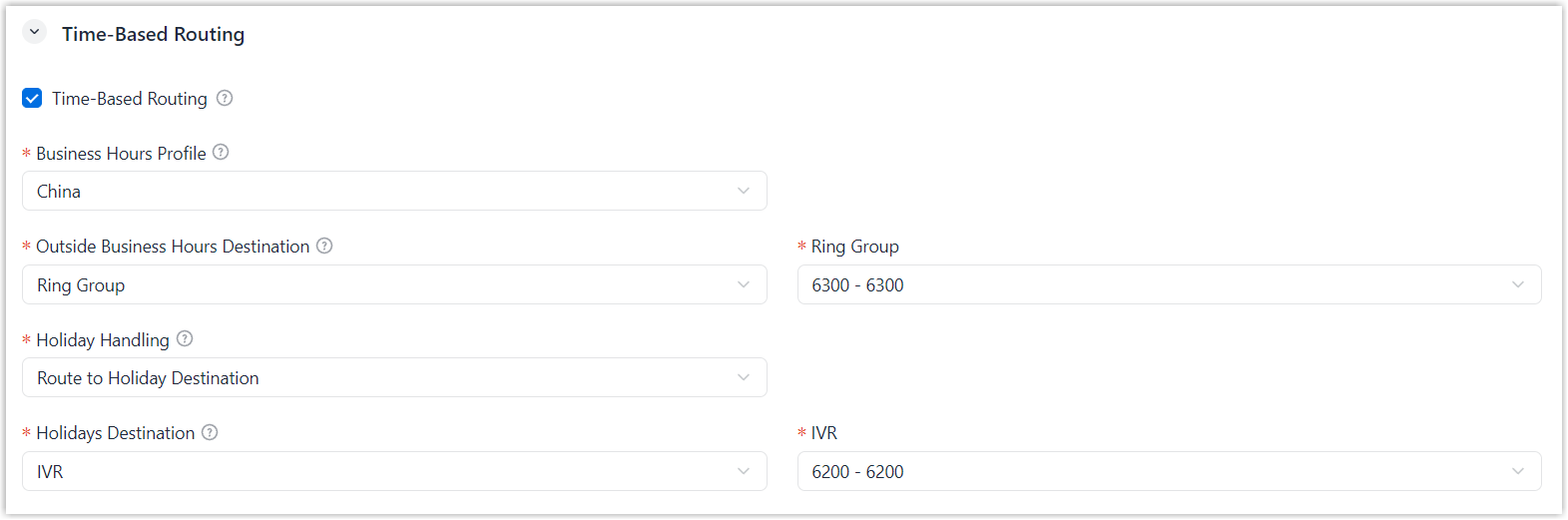
-
Setting Description Time-Based Routing To route queue calls to different destinations based on business hours, enable this option and configure the following settings. - Business Hours Profile: Select a business hours profile that defines the business hours.
- Outside Business Hours Destination: Select the destination for queue calls received outside business hours.
- Holiday Handling:
Specify the routing strategy for queue calls
received during holidays.
- Route to Holiday
Destination: Route queue calls during
holidays to a specific destination.
If selected, choose a destination from Holidays Destination drop-down list.
- Ignore Holiday: Ignore holidays and route calls based on business hours setting.
- Route to Holiday
Destination: Route queue calls during
holidays to a specific destination.
- Agent Options
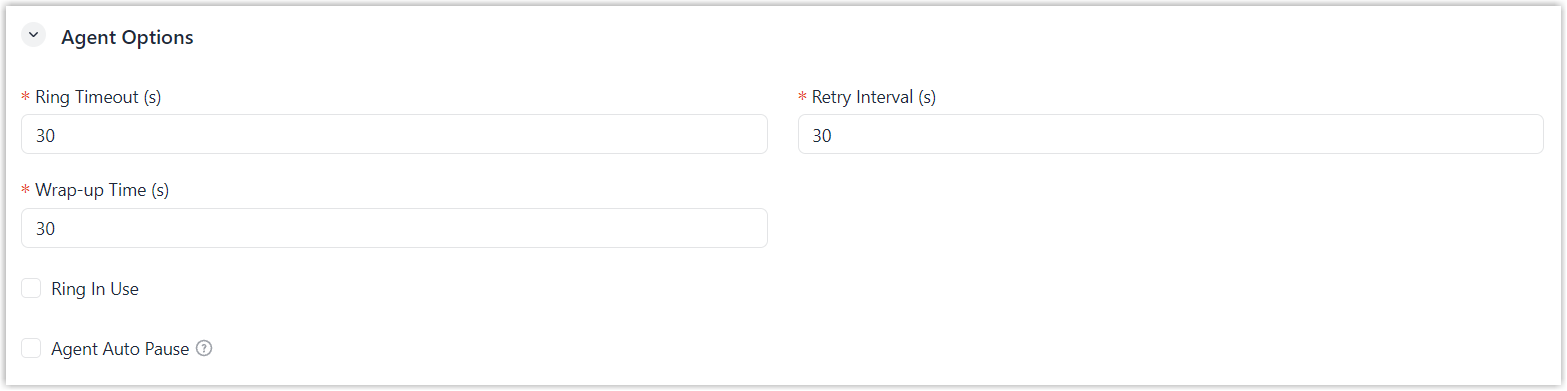
-
Setting Description Ring Timeout (s) Set the time (in seconds) that an agent's phone will ring. You can select an option from the drop-down list, or enter a value between 5 and 300. When the ring timeout is reached, the system rings the next agent according to the ring strategy.
Note: If set to 0, the system continuously rings the agent(s) until the queue's maximum wait time is reached.Retry Interval (s) Set the time (in seconds) to wait before ringing the next available agent. Note: If set to 0, the system rings the next available agent immediately after the previous agent times out.Wrap-up Time (s) Set the time (in seconds) allowed for agents to complete post-call processing. When the time is reached, the system can continue distributing calls to agents according to the ring strategy.
Note: If set to 0, agents do NOT have wrap-up time and may receive calls immediately.Ring In Use Set whether to ring an in-call agent when there are incoming calls in the queue. Agent Auto Pause Note: If the Ring Strategy is set to Ring Simultaneously, this feature does NOT take effect.Set whether to automatically pause agents when the number of consecutive missed queue calls reaches a specified threshold.
If enabled, you need to select a threshold from the Max Threshold for Missed Calls drop-down list. When the threshold is reached, the system automatically pauses agents without assigning a pause reason.
- Prompt
-
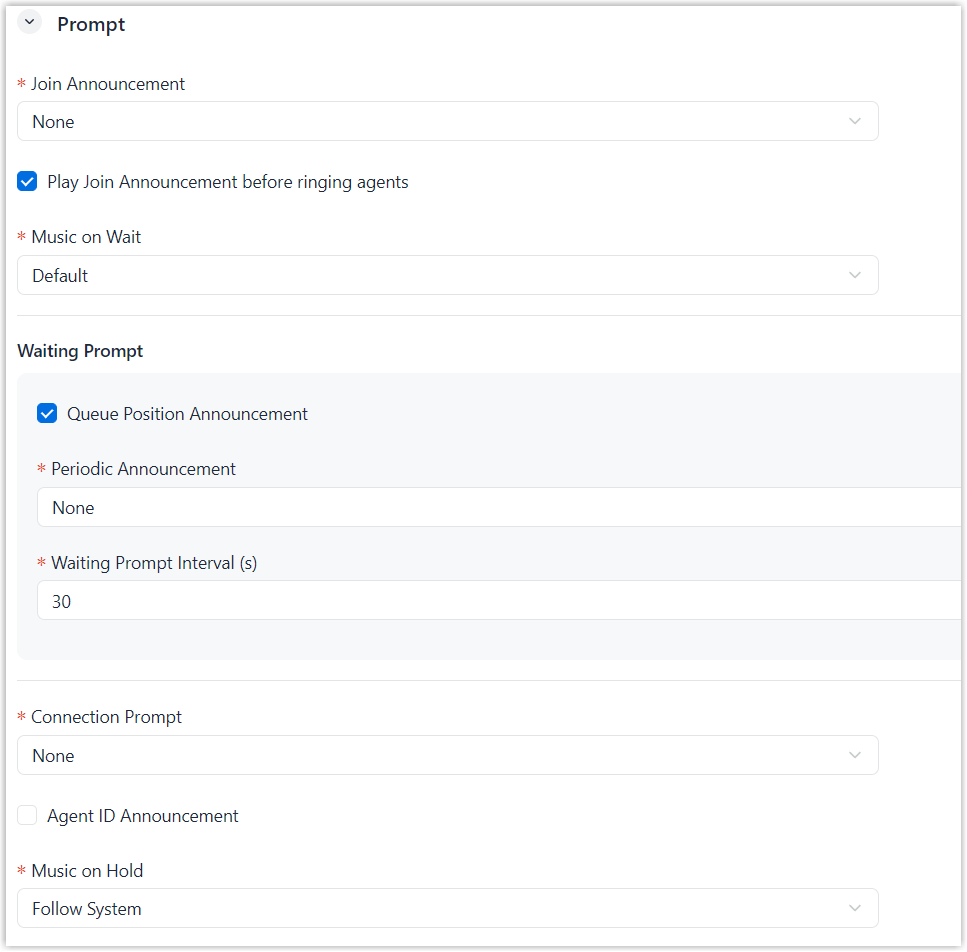
Setting Description Join Announcement Set the prompt played to callers when they join the queue. Note: Available prompts are synchronized from System > Voice Prompt > Custom Prompt. You can select from existing prompts, or click Create New to add a new custom prompt.For more information, see Add a Custom Prompt.
Play Join Announcement before ringing agents Set whether to play the entire join announcement before ringing agents.- If enabled, the system starts ringing agents after the join announcement is played.
- If disabled, the system starts ringing agents while the join announcement is being played.
Music on Wait Specify the music played to callers while waiting to be connected to an agent. Note: Available music is synchronized from System > Voice Prompt > Music on Hold. You can select from existing music, or choose one of the following options.- Create New: Add a new Music on Hold playlist.
- Default: Play the default Music on Hold playlist (the playlist named Default in System > Voice Prompt > Music on Hold).
(Waiting Prompt) Queue Position Announcement Set whether to announce the caller's position in the queue. If enabled, the system plays different prompts based on the caller's position in the queue:- First caller in line: "Your call is now first in line and will be answered by the next available representative. Thank you for your patience."
- Second or later in line: "You are currently caller number number. Waiting to speak with a representative. Thank you for your patience."
(Waiting Prompt) Periodic Announcement Set the prompt played periodically to callers after they enter the queue and before agents answer the calls. Note: Available prompts are synchronized from System > Voice Prompt > Custom Prompt. You can select from existing prompts, or click Create New to add a new custom prompt.For more information, see Add a Custom Prompt.
(Waiting Prompt) Waiting Prompt Interval (s) Set the time interval for playing periodic announcements. Connection Prompt Set the prompt played to callers when the call is connected to an agent. Note: Available prompts are synchronized from System > Voice Prompt > Custom Prompt. You can select from existing prompts, or click Create New to add a new custom prompt.For more information, see Add a Custom Prompt.
Agent ID Announcement Set whether to play an announcement to both caller and agent, indicating the agent's extension number when the call is answered. If enabled, the system plays the prompt "{agent's_extension_number} will be connected, please wait.".
Music on Hold Specify the music that will be played to callers when the call is on hold or waiting for transfer. Note: Available music is synchronized from System > Voice Prompt > Music on Hold. You can select from existing music, or choose one of the following options.- Create New: Add a new Music on Hold playlist.
- Default: Play the default Music on Hold playlist (the playlist named Default in System > Voice Prompt > Music on Hold).
- Custom Prompt Language
-
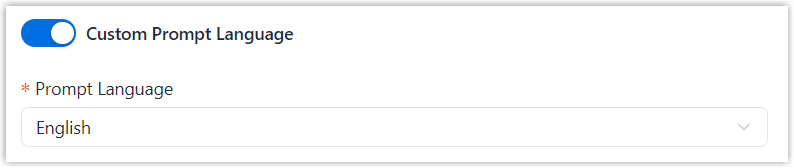
Setting Description Custom Prompt Language Override the system-level prompt language to play default queue announcements in a different language.
- If enabled, you need to select a language from
the Prompt Language
drop-down list.
Default queue announcements will be played in the selected language.
Note: Available languages are synchronized from System > Voice Prompt > System Prompt. - If disabled, default queue announcement will be played in default system language (configured in System > Voice Prompt > System Prompt).
- If enabled, you need to select a language from
the Prompt Language
drop-down list.
- In the Members tab, configure agents and managers for
the queue.
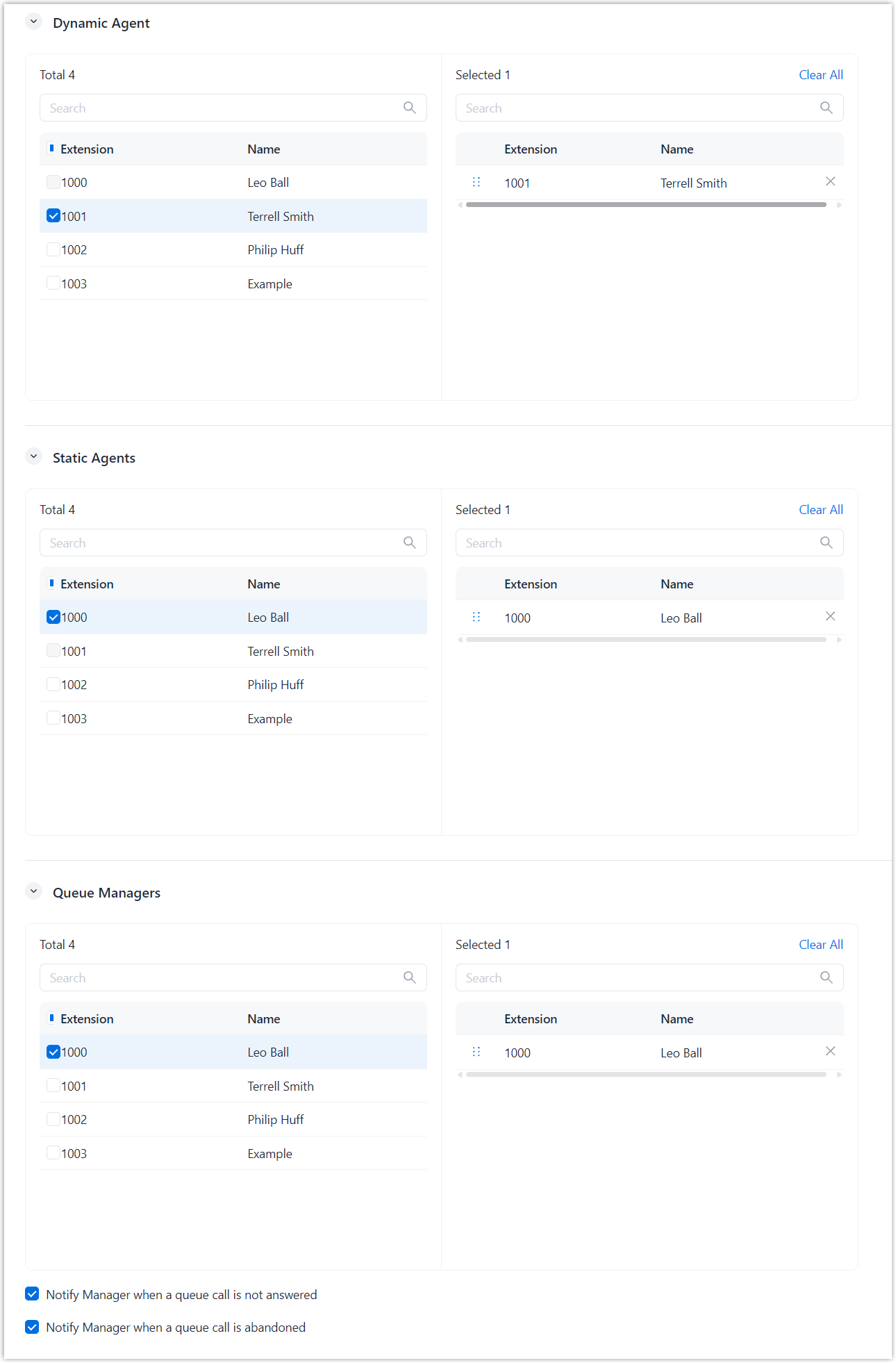
- In the Dynamic Agent section, select member
extensions.
These dynamic agents are not fixed members, and can log in to or log out of the queue at any time.
Note: By default, dynamic agents are in logout status when they are added to the queue, and must manually log in before handling calls. If needed, you can change the default status to login. For more information, see Set Default Status for Dynamic Agents. - In the Static Agents section, select member
extensions.
These static agents are fixed members, and will receive queue calls once added, as long as their extensions are registered on endpoints.
- In the Queue Managers section, select manager
extensions and configure the following notifications settings.
- Notify Manager when a queue call is not answered: If enabled, the system sends notifications to queue manager when a queue call is not answered.
- Notify Manager when a queue call is abandoned: If enabled, the system sends notifications to queue manager when a queue call is abandoned.
These queue managers are authorized to manager the queue and agents, but do NOT receive queue calls.
- In the Dynamic Agent section, select member
extensions.
- In the Preferences tab, configure the following
settings.
- Waiting Rules
-
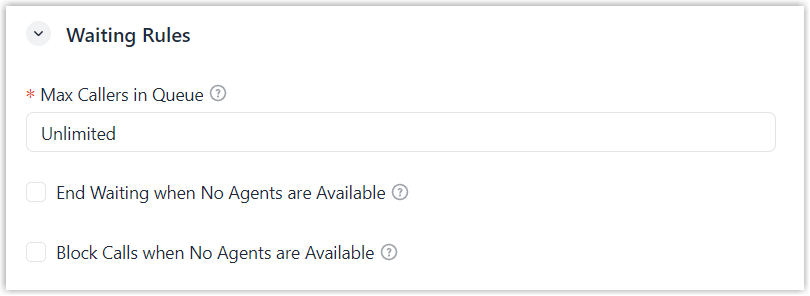
Setting Description Max Callers in Queue Set the maximum number of callers allowed to wait in the queue. Note: When the number of callers waiting in queue reaches the limit, new incoming calls are routed to the failover destination.End Waiting when No Agents are Available Set whether to route callers already waiting in the queue to the failover destination when no agents are available.
If enabled, you can configure conditions for "No Available Agents" scenario in the No Available Agents Condition field.- Offline: The extension is offline across all endpoints.
- Pause: The agent is in pause status.
- Ring/Busy: The agent is
ringing, on a call, or in wrap-up state for
post-call processing.Note: If Ring in Use is enabled, it takes precedence and the agents in ring/busy state are considered available.
- DND: The agent is in Do
Not Disturb (DND) status.Note: This applies only to DND enabled only on NovoOne clients. DND enabled on other devices (such as IP phones or softphones) is ignored.
Block Calls when No Agents are Available Set whether to route new incoming calls to the failover destination when no agents are available.
If enabled, you can configure the conditions for "No Available Agents" scenario in the No Available Agents Condition field.
- Offline: The extension is offline across all endpoints.
- Pause: The agent is in pause status.
- Ring/Busy: The agent is
ringing, on a call, or in wrap-up state for
post-call processing.Note: If Ring in Use is enabled, it takes precedence and the agents in ring/busy state are considered available.
- DND: The agent is in Do
Not Disturb (DND) status.Note: This applies only to DND enabled only on NovoOne clients. DND enabled on other devices (such as IP phones or softphones) is ignored.
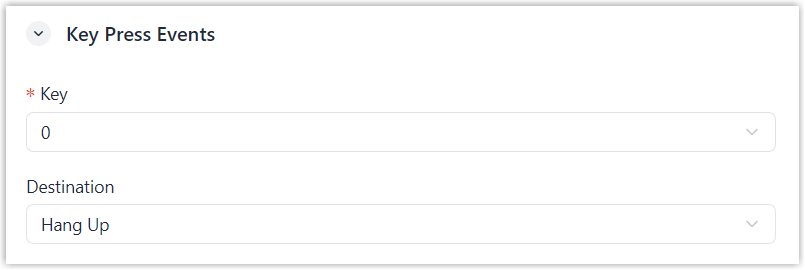
- Key Press Events
-
Setting Description Key Select a digit that callers can press to reach a specific destination.
Destination Select a destination to route the call when the caller presses a specific key. - Hang Up
- User
- Voicemail
- IVR
- Ring Group
- Queue
- External Number
- Play Prompt then Hang
UpNote: Available prompts are synchronized from System > Voice Prompt > Custom Prompt. You can select from existing prompts, or click Create New to add a new custom prompt.
For more information, see Add a Custom Prompt.
- Click Save.
Result
The queue is created.