Add a MoH Playlist
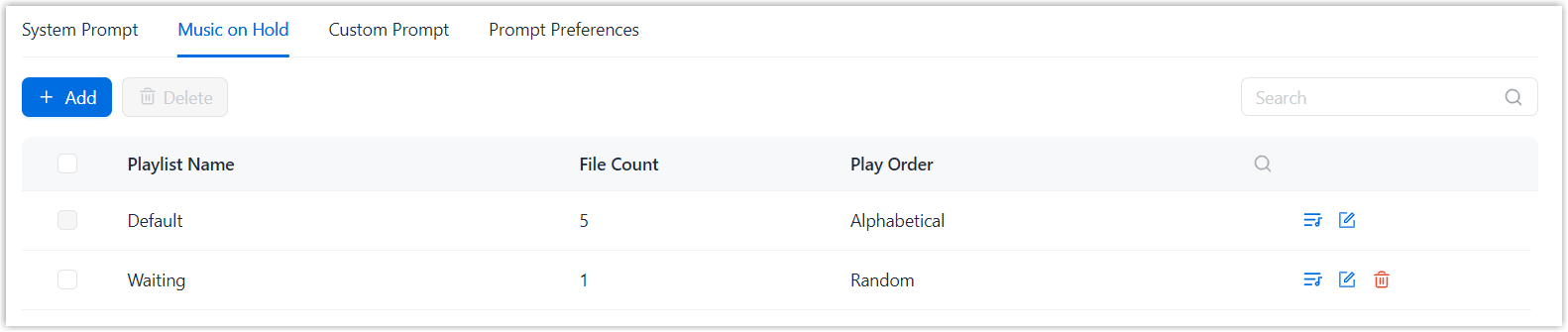
Music on Hold (MoH) keeps callers informed that their calls are still connected while they are waiting. NovoOne provides a default playlist with built-in audio files, you can also create custom playlists with your own audio files.
Introduction
MoH playlists can be applied to queues, ring groups, and other call scenarios where callers are waiting or placed on hold. NovoOne provides a built-in MoH playlist with up to five audio files, which are played in alphabetical order. You can play or download the audio files in the built-in playlist, but can not modify or delete them.
To use custom audio files, you can create custom MoH playlists with uploaded or recorded audio files.
Limitation
| Item | Limitation |
|---|---|
| Max. MoH playlists | 16 |
| Max. audio files per MoH playlist | 8 |
Procedure
- Log in to NovoOne Tenant portal, go to .
- In the Music on Hold tab, click Add.
- Add a MoH playlist.
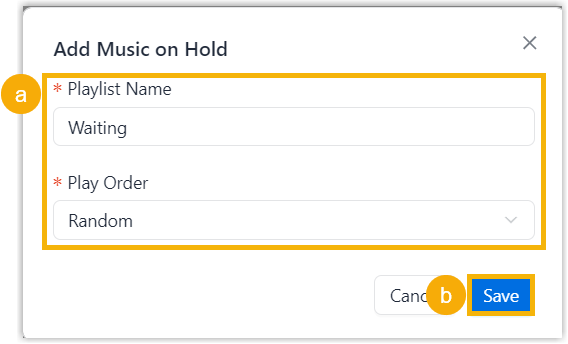
- Fill in the playlist information.
Item Description Playlist Name Enter a name to help identify the playlist. Play Order Set whether audio files are played in alphabetical or random order. - Random
- Alphabetical
- Click Save.
- Fill in the playlist information.
- Add audio files to the MoH playlist.
- Click Add.
- Add audio files to the playlist.
Method Instruction Upload audio file If you already have an audio file, you can upload it as a custom prompt.
Note: Make sure the audio file meets the following requirements:- File format:
.wavor.mp3- PCM, 8 kHz, 16-bit, 128 kbps
- A-law (G.711), 8 kHz, 8-bit, 64 kbps
- μ-law (G.711), 8 kHz, 8-bit, 64 kbps
-
File size: Less than 8MB
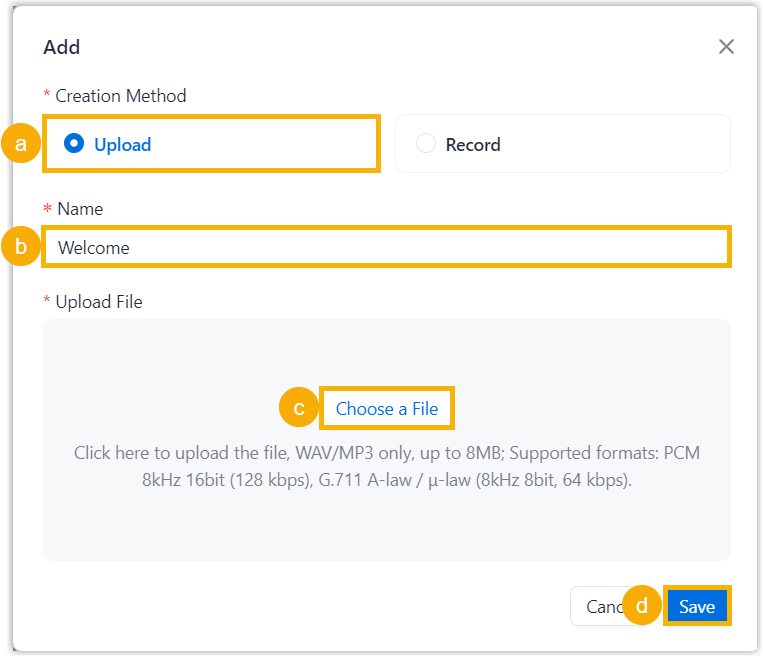
- In the Creation Method section, select Upload.
- In the
Name field, enter a name to
help identify the audio file.Note: If you want to use the audio filename, leave the field blank. The filename is automatically used after the file is uploaded.
- In the Upload File section, click Choose a File to select an audio file.
- Click Save.
Record audio If you want to create a new audio file, you can record it using a user extension.
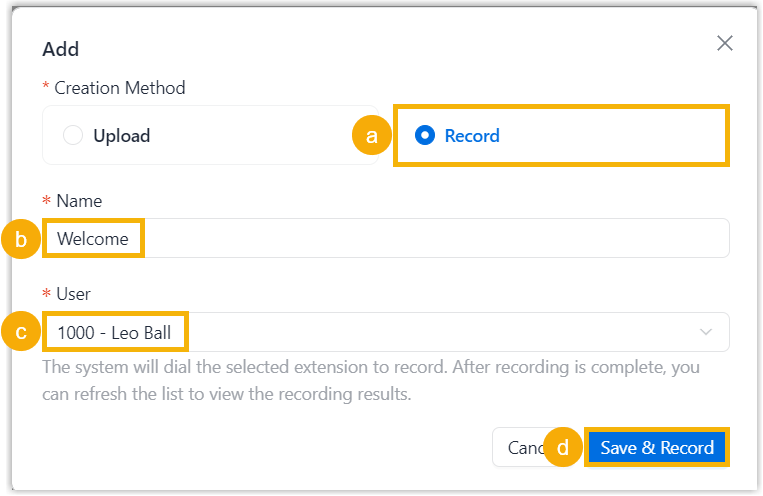
- In the Creation Method section, select Record.
- In the Name field, enter a name to help identify the audio file.
- In the User drop-down list, select a user extension.
- Click Save &
Record.
The system calls the selected user extension and plays the prompt "Please start recording your prompt after the tone. When done, hang up, or press the pound key." after the user answers the call.
The user can then record the audio. After the user hangs up, the recorded audio is saved in
.wavformat and displayed in the list.
- File format:
- Close the window.
Result
The custom MoH playlist is created and displayed in the list.