Configure Codec for User Extensions
Codecs determine the audio quality in Voice over Internet Protocol (VoIP) calls. This topic describes how to configure codecs for user extensions.
Introduction
NovoOne supports to configure codecs for user extensions and trunks separately, allowing different codec strategies for different call scenarios to improve call quality.
The following table lists the codec settings available for user extensions under different call scenarios.
| Type | Description |
|---|---|
| Audio Codecs | Codecs used for audio calls. |
| Audio Codecs (Wi-Fi) | Codecs used for audio calls over Wi-Fi via NovoOne Mobile Client. |
| Audio Codecs (Cellular) | Codecs used for audio calls over cellular network via NovoOne Mobile Client. |
Calls made or received via SIP phones and NovoOne Mobile Client follow the codec priority order configured in the codec list, while NovoOne Web Client uses WebRTC-based codec negotiation with the configured codecs as candidates for SDP negotiation with the browser.
Procedure
- Log in to NovoOne Tenant portal, go to .
- Add codec(s) for each codec type.
- In the desired codec type section, select the checkbox(es) of the
desired codecs.
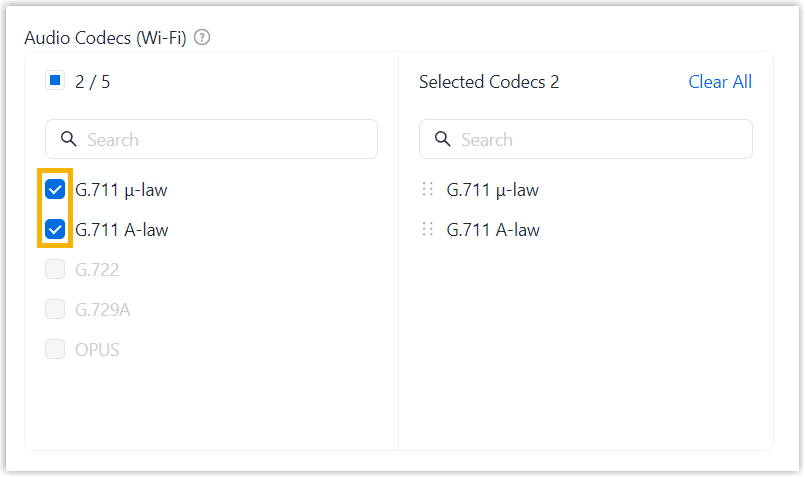 Note:
Note:- At least one audio codec supported by WebRTC must be enabled to ensure the communication for the browser-based NovoOne Web Client, such as OPUS, G.711 μ-law, or G.711 A-law. Avoid selecting G.729A as the only enabled audio codec, as web browsers generally do not support it, which may cause the Web Client to fail to establish calls and return a SIP 488 response.
- You can adjust codec priority by clicking and
dragging
 beside codec
to the desired position.
beside codec
to the desired position.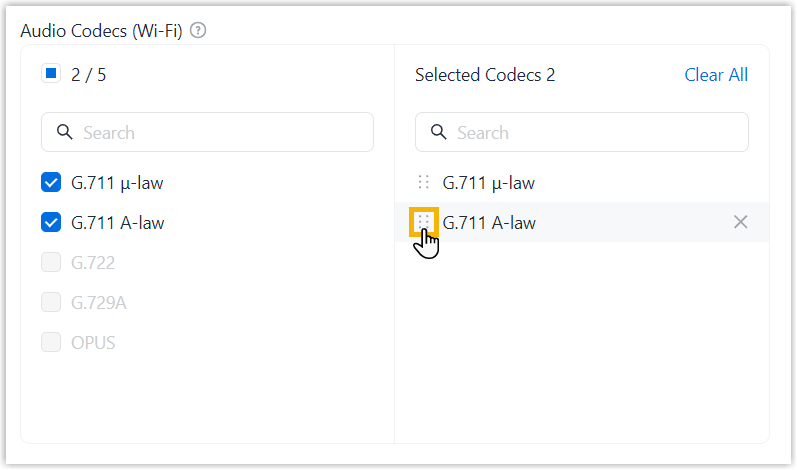
- For Audio Codecs (Wi-Fi) and
Audio Codecs (Cellular),
available codec options are inherited from
Audio Codecs. If a codec is
unavailable, enable it in Audio
Codecs.
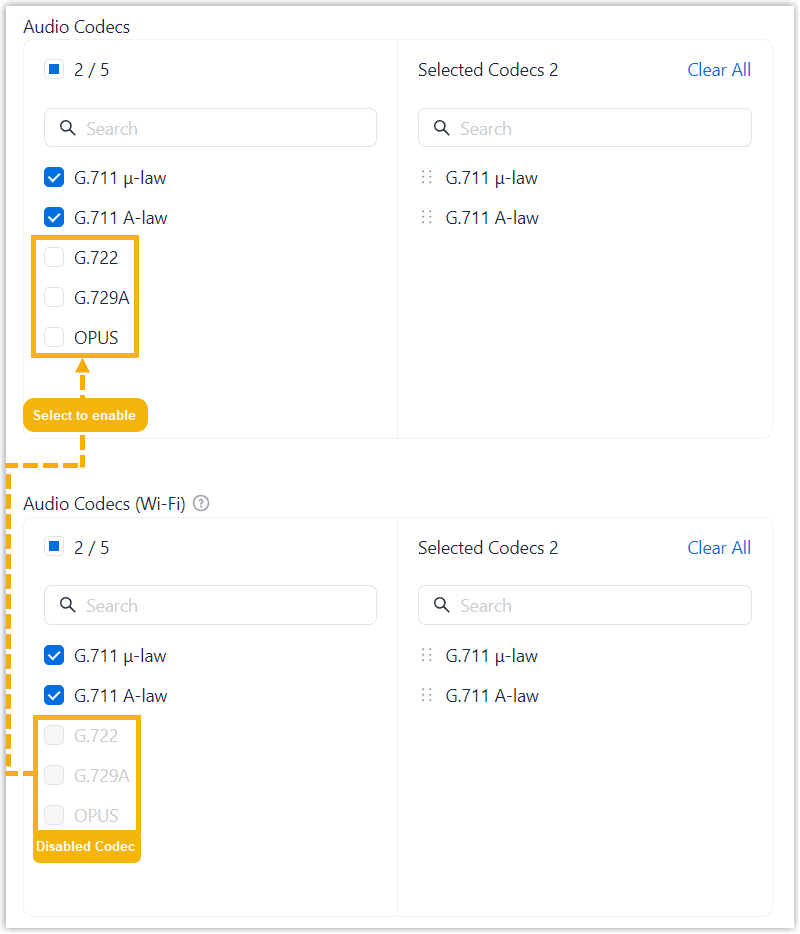
- Click Save.
- In the desired codec type section, select the checkbox(es) of the
desired codecs.
Result
The codecs are applied to newly established calls based on the configured priority order.